Basic virtual whiteboard tools: where to start
Whiteboard
Team
2 min read
April 29, 2025
A virtual whiteboard is a versatile tool for collaboration, planning, visualizing ideas and running meetings. To use its capabilities effectively, it is important to master the basic tools. This will help you not only find your way around the board with confidence but also boost the productivity of the whole team.
Why you should know the basic tools
For new users, knowing the basics is the key to working comfortably and quickly. The better you understand how to use the core features, the less time you spend looking for the right button and fixing mistakes. In addition, knowing the basic tools lowers the barrier to joining teamwork and makes it easier for new members to settle in.
What to learn first
When you first get to know a virtual whiteboard, it's best to focus on the basic elements:
creating and editing objects;
moving and aligning elements;
basic board navigation;
zooming and panning the canvas;
using text and sticky notes.
These features cover 80% of everyday tasks and help you feel confident in any use case.
Overview of the main virtual whiteboard tools
Almost any online whiteboard has a similar set of basic features:
Selection tool (cursor) — lets you select, move and edit elements.
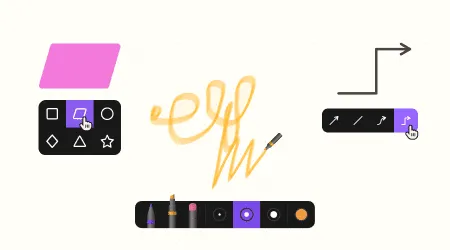
Pen/marker — used for freehand drawing, highlighting, arrows and other graphic marks.
Shapes — add standard geometric shapes: circles, squares, lines.
Text — for creating headings, captions, explanations and comments.
Sticky notes — virtual notes often used for ideas, tasks and discussions.
File upload — insert images, documents and other files right onto the board.
Magnifier or zoom — change the view scale to navigate large projects.
Each of these tools is intuitive, but together they offer a wide range of options for organizing space and visualizing information.
Additional basic features
Beyond the tools themselves, new users should pay attention to the following basic capabilities:
Grouping objects — combining elements for easier management.
Copying and duplicating — saves time on repetitive actions.
Snap to grid — helps create a neat, logical structure.
Locking objects — protects elements from being accidentally moved or deleted.
These features ensure precision and order on the board, especially when working as a team.
Where to find built-in tips
Most modern online whiteboards, such as flip, offer built-in tips to help beginners get up to speed faster:
tooltips with explanations when you hover over an element;
tutorial pop-ups when you first log in;
a help section describing all the tools;
video tutorials and templates on the start page.
If anything is unclear, you can always check the built-in help or click the “?” icon.
Knowing the basic tools of a virtual whiteboard is the first step toward effective collaboration. Once you've mastered simple actions such as adding text, working with shapes, zooming and using sticky notes, you'll be able to quickly create structured projects, run online meetings and manage visual materials without unnecessary fuss. Start small, and your board will become a powerful tool for work and learning.
Authors

flip
Team