Keyboard shortcuts for working with a virtual whiteboard: simple and effective
Whiteboard
Team
2 min read
April 26, 2025
Collaborating on virtual whiteboards requires speed, precision and minimal distraction from the content. This is where keyboard shortcuts come in handy, letting you control the board without unnecessary clicks. They are especially effective when processing large amounts of data, switching between tools and simplifying everyday actions.
What are keyboard shortcuts?
Keyboard shortcuts are combinations of keys that perform a specific action when pressed together: copying, pasting, moving objects, selecting tools and so on. These combinations let you do things faster than with a mouse or the toolbar.
Why are keyboard shortcuts important for virtual whiteboards?
When working on a virtual whiteboard, especially during an active session with your team, it's important not to get distracted by menus and searching for features. Keyboard shortcuts let you:
save time on repetitive actions;
reduce errors related to navigation;
focus on content rather than the interface;
work more comfortably, especially when time is limited.
This is especially useful for facilitators, teachers and team leads who need to manage the board's structure quickly.
Benefits of using keyboard shortcuts
Using keyboard shortcuts when working with online whiteboards has many benefits:
Speed — actions are performed 2–3 times faster than through the interface.
Ergonomics — less strain on your wrists and eyes.
Focus — users are less distracted by looking for the right button.
Professionalism — working with the board becomes precise and well-calibrated.
For active users who work with a board every day, this isn't just an add-on: it's a tool for boosting productivity.
Basic keyboard shortcuts
Below are universal basic shortcuts that work in most popular virtual whiteboards (for example, flip, Miro, Mural):
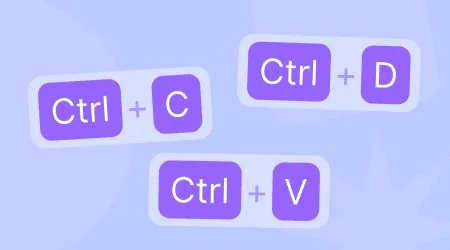
Ctrl + C / Cmd + C — copy the selected object.
Ctrl + V / Cmd + V — paste an object.
Ctrl + Z / Cmd + Z — undo the last action.
Ctrl + Y / Cmd + Shift + Z — redo an action.
Delete — delete the selected element.
Ctrl + D / Cmd + D — duplicate an object.
Ctrl + A / Cmd + A — select all objects in a frame.
Ctrl + G / Cmd + G — group elements.
Ctrl + Shift + G — ungroup elements.
Arrow keys — move objects along the grid.
Ctrl + 1/2/3… — switch between tools (selection, drawing, text).
Using these shortcuts speeds up routine actions and makes navigating the board more intuitive.
To memorize the keys faster, use the built-in tips or download a cheat sheet from the platform's official website. Some boards let you customize keyboard shortcuts, which is an extra plus for personalization.
Keyboard shortcuts are more than just a convenient add-on. They are an essential part of working effectively with an online whiteboard. By mastering the basic combinations, users complete tasks faster, make fewer mistakes and work more comfortably overall. Gradually memorizing the keys turns working with the board into an intuitive and enjoyable process.
If you're just getting started, begin with the 5–6 keys you use most often. Over time, you won't even notice how your command of the tool improves. It's an investment in efficiency that pays off from day one.
Authors

flip
Team