How to make an online whiteboard convenient for everyone
Whiteboard
Team
2 min read
April 25, 2025
Online whiteboards are a powerful tool for collaboration. But to be truly effective, a board needs to be convenient for all participants, both beginners and experienced users. Convenience isn't just about the interface: it's also about the logic of interaction, accessibility and a clear structure.
What a “convenient board” means for collaboration
Planning before you start
Simple, logical navigation
A clear visual structure
Adapting to users of different levels
Access and member management
What a “convenient board” means for collaboration
A convenient online whiteboard is a workspace where every participant easily finds the information they need, quickly gets their bearings and can interact with colleagues without confusion. The main characteristics of such a board are:
a clear structure and navigation;
a consistent visual style;
a logical arrangement of blocks;
configured access rights;
access from any device.
Planning before you start
Before creating a board, you need to clearly understand its purpose. Answer these questions:
What should be on the board?
Who will work with it?
What information needs to be displayed?
Is integration with other services needed?
Planning is the key to success. Without it, the board will quickly turn into a chaotic field where it's hard to find anything.
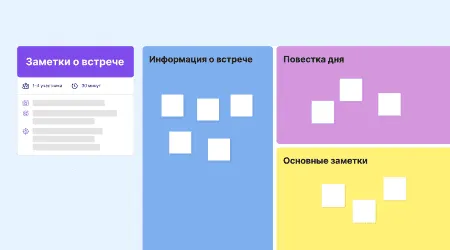
A clear visual structure
Good visualization is the key to convenience:
use consistent colors for different categories of data;
align elements to avoid visual noise;
add headings, borders and icons to highlight important blocks;
use a grid or frames to separate logical zones;
keep the number of different fonts and formats to a minimum.
Everything should be logical, neat and perceived the same way by all users.
Adapting to users of different levels
To make a board universal, you need to adapt it to different levels of experience:
for beginners — use tips, templates and instructions;
for experienced users — add quick actions, keyboard shortcuts and advanced features.
It's also worth providing training: short guides, instructions pinned to the board and videos on working with elements.
Access and member management
For collaboration to run smoothly, it's important to set up access correctly:
add members by role (editor, commenter, reader);
lock important elements against editing;
allow or restrict deleting and moving objects;
divide the board into zones: who works where;
monitor activity through built-in change logs.
This prevents editing conflicts and accidental mistakes.
Creating a convenient online whiteboard means making it simple, structured and accessible to everyone. The clearer the logic and visuals, the faster participants adapt and get down to productive work. Step-by-step planning, interface setup and good member management are the keys to successful collaborative projects in a digital environment.
Authors

flip
Team