Working with objects on an online whiteboard
Whiteboard
Team
2 min read
April 27, 2025
An online whiteboard is a powerful tool for visual collaboration. At its core are objects: sticky notes, text blocks, shapes, images and other elements. Knowing how to manage these objects effectively lets you create clear, tidy and productive spaces for teamwork.
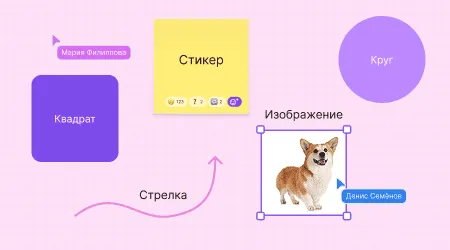
What objects are and why you need to know how to work with them
Objects are visual elements that users place on a board to display information. They help structure data, highlight what matters and interact with the team. The better the objects are organized, the easier the board is to read. Knowing how to manage them saves time and reduces the risk of mistakes.
How to add objects
In most modern boards, objects are added from the toolbar. You can:
pick a sticky note and jot down a short idea;
draw a shape — a circle, a rectangle or an arrow;
insert a text block for explanations;
upload an image, a screenshot or a logo.
Adding an object takes just a couple of clicks: choose the element type and click where you want it on the board. It's important to place objects logically from the very beginning: by section, by topic block, by color.
Editing objects
Once added, any element can be customized to suit your needs. As a rule, you can:
change the size and color;
edit the text;
choose the font and alignment;
add links or labels.
The simpler and clearer the design, the more effectively the team works together.
Moving and aligning
To avoid chaos, objects need to be arranged in an orderly way. Boards usually support:
moving objects freely around the canvas;
automatic alignment to a grid or guides;
snapping objects to each other.
This helps avoid visual noise and makes the structure clear. It's especially important when working on large boards with multiple users.
Grouping and layer order
If there are many elements on a board, it's convenient to group related objects. For example:
a set of sticky notes on one topic;
shapes and captions within a diagram;
text and an image designed as a single block.
Grouping lets you move and edit blocks as a single unit. Boards also support layer management: you can bring an object to the front or send it to the back, hide it or make it semi-transparent.
Tips for working with objects more easily
These simple recommendations will help make working with the board easier:
Use a consistent style — color, font, shape — to create visual logic.
Label groups and sections — this helps other participants find their way around quickly.
Use keyboard shortcuts (for example, Ctrl+C / Ctrl+V, Ctrl+Z) to speed up your work.
Create templates — they save time on repetitive tasks.
Tidy up periodically: delete outdated elements and clarify captions.
Working with objects skillfully is the key to a clean, readable and productive board. It helps the whole team work faster, avoid misunderstandings and reach goals without unnecessary fuss. Once you've mastered the basics of adding, editing and structuring elements, you'll quickly take your online whiteboard to a new level of efficiency.
Authors

flip
Team