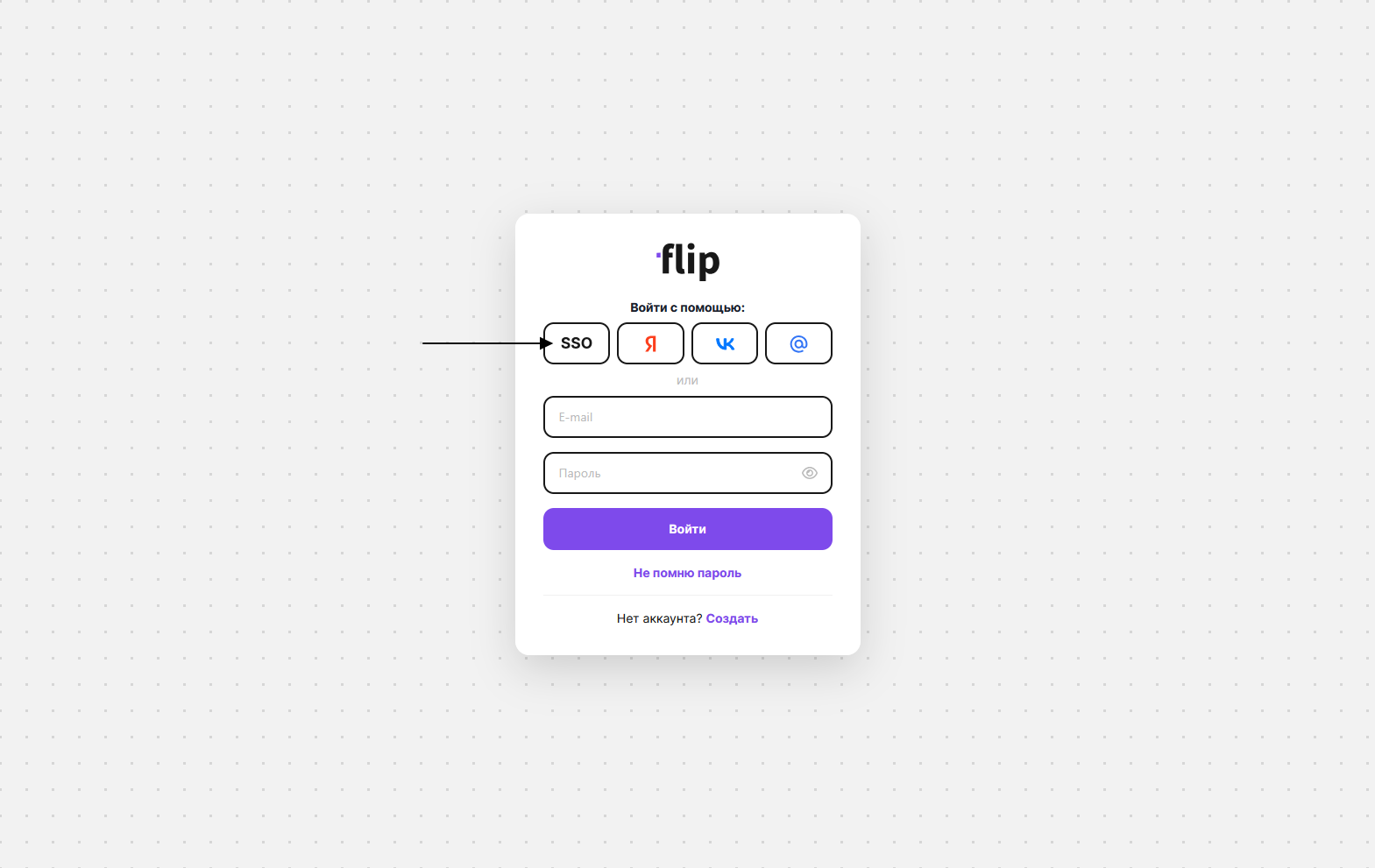
SSO setup
1. Sign in to the app
2. Go to your space settings
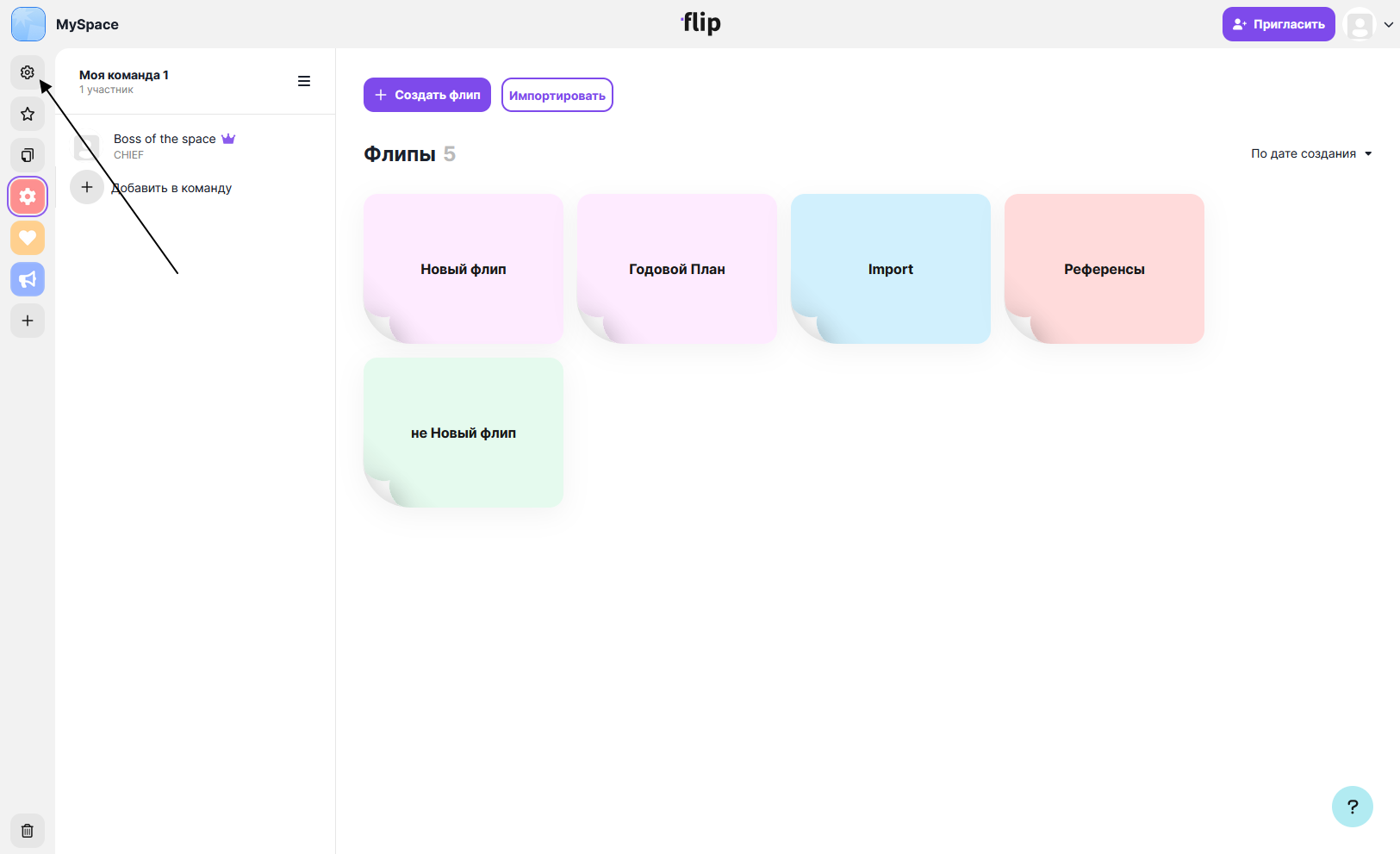
3. Open the "Domain management" tab
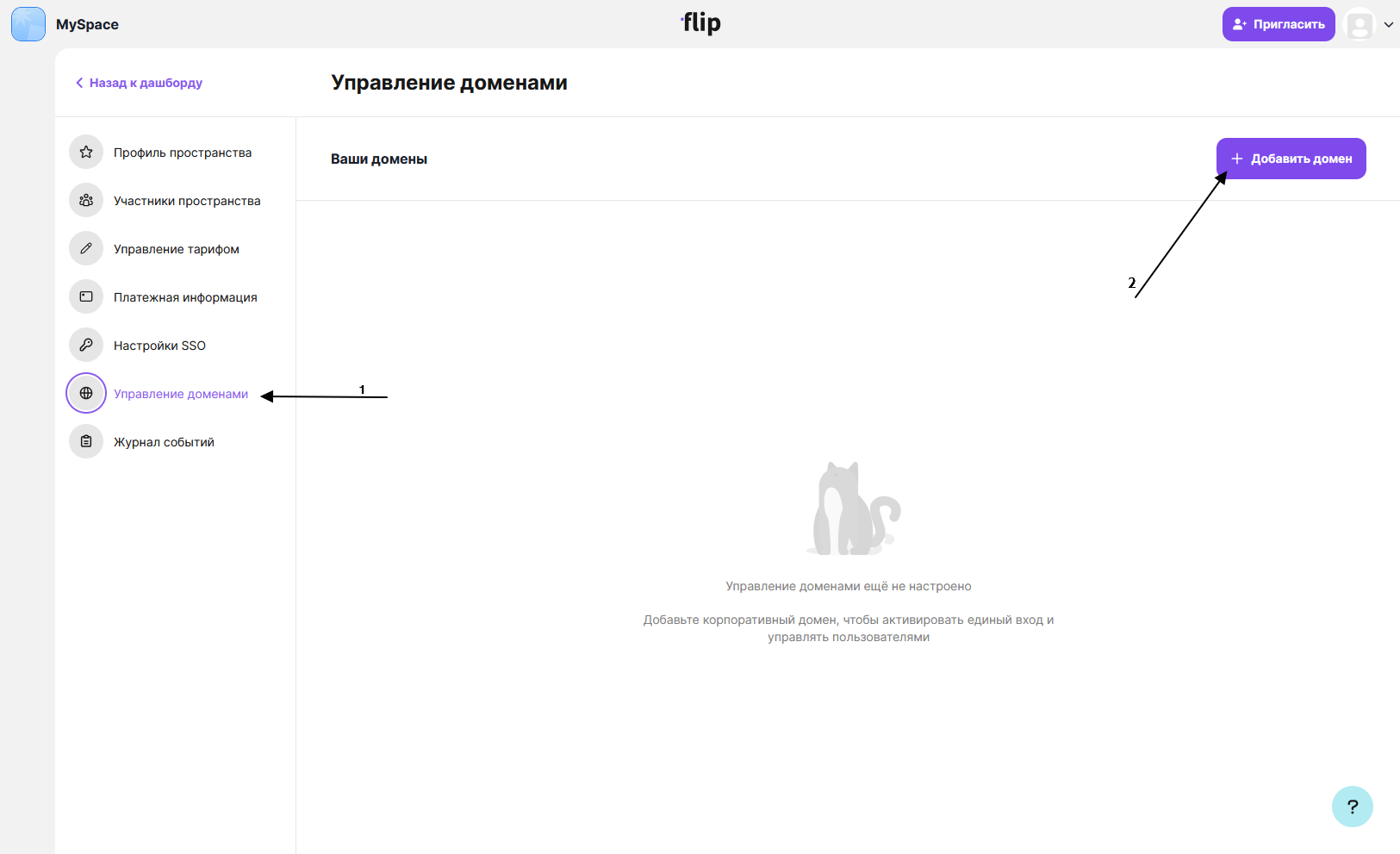
Click "Add domain".
4. Fill in the field to add a domain
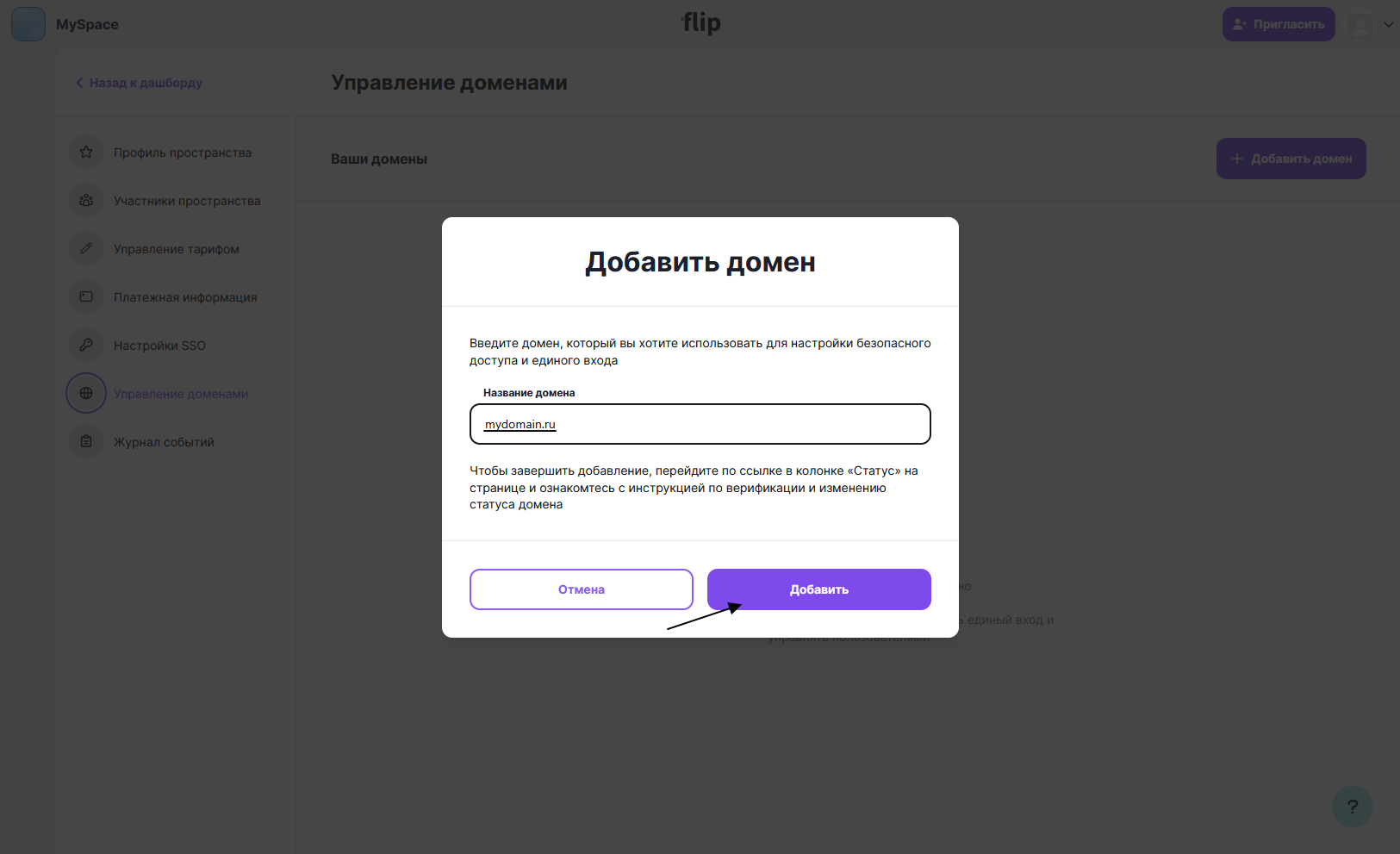
Click "Add".
5. Follow the instructions on the page to verify the domain
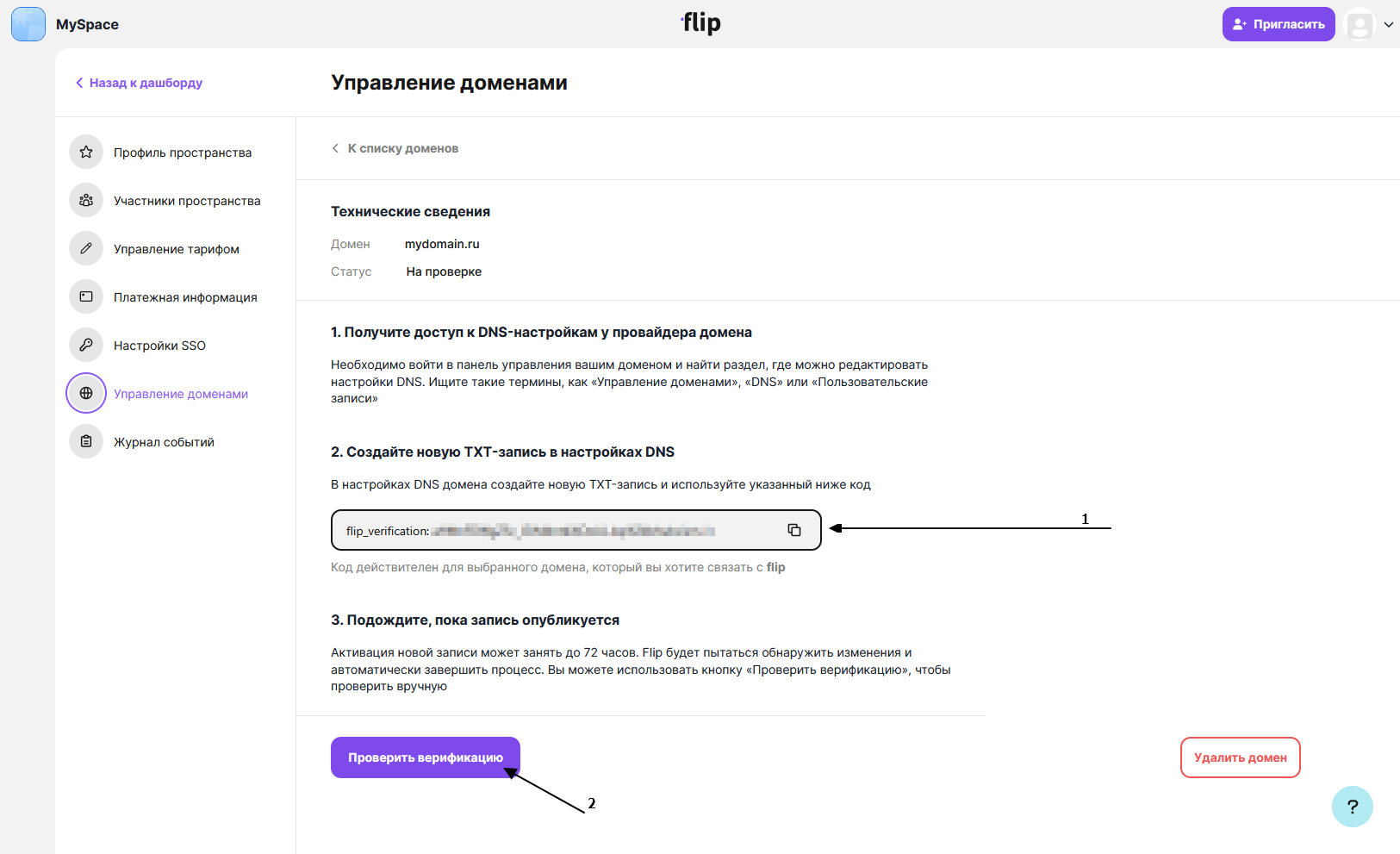
Once the domain is verified, move on to the next setup stage.
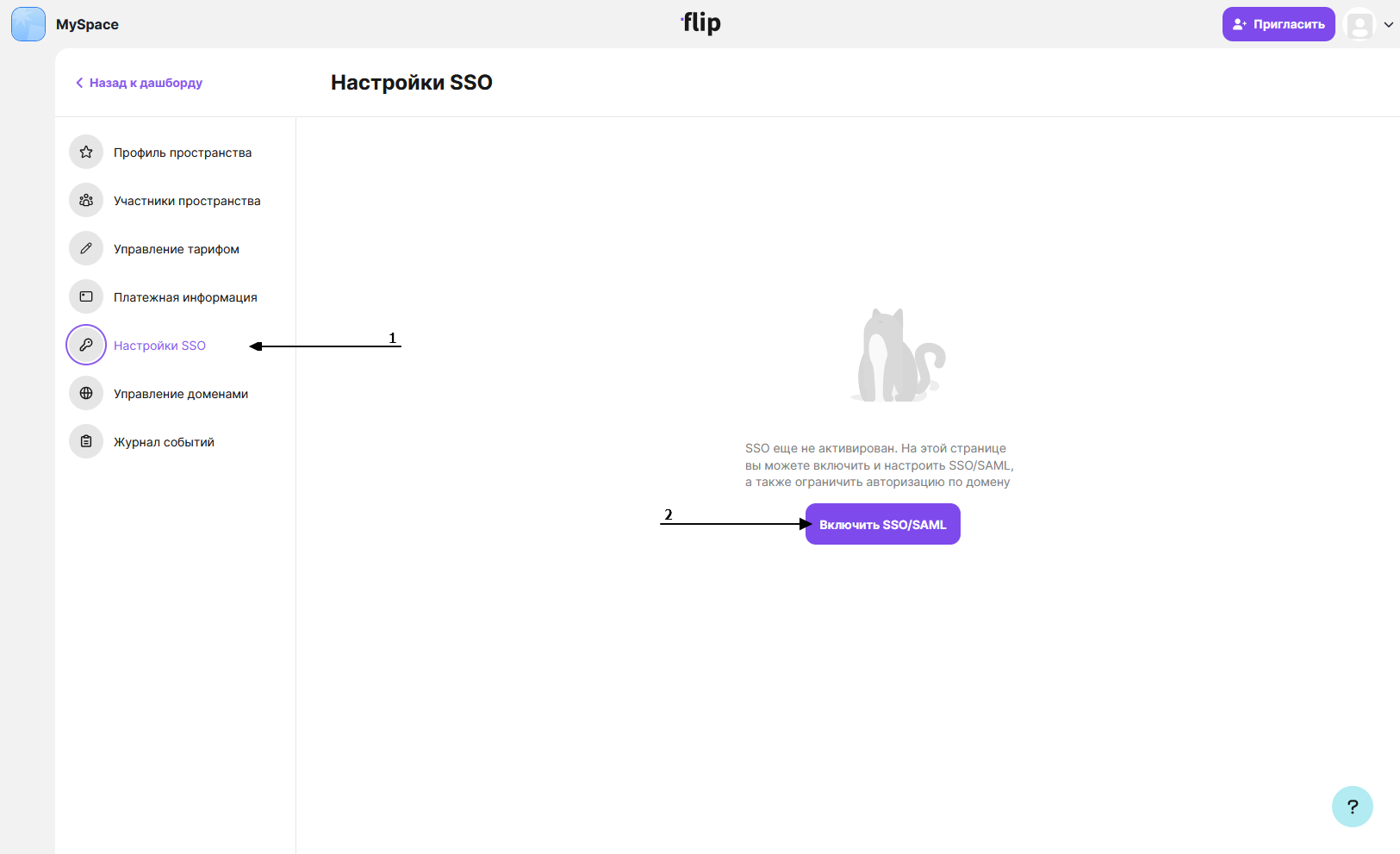
6. Go to your space settings, open the SSO settings tab and enable SSO
7. Set up the integration by choosing the authentication protocol: OIDC or SAML
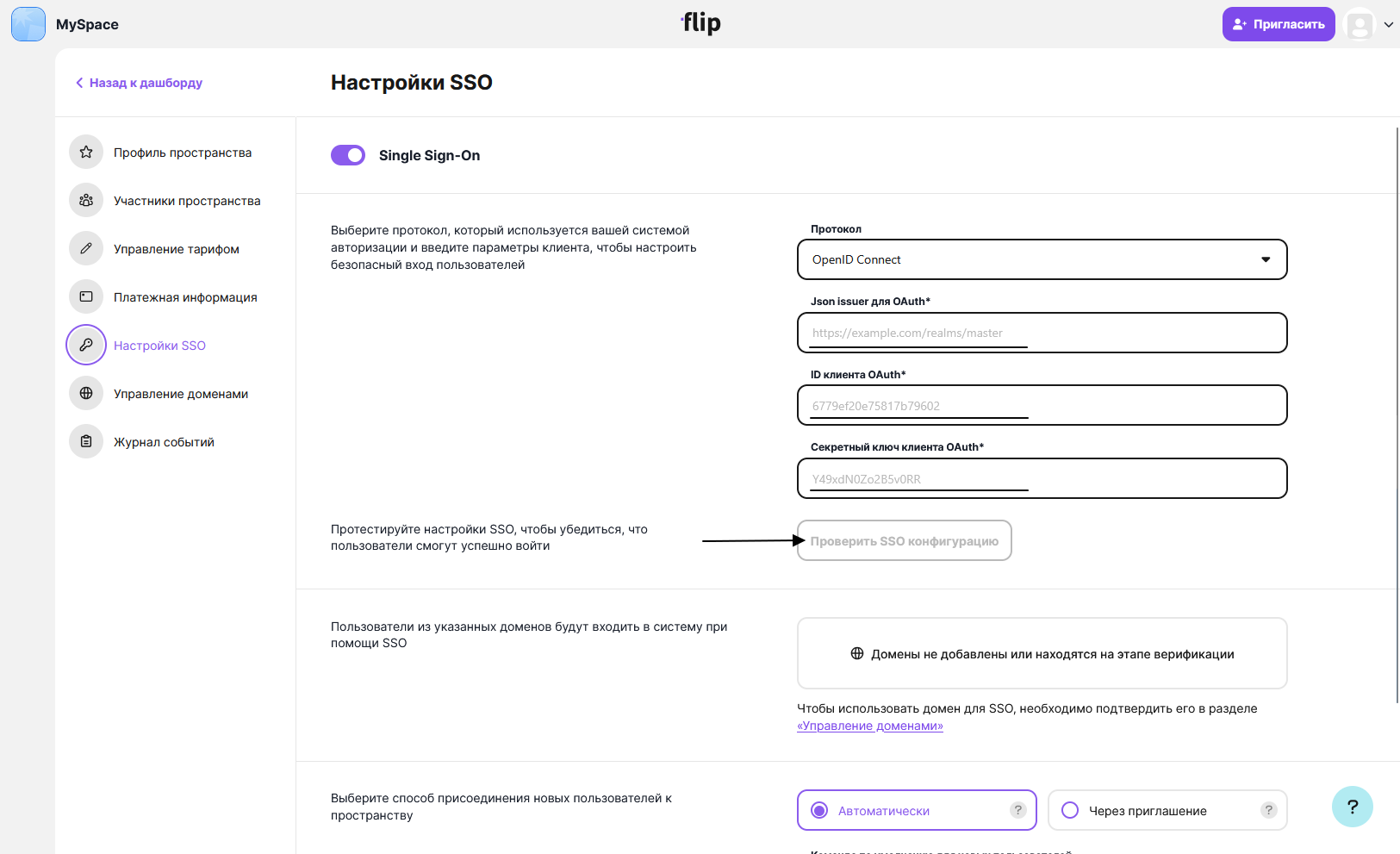
Fill in the fields to connect flip to your IdP.
8. Choose how new users join the space
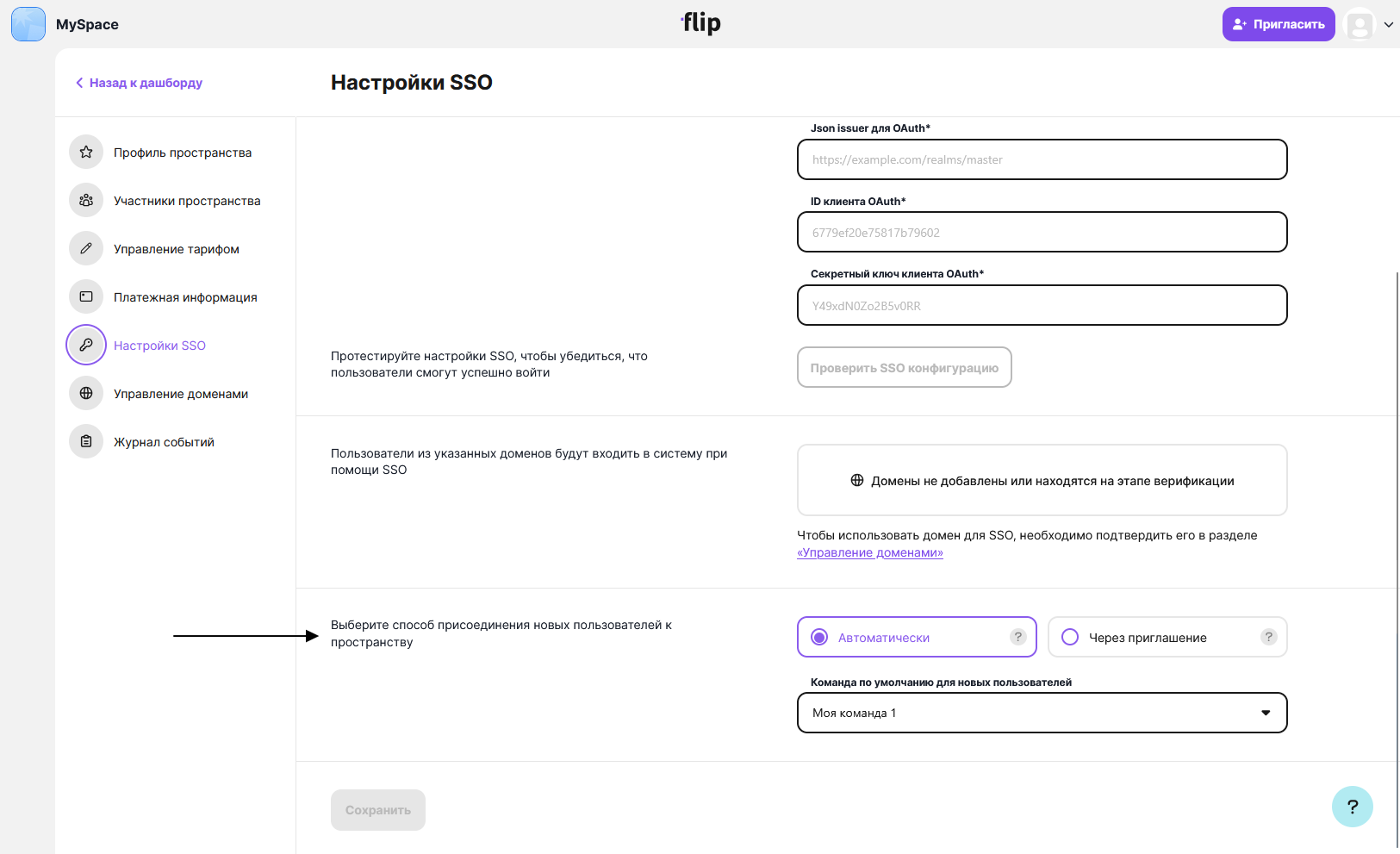
Note
Automatically: any user whose account has been added to the IdP can join the team automatically, without an invitation, within the available licenses.By invitation: a user can join the team only after being individually invited by the space administrator.
9. Signing in
Users can sign in with SSO by entering their email address, after which they are redirected to your IdP's sign-in page.
After signing in, the user is redirected to the flip space.