Adding and removing members in a space
Updated June 21, 2024
How to add members to a team
- Select the team in the left sidebar.
- Click Add to team.
- Start typing a name and select a member from the suggestions.
- Click Add.
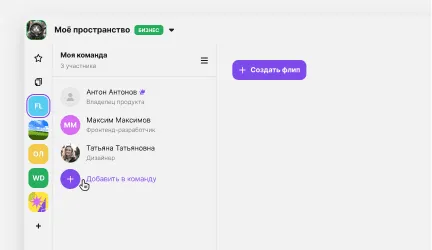
You can also add members in the team settings:
- Select the team in the left sidebar.
- Click Team settings to the right of the team name.
- Select Members.
- Click Add to team.
- Start typing a name and select a member from the suggestions.
- Click Add.
How to remove members from a team
- Select the team in the left sidebar.
- Click Team settings to the right of the team name.
- Select Members.
- Click the trash can icon to the right of the member you want to remove.
- Click Remove member. The removed account will lose access to the team's flips. You can bring removed members back: just add them to the team again.
Please note: team members cannot remove the team creator or the space owner.
More helpful articles
What flip is and how to use it
Logging in to your flip account: instructions
Billing and payments in flip
How to upgrade to a higher plan