Viewing and editing spaces
Updated July 25, 2024
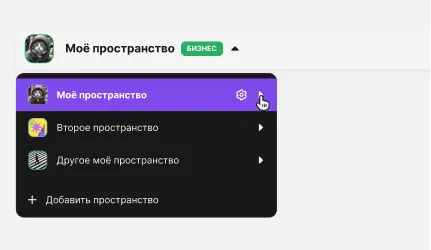
All your spaces are listed in the drop-down on the top toolbar. To go to a space, click its name in the list.
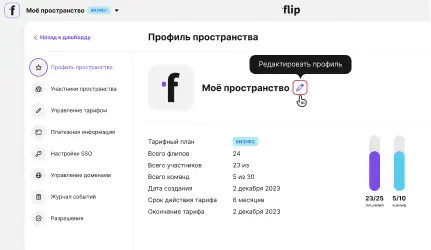
Here you can see the plan and the number of available and created flips and members.
Only the space owner can edit it — the owner is marked with a crown in the group member list.

You can create a team in the space, add a member to a team or invite a new user to one or more teams, and upgrade your plan if you need more features
How to view space information
- Open Space profile from the side menu
Here you can see the plan and the number of available and created flips and members.
How to edit a space
Only the space owner can edit it — the owner is marked with a crown in the group member list.
- Open Space profile from the side menu
- Click the pencil icon
- Enter a new name and upload an avatar
- Click Confirm — your changes will be applied
You can create a team in the space, add a member to a team or invite a new user to one or more teams, and upgrade your plan if you need more features
More helpful articles
How to install the extension and download a board from Miro
Working with flips: the basics
Where to find invoices and receipts in flip
How to create a shape set
Adding and removing members in a space
Canceling your plan: step-by-step instructions
Viewing and editing spaces
Managing plans in your flip account
How to install the extension and download a board from Miro
Adding and removing members in a space
Working with flips: the basics
Canceling your plan: step-by-step instructions
Where to find invoices and receipts in flip
Viewing and editing spaces
How to create a shape set
Managing plans in your flip account