Working with flips: the basics
Updated June 21, 2024
Use shapes, sticky notes and arrows to add a business process or a flowchart to a flip or to describe a case. Sticky notes are also handy for notes.
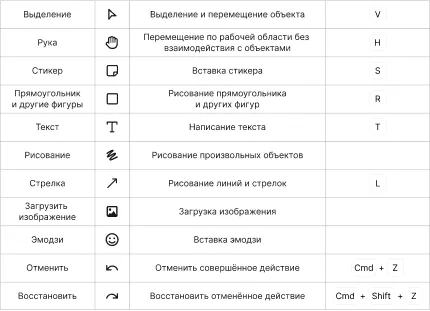
All the tools for creating objects are at the bottom of the workspace: select a tool and add an object to the flip. To quickly add a sticky note to a flip, double-click an empty spot in the workspace.
Objects added to a flip can be copied, pasted, duplicated, cut and deleted, as well as brought to the front or sent to the back (forward and backward) — just right-click the object (or a selected group of objects) and choose what you want to do.
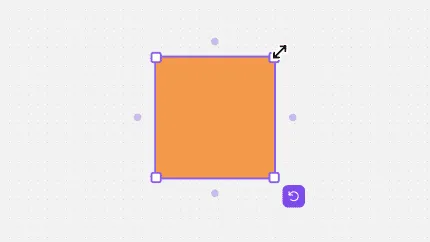
To resize an object, click it and drag its edge.
To keep the object's proportions, hold down Shift while dragging the edge.
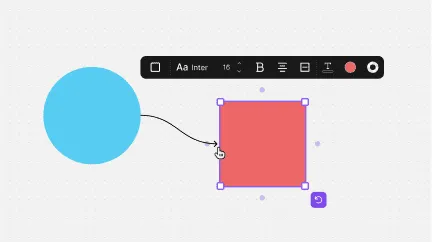
You can connect objects to each other: click the dot next to one of the objects and drag it to another one:
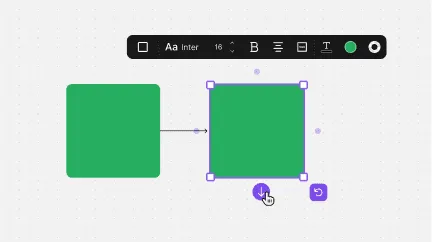
To create a new object of the same type, drag one of the dots around an object and release it in an empty spot:
For sticky notes and shapes, you can choose the color, font and font size, and set the text alignment and style.
For shapes, you can also choose the text color and the outline, its color and style, and you can add an emoji 😎 to a sticky note.
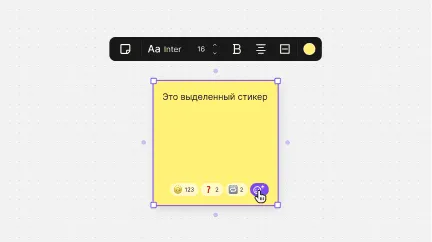
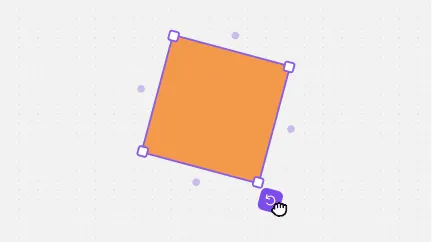
Sticky notes, shapes, text and emoji can be rotated — just click and drag the rotation icon:
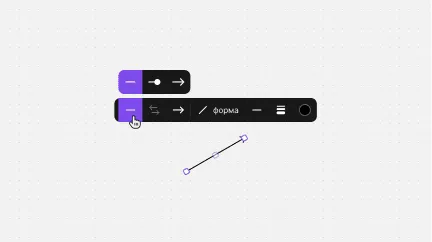
For arrows and lines, you can choose the following in the context menu:
All the tools for creating objects are at the bottom of the workspace: select a tool and add an object to the flip. To quickly add a sticky note to a flip, double-click an empty spot in the workspace.
Working with objects
Objects added to a flip can be copied, pasted, duplicated, cut and deleted, as well as brought to the front or sent to the back (forward and backward) — just right-click the object (or a selected group of objects) and choose what you want to do.
To resize an object, click it and drag its edge.
To keep the object's proportions, hold down Shift while dragging the edge.
You can connect objects to each other: click the dot next to one of the objects and drag it to another one:
To create a new object of the same type, drag one of the dots around an object and release it in an empty spot:
For sticky notes and shapes, you can choose the color, font and font size, and set the text alignment and style.
For shapes, you can also choose the text color and the outline, its color and style, and you can add an emoji 😎 to a sticky note.
Sticky notes, shapes, text and emoji can be rotated — just click and drag the rotation icon:
For arrows and lines, you can choose the following in the context menu:
- Type: line, double-headed arrow or arrow.
- Shape: straight or curved.
- Style: solid, dashed or dotted.
- Thickness.
- Color: one of the suggested colors or any color from the palette.
Zoom
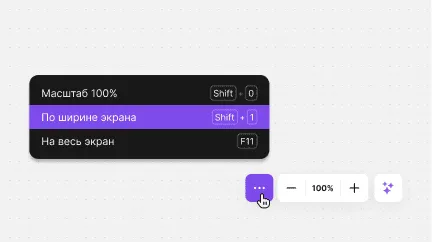
- Choose a zoom level that is convenient for you:
- Set it by clicking + or -.
- Hold down Ctrl on your keyboard and scroll the mouse wheel.
- Fit to screen.
- Fullscreen.
More helpful articles
The Individual plan: a detailed overview
How flip pricing is calculated
Billing and payments in flip
Team profile settings in flip