Image generation in flip
Updated June 21, 2024
With AI (artificial intelligence), you can create unique images and use them in your work and projects.
You can also use AI-generated images in articles: search algorithms will quickly find images relevant to the query.
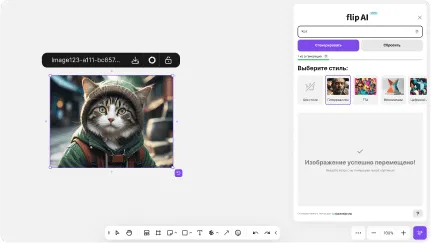
After the image is generated, you can keep creating by adjusting the prompt and/or changing the style, or reset the prompt and write a new one.
You can also use AI-generated images in articles: search algorithms will quickly find images relevant to the query.
How to generate an image
- Open the flip you want to add the image to
- Click the AI icon in the top right corner
- In the window that opens, enter a prompt in Russian or English using this formula: image type, subject, appearance description, additional elements, setting, effect, style.
You can also choose one of the suggested styles for the image - Click Generate
If you need to write the prompt again, click Reset - Wait for the generation to finish
Please note: image generation is limited by your plan - To add the generated image to the flip, just drag it while holding down the left mouse button and drop it where you need it
After the image is generated, you can keep creating by adjusting the prompt and/or changing the style, or reset the prompt and write a new one.
More helpful articles
Canceling your plan: step-by-step instructions
Creating and editing flips: a step-by-step guide
Viewing and editing spaces
What happens when you cancel your subscription
Creating and deleting spaces in flip
Business plan overview
How to install the extension and download a board from Miro
How to downgrade your plan
Canceling your plan: step-by-step instructions
Creating and deleting spaces in flip
Creating and editing flips: a step-by-step guide
Business plan overview
Viewing and editing spaces
How to install the extension and download a board from Miro
What happens when you cancel your subscription
How to downgrade your plan