Creating and editing flips: a step-by-step guide
Updated June 21, 2024
How to create a flip
- Select a space in the top left corner.
- Select the team that will work on the flip.
- Click Create flip.
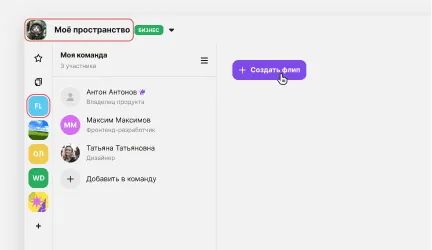
Now you can start working on your flip.
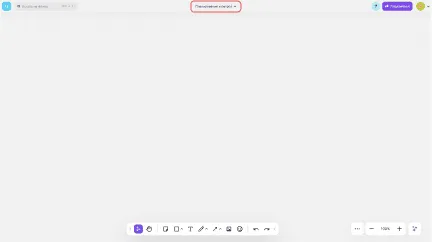
- You can rename a flip:
- Open the flip.
- Enter a name on the top panel.
- Click an empty area to save the changes.
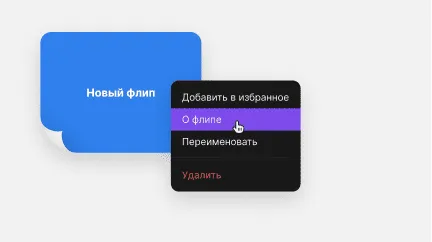
You can choose a color for a flip you have created or upload your own image:
- Right-click the flip.
- Select About flip.
- Choose one of the suggested colors or upload your own image from your device.
- Save the changes.
How to delete a flip
- Any team member can delete a flip.
- Right-click the flip.
- Select Delete.
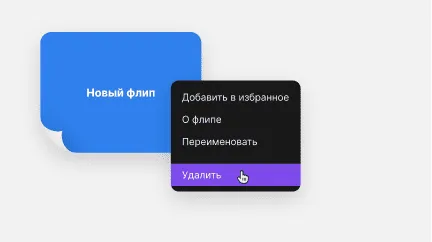
A deleted flip goes to the trash and is kept there for a month, after which it is deleted permanently.
More helpful articles
What flip is and how to use it
How to downgrade your plan
How flip pricing is calculated
Payment methods: card or invoice