Canceling your plan: step-by-step instructions
Updated June 21, 2024
You can cancel your flip subscription at any time — here's how.
Before canceling your subscription, we recommend reading the article What happens when you cancel your subscription.
Your subscription will also be canceled automatically if you unlink all cards in the Payment information section.
Before canceling your subscription, we recommend reading the article What happens when you cancel your subscription.
Who can cancel the subscription: the space owner
How to cancel your subscription
- Open the space settings in the side menu
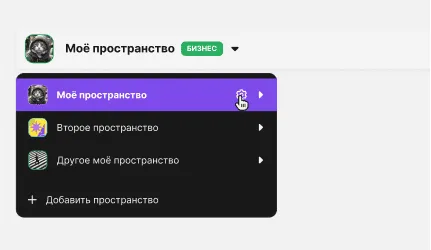
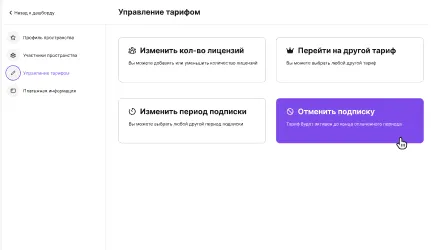
- Go to the Plan management section.
- Click Cancel subscription.
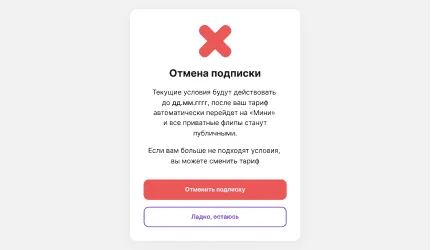
- Note the date in the pop-up window — after that date, your plan will switch to Mini.
- Click Cancel subscription. Your subscription will be canceled, and you won't be charged for the next period. You can keep using your subscription benefits until the specified date.
Your subscription will also be canceled automatically if you unlink all cards in the Payment information section.
More helpful articles
Creating and deleting teams in flip
Billing and payments in flip
Creating and deleting spaces in flip
Guide to using flips