

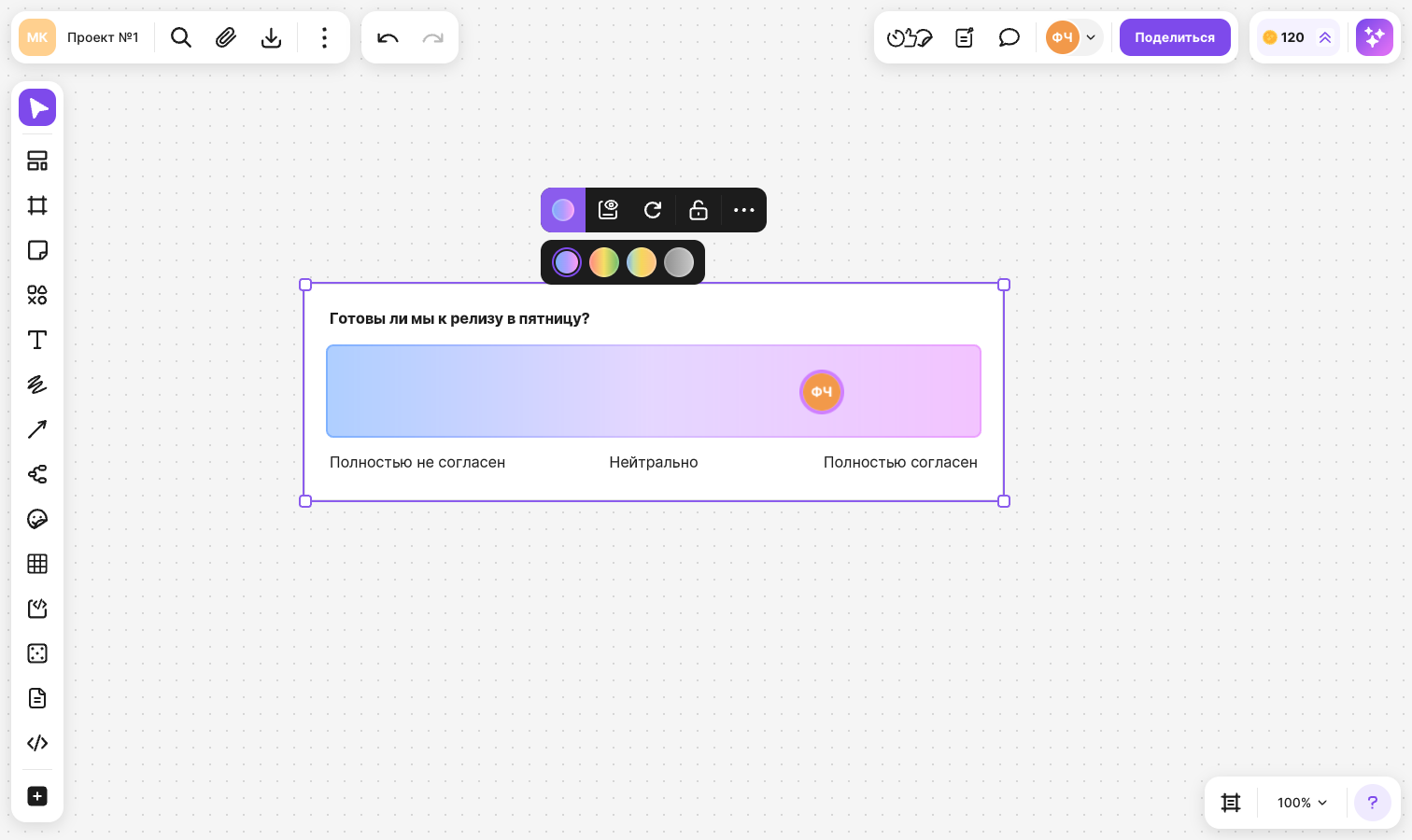
An opinion scale helps you quickly find out how much your team agrees with an idea or a decision. You ask a question, and participants place their vote on a colored scale — closer to “Strongly disagree” or to “Strongly agree”. Each participant places one vote on the scale: their avatar, or a colored circle in anonymous mode. The votes appear for everyone who is on the flip at that moment
Requirements
- Participants with “Editing” access can add a scale and vote on it
- Only the flip owner can turn on anonymous mode and clear the votes
How to add an opinion scale
On the panel in the top right corner, click Facilitator tools and select Opinion scale
If the browser window is narrow, these tools are in the More menu on the same panel
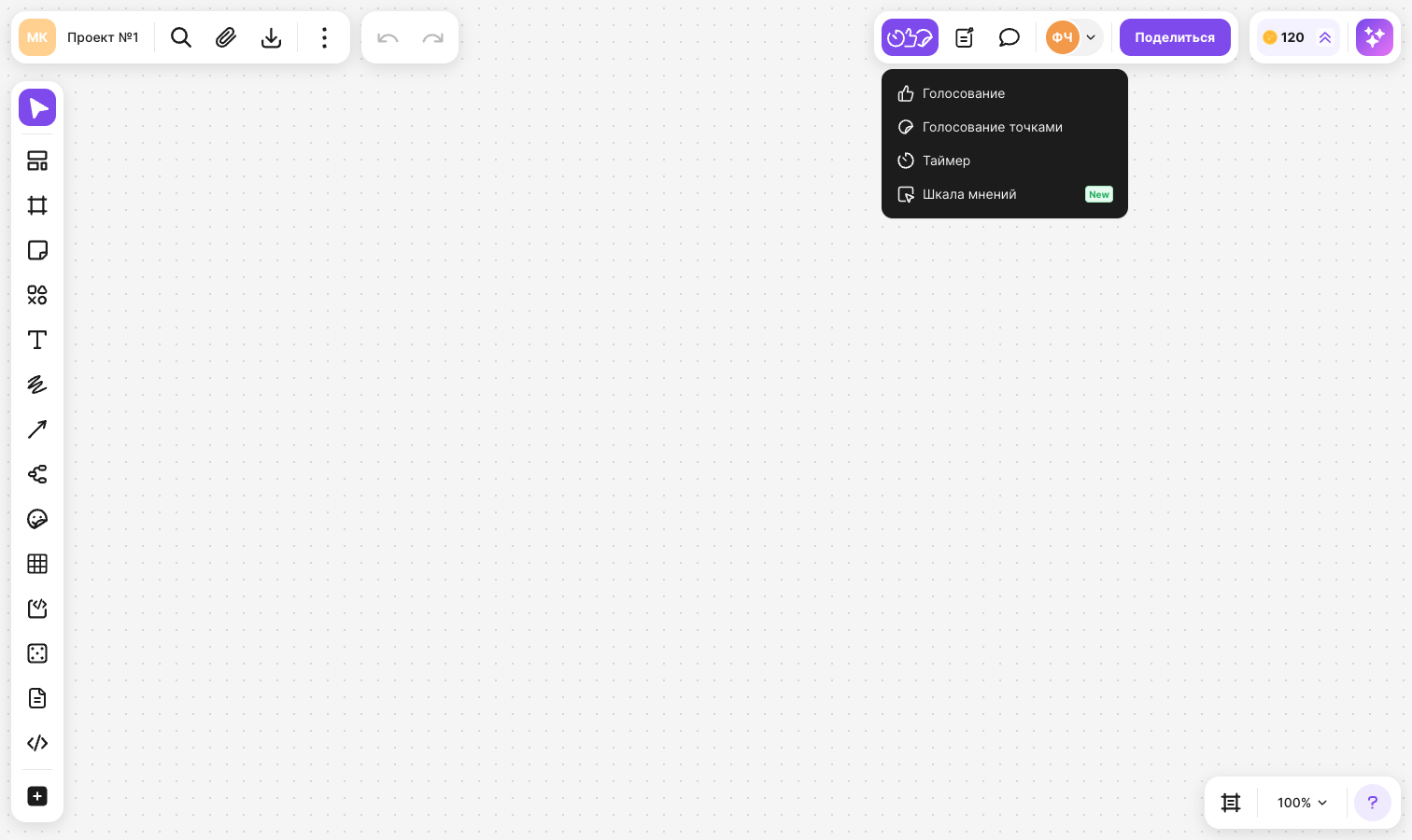
Click the spot on the flip where you want to place the scale
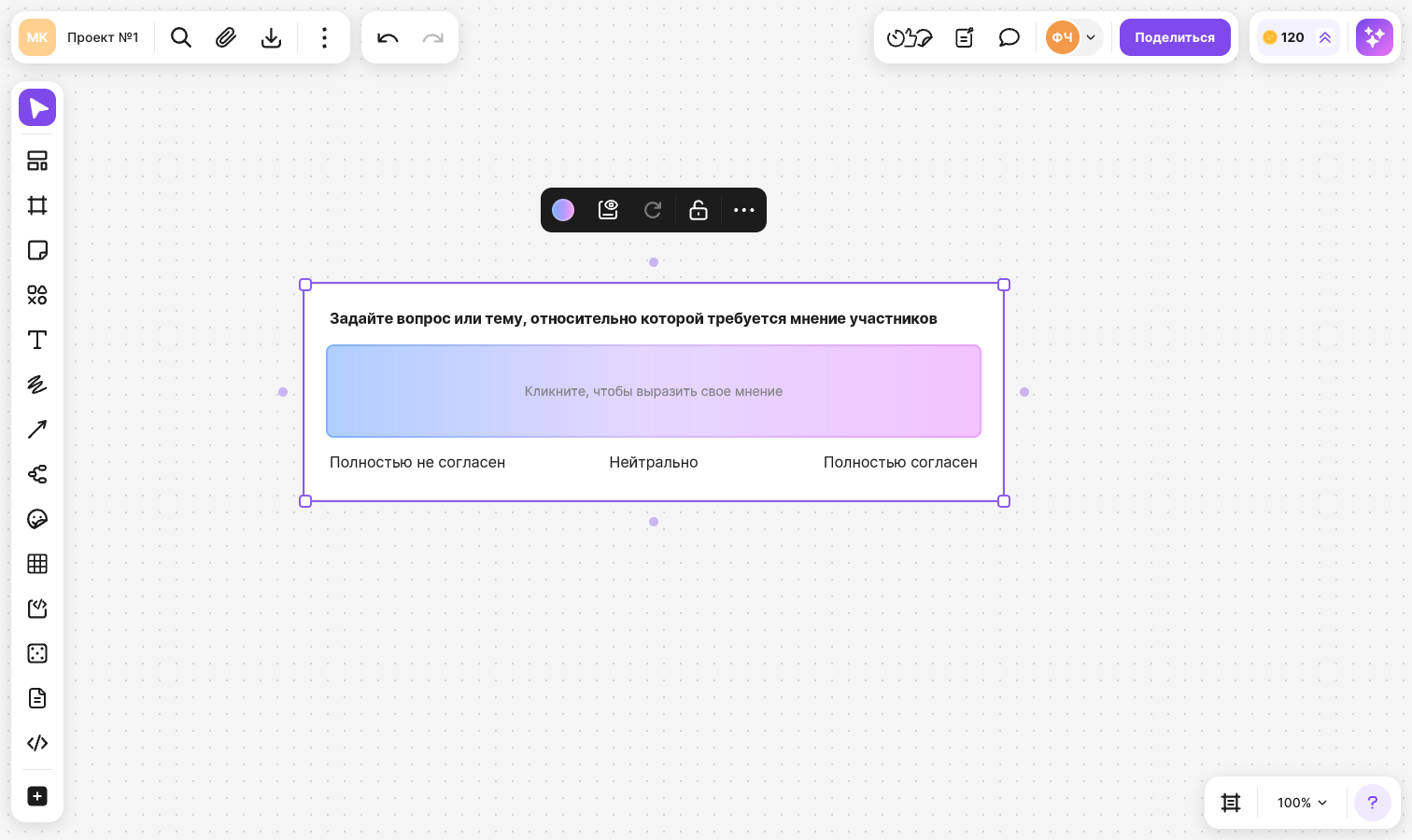
A card appears on the flip with the question “Ask a question or name a topic that needs participants' opinions”, a colored field and three labels below it: “Strongly disagree”, “Neutral” and “Strongly agree”
How to change the question and labels
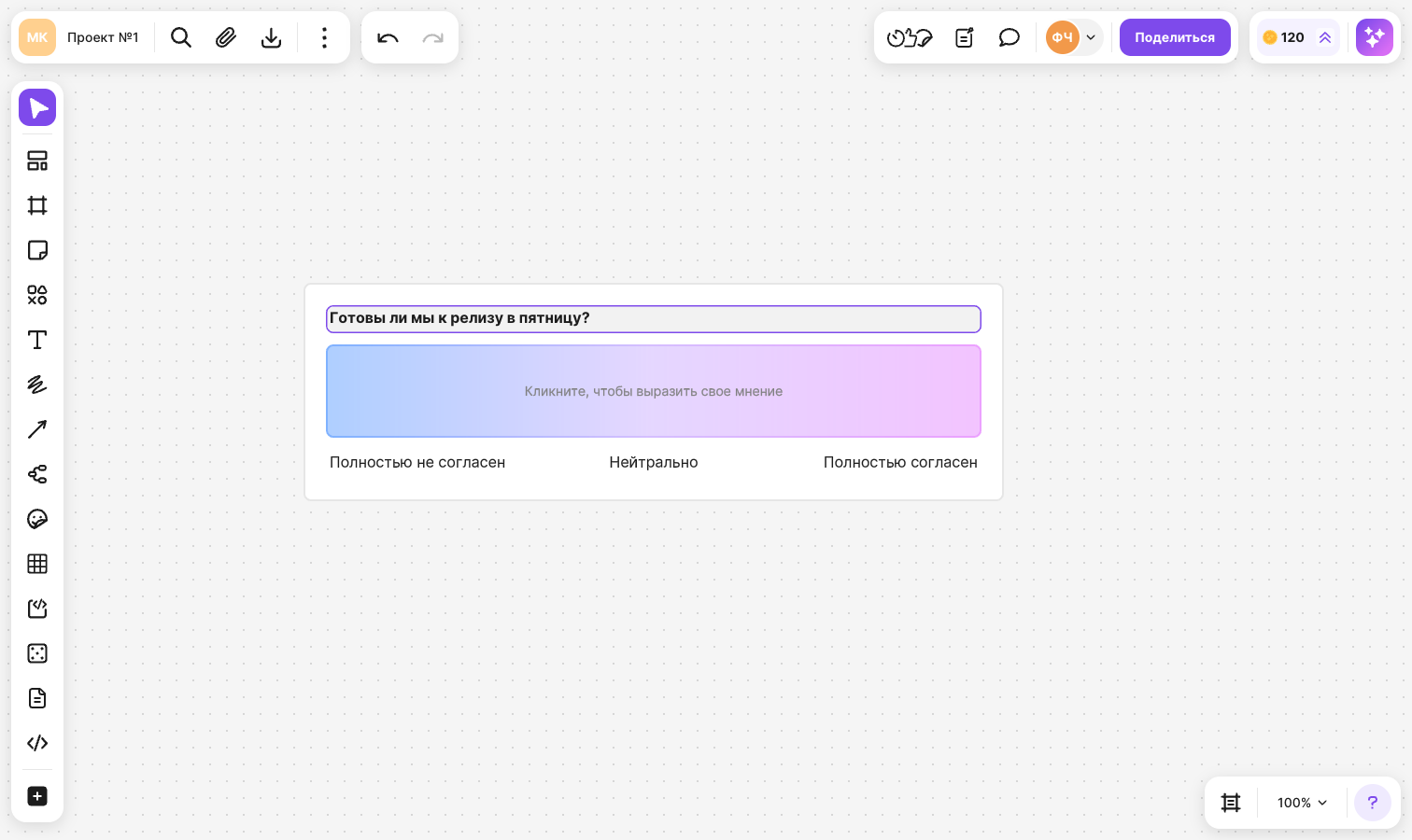
Click the question text or one of the labels — you don't need to select the scale first
Enter your text. Long text wraps to a new line, and the card gets taller
To move to the next field, press Tab; to go back to the previous one, press Shift+Tab
How to vote
Hover over the colored field of the scale — your avatar (a circle in anonymous mode) appears under the cursor and shows where your vote will go
Click the spot on the field that matches your opinion
Your vote appears on the scale right away
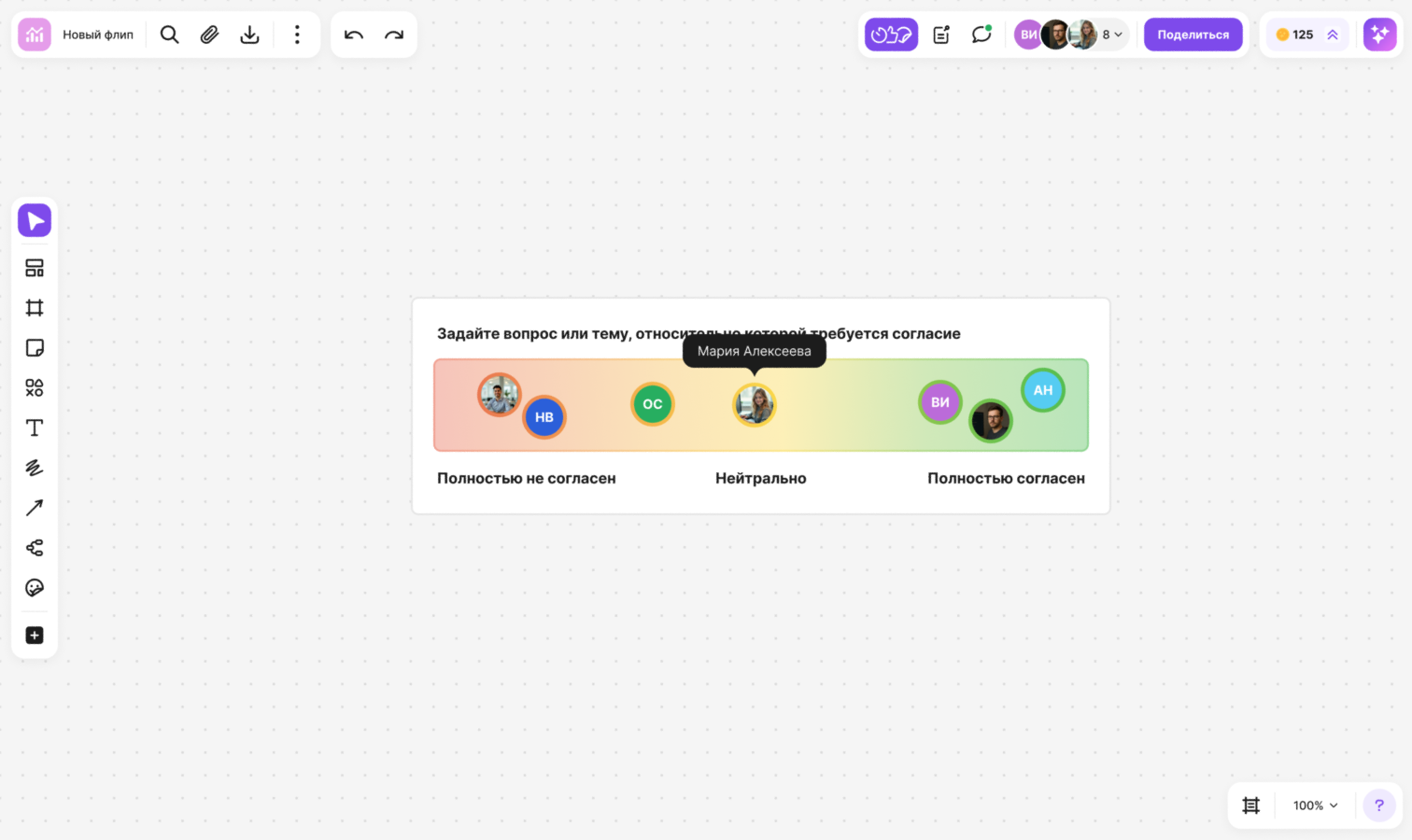
To change your opinion, click another spot on the field or drag your avatar. To cancel your vote, click your avatar
Hover over another participant's avatar — their name appears above it
On a tablet, to cancel your vote, tap your avatar — a trash icon appears on it — and tap it again. To see a participant's name, tap their avatar
How to set up the scale
Select the scale — a menu appears above it:
- “Color scheme” — choose one of the four color schemes for the field. By default, the field is blue and pink. If you select several scales, the scheme changes for all of them at once
- “Vote anonymously” — colored circles without names are shown on the scale instead of avatars. To bring the avatars back, click Vote publicly
- “Clear votes” — removes all votes from the scale. The button is active if the scale has votes
“Vote anonymously”, “Vote publicly” and “Clear votes” are visible only to the flip owner when a single scale is selected
You can lock the scale like other elements — learn more in Grouping, aligning and locking elements. On a locked scale, you can't change the question and labels, but you can still vote on it
You can find a scale on the flip by searching for its question text or with the “Opinion scale” type filter — learn more in Search on a flip and filter by type
Limitations
- Each participant places only one vote on the scale
- Participants with “View” and “Commenting” access see the votes but can't vote
- While a voting is running on the flip, you can't vote on the opinion scale — the message “You can't vote on the opinion scale during a voting session” appears
- If the flip is zoomed out a lot and the scale looks small, you can't vote — zoom in on the scale
- You can't add an opinion scale on a phone: there is no “Opinion scale” item in the menu