

When several people work on a flip, it is important not to lose each other on a large canvas. flip shows who is on the flip right now and where the participants' cursors are, lets you follow a teammate's screen and gather everyone in one area of the flip
Who is on the flip right now
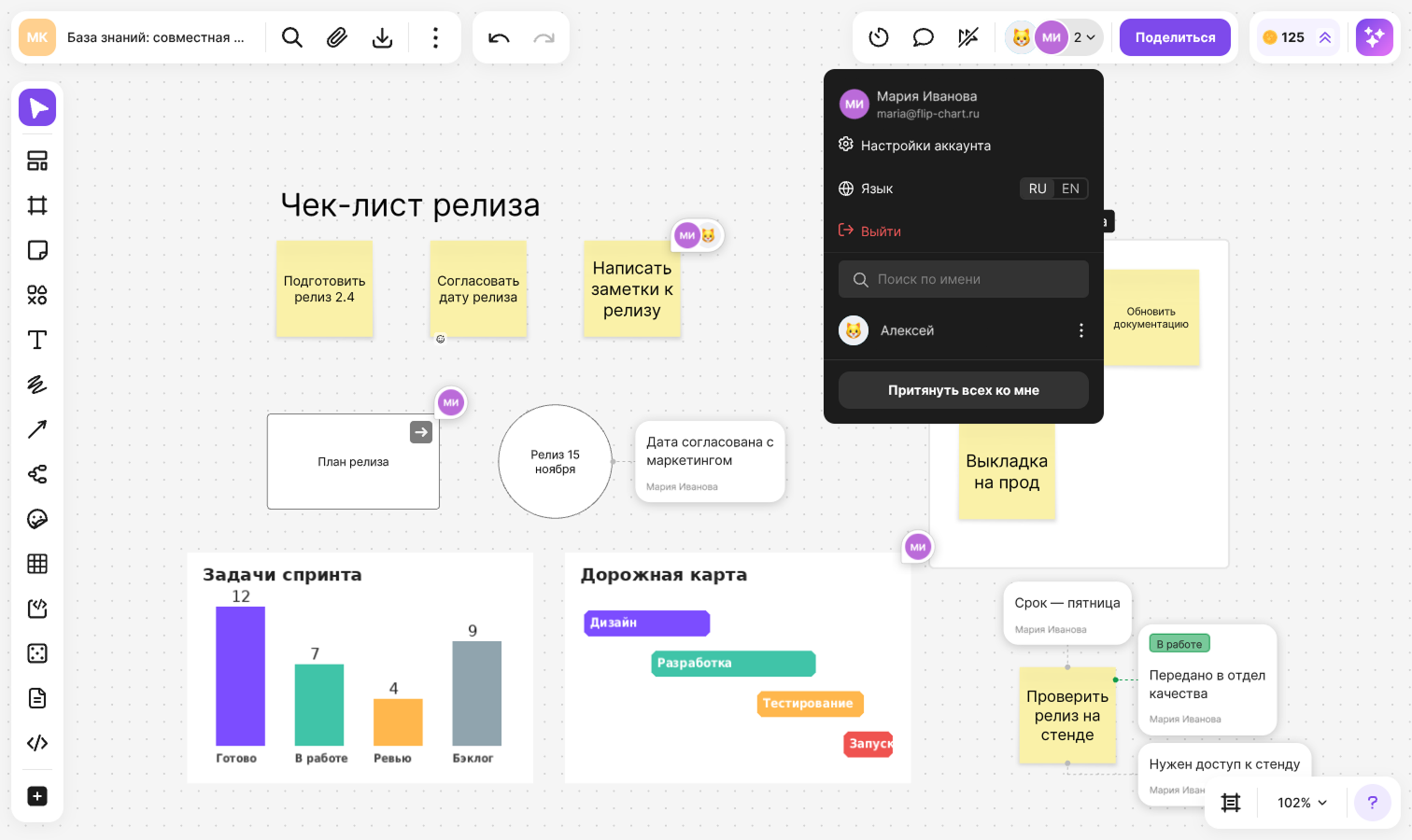
The top right corner of the flip shows the avatars of the participants who are on the flip right now and their total number. Click the counter with the arrow next to the avatars — a menu opens. At the top of the menu is your account block: your name, email and the “Account settings”, “Language” and “Log out” items. Below it is the list of the other participants — you are not shown in it yourself. If there are many people, find the one you need with the “Search by name” field
Participant cursors
Each participant's cursor is labeled with their name and has their color. If the cursors get in the way, click the “Hide cursors” button in the top right corner of the flip, and to bring them back — “Show cursors”. The Ctrl + Shift + C shortcut (⌘ + Shift + C on macOS) does the same
Cursors are hidden only on your screen
How to watch a participant
In watching mode your screen repeats another participant's screen: you see the same area of the flip at the same zoom level
Click the participant's avatar in the top right corner of the flip
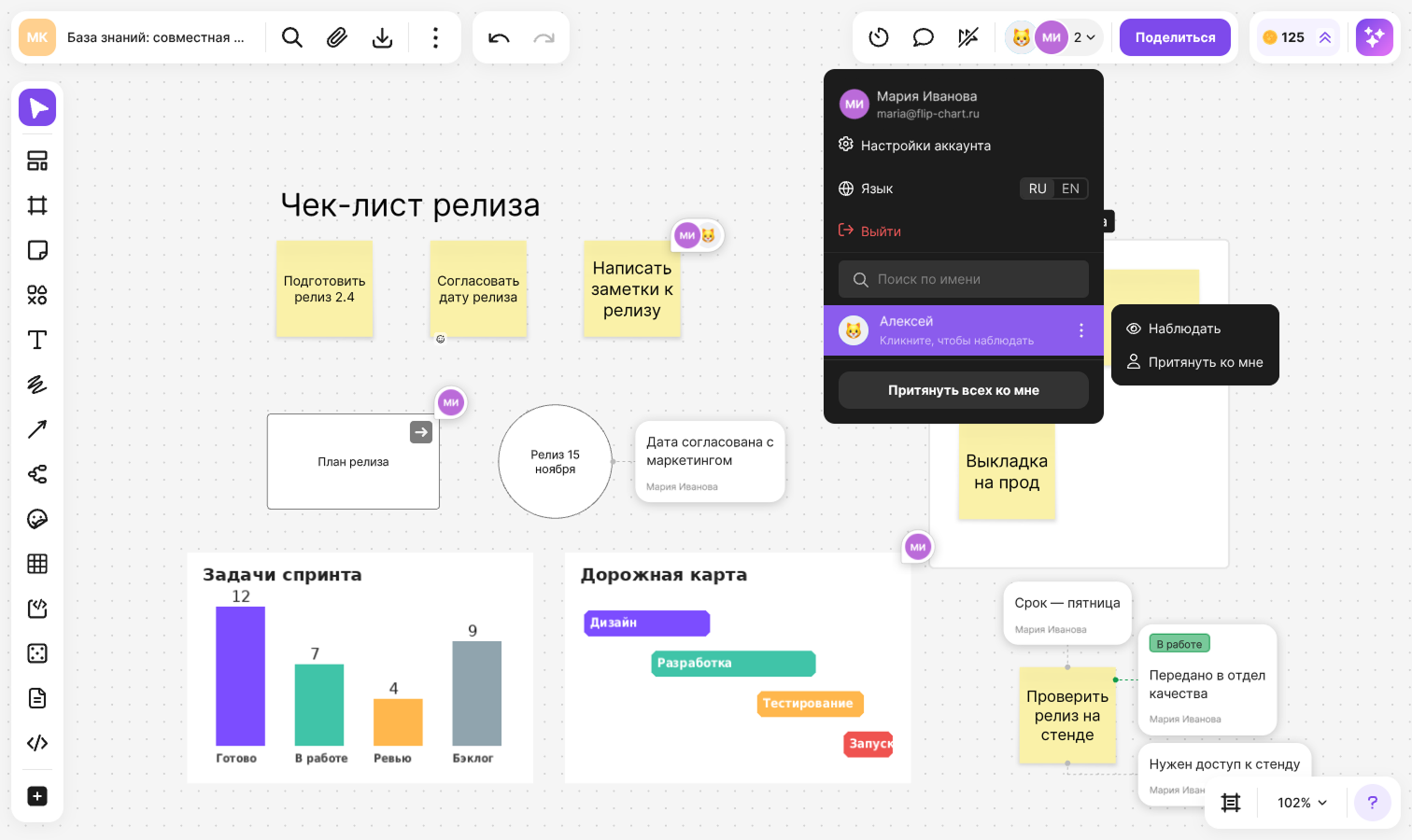
Or open the list of participants and click the name — the “Click to watch” hint appears on hover
Your screen will move to the area the participant is looking at. A frame of their color will appear around the edges, and the “You are watching” message with the participant's name and the “Cancel” button will appear at the top
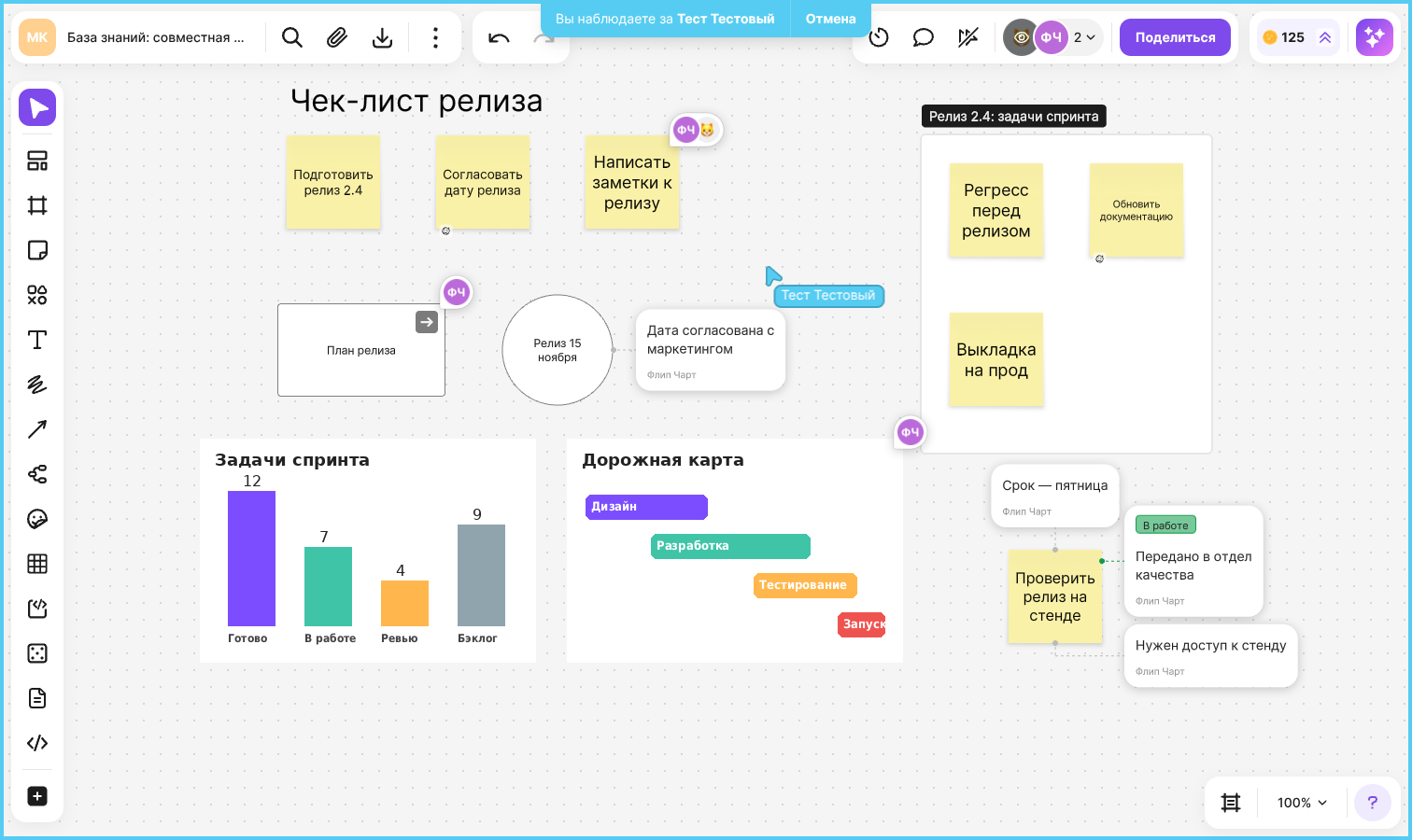
To stop watching:
- Click “Cancel” in the watching message or press Esc
- Click the participant in the list again — “Stop watching”
- Start working on the flip: move the flip, change the zoom, add or change an element
If you click another participant, watching switches to them. Watching also stops automatically if nothing happens for 30 minutes
The participant who is being watched sees a badge with the number of watchers under their avatar
If a participant is presenting, clicking them in the list doesn't start watching but takes you into the presentation — the “Click to join the presentation” hint appears. See the article about presentation mode for details
How to pull participants to you
The flip owner can turn on watching for other participants — for example, to show the right part of the flip to the whole team
- To pull one participant, open the list of participants, click the three dots next to their name and select “Pull to me”
- To gather everyone, click “Pull everyone to me” at the bottom of the list
- To finish, open the list and click “Stop demonstration”
While the demonstration is on, participants see your area of the flip and your zoom level. Anyone can leave watching on their own — the same way as usual
Instant chat
Instant chat is a short message that appears next to your cursor and is visible to other participants. It is handy for quick remarks while working together: “look here”, “one minute”, “done”
Make sure nothing is selected on the flip and press /
Or right-click an empty spot on the flip and select “Instant chat”
Type your text — up to 50 characters. Participants see it next to your cursor while you type. Your name is shown in the bubble above the text
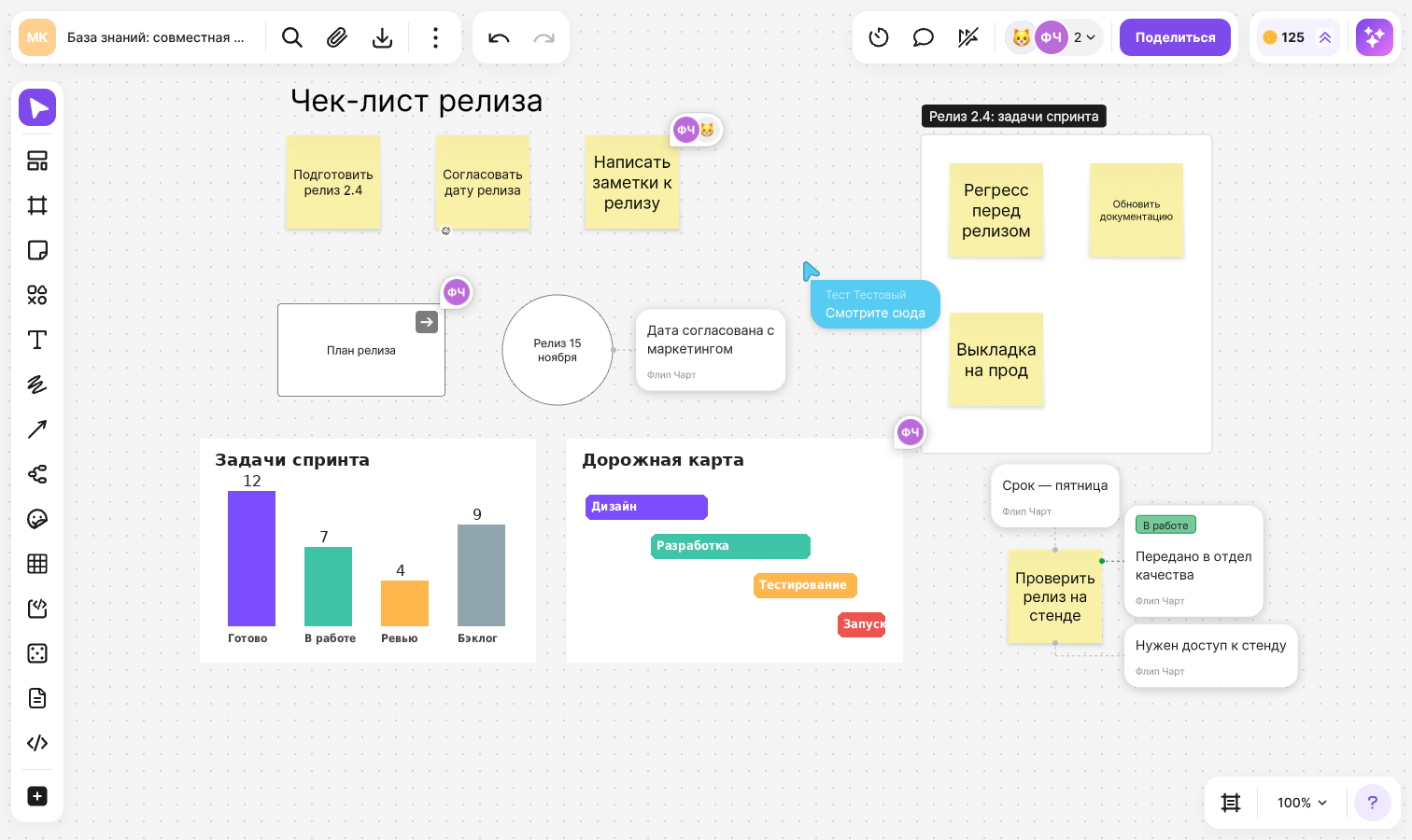
Press Enter to start a new remark, or Esc to close the chat
The message disappears on its own 5 seconds after you stop typing. A mouse click also closes the chat
Anonymous viewing
Someone who opened a flip with a link and didn't log in works anonymously. Their list of participants shows the “Anonymous viewing” block with the “Log in” button — after logging in, they can continue working under their own name
Who can open the flip and with what rights is set in the “Share” window — see the article about access to a flip for details
Limitations
- “Pull to me”, “Pull everyone to me” and “Stop demonstration” are available only to the flip owner
- You can't watch yourself
- Instant chat is opened from the keyboard or from the context menu in a browser; it is not available in the mobile app