

A poll helps you quickly find out what participants think about a specific question. You ask a question and add answer options, start the poll, and participants choose an answer right on the card on the flip. You can make a poll anonymous, allow multiple answers or turn it into a quiz with a correct answer
To vote for objects on a flip — stickers, shapes, images — use voting, and to find out how much your team agrees with an idea, use an opinion scale
Requirements
- Participants with “Editing” access can add a poll and vote in it
- The person who added the poll, a space admin and the flip owner can change, start and end the poll
How to add a poll
On the panel in the top right corner, click Facilitator tools and select Poll
If the browser window is narrow, these tools are in the More menu on the same panel
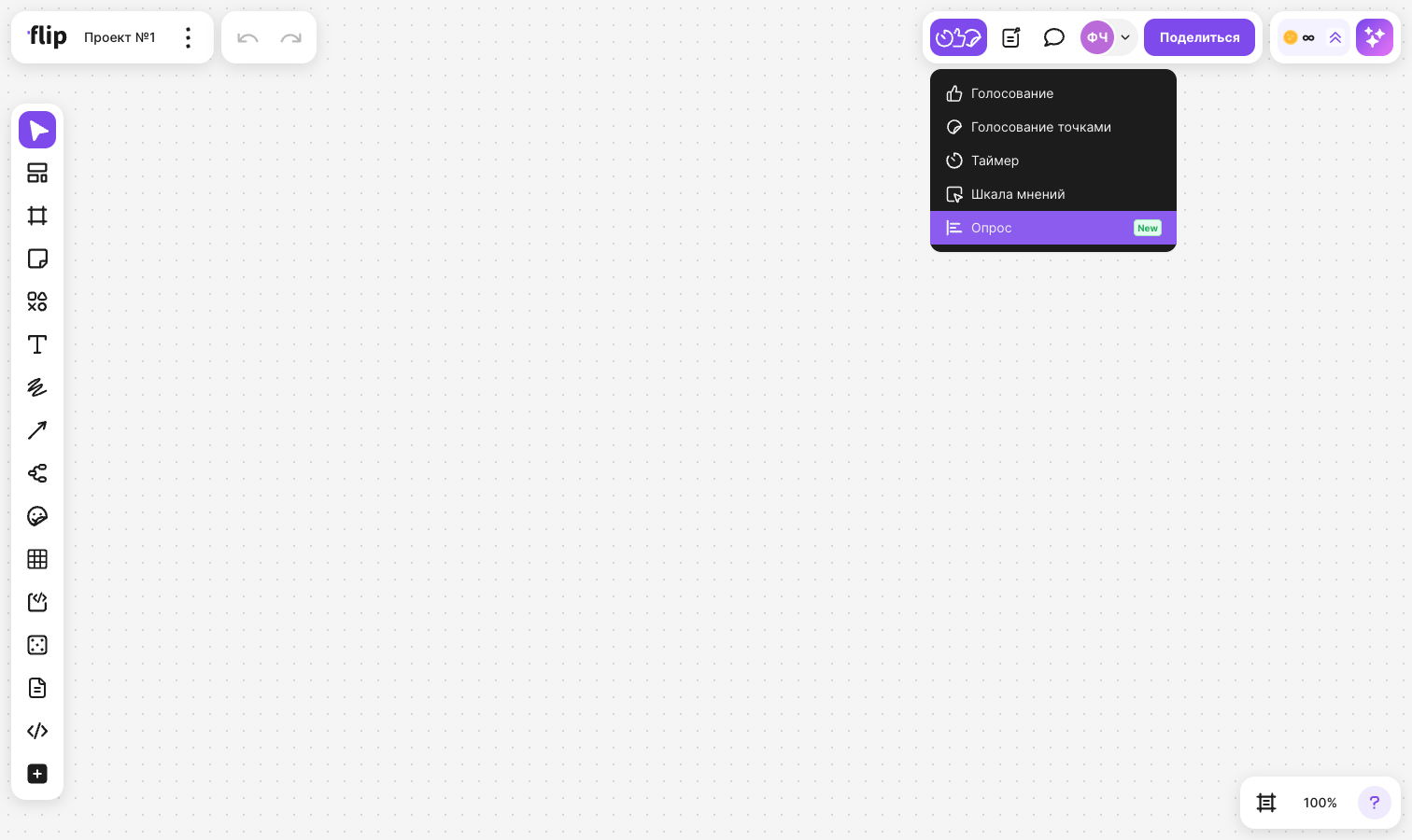
Click the spot on the flip where you want to place the poll
A “Poll” card appears on the flip with a “Question or topic” field, two fields in the “Answers” section and a “Start poll” button. The cursor is already in the question field
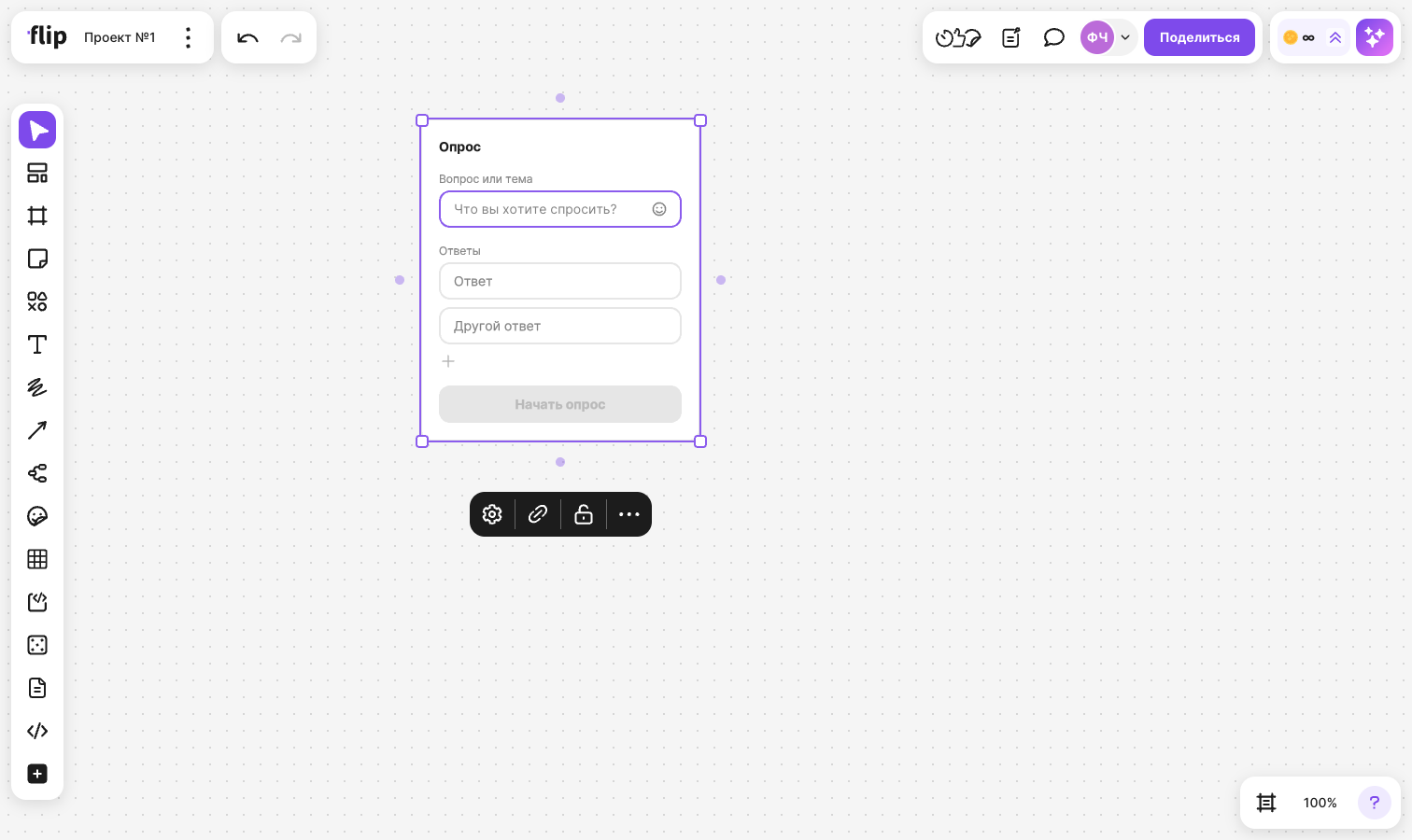
How to fill in the question and answers
Enter your question in the “Question or topic” field
Click the “Answer” field and enter the first option, then fill in the “Another answer” field
To add one more option, click + below the list of answers — when you hover over it, the “Add answer” tooltip appears
The button is active when all answer fields are filled in
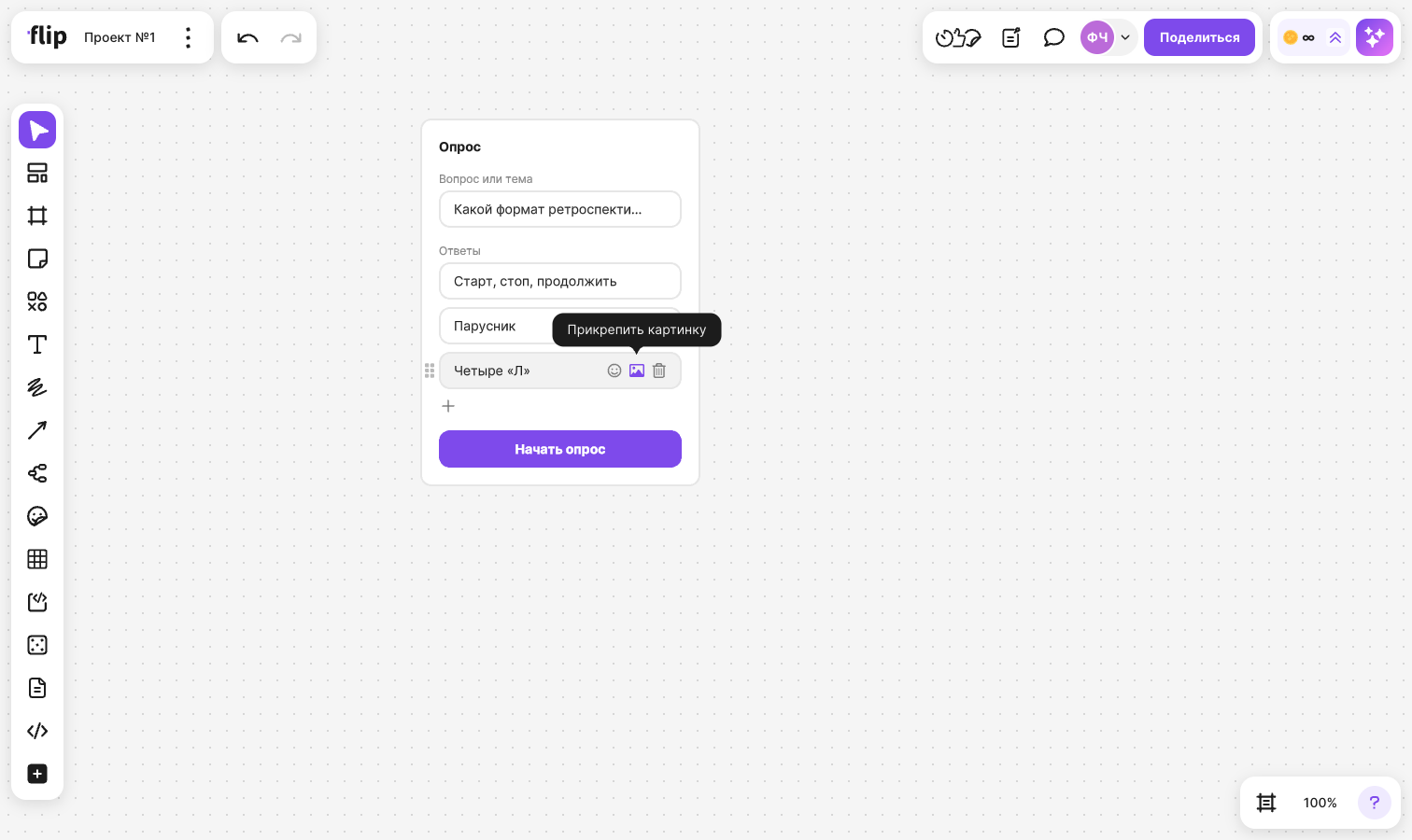
When you hover over a field or type in it, icons appear in the field:
- “Emoji” — insert an emoji into the question or answer text
- “Attach image” — add a PNG, JPEG or WebP image to an answer. The image appears in the field as a thumbnail. To remove it, click the thumbnail — when you hover over it, the “Remove image” tooltip appears
- the icon to the left of an answer — drag it to move the answer up or down
The third and following answers have a trash icon, “Remove answer”. You can't remove the first two answers
How to set up a poll
Select the poll and click Poll settings in the menu above it. Turn on the options you need:
- “Anonymous voting” — participants won't see who voted for which option
- “Multiple answers” — participants can vote for more than one option
- “Correct answer” — the poll becomes a quiz: after it ends, participants see the correct answer
- “Space members only” — only space members can vote
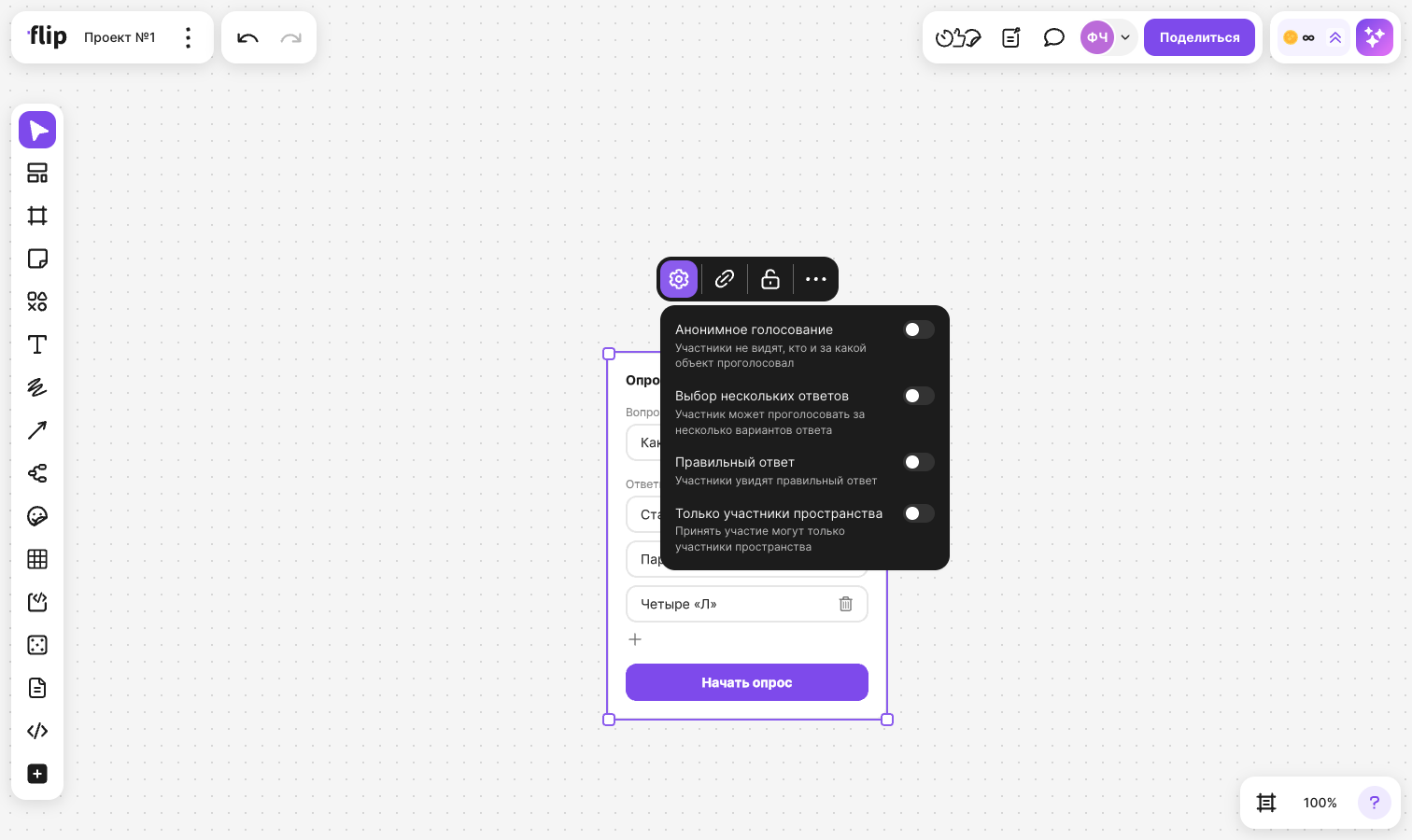
You can change the settings until the poll starts. The Poll settings button is visible to those who can change the poll when a single poll is selected
If “Correct answer” is on, a marker appears to the left of each answer. Click the marker next to the correct answer. If “Multiple answers” is also on, you can mark several correct answers; otherwise, only one. Only those who can change the poll see the markers
How to start a poll
Click Start poll
The button is inactive until the question and all answers are filled in, and in a quiz — until a correct answer is marked. If you click it earlier, the empty fields and the correct answer markers are highlighted in red
Once the poll starts, you can't change the question, answers or settings. Labels with the poll options appear below the “Poll” heading: “Public” or “Anonymous”, “Single choice” or “Multiple choice”, plus “Quiz” and “Members only” if these settings are on
How to vote
Choose an answer. If the poll allows multiple answers, select all the options that apply
Click Submit
The button becomes active once at least one option is selected
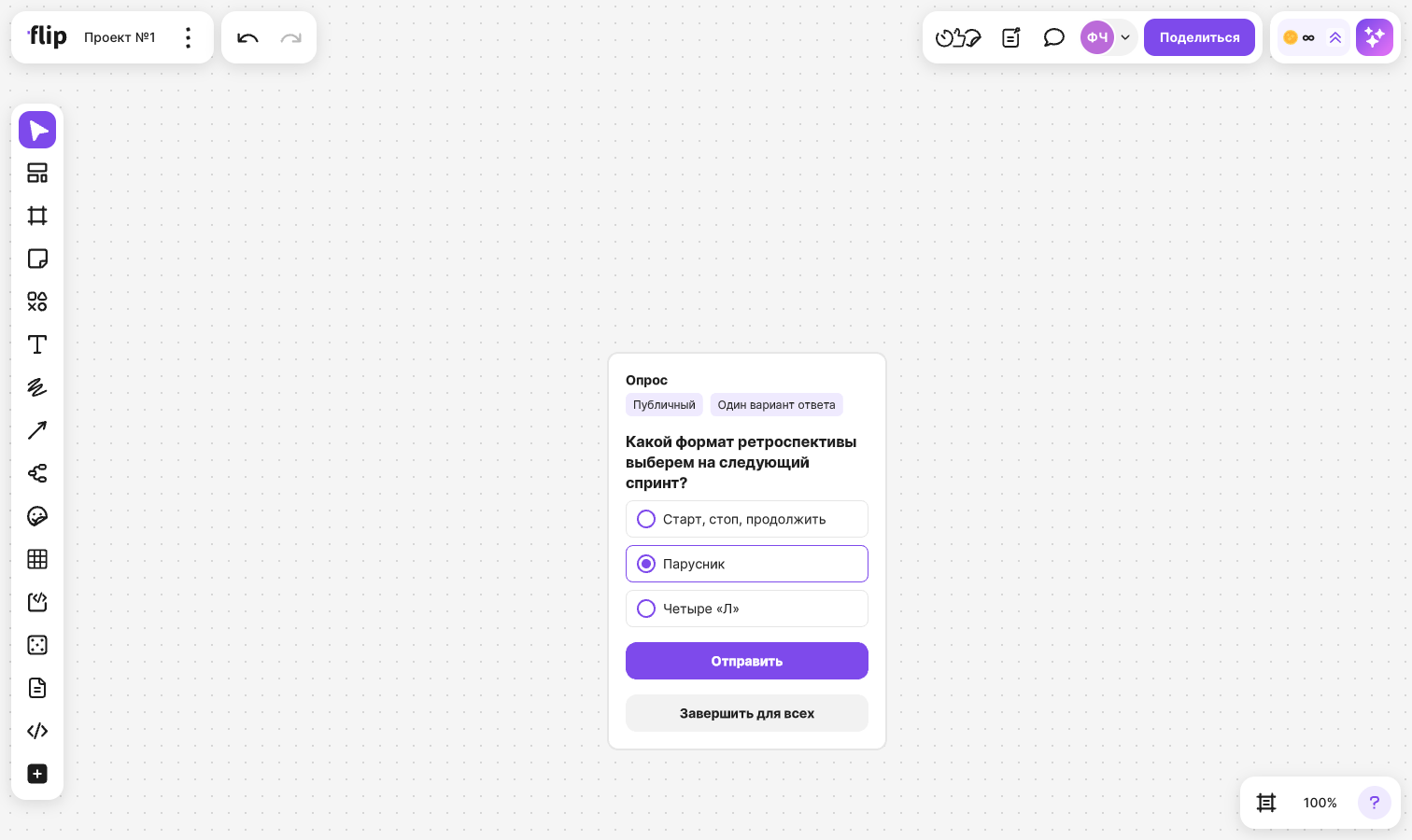
After you submit, the results appear on the card. You can't change your vote
To take a closer look at an image in an answer, click its thumbnail — the image opens in the viewer
If the poll has “Space members only” on and you are not a space member, the card shows “Only space members can vote” instead of the Submit button
How to end a poll
Click End for everyone on the card. The button is visible to those who can change the poll
Once the poll ends, no one can vote in it, and the results become visible to all participants of the flip
How to view the results
While the poll is running, the results are visible to those who have already voted. After it ends, they are visible to all participants of the flip
For each answer, the card shows the share of votes in percent, a bar with that share and the number of votes. The answers you chose are marked with a check mark
In a quiz, after the poll ends, the bars of the correct answers turn green. If you chose a correct answer, a green check mark appears next to it; if you chose a wrong one, a red cross
In a public poll, there is an Open results button below the answers. Click it or the number of votes next to an answer — the “Results” window opens: it shows the question, the total number of votes and, for each answer, the percentage, the number of votes and the list of voters
If the list of voters doesn't load, the message “Couldn't load the list of voters” appears — click Try again
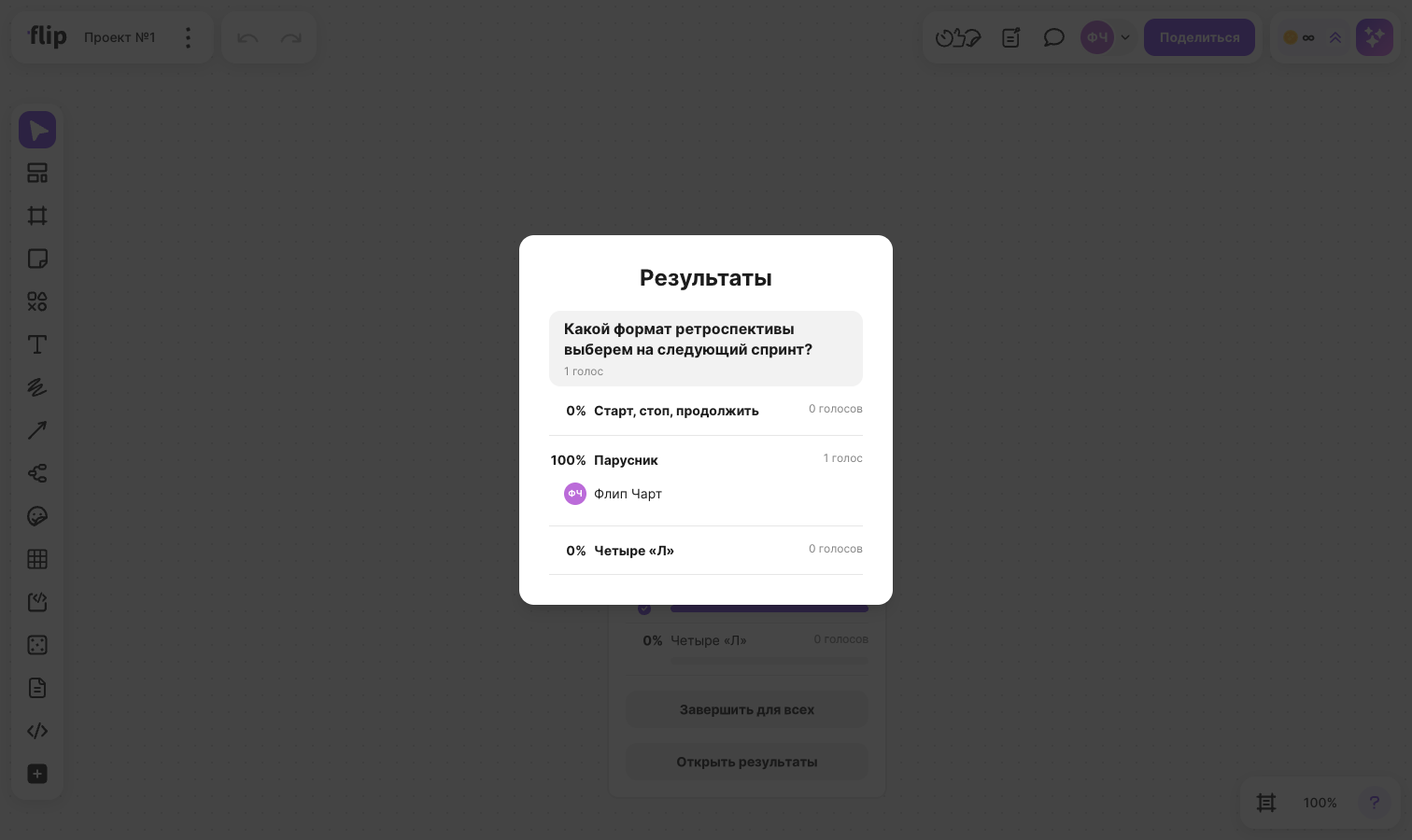
An anonymous poll has no “Open results” button: only the percentages and the number of votes are visible
You can lock a poll like other elements — learn more in Grouping, aligning and locking elements. In a locked poll, you can't change the question, answers or settings, but you can still vote in it
You can find a poll on the flip with search or with the “Poll” type filter — learn more in Search on a flip and filter by type
Limitations
- A poll has from 2 to 10 answers
- A question can be up to 200 characters long, an answer — up to 100 characters
- You can attach only PNG, JPEG or WebP images to an answer. If you try to attach a file in another format, the message “Only PNG, JPEG or WebP images can be attached” appears
- Once a poll starts, you can't change it, and you can vote only once
- Participants with “View” and “Commenting” access see the poll but can't vote
- While a voting is running on the flip, polls are unavailable — the message “Polls are unavailable during a voting session” appears
- If the flip is zoomed out a lot and the poll looks small, you can't vote in it or change it — zoom in on the poll
- You can't add a poll on a phone: there is no “Poll” item in the menu