

You can copy a flip to use it as a basis for new work, move it to another team or hand it over to another member if the person responsible for the flip has changed. These actions are collected in the flip menu
How to open the flip menu
- In the list of flips, right-click a flip or click the “More” button on the flip card
- On an open flip, click “More” in the top left corner
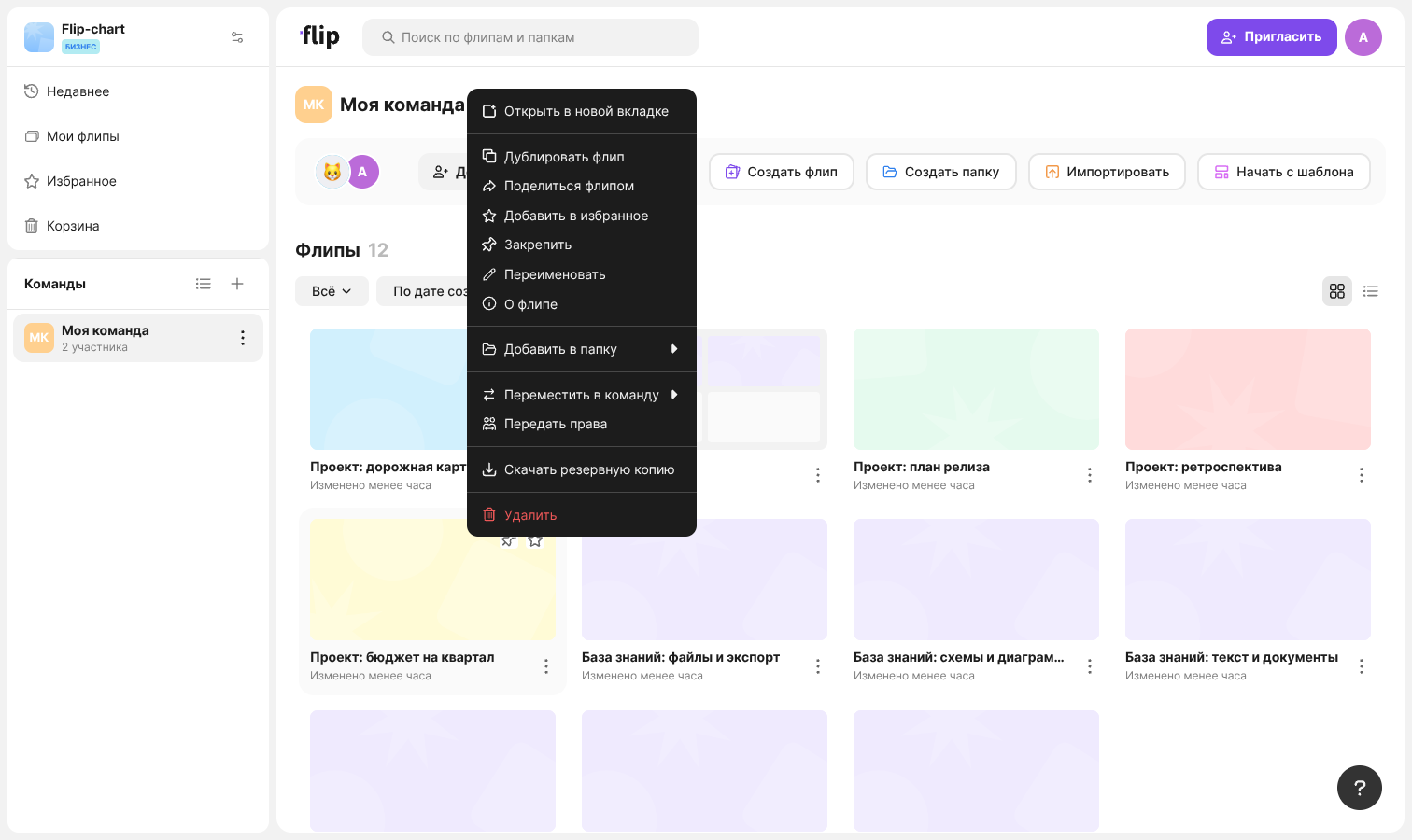
The set of items depends on your role. The full menu is shown to the flip owner, admins and the space owner; other members get “Open in new tab”, “Duplicate flip”, “Add to favorites”, “Pin” and “About flip”. Learn more about roles in the article Space roles
The “Open in new tab” item opens the flip in a separate browser tab, and the list of flips stays open
How to duplicate a flip
Open the flip menu and select “Duplicate flip”
Wait for the copying to finish
The “Duplication started” message and a card of the copy appear in the list of flips. Until the copying is finished, the “DUPLICATING” tag may appear on the card — when it disappears, the copy can be opened. If you duplicate a flip from the “More” menu on the flip itself, the copy opens in a new tab
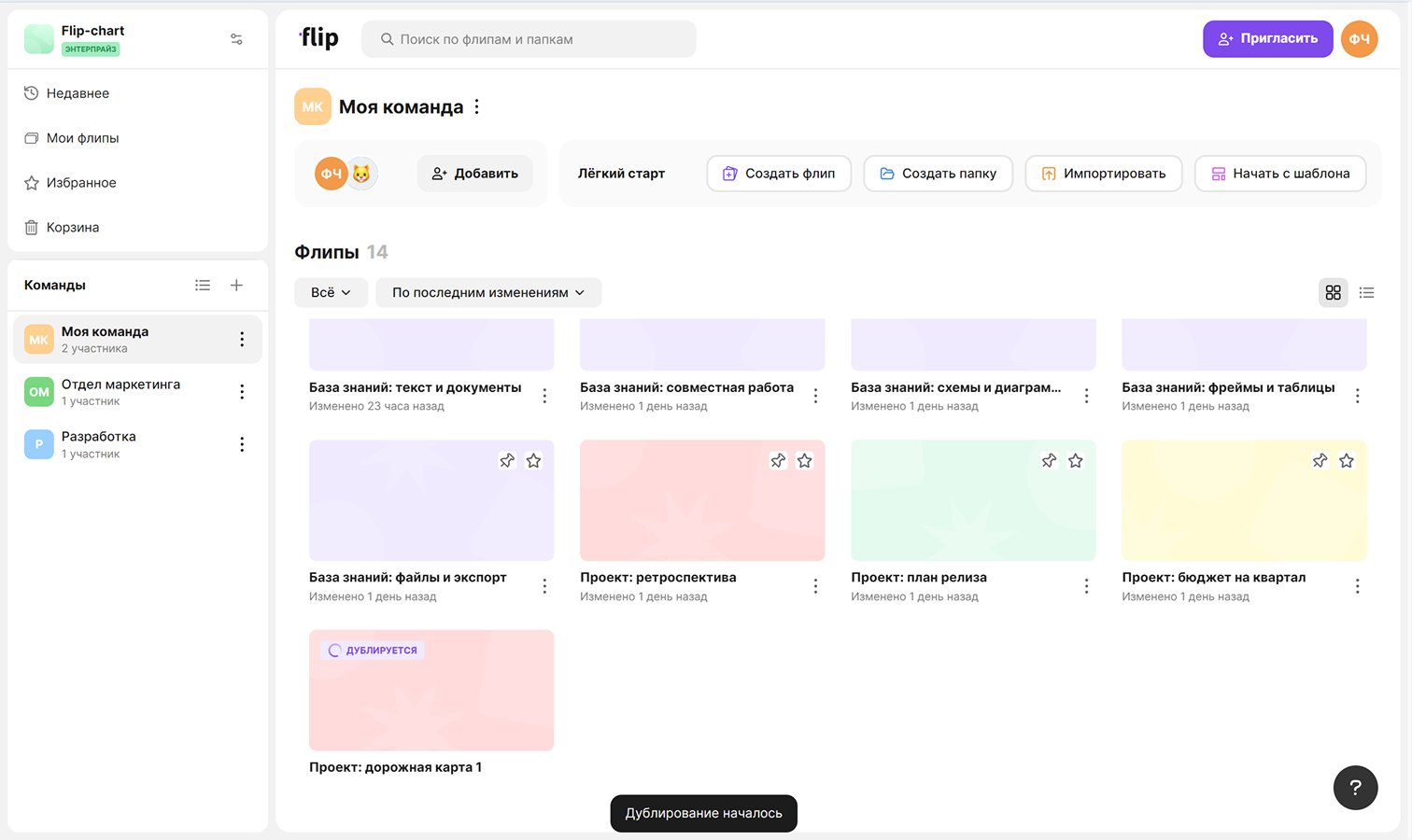
The copy is created in the same team as the original flip and gets its name with the digit 1 at the end. If the original flip is in a folder, a copy created from the list of flips goes to the same folder
A flip can be duplicated by team members, admins and the space owner. The “Recent” section and search results don't have the “Duplicate flip” item
Plan limits
The copy counts towards the flip limit of your plan. If the limit is reached, a window suggesting to delete extra flips or upgrade the plan appears instead of duplicating
How to move a flip to another team
- Open the flip menu and hover over “Move to team”
- Select a team in the list — you can find it with the “Search by name” field
- In the “Move the flip to …” window, click “Move”
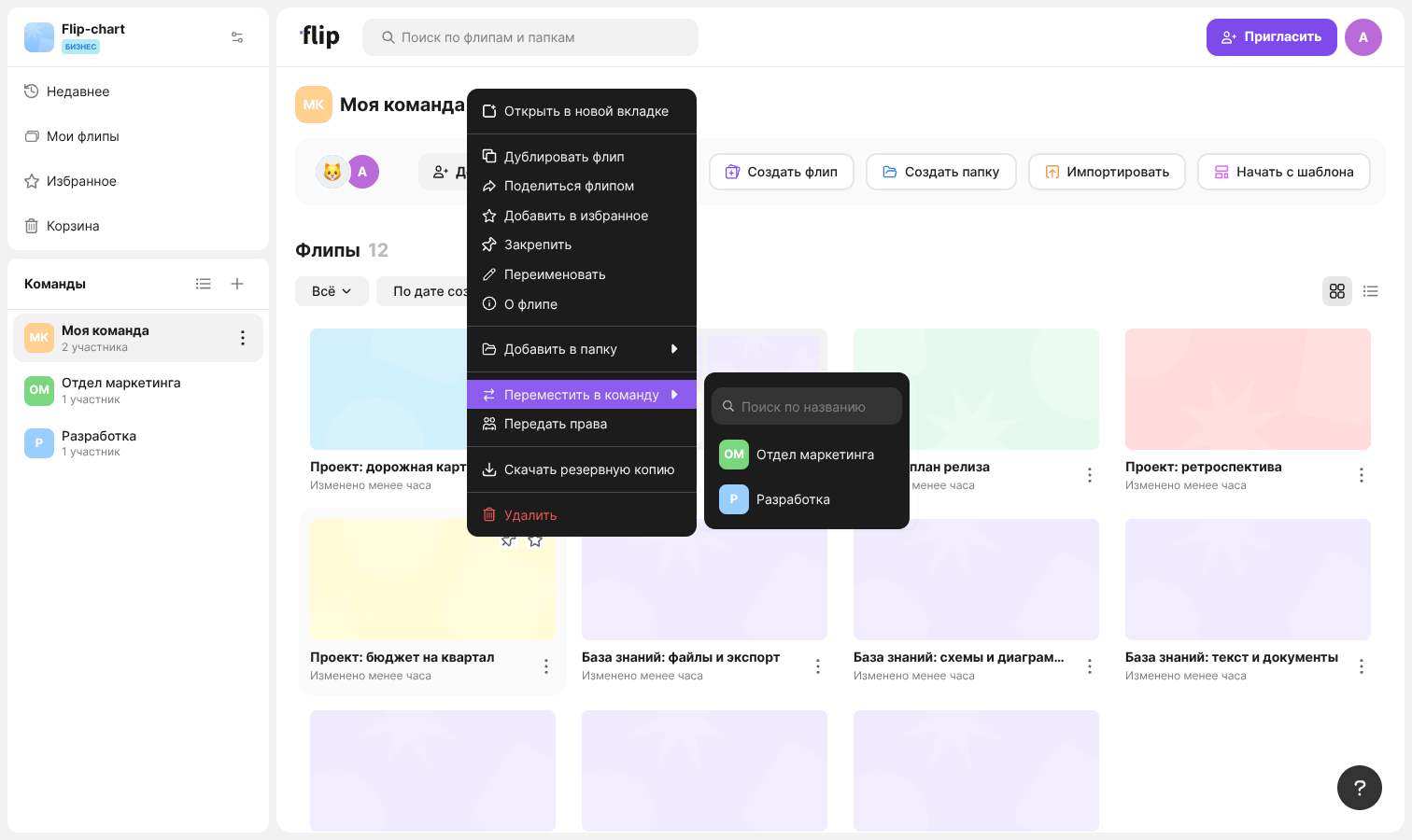
After the move, the “Moved to the … team” message appears. Members of the previous team will no longer see this flip in the list. If the flip was in a folder, it is removed from it: folders belong to one team
The list shows the teams you are a member of; admins and the space owner see all teams of the space
Important
Flips can be moved by the flip owner, admins and the space owner. On the Mini and Individual plans the “Move to team” item isn't available
How to transfer flip ownership
Open the flip menu and select “Transfer ownership”
The same window opens with the “Transit rights” link under the owner's name in the “About flip” window
Select a space member — you can find them with the “Search” field
Click “Done” — the “Ownership transferred successfully” message appears
The new owner gets the flip owner's rights: they can set up access, rename, move and delete the flip. Things to keep in mind:
- If the selected member isn't in the flip's team, the “Member is not in the team” window appears. Click “Add and transfer ownership” or choose another member
- If you aren't an admin or the space owner, after the transfer you will keep access to the flip but will not be able to edit access settings or delete the flip
- If you are the only member of the space, ownership can't be transferred — the “Transferring rights isn't possible. You are the only member of the space” message appears
Ownership can be transferred by the flip owner, admins and the space owner
The “About flip” window
The “About flip” item opens a window with basic information about the flip:
- “Name” — the flip name
- “Owner” — the name and email address of the flip owner
- “Created on”
- “Team” — the team the flip belongs to
- Cover — one of the preset colors or your own image added with the “Upload image” button
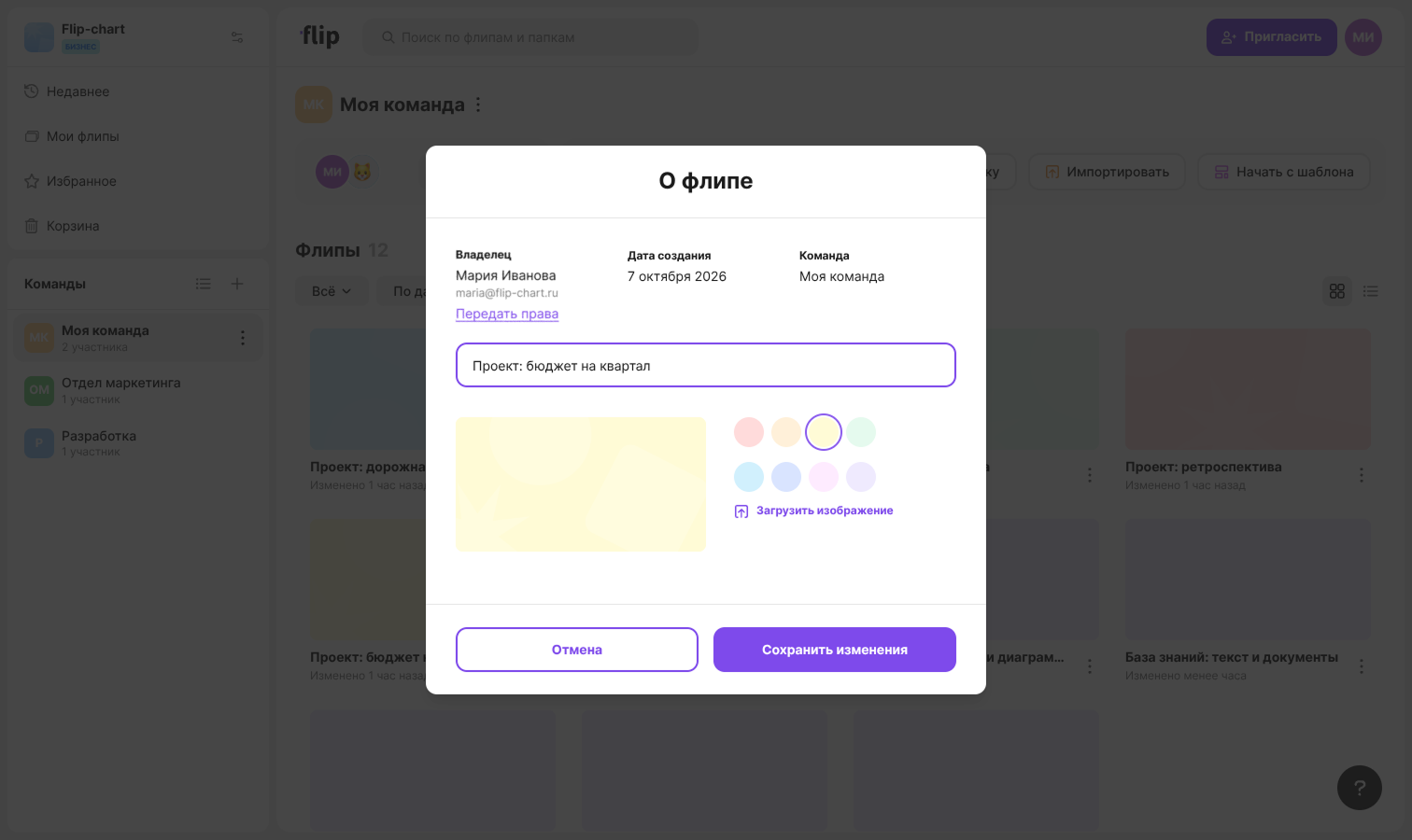
To change the name or the cover, make your edits and click “Save changes”. The “Rename” menu item opens the same window. On an open flip, you can change the name by clicking it on the top panel
The information can be viewed by space members and changed by the flip owner, admins and the space owner
Other actions from the flip menu are described in the articles How to share a flip and set up access, Folders, favorites and trash and Flip backup: download and import