

Hotkeys speed up your work on a flip: a tool is selected with a single key, and copying, grouping, locking and zoom — with key combinations. Below are all the combinations, in the same sections as in the app
How to open the list of hotkeys
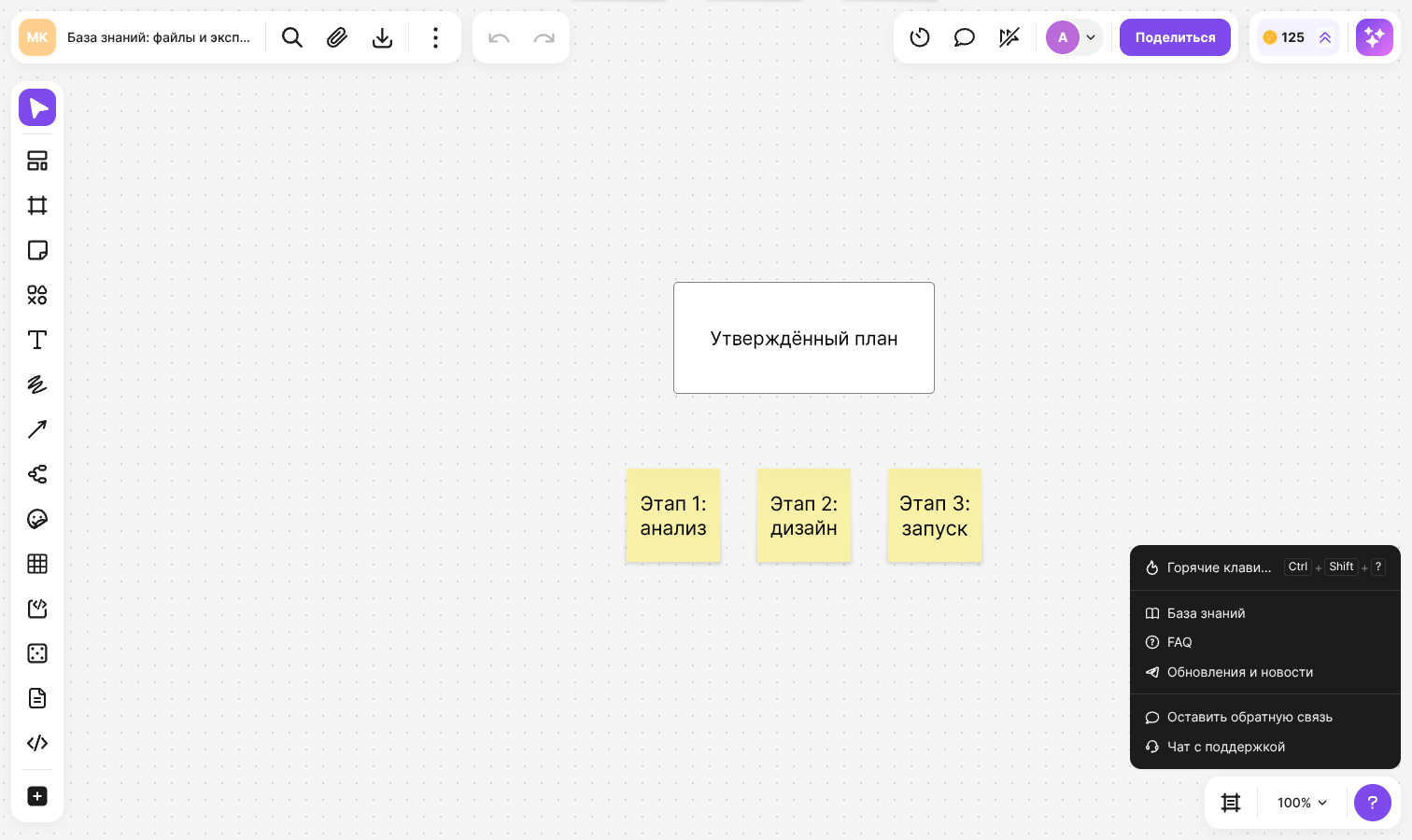
Click the question mark button in the bottom right corner of the flip
Select “Hotkeys”
The “Hotkeys” panel opens on the right with the “Tools”, “Basic”, “Object”, “Navigation” and “Text” tabs. The same panel is opened and closed with Ctrl + Shift + ? (⌃ + Shift + ? on macOS). In the tables below, ⌘ is the Command key, ⌥ is Option and ⌃ is Control
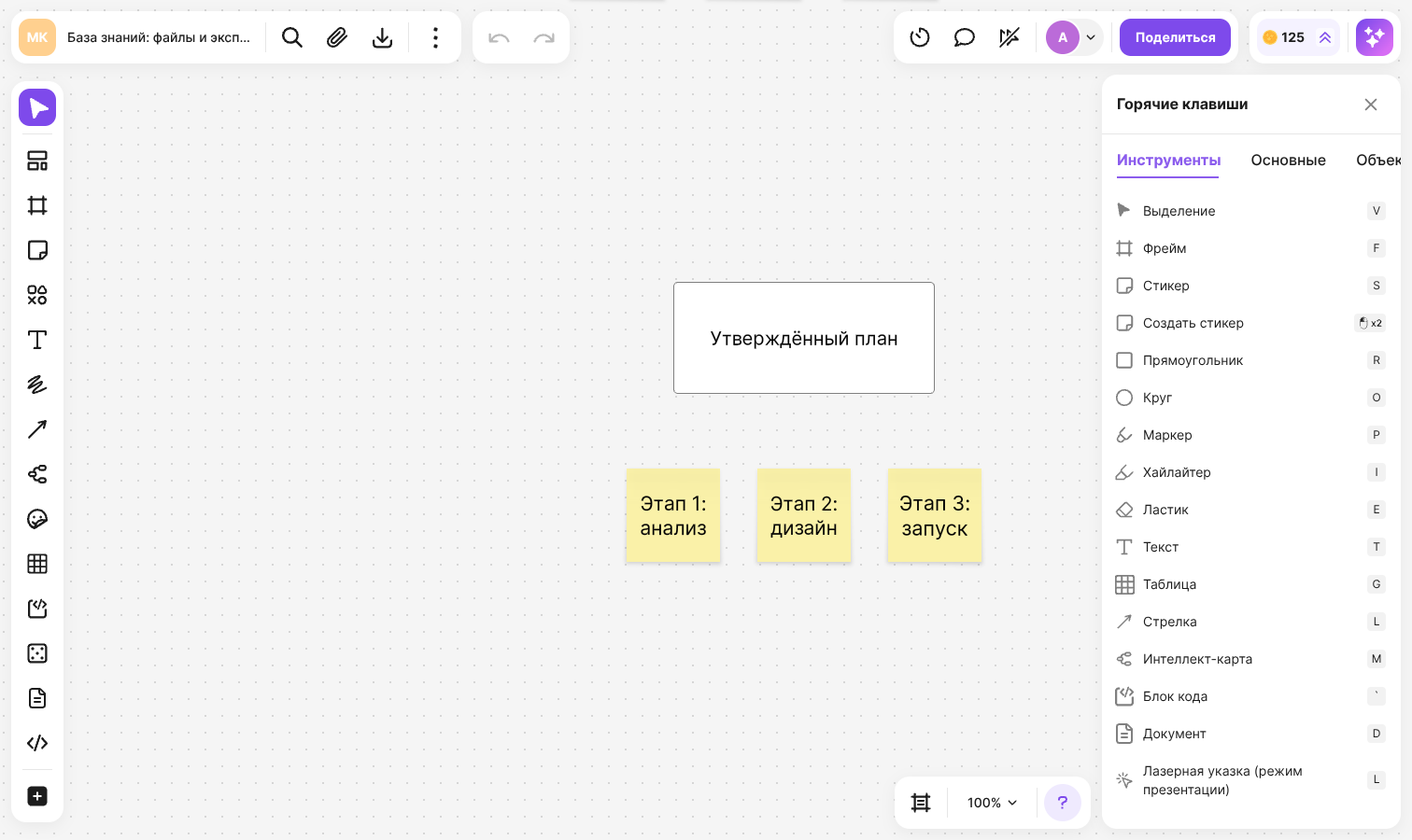
Tools
| Action | Windows and Linux | macOS |
|---|---|---|
| Edit | V | V |
| Hand (move around the flip) | Press V again or hold Space | Press V again or hold Space |
| Frame | F | F |
| Sticker | S | S |
| Create sticker | Double-click an empty area | Double-click an empty area |
| Rectangle | R | R |
| Circle | O | O |
| Marker | P | P |
| Highlighter | I | I |
| Eraser | E | E |
| Text | T | T |
| Grid | G | G |
| Arrow | L | L |
| Mind map | M | M |
| Code Block | ` | ` |
| Document | D | D |
| Laser pointer (presentation mode) | L | L |
| Comment | C | C |
| Annotation | Y | Y |
| Undo | Ctrl + Z | ⌘ + Z |
| Redo | Ctrl + Shift + Z or Ctrl + Y | ⌘ + Shift + Z |
Tool keys work in any keyboard layout when nothing is selected on the flip. If an element with text is selected, pressing a letter starts typing text. Pressing V again switches between selecting and moving around the flip, and Esc returns to selecting from any tool
Basic
| Action | Windows and Linux | macOS |
|---|---|---|
| Find on Flip | Ctrl + F | ⌘ + F |
| Export | Ctrl + E | ⌘ + E |
| Show/Hide panels | Ctrl + \ | ⌘ + \ |
| Show/Hide cursors | Ctrl + Shift + C | ⌘ + Shift + C |
| Instant message | / | / |
| Hotkeys | Ctrl + Shift + ? | ⌃ + Shift + ? |
Learn more: search on a flip, export, panels, zoom and mini-map
Object
| Action | Windows and Linux | macOS |
|---|---|---|
| Copy | Ctrl + C | ⌘ + C |
| Paste | Ctrl + V | ⌘ + V |
| Cut | Ctrl + X | ⌘ + X |
| Duplicate | Ctrl + D | ⌘ + D |
| Drag and duplicate | Alt + drag | ⌥ + drag |
| Directional duplicate | Alt + ← → ↓ ↑ | ⌥ + ← → ↓ ↑ |
| Copy as image | Ctrl + Shift + C | ⌘ + Shift + C |
| Select all | Ctrl + A | ⌘ + A |
| Multi-select | Ctrl + click | ⌘ + click |
| Merge element groups into one selection | Shift + click | Shift + click |
| Area union | Shift + selection box | Shift + selection box |
| Delete | Delete or Backspace | Backspace or Delete |
| Undo | Esc | Esc |
| Bring forward | Ctrl + Alt + ] | ⌘ + ⌥ + ] |
| Send backward | Ctrl + Alt + [ | ⌘ + ⌥ + [ |
| Bring to front | Ctrl + ] | ⌘ + ] |
| Send to back | Ctrl + [ | ⌘ + [ |
| Group | Ctrl + G | ⌘ + G |
| Ungroup | Ctrl + Shift + G | ⌘ + Shift + G |
| Lock | Ctrl + L | ⌘ + L |
| Unlock | Ctrl + Shift + L | ⌘ + Shift + L |
| Hide frame | Ctrl + H | ⌘ + H |
| Show frame | Ctrl + Shift + H | ⌘ + Shift + H |
| Clip frame content | Ctrl + M | ⌘ + M |
| Show frame content | Ctrl + Shift + M | ⌘ + Shift + M |
| Copy link to object | Ctrl + Alt + Shift + C | ⌘ + ⌥ + Shift + C |
| Add link to object | Ctrl + Alt + K | ⌘ + ⌥ + K |
| Apply another element's size | Ctrl + S | ⌘ + S |
| Apply another element's width | Alt + W | ⌥ + W |
| Apply another element's height | Alt + H | ⌥ + H |
| Move elements | ← → ↓ ↑ | ← → ↓ ↑ |
| Fast move elements | Shift + ← → ↓ ↑ | Shift + ← → ↓ ↑ |
| Axis-aligned move | Shift + drag | Shift + drag |
To apply the size, width or height of another element to the selected elements, hold the combination and click the sample element. Ctrl + Shift + C copies the selected elements as an image, and when nothing is selected it shows or hides the cursors of other participants
Learn more: grouping, aligning and locking, frames, links to objects
Navigation
| Action | Windows and Linux | macOS |
|---|---|---|
| Mini-map | Shift + M | Shift + M |
| Show/Hide comments | Shift + C | Shift + C |
| Show/Hide annotations | Shift + Y | Shift + Y |
| Move by flip | ← → ↓ ↑, Space + drag or drag with the mouse wheel pressed | ← → ↓ ↑, Space + drag or drag with the mouse wheel pressed |
| Move horizontally | Shift + mouse wheel | Shift + mouse wheel |
| Change scale | Mouse wheel | Mouse wheel |
| Full screen | F11 | ⌘ + ⌃ + F |
| Zoom in | Ctrl + “+” | ⌘ + “+” |
| Zoom out | Ctrl + “−” | ⌘ + “−” |
| Zoom 100% | Shift + 0 | Shift + 0 |
| Fit all objects to screen | Shift + 1 | Shift + 1 |
The arrow keys move the flip when nothing is selected, and shift the selected elements when something is. Shift + 0 sets the zoom to 100% when nothing is selected: if an element with text is selected, pressing it replaces the element's text with “0”
Text
The combinations work while you are editing text. Bold, italic, underlined, strikethrough and hyperlink can also be applied to a whole selected element. Learn more about formatting in the article on working with text
| Action | Windows and Linux | macOS |
|---|---|---|
| Bold | Ctrl + B | ⌘ + B |
| Italic | Ctrl + I | ⌘ + I |
| Underlined | Ctrl + U | ⌘ + U |
| Strikethrough | Ctrl + Shift + X | ⌘ + Shift + X |
| Hyperlink | Ctrl + Shift + U | ⌘ + Shift + U |
| Superscript | Ctrl + . | ⌘ + . |
| Subscript | Ctrl + , | ⌘ + , |
Limitations
- The “Hotkeys” panel is not available on mobile devices
- Tool keys and actions with objects don't work while the cursor is in an input field — for example, in the search field or in a comment
- In view mode, tool keys and the combinations that change objects don't work