

A document is a block-based text editor on a flip. It is a convenient place for meeting notes, briefs, task descriptions and discussion summaries, right next to your diagrams and stickers. A document consists of a title and blocks: text, headings, lists, quotes, tables, images and code. All members of the flip see changes right away
How to create a document
Select “Document” on the toolbar or press the D key
Click an empty spot on the flip — a document of the standard size appears. To set the size right away, hold the mouse button and drag out an area. After the document is created, the flip zooms out on its own so that the whole document fits on the screen
Enter a title and start writing in the first block
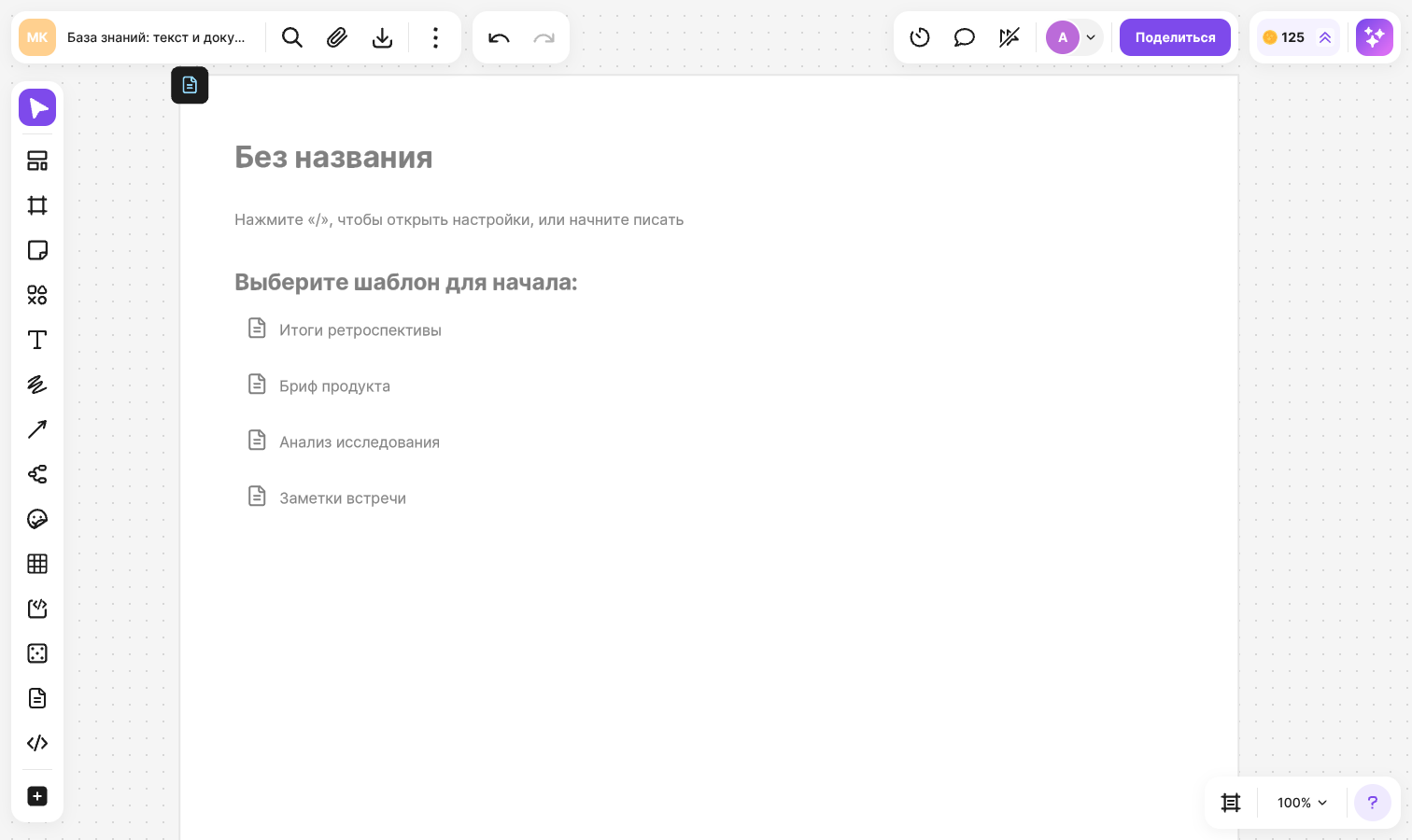
An empty document shows the “Choose a template to start:” picker. Click a template to add a ready-made structure to the document:
- “Retrospective summary”
- “Product brief”
- “Research analysis”
- “Meeting notes”
The template picker disappears as soon as the document contains text. To come back to the document later, click it — the editor opens. To leave the editor, press Esc or click an empty spot on the flip
How to add blocks
Press Enter at the end of a block — a new empty block appears below. Shift + Enter adds a line break inside the current block
To choose a block type, type “/” in an empty block or click the “+” button next to it — a menu opens:
- “Text”, “Heading 1”, “Heading 2”, “Heading 3”
- “Numbered list”, “Bulleted list”, “Checklist”, “To-do list”
- “Quote”, “Callout”, “Divider”
- “Image”, “Table”, “Code block”
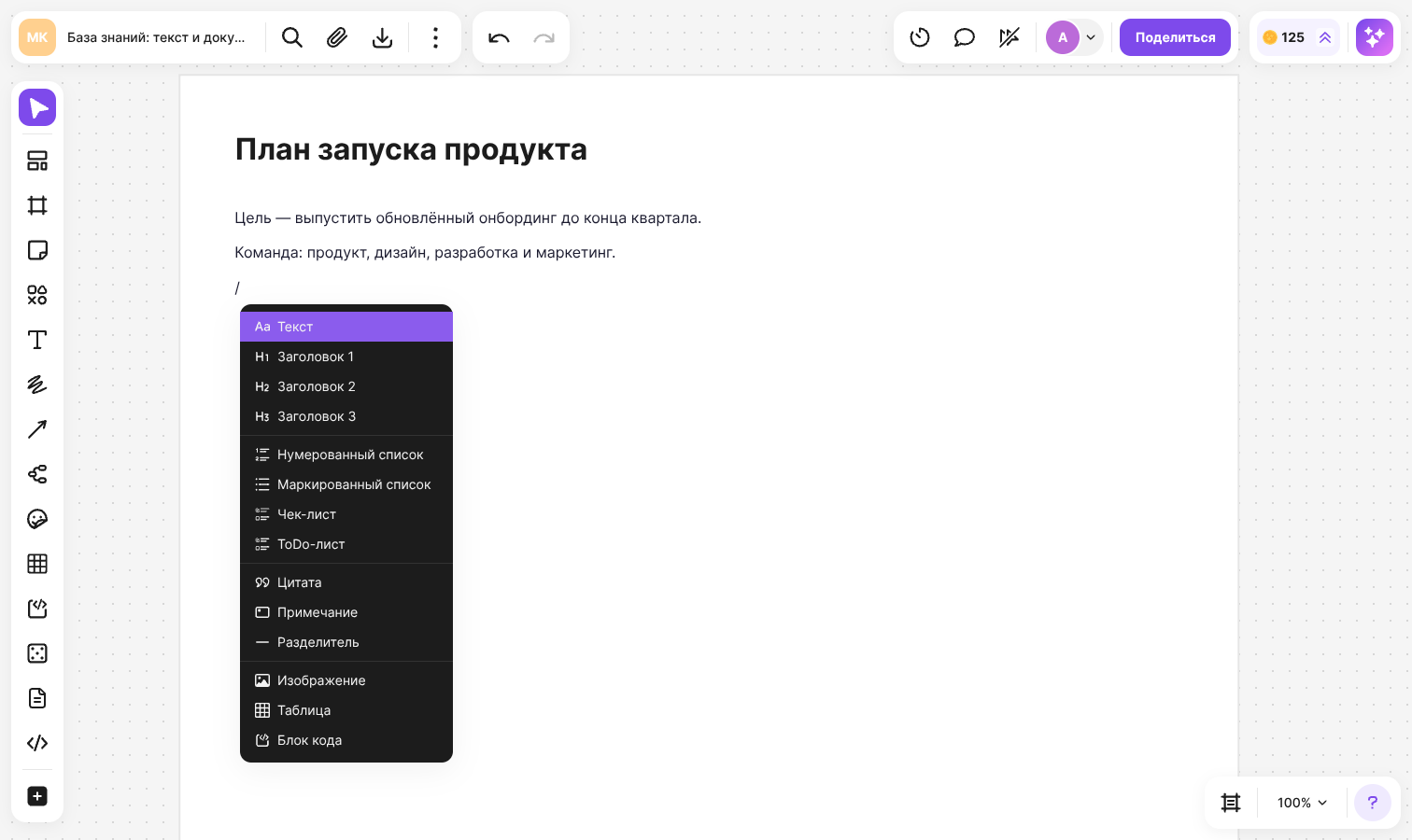
Pick a block in the list with a click, or with the ↑ and ↓ arrows and the Enter key. If you keep typing after “/”, the menu closes and the typed text stays in the block
You can also move elements from the flip into a document: drag an image, a table, a code block, an iFrame, a chart, a Mermaid diagram or a text element between the blocks of the document — a line shows where it will be inserted. An image, a table and a code block can be dragged out of the document back onto the flip the same way
Learn more about these elements in How to work with tables, Code block, Charts, Mermaid diagrams and Images and files
How to format text
Select a piece of text — a formatting panel appears above it. Use it to:
- Change the block type
- Apply a style: bold, italic, underline, strikethrough, monospace
- Align the block left, center, right or justify it
- Add a link
- Change the text color and the highlight color. “Clear formatting” returns the selection to the default look
Style, color and link apply to the selected text, alignment applies to the whole block. For a “Callout” block, you can change the emoji and the background color
How to move and convert blocks
Hover over a block — a handle appears to the left of it:
- Hold the handle and drag the block to a new place. A line between blocks shows where it will land. To cancel dragging, press Esc
- Click the handle to open the block menu
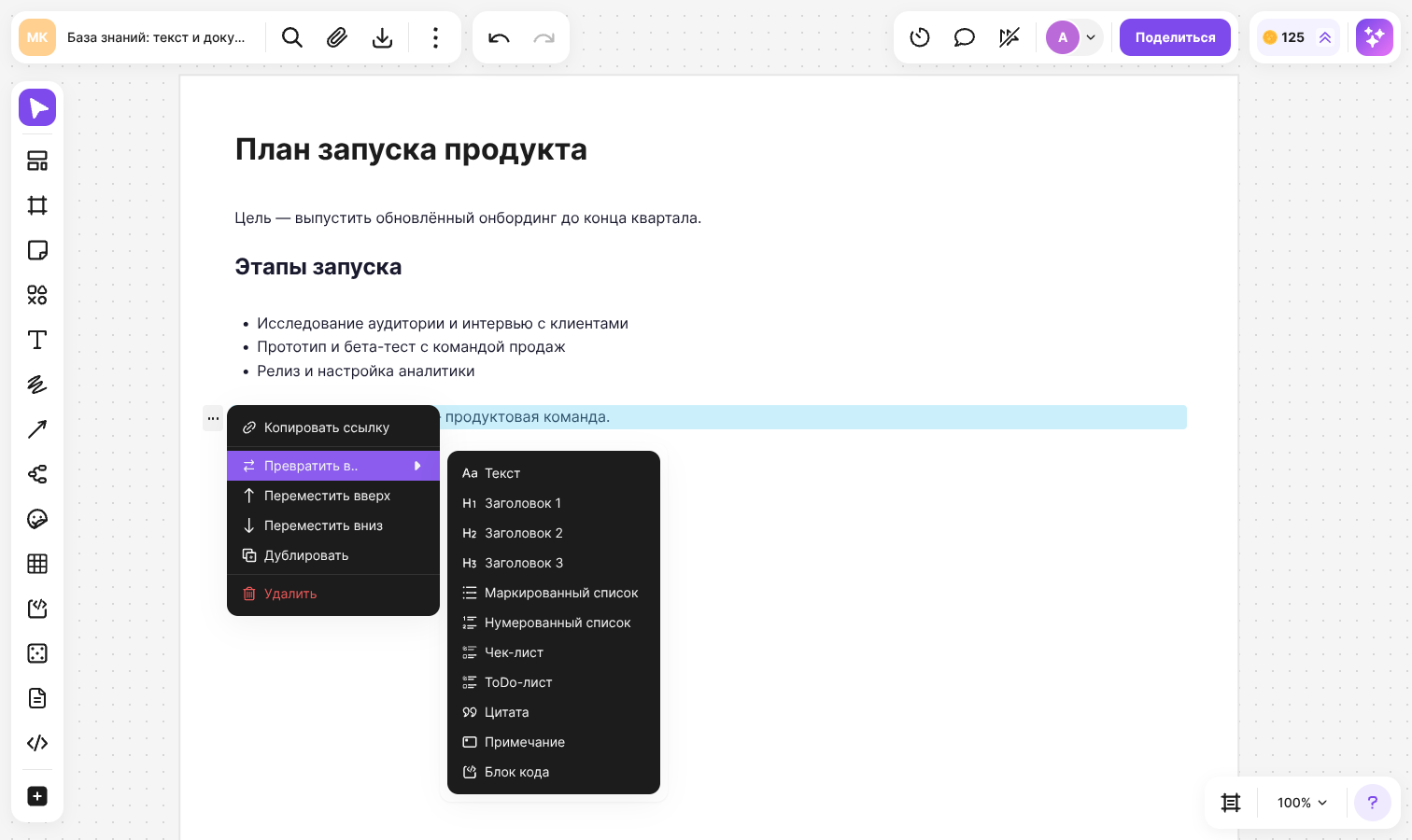
The block menu offers these actions:
- “Turn into..” — change the block type and keep its text. For example, you can turn a paragraph into a heading, or a bulleted list into a checklist
- “Move up” and “Move down”
- “Duplicate”
- “Copy link” — copy a link to this block. The link opens the document scrolled to the block. If the block has been deleted, flip shows the message “The block has been deleted”
- “Delete”
A code block, a table, an image and other embedded elements can't be turned into another type
How to mention members, objects and flips
Type “@” in the text of a block — the mention menu opens
Choose a tab: “Member”, “Object” or “Flips”
To narrow the list, keep typing a name right after “@”. Select the result you need
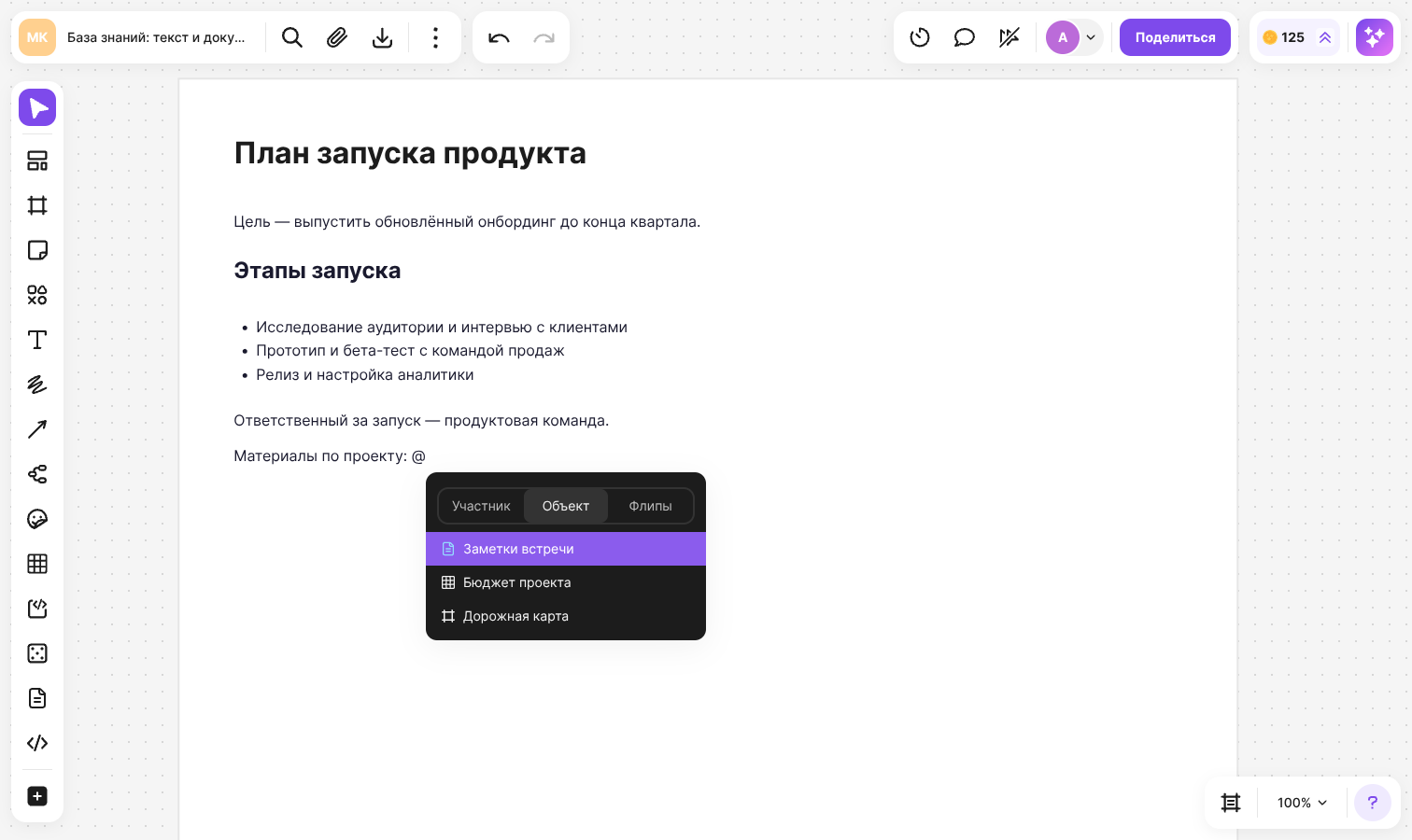
On the “Object” tab, you can select a document, a frame or a table — they are shown in one list, and an icon marks the object type. Clicking a mention takes you there:
- Member — the member's card opens
- Frame or table — the flip moves to this object
- Document — this document opens. If the document is on another flip, that flip opens in a new tab
- Flip — opens in a new tab
If a document from another flip is open through the “Structure” panel, clicking a frame or table mention in it opens the flip where the document is located in a new tab and shows this object. The current flip and the open document stay where they are
If the object has been deleted, the message “Object not found” appears
“Fullscreen” mode and collapsing
Select a document — a panel with the document title appears above it
- “Fullscreen” — the document opens across the whole work area, and the other elements of the flip are hidden. All editor features are available in this mode. To go back to the flip, click “Collapse” in the top right corner
- “Collapse document” — a long document collapses and takes up less space on the flip. To bring it back to full view, click “Expand document”
Resize a document with the handles of the selection frame; its height adjusts to the content automatically
In “Fullscreen” mode, the “Information” card is shown to the right of the document:
- “Last changes” — who changed the document last and when
- “Linked documents” — documents linked to this document with “@”: documents that mention it and documents mentioned in it. Click a document in the list to open it. If there are more than five documents, click “Show all”. If there are no links, the card says “No documents link here. Use @ in a document to create a link”
- The star button — “Add to favourites” or “Remove from favourites”
- The lock button — shows whether the document is open for editing. Learn more in the “How to close a document for editing” section
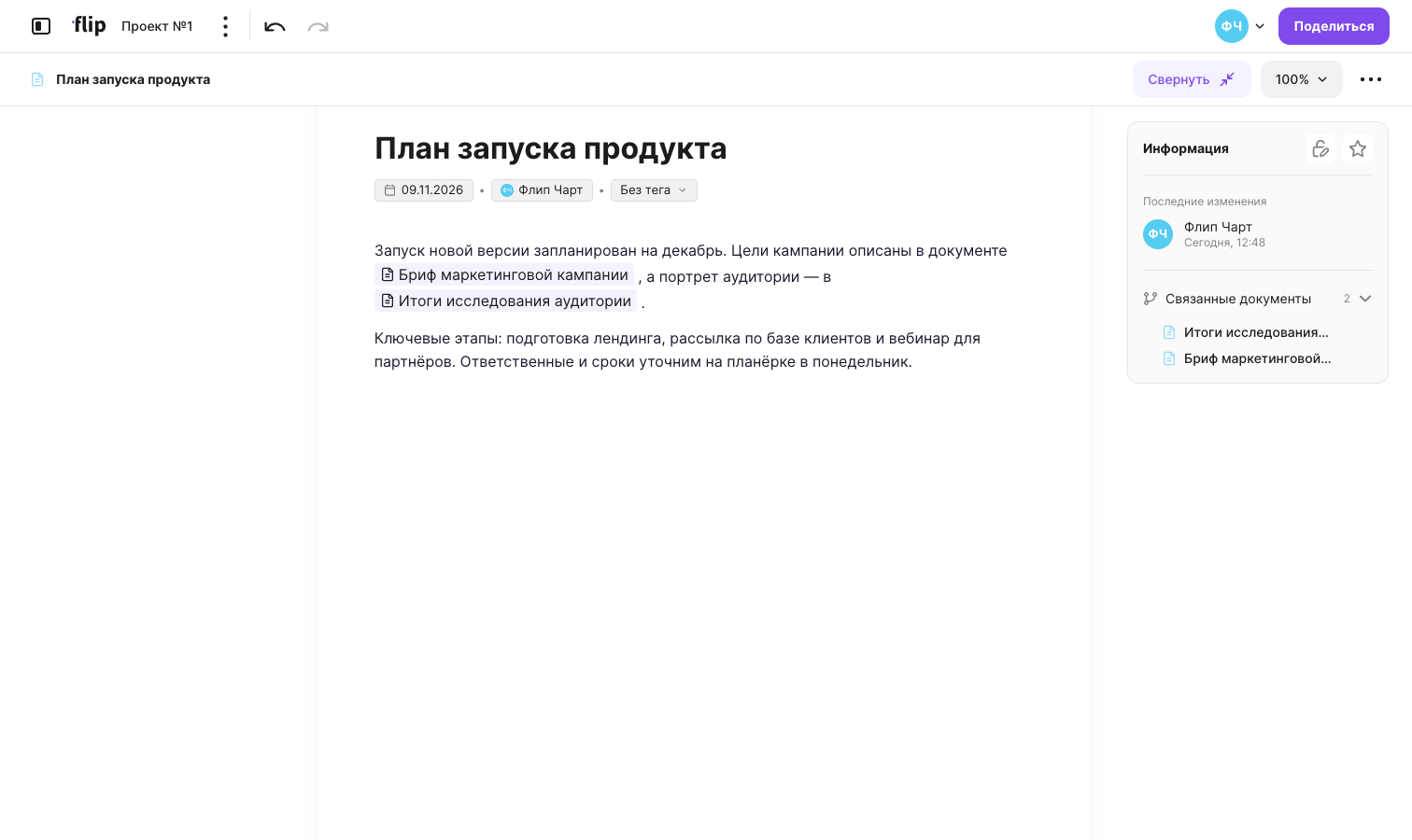
In the top left corner of “Fullscreen” mode, there is the “Structure” panel button — use it to open another document of the space without closing the current one. Learn more in The “Structure” panel: flips and documents of a space
Document details
Below the document title there is a row of details — on the flip, while editing and in “Fullscreen” mode:
- the date the document was created
- the author — the avatar and name of the member who created the document. If a guest created the document, “Guest” is shown instead of the name. If the user has been deleted, “(Deleted user)” is shown next to their name
- the document tag, if one is assigned
- the number of documents that link to this document. It is shown only if there are such documents. Hover over it to see a hint, for example “2 documents link to this one”. To link to a document, mention it with “@” in another document, as described above in “How to mention members, objects and flips”
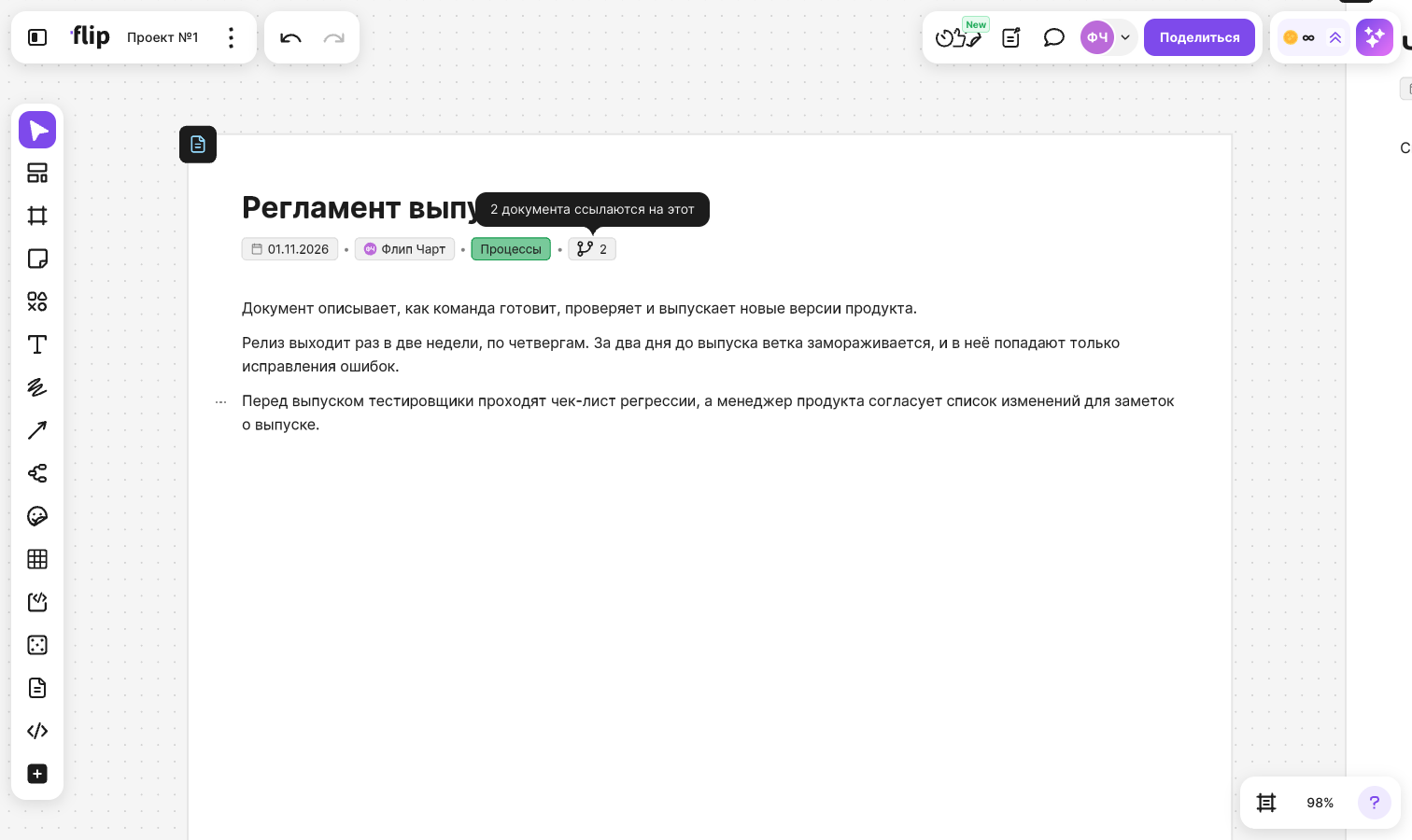
Click the author's name to open their member card. The card doesn't open for a guest
To assign or change the tag, open the document in “Fullscreen” mode and click the tag in the details row. If there is no tag yet, click “No tag”. Select a tag in the list that opens
How to close a document for editing
You can close a document for editing so that other members can only read it:
- Select the document on the flip
- On the panel above the document, click the lock button — when you hover over it, the “Editing allowed” tooltip appears. The tooltip changes to “Read only”, and the lock closes
The same lock is in the “Information” card in “Fullscreen” mode. To allow editing again, click the lock once more
The document creator, the flip creator, the team creator and a space admin can close and open a document for editing — they can still edit the document after editing is closed. For other members, the document is read-only, and they can't delete it either: flip shows “You cannot delete a document that is closed for editing”. In document lists, such a document is marked with a lock icon
All documents of the space are collected in separate lists on the home page — learn more in Documents in a space: list, search and trash
How to import Word and Markdown files
Click “Upload” on the toolbar and select a file, or drag a file onto the flip
In the window that opens, choose an option and click “Select”. To close the window without importing, click “Cancel”
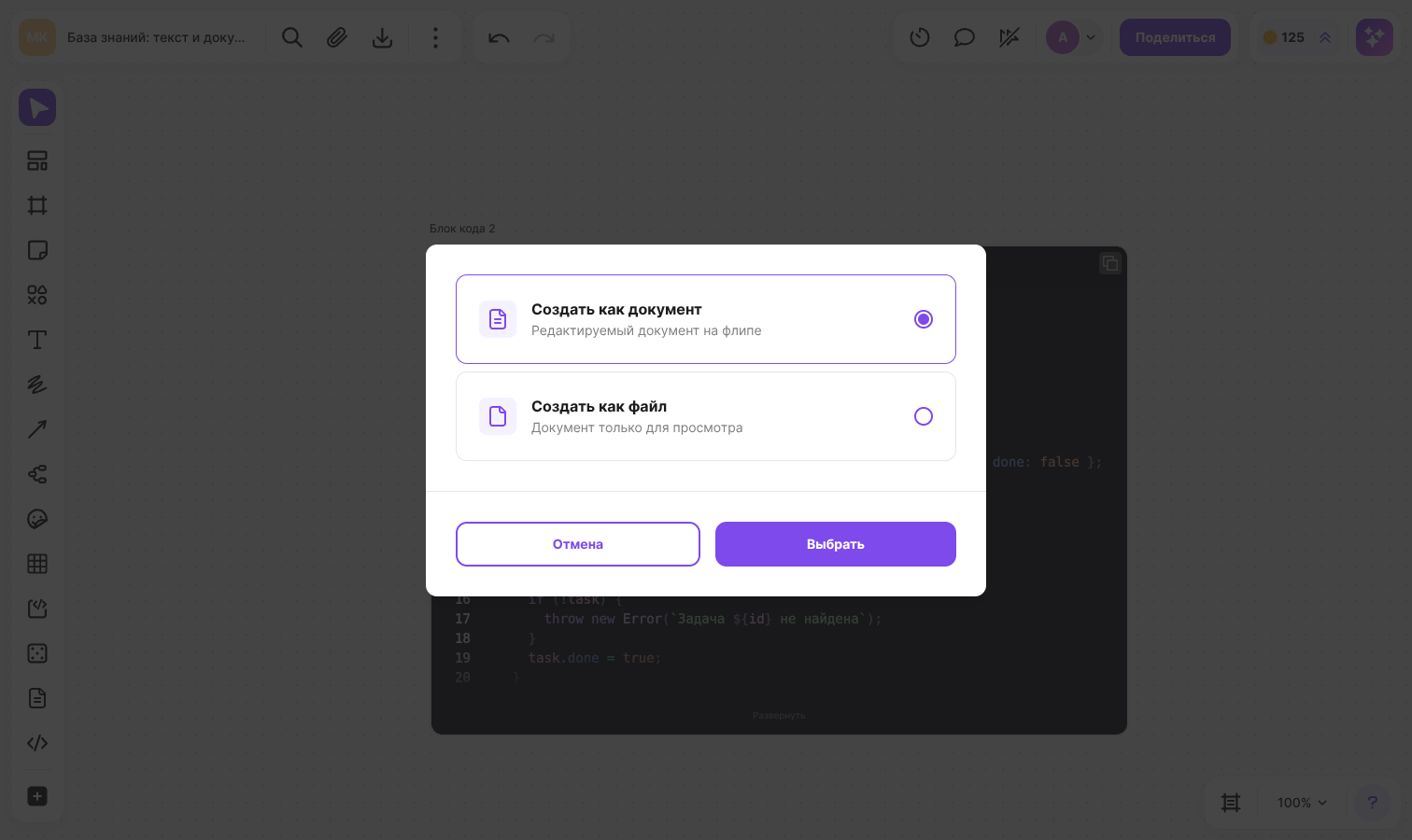
For Word files (.doc, .docx), as well as .odt and .rtf, these options are available:
- “Create as document” — an editable document appears on the flip: headings, lists, quotes, text formatting and images are carried over from the file
- “Create as file” — the file is added to the flip for viewing only
For Markdown files (.md), the options are “Create as document” and “Create as code block” — the file contents as text. For plain text files (.txt), “Create as file” is available as well
How to export a document
Right-click the document, select “Save as...” and choose a format:
- Markdown (.md)
- PDF (.pdf)
- CSV (.csv)
In “Fullscreen” mode, the same formats are available in the “More” → “Save as” menu
Limits
- Members with “Editing” access can edit a document. With “View” and “Commenting” access, the document opens read-only
- A document closed for editing can be changed only by its creator, the flip creator, the team creator and a space admin
- The “Information” card isn't shown on a phone
- A Word file to import must be no larger than 35 MB
- The number of blocks in one document is limited. If the limit is exceeded, flip tells you that some of the blocks were not saved
- A document can't be rotated
- A document can have only one tag
- A table with other elements attached to it can't be dragged into a document