A flip is an online whiteboard in flip. Flips are created in the teams of a space, and you can rename a flip, change its cover or delete it from the flip menu and on the flip itself
How to create a flip
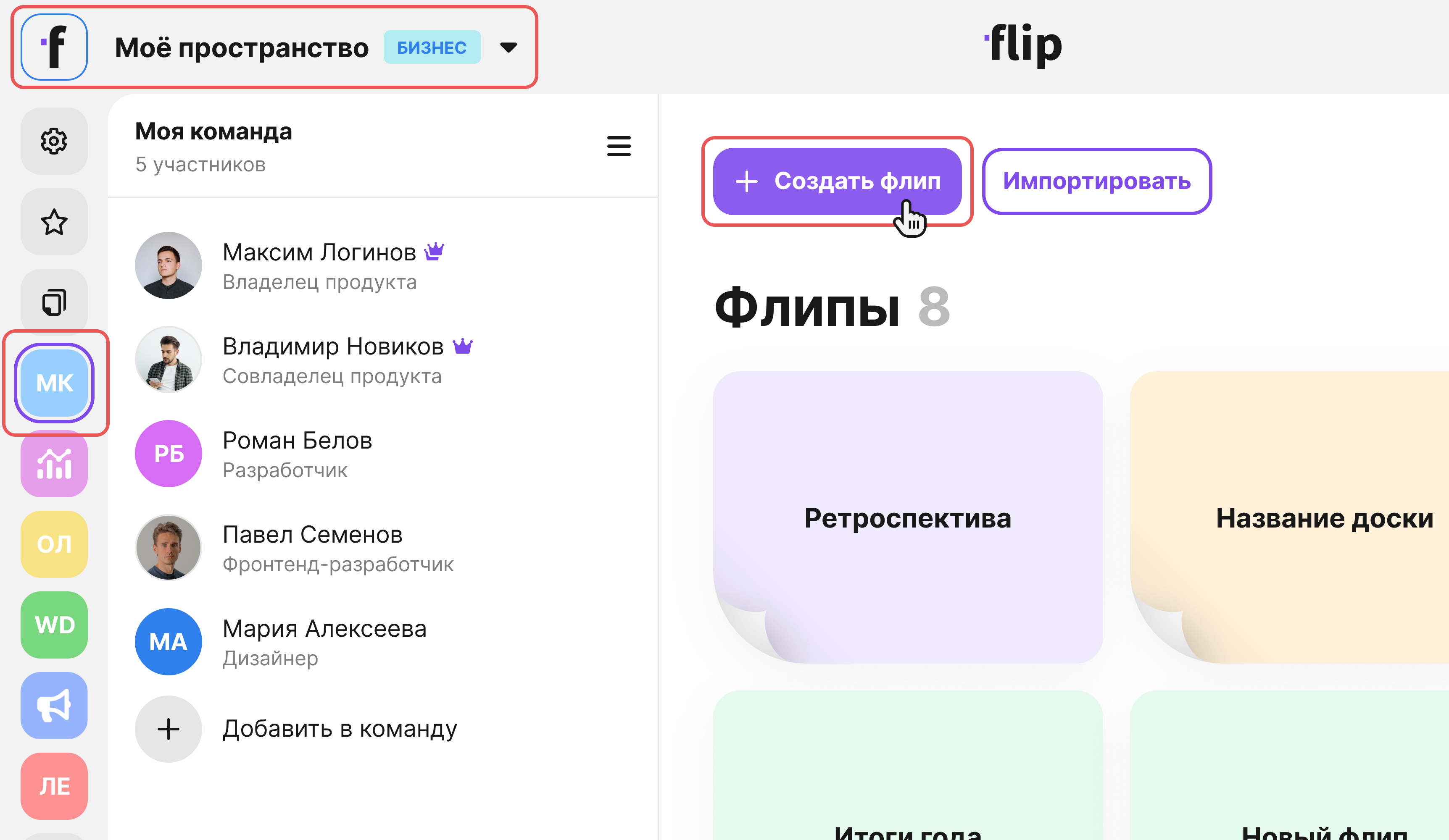
- In the left sidebar, in the “Teams” section, select the team that needs the flip. The Individual plan has no teams — open the “Home” section instead
- On the “Quick start” panel, click “Create flip”
A flip named “New flip” appears in the selected team and opens right away. All members of the space can create flips

The flip is created in the current space, whose name is shown at the top of the left sidebar. If you have several spaces, click this name and select the space you need
If the browser window is narrow, “Create flip” and other buttons of the “Quick start” panel may be collected in the “Create” menu
Other ways to create a flip:
- On an open flip, click “More” in the top left corner and select “Create new flip” — the flip appears in the same team and opens in a new tab
- Inside a folder, click “Create flip” on the “Quick start” panel — the flip is placed in that folder right away. See Folders, favorites and trash for details
- “Start from template” — a flip with a ready-made structure, see Flip templates
- “Import” — a flip from a backup or a board from Miro, see Flip backup: download and import and How to move a board from Miro
Plan limits
On the Mini plan, a space can have no more than 3 flips, and flips in the trash count too. If the limit is reached, instead of a new flip you see the “You've reached the limit of 3 flips” window suggesting to delete flips from the “My flips” and “Trash” sections. The space owner also gets the “Upgrade plan” button in this window. On other plans the number of flips is unlimited
The flip menu
To open the menu, right-click a flip in the list of flips or click the “More” button on the flip card

The full menu is shown to the flip owner — its creator or the member the ownership was transferred to — as well as to admins and the space owner:
- “Open in new tab” — the flip opens in a separate browser tab
- “Duplicate flip” — a copy of the flip in the same team, see Duplicating, moving and transferring a flip
- “Share flip” — access to the flip and links to it, see How to share a flip and set up access
- “Add to favorites” and “Pin” — see Folders, favorites and trash
- “Rename” and “About flip” — open the “About flip” window, described below
- “Add to folder” — shown if the team has folders
- “Move to team” and “Transfer ownership” — see Duplicating, moving and transferring a flip
- “Download backup” — see Flip backup: download and import
- “Delete” — moves the flip to the trash, described below
Other members get “Open in new tab”, “Duplicate flip”, “Add to favorites”, “Pin” and “About flip”. The set of items also depends on where the menu is opened: the “Recent” section and search results have no “Duplicate flip” item, and on smartphone screens there are no “Open in new tab”, “Move to team”, “Transfer ownership” and “Download backup” items
On an open flip, similar actions are collected in the “More” menu in the top left corner
How to rename a flip
A flip can be renamed by its owner, admins and the space owner
On an open flip:
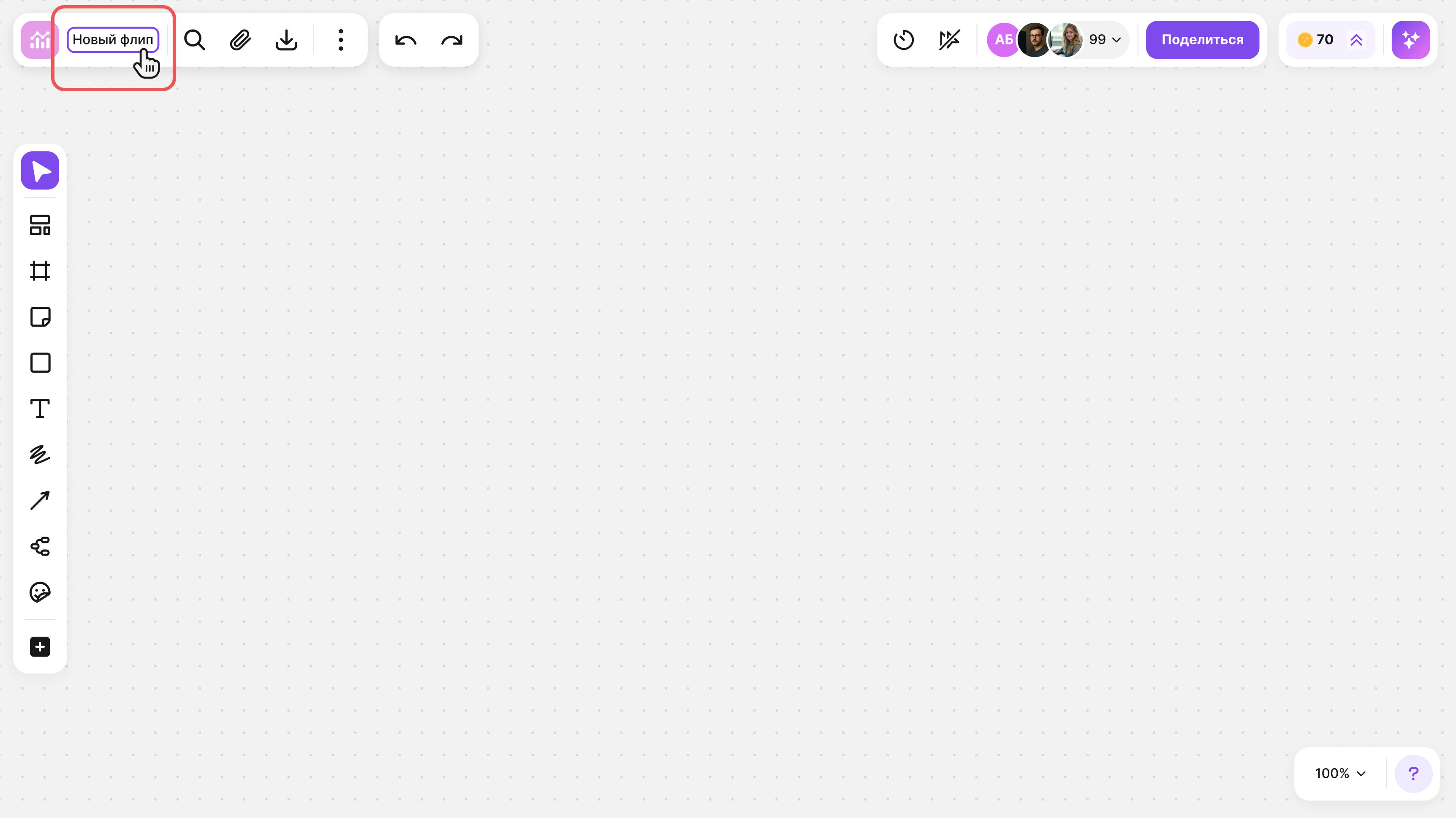
- Click the flip name on the top panel
- Enter a new name
- Press Enter or click an empty spot on the flip. To discard the changes, press Esc

In the list of flips:
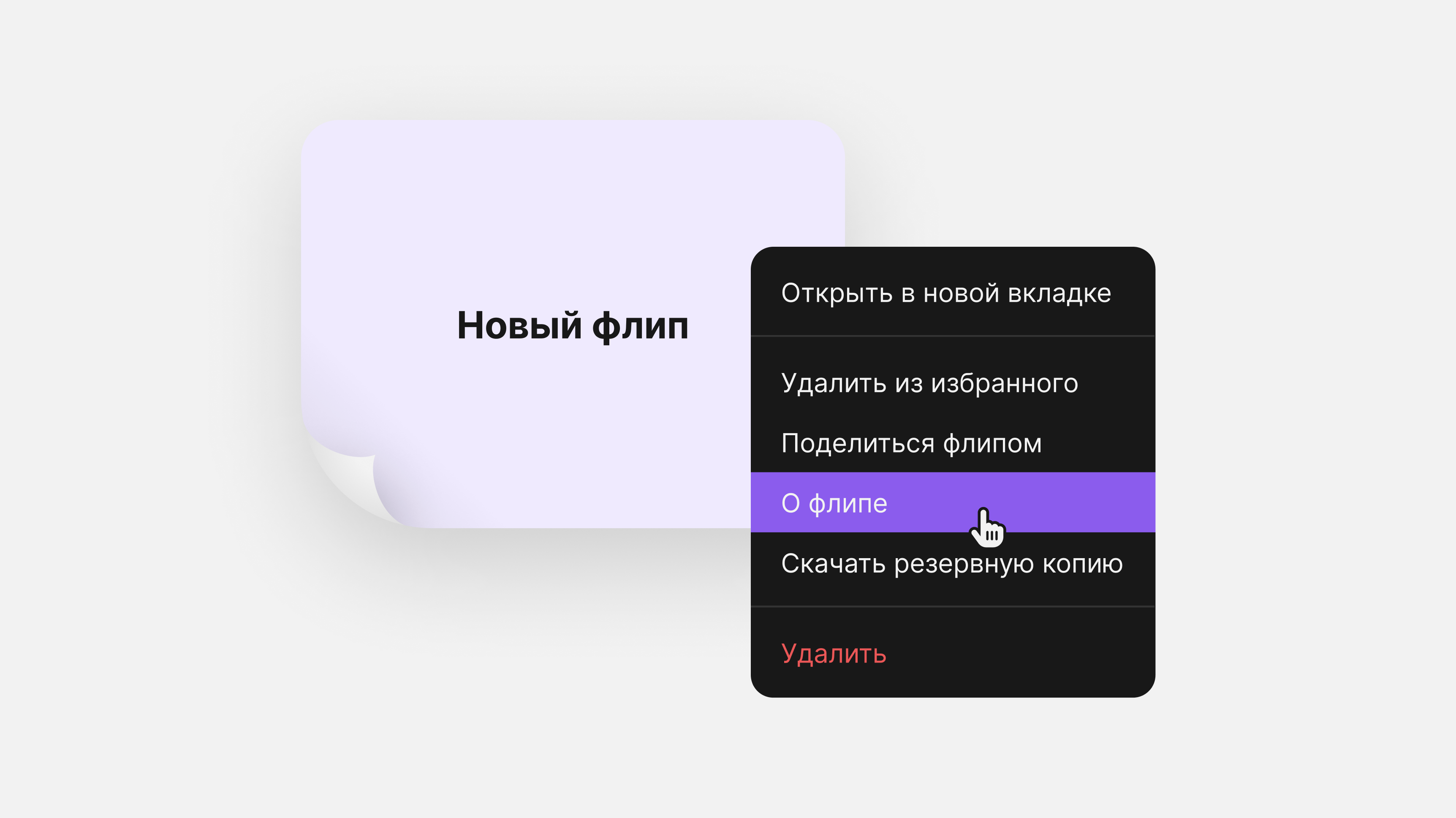
- Open the flip menu and select “Rename” or “About flip”
- In the “About flip” window, change the name in the field at the top of the window
- Click “Save changes”
After saving, the “Flip info has changed” message appears. The name can be up to 64 characters long and can't be left empty
How to change the flip cover
The cover is a color or an image on the flip card in the list of flips. It can be changed by the flip owner, admins and the space owner
- Open the flip menu and select “About flip”. On an open flip, this item is in the “More” menu
- Choose one of the eight colors or click “Upload image” and select a file on your computer
- If you upload an image, choose its visible part: drag the image and adjust the zoom with the slider, then click “Save”
- Click “Save changes”
To remove the image, click the cross on the cover preview or choose a color
The cover doesn't change the background of the flip itself — it is set up separately, see Background, grid, zoom and mini-map. The “About flip” window also shows the flip owner, the creation date and the team — see Duplicating, moving and transferring a flip for details
How to delete a flip
A flip can be deleted by its owner, admins and the space owner. Other members don't have the “Delete” item in the flip menu, and on an open flip the “Delete flip” item is inactive for them
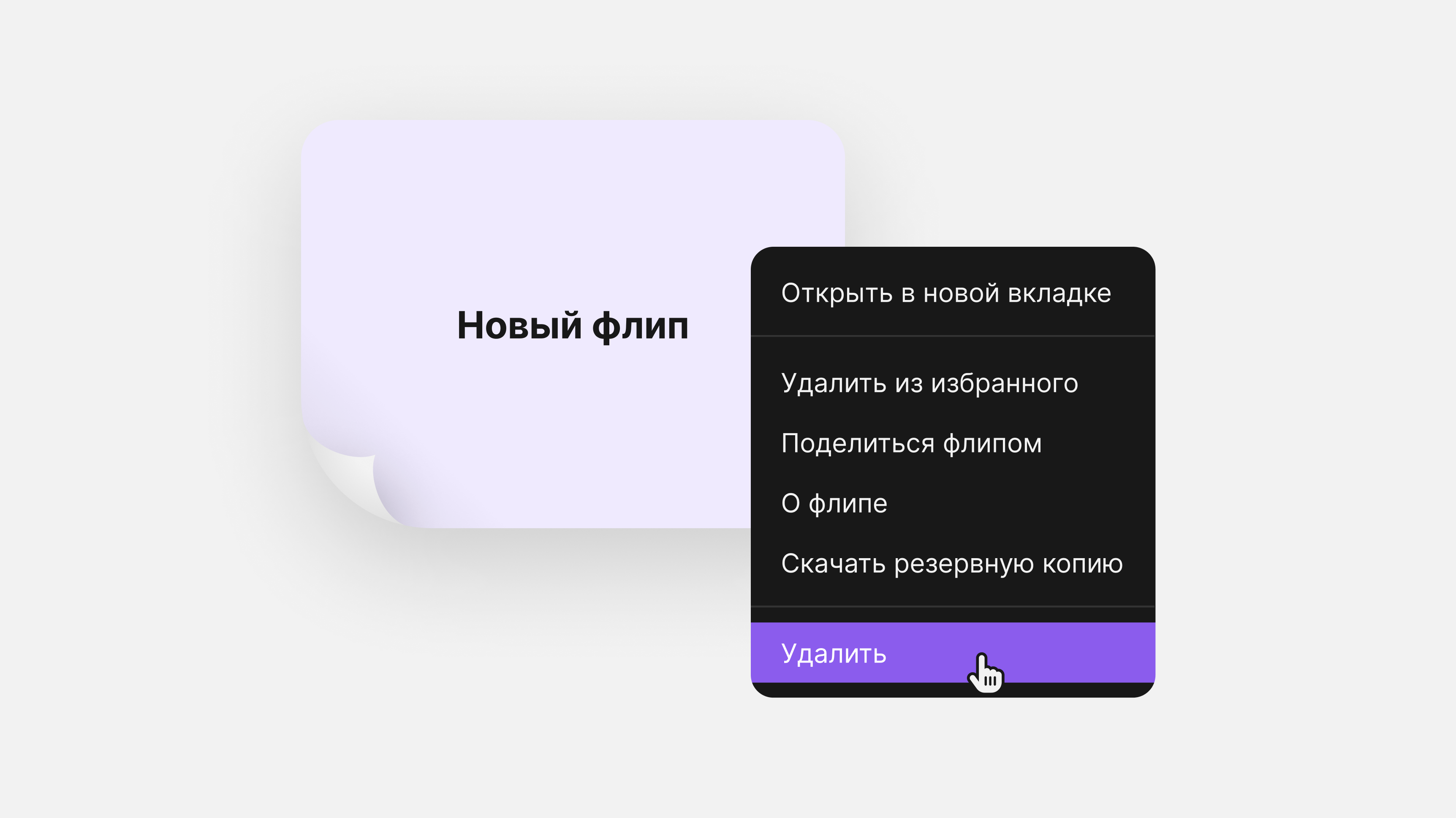
- In the list of flips, right-click the flip or click the “More” button on its card
- Select “Delete”

On an open flip, click “More” in the top left corner and select “Delete flip” — after deletion the team's list of flips opens
The flip is deleted immediately, without confirmation, and goes to the “Trash” section. It is stored there for 30 days and then deleted permanently. To get the flip back, open the “Trash” section and select “Restore” in the flip menu — see Folders, favorites and trash for details
Limitations
- On the Mini plan, a space can have no more than 3 flips, including flips in the trash
- Only the flip owner, admins and the space owner can rename a flip, change its cover and delete it
- A flip name can be no longer than 64 characters
- A deleted flip is stored in the trash for 30 days and then deleted permanently
- On smartphone screens, only the name can be changed in the “About flip” window, the cover can't be changed