

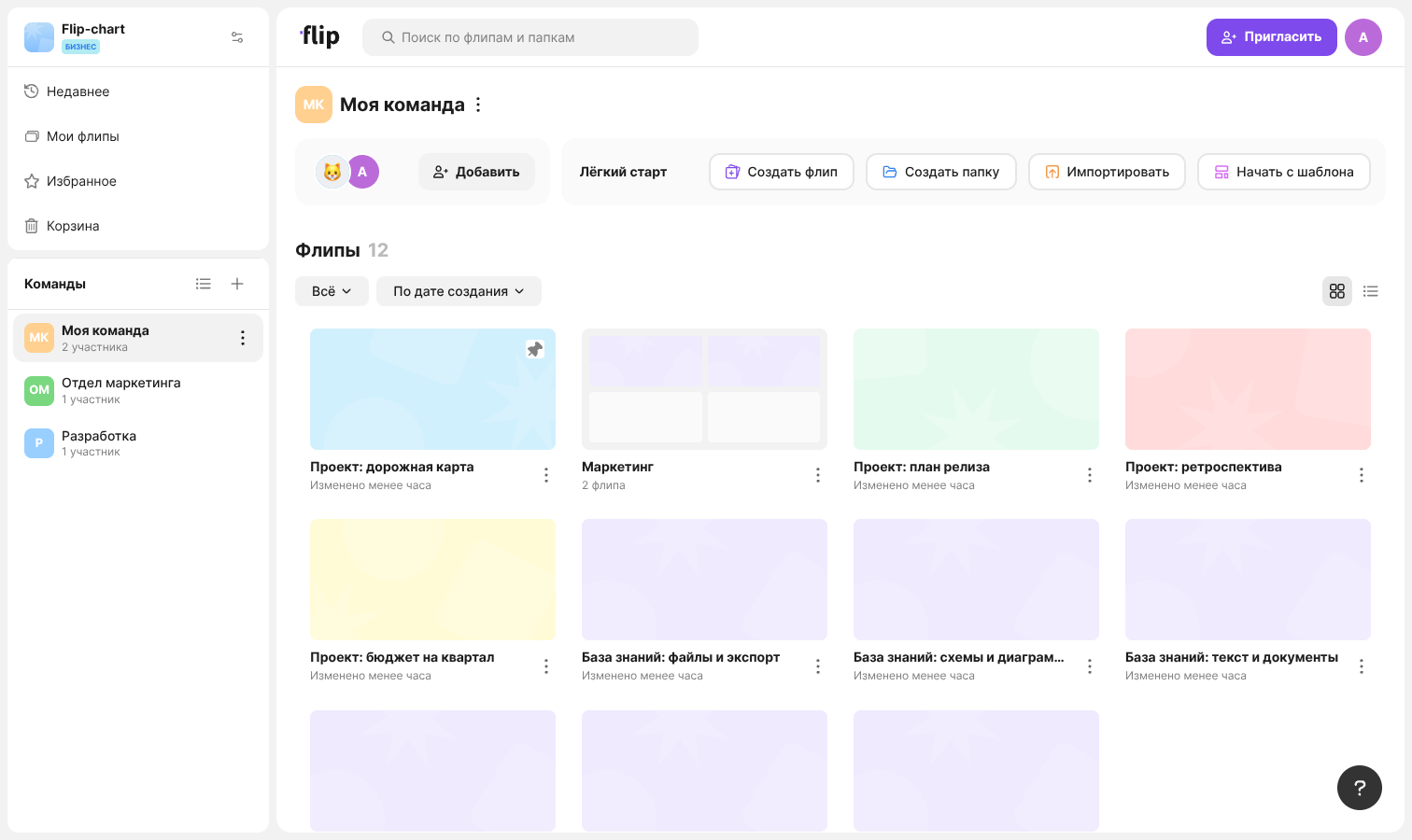
You can organize your list of flips: sort flips into folders, mark important ones as favorites, pin them to the top of the list and move the ones you don't need to the trash. The side menu sections, search, filters and sorting help you find the right flip quickly
Side menu sections
- “Recent” — flips you have opened in the last 7 days, including flips from other spaces
- “My flips” — flips you created in the current space. On the Individual plan the “Home” section with all flips and folders is shown instead
- “Favorites” — flips you added to favorites
- “Trash” — deleted flips
The teams of the space are listed below in the menu. A team page shows its flips and folders
How to find a flip
- Search — enter at least two characters in the “Search flips and folders” field. The search covers the current space, and the “Show … results” button opens the “Search results” page
- List view — switch between “Show as grid” and “Show as list”
- Type filter — “All”, “Flips” or “Folders”. The filter appears if the team has both flips and folders
- Creator filter — “All creators”, “Created by me”, “Created by others” or a specific member. The filter appears if the list contains flips by different creators
- Sorting — “By creation date”, “By last edit”, “Alphabetically (A-Z)” or “Alphabetically (Z-A)”
How to work with folders
A folder groups flips of one team. A flip can be in only one folder
To create a folder, click “Create folder” on the “Quick start” panel — a folder named “New folder” appears in the list. Another way is to drag one flip onto another and hold it for a second or two: a new folder with both flips appears
To add flips to a folder:
- Open the folder, click “Add flip”, select flips in the window that opens and click “Add”. The window title is the folder name, and the list shows the team's flips that aren't in any folder yet
- Or drag a flip onto the folder in the list
- Or right-click a flip, select “Add to folder” and then the folder you need
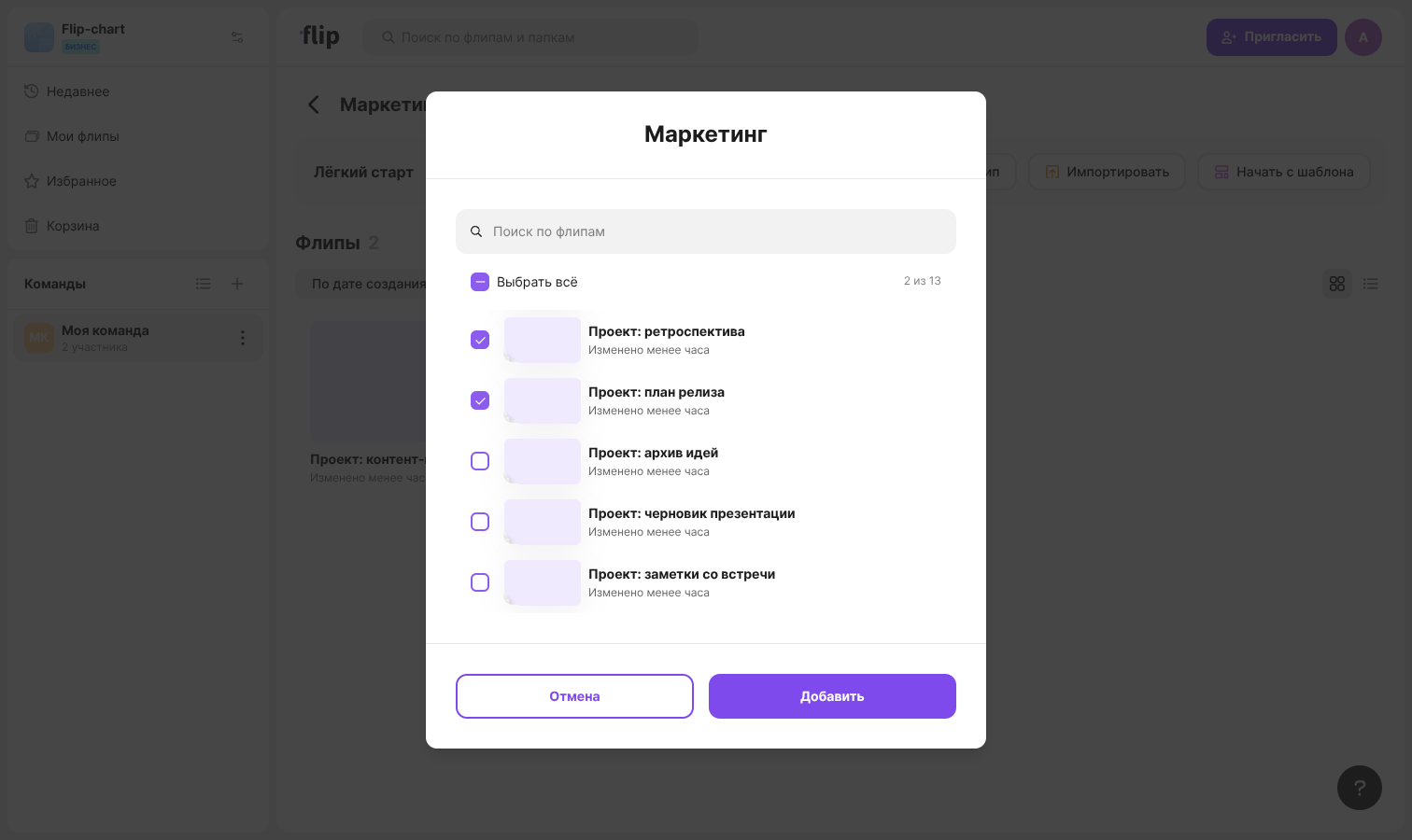
For a flip that is already in a folder, the menu offers “Move to folder” and “Remove from folder”. A flip created inside a folder with the “Create flip” or “Start from template” buttons is placed in that folder right away
The folder menu offers:
- “Rename” and “About folder” — open a window with the name, creator, number of flips and team
- “Pin” — the folder is shown at the top of the list
- “Delete” — confirm the deletion in the “Delete folder?” window. Flips from the folder aren't deleted, they are moved to the general list
A folder can be renamed and deleted by its creator, the team creator, admins and the space owner. A flip can be moved between folders by the flip owner, admins and the space owner
Plan limits
Folders are included in paid plans. On the Mini plan, the “Folders” window suggesting to upgrade the plan appears when you try to create a folder
Favorites and pinning
To add a flip to favorites, hover over the flip and click the star, or select “Add to favorites” in the flip menu. On an open flip this item is in the “More” menu in the top left corner. Favorite flips are collected in the “Favorites” section; to remove a flip from it, use “Remove from favorites”
To keep a flip or a folder at the top of the list, select “Pin” in the menu. Pinned items stay first with any sorting. To bring back the regular order, select “Unpin”
How to work with the trash
To delete a flip, right-click it and select “Delete”. Flips can be deleted by the flip owner, admins and the space owner
A deleted flip goes to the “Trash” section and is stored there for 30 days, after which it is deleted permanently. The end date is shown in the “STORED UNTIL …” tag — it appears when you hover over the flip card
The menu of a flip in the trash offers:
- “Restore” — the flip returns to the team it was deleted from
- “Delete permanently” — the flip is deleted and can't be restored
To handle several flips at once:
- Click “Select”
- Select the flips you need or click “Select all”
- Click “Restore” or “Delete” — the buttons show the number of selected flips — and confirm the action
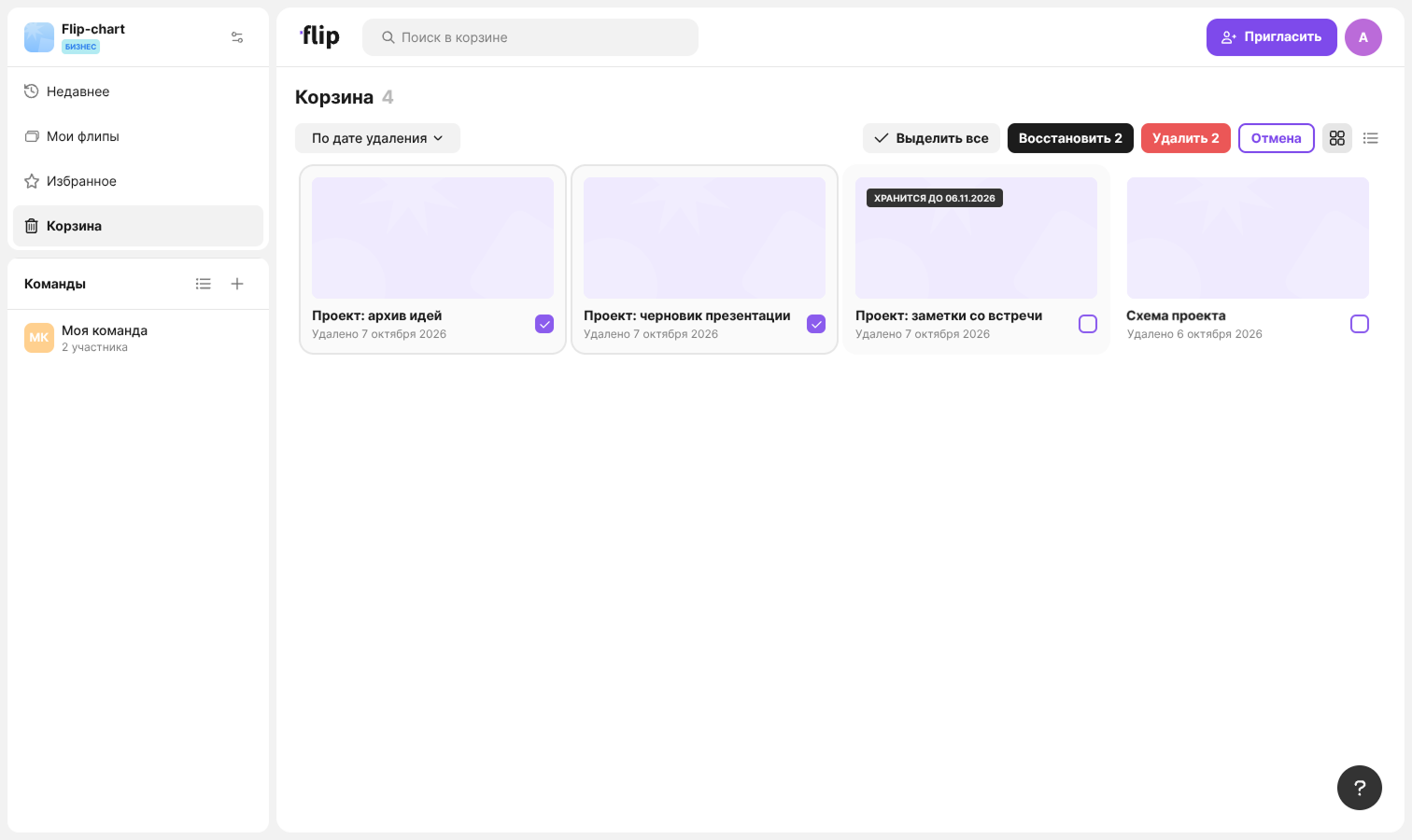
Flips in the trash can be found with the “Search in trash” field and sorted by deletion date or alphabetically
Important
On the Mini plan, flips in the trash count towards the flip limit. To make room for new flips, permanently delete the flips you don't need from the trash