

A backup is a .board file with the content of a flip. You can save it to your computer to keep a copy of the flip, and later import the file back and get a new flip with the same content — for example, in another space or team
How to download a backup
Option 1. On a flip, click the “Export” button in the top left corner and select “Download backup”. The item is available to space members
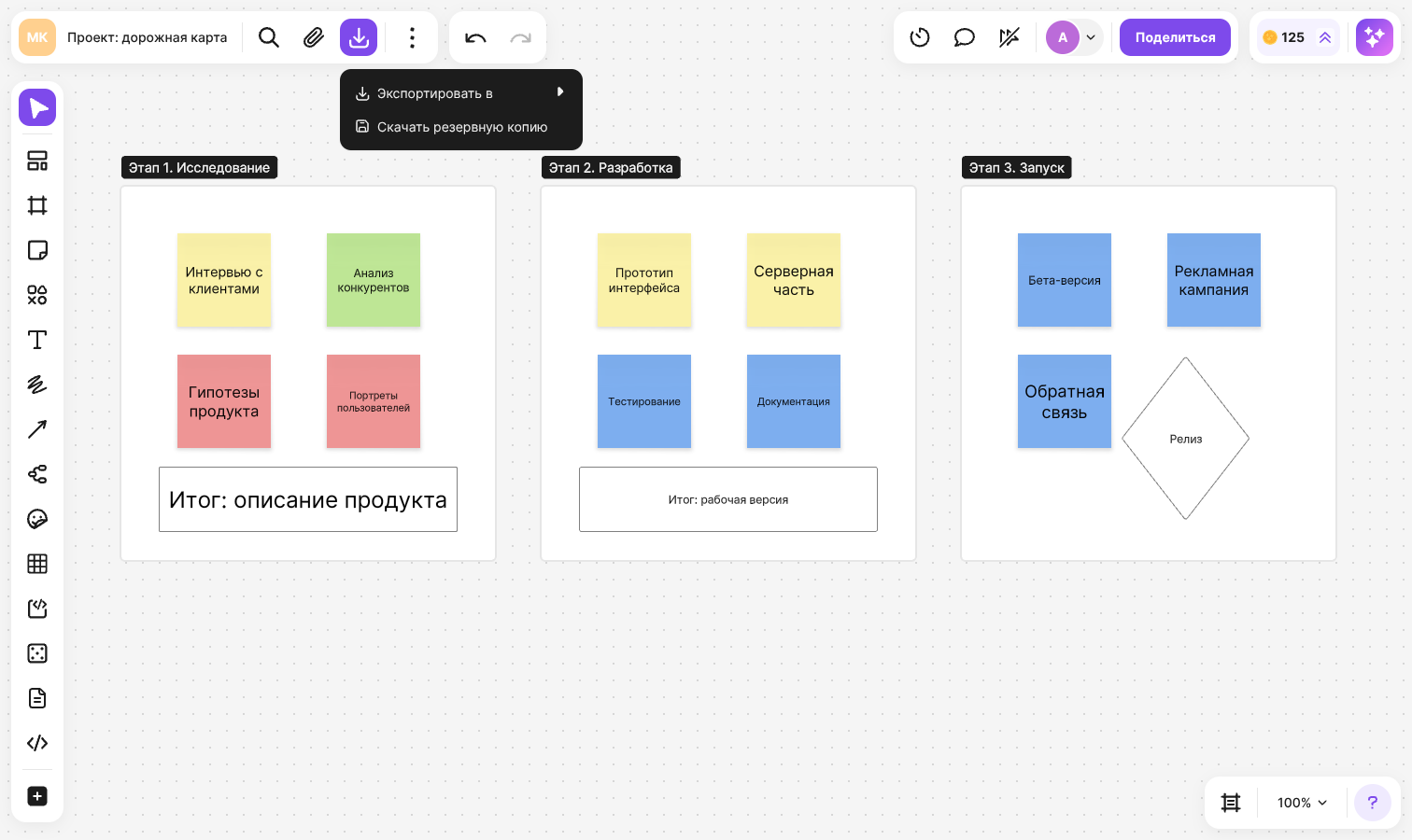
Option 2. In the list of flips, right-click a flip and select “Download backup”. The item is available to the flip owner, admins and the space owner
A file with the .board extension is saved to your browser's downloads folder
If you need to save a flip as an image, a PDF or a table, use export
Plan limits
The Mini plan includes 3 backup downloads per month. When the limit is reached, the “You've reached the limit of 3 downloads” window appears. On paid plans backups are downloaded without limits
How to import a flip from a backup
In the list of flips, open the team where the flip should appear
On the “Quick start” panel, click “Import”
In the “Import” window, select “From backup (.board)”
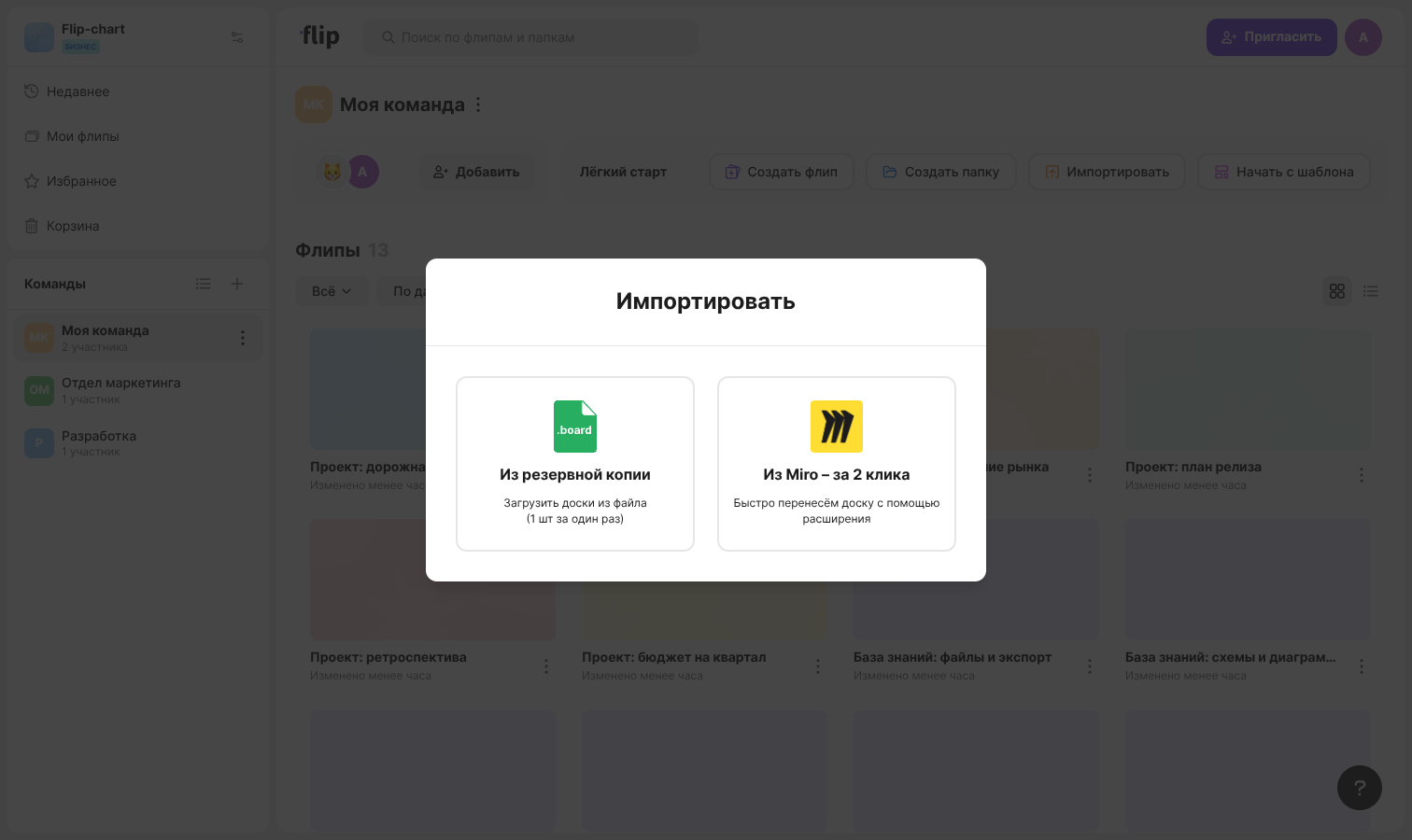
Select a .board file on your computer — the import starts right away
In the On-Premise version, click “Start import” after selecting the file
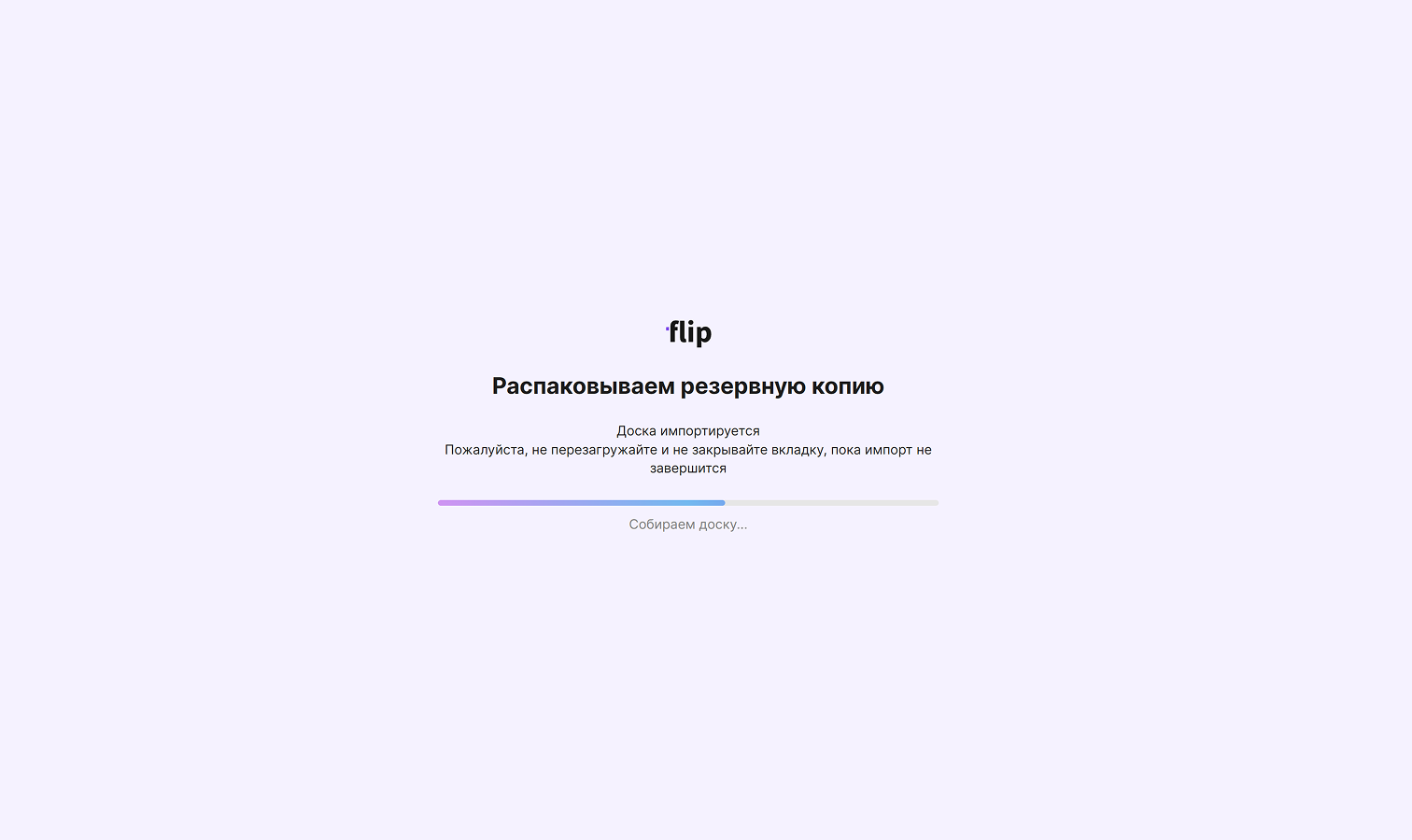
Wait for the import to finish in the new tab — once it is done, the imported flip opens in it. The flip is named after the file
Important
The import runs in a separate browser tab. Don't close or reload it until the import is complete. If the tab didn't open, allow pop-ups for the flip website and start the import again
How to track the import progress
The import tab shows a progress indicator and the current stage — for example, “Uploading the file”, “Checking the structure” or “Transferring elements”
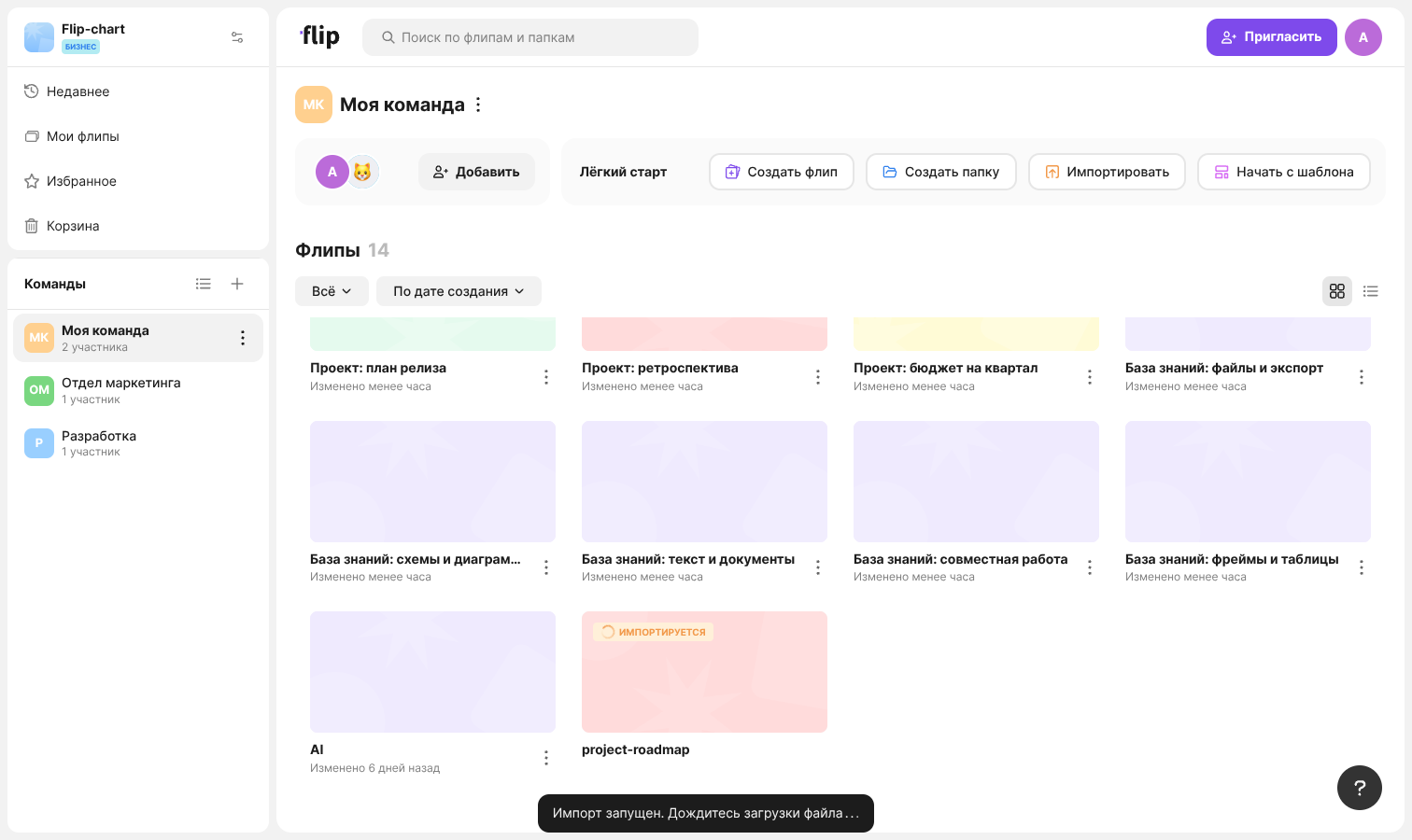
Meanwhile, a card with the “IMPORTING” tag appears in the list of flips — it is placed at the end of the list. When the import is finished, the tag disappears, the flip takes its place according to the selected sorting — at the top of the list when sorted “By creation date” — and can be opened as usual
If the import fails, the “IMPORT ERROR” tag appears on the card. Click “Remove from list” on the card and start the import again
Limits
- Only files with the .board extension can be imported
- One file of up to 5 GB is uploaded at a time
- Only one import runs at a time: while it is in progress, the “Import” button shows the “Wait until the current import finishes” message
- An imported flip counts towards the flip limit of your plan. If the limit is reached, a window suggesting to delete extra flips or upgrade the plan appears instead of the import
To move boards from Miro, use the extension — see How to install the extension and download a board from Miro