

On a large flip it is easy to lose the object you need. Search finds objects by text, name or tag and takes you to them, and the filter by type keeps only stickers, only shapes or only images in the selection — so you can change or move them all at once
How to find an object on a flip
On the panel in the top left corner of the flip, click “Search” or press Ctrl + F (⌘ + F on macOS) — the search panel opens on the left
Type your query. Search is not case-sensitive, and you can search by part of a word
Click a result — the flip moves to the object, changes the zoom and selects it
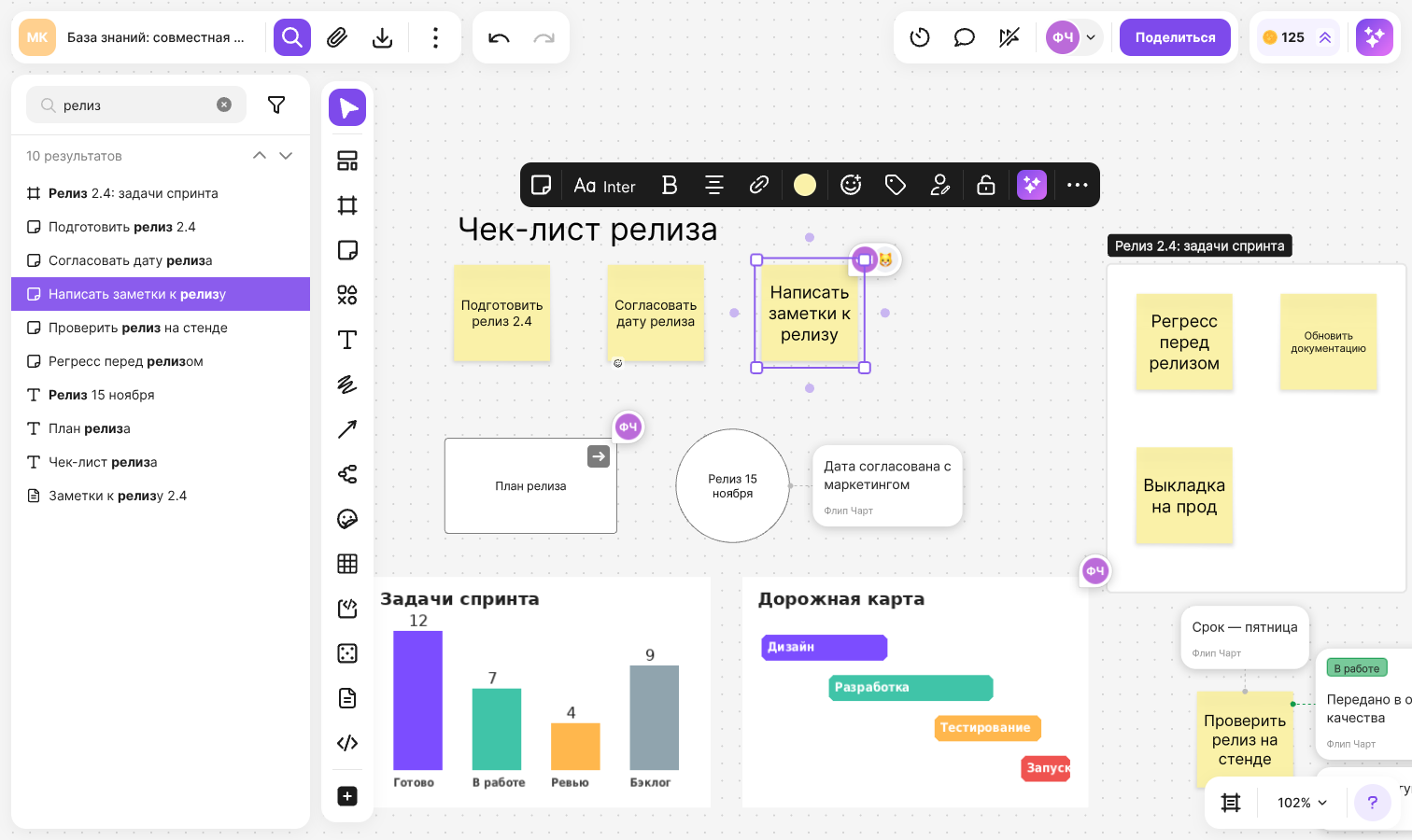
The number of results is shown above the list, and the match is highlighted in each row. You can also move through the list from the keyboard: the ↑ and ↓ arrow keys select the previous and the next result, and after the last one the list starts over
To close the search, click “Search” or press Ctrl + F again, or click outside the panel. The query and the selected filter are kept while the browser tab is open
What search finds
- Text in text elements, shapes, stickers, mind map nodes and on arrows
- Frame names and chart titles
- Text in table cells and the contents of code blocks
- Document names and the text inside them — the result leads to the right block of the document
- Names of images and uploaded files
- Titles and addresses of embedded iFrames and hyperlinks
- Annotation text
- Tags of objects and annotations — such results are marked with a tag icon
- The author caption on a sticker, if it is turned on
If the same text appears in several objects, each of them is shown as a separate row
Important
Search doesn't recognize text in images and doesn't look inside uploaded files — they are found only by name. Objects inside a frame with hidden content don't appear in the results
If there are no matches, the panel shows the message “Nothing found 😦” — change the query or check the filter
How to filter results by type
Click the filter button to the right of the search field
Select an object type — only matches of this type stay in the list
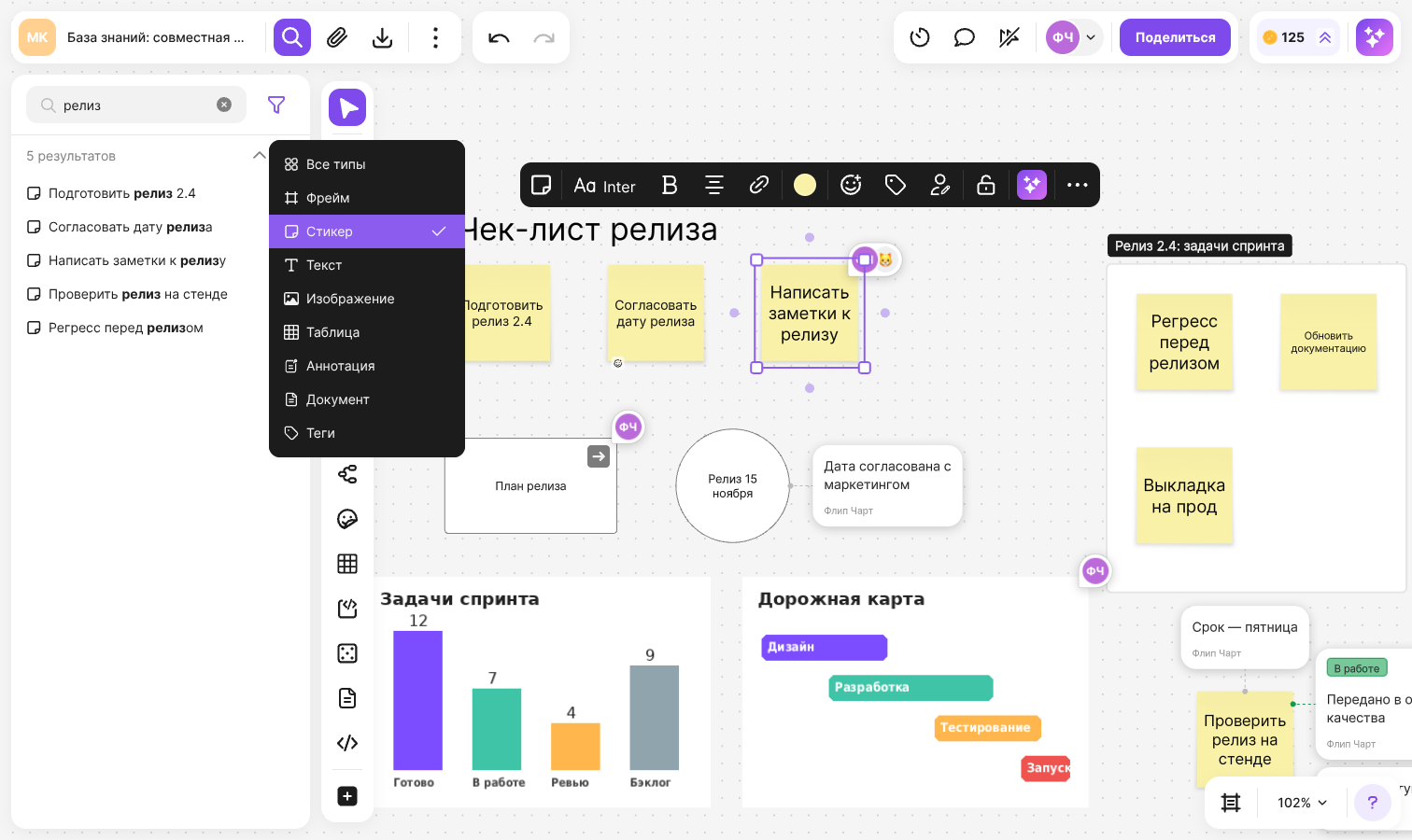
The list shows only the types that are present on the flip: “Frame”, “Sticker”, “Text”, “Image”, “Files”, “Grid”, “Arrow”, “Mind map”, “Code Block”, “Chart”, “iFrame”, “Hyperlink”, “Annotation”, “Document”, “Mermaid diagram”. The list has no separate type for shapes: shapes with text appear in the results as “Text”
- Only one type is active at a time: selecting another type replaces the previous one
- “Tags” — keeps only matches by tag names. The item appears if the flip has tags
- “All types” — resets the filter
While a filter is on, the filter button is highlighted. The clear button in the search field erases the query but doesn't reset the filter
How to keep objects of one type in the selection
When several objects of different types are selected, the filter by type appears in the selection menu
Select objects with a selection box or press Ctrl + A (⌘ + A on macOS) to select everything
In the selection menu, click the button with the number of objects, for example “12 objects”. When you hover over it, the “Filter by type” tooltip appears
Select a type — only such objects stay in the selection, and the rest are deselected
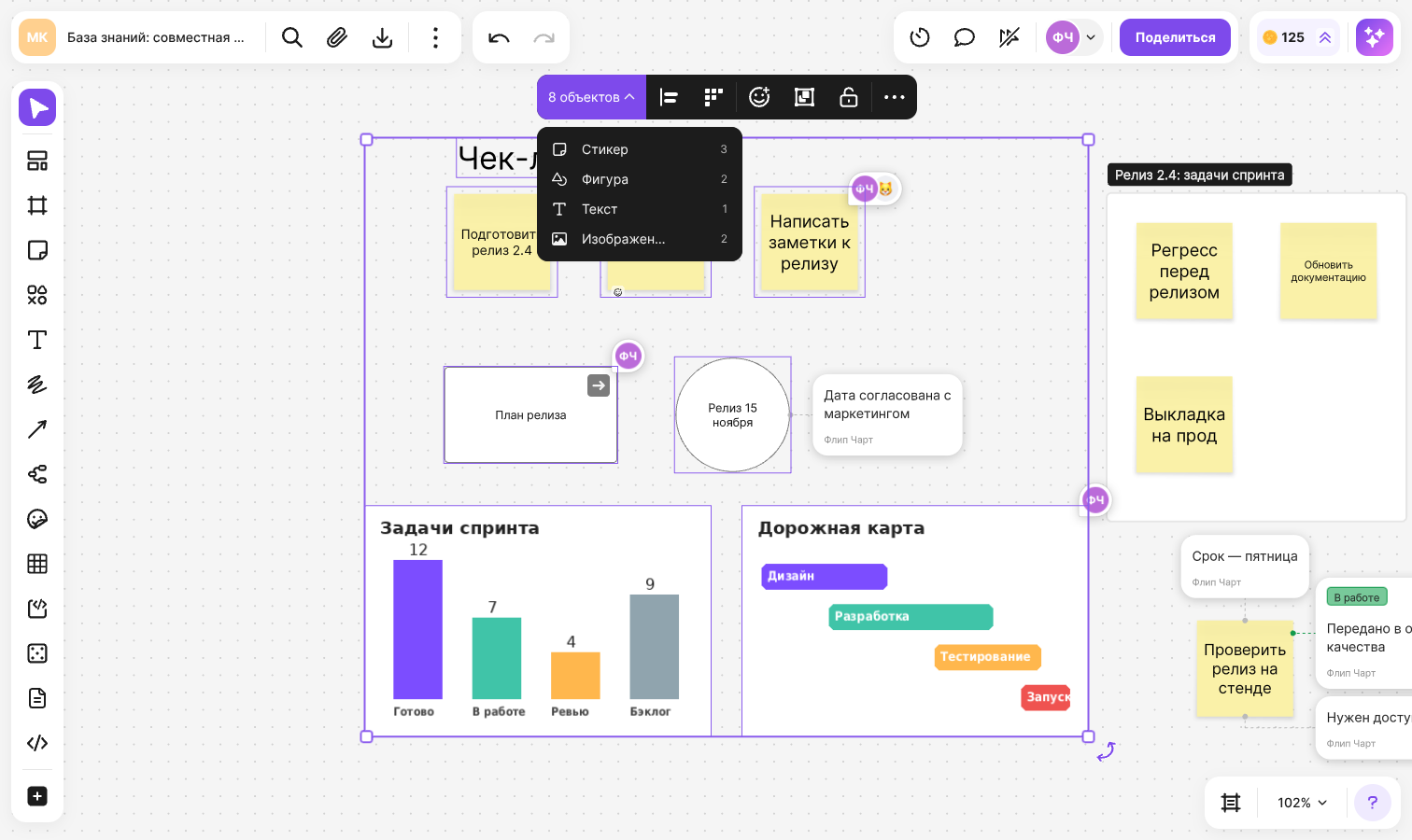
Next to each type you can see how many such objects are selected. The types go in a fixed order: “Frame”, “Sticker”, “Sticker Pack”, “Shape”, “Text”, “Image”, “Files”, “Drawing”, “Arrow”, “Mind Map”, “Emoji”, “Table”, “Code Block”, “Chart”, “iFrame”, “Hyperlink”, “Dice”, “Document”, “Mermaid”
The “Files”, “Image” and “Emoji” types can have subtypes. If the selection contains several of them, hover over the type row — a list opens:
- “Files” — PDF, DOCX, PPTX, XLSX
- “Image” — file formats: PNG, JPG, WEBP and others
- “Emoji” — “Emoji”, “Emoji Sticker”, GIF
The “All” item in the list of subtypes keeps all objects of this type in the selection
The filter changes only what is selected: the deselected objects stay on the flip unchanged. You can work with the remaining ones as with any selection — move them, change their style, group or align them
Limitations
- Search is not available on an empty flip
- The filter by type doesn't appear if all selected objects are of the same type. Shapes of different forms count as one type — “Shape”
- The filter by type doesn't appear if there is a locked object among the selected ones
- The filter by type is not shown on mobile devices
- GIF images belong to the “Emoji” type, not to “Image”