

The flip mobile app is an online whiteboard on your phone: open your flips, create and edit them, comment and share access when you are away from your computer. The app uses the same account, spaces, teams and flips as the web version — all members see the changes right away
How to install the app
The Android app is published on Google Play: flip on Google Play. Installation requires Android 7.0 or later
How to sign in
Open the app — the “Welcome” screen appears
Enter the email and password of your flip account and tap “Log in”
Instead of a password, you can choose one of the sign-in options below the form: SSO, Yandex, VK or Mail.ru
If you don't have an account yet, tap “Sign up” next to “No account?”. To recover your password, tap “Forgot password”
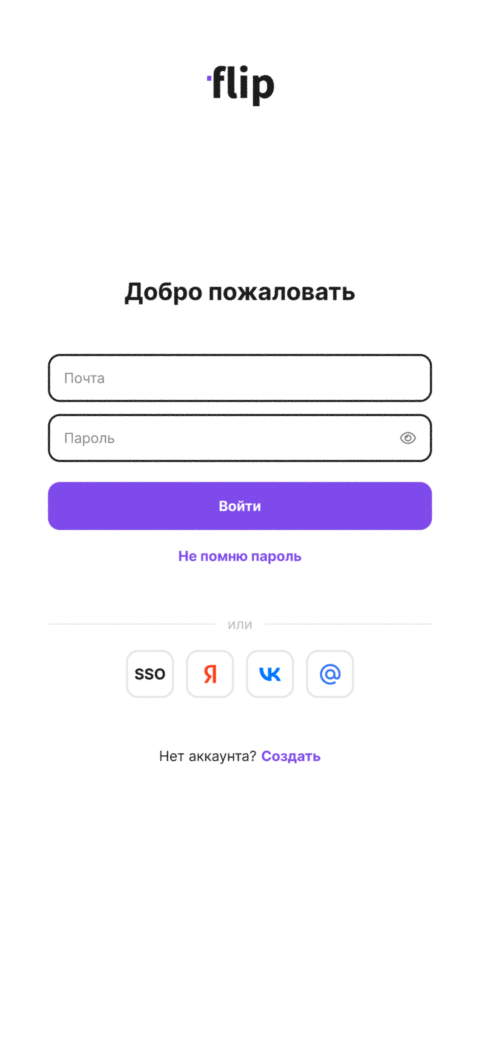
To sign in with SSO, tap the SSO button, enter your corporate email address and tap “Log in” — your company's sign-in page opens, and after signing in you return to the app. To learn how to set up SSO in a space, see SSO and domain management
List of flips
After you sign in, the list of flips of the current space opens. The side menu contains the “Recent”, “My flips”, “Favorites” and “Trash” sections, as well as the teams of the space
The display settings are located above the list: “View” — grid or list, “Type” — all, flips or folders, “Creators” and “Sort by”
Tap a flip to open it. The app remembers the space and team you worked with and opens them the next time you launch it
How to work on a flip
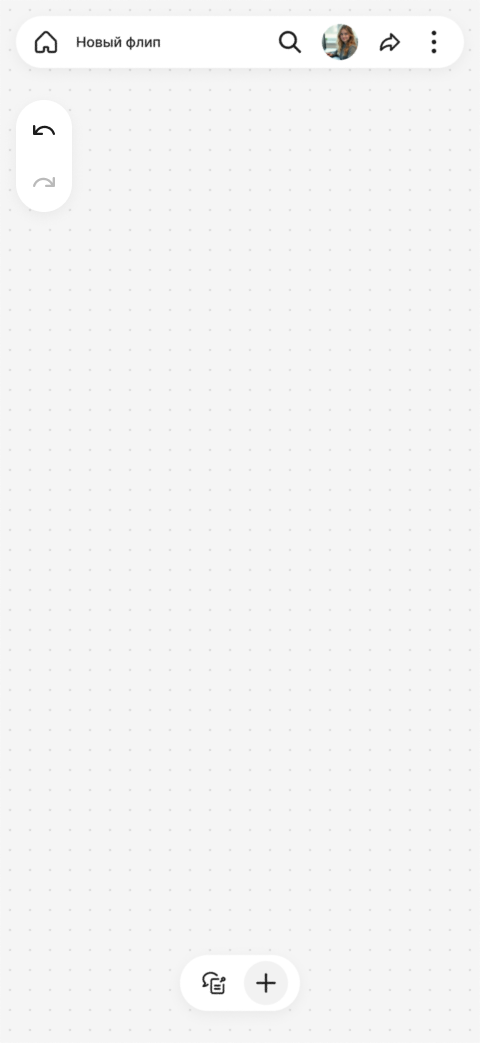
At the top of the flip, there is a panel with the button for going back to the list, the flip name, search, the list of participants, the “Share” button and the flip menu. The flip menu contains the “About flip”, “Members”, “Flip settings”, “Controls” and “Support” sections and, if you have the permissions for the flip, also “Access settings”, “Permissions” and “Delete flip”
At the bottom of the flip, there is a panel with two buttons:
- The comments button opens “Discussions” and turns on the “Comment” and “Annotation” tools
- The tools button opens a menu: “Text”, “Stickers”, “Draw”, “Shapes”, “Arrow”, “Frame”, “Upload” and “Document”
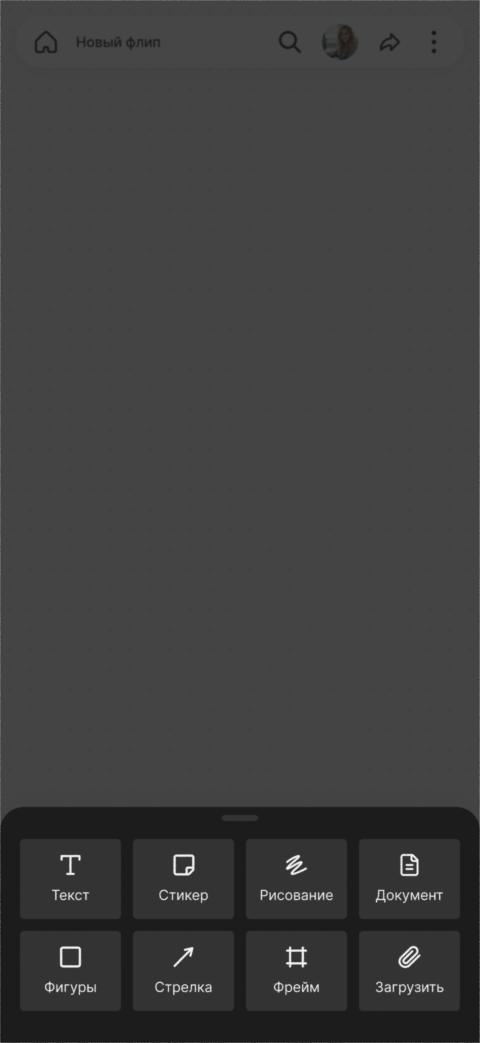
To add an image or a file, select “Upload”, then “Choose from gallery”, “Take a photo” or “Upload from files”. The “Draw” tool offers “Marker”, “Highlighter” and “Eraser”. The “Undo” and “Redo” buttons are on the left
If a flip is open to you for viewing only, the tools button is not shown
Gestures
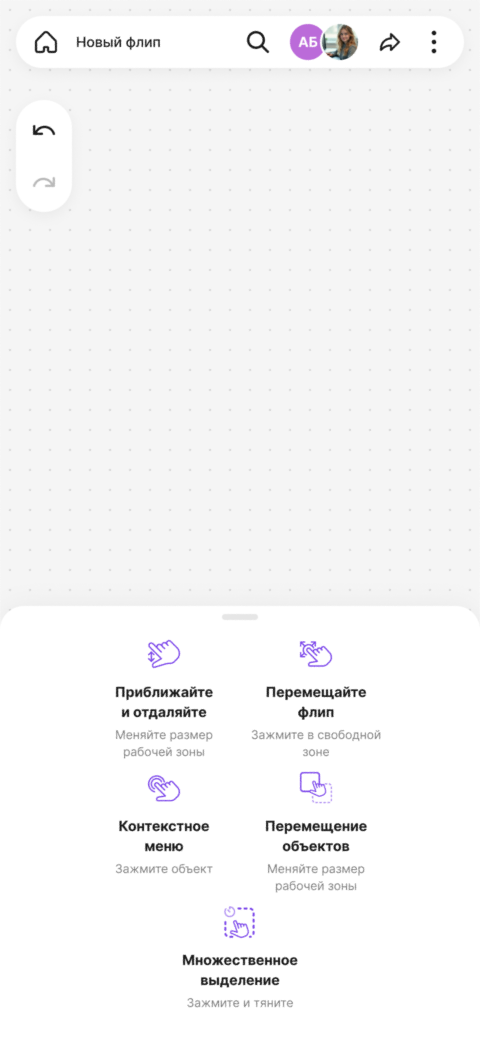
The first time you open a flip on your phone, the app shows a tip with gestures:
- “Zoom in and out” — pinch with two fingers to resize the work area
- “Move the flip” — hold your finger in an empty area and drag
- “Context menu” — hold an object
- “Move objects” — drag an object
- “Multiple selection” — hold and drag
To open the tip again, select the “Controls” section in the flip menu
How to update the app
The app checks for updates on launch. You can also check for them manually in your profile:
Open the side menu and tap your name at the bottom — your profile opens
Select “Updates”. If a new version has already been downloaded, the “UPDATE AVAILABLE” label is shown next to it
Tap “Check for updates” and, when the update is ready, tap “Apply”
You don't have to apply the update right away: it will install automatically after the current session ends
Some updates are installed through the app store. In this case, the “A new version of the app is available” message appears — tap “Update” or postpone the installation with the “Later” button. If your version of the app is no longer supported, the “Update the app” screen with the “Download” button opens — you can continue working only after updating
Limitations
- The app requires an internet connection. Without a connection, the app shows the “Something went wrong” screen with the “Check your connection and refresh the page” hint, and on an open flip — the “Connection lost” window with the “Reconnect” button
- Plan management, payments and purchasing licenses are not available in the app — use the web version of flip. Learn more in Managing plans
- Features that are not included in the space plan are not shown in the app
Logging in, signing up and account settings in the web version are described in Logging in to your account, Signing up and Account settings