

You can calculate in the cells of a table on a flip: add up values, find the average, minimum and maximum, compare values and choose a result by a condition. A formula is written the same way as in familiar spreadsheet editors — starting with “=”, and the cell shows the result
How to add a formula
Double-click a table cell to start typing
Type “=” — a list of functions appears under the cursor
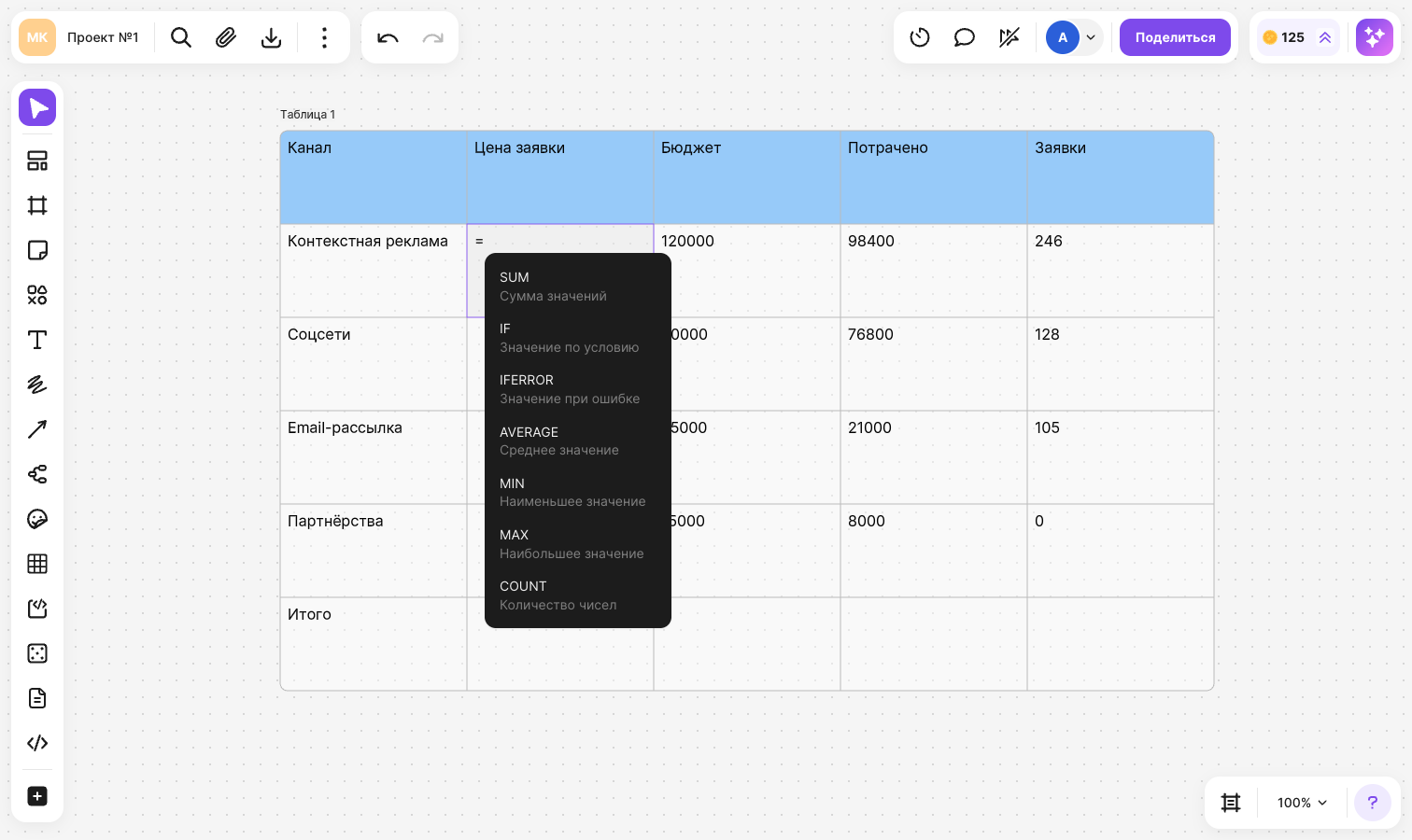
Type the formula: numbers, operators, functions and references to other cells of the table
Press Enter or click outside the cell — the result appears in the cell
flip closes any unclosed brackets and quotes for you when the formula is saved. To cancel typing and restore the previous contents of the cell, press Esc
To change a formula, double-click the cell again — the formula itself opens, not the result
Cell references
While you are editing a formula, select the cells you want to calculate with:
- Click a cell — a reference to it is added to the formula
- Hold the mouse button and drag across cells — a reference to the range is added
- Press the arrow keys to select an adjacent cell, and Shift + arrow to extend the range. The arrow keys select a cell right after “=”, an opening bracket, “;” or an operator; elsewhere they move the cursor through the formula
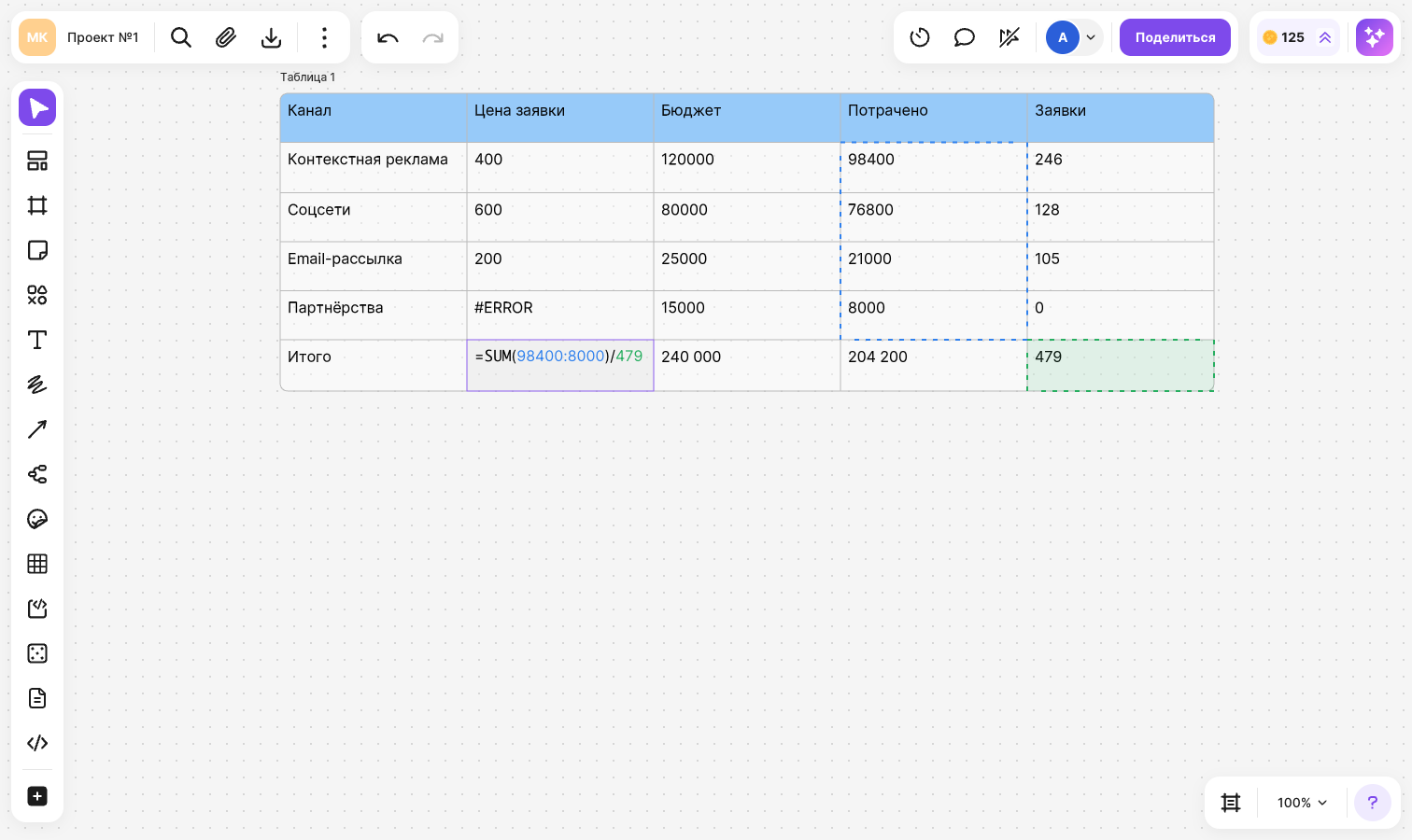
In a formula, a reference is shown as the value of the cell, and a range as the values of its first and last cells separated by a colon, for example “2:22”. Each reference is highlighted with its own color, and the cells it points to are outlined in the table with the same color
Important
You can only refer to cells of the same table. Addresses like A1 can't be typed from the keyboard — select the cell with a click, by dragging or with the arrow keys
If you delete a cell that a formula refers to, the formula shows an error
Freezing references
When you copy a cell with a formula or drag it with autofill, the references shift along with it: the formula in the next row calculates with the next row. To make a reference always point to the same cell, freeze it:
- Put the cursor on the reference and press F4. Pressing F4 again unfreezes it
- Or type “$” before selecting the cell
A frozen reference is marked with a “$” sign before the value. To unfreeze it, delete this sign
Functions
Function names are written in Latin letters and are not case-sensitive. Arguments are separated with a semicolon “;”
- SUM — sum of the values
- AVERAGE — average value. You can also write AVG
- MIN — smallest value
- MAX — largest value
- COUNT — how many numbers
- IF — a value chosen by a condition:
IF(condition; value if true; value if false). If the third argument is omitted and the condition is not met, the result is 0 - IFERROR — a value to use on error:
IFERROR(value; what to show on error)
To insert a function quickly, start typing its name and press Tab — the first matching function from the list is inserted. You can also just click a function in the list
If a range contains text, for example a column header, the SUM, AVERAGE, MIN, MAX and COUNT functions skip it
Arithmetic and comparison operators
- Arithmetic:
+,-,*,/,^— exponentiation,%— percent, for example20%equals 0.2 - Comparison:
=,<>— not equal,>,<,>=,<=. The result of a comparison is 1 if the condition is met and 0 if it is not - Decimal numbers can be written with either a comma or a dot
- Text in a formula goes in double quotes, for example
IF(…>100; "Check"; "On track"), where “…” stands for a cell reference. Text is compared case-insensitively
AutoSum
If there are numbers above a cell or to the left of it, flip offers to add them up:
Double-click an empty cell below a column or to the right of a row of numbers
Type “=” — a ready-made SUM formula with the result and the hint “Tab to insert the sum” appears at the top of the list
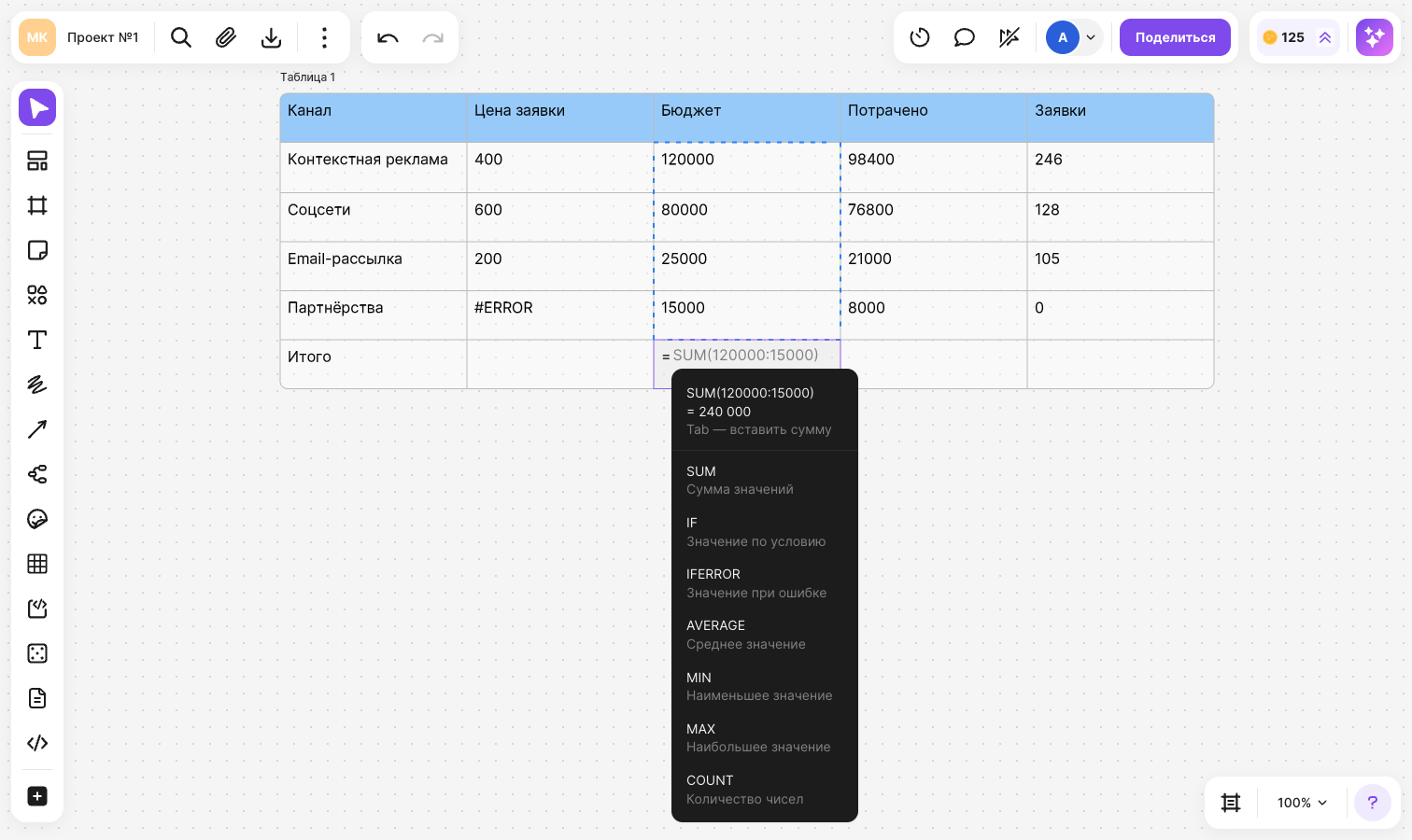
Press Tab or click the suggestion — the formula is saved in the cell
AutoSum takes consecutive numbers up to the first empty cell or cell with text and appears when there are at least two such numbers. If there are numbers both above and to the left, the larger group is added up
Result and errors
A cell shows the result of the formula — up to two decimal places. When the data in the cells the formula refers to changes, the result recalculates automatically
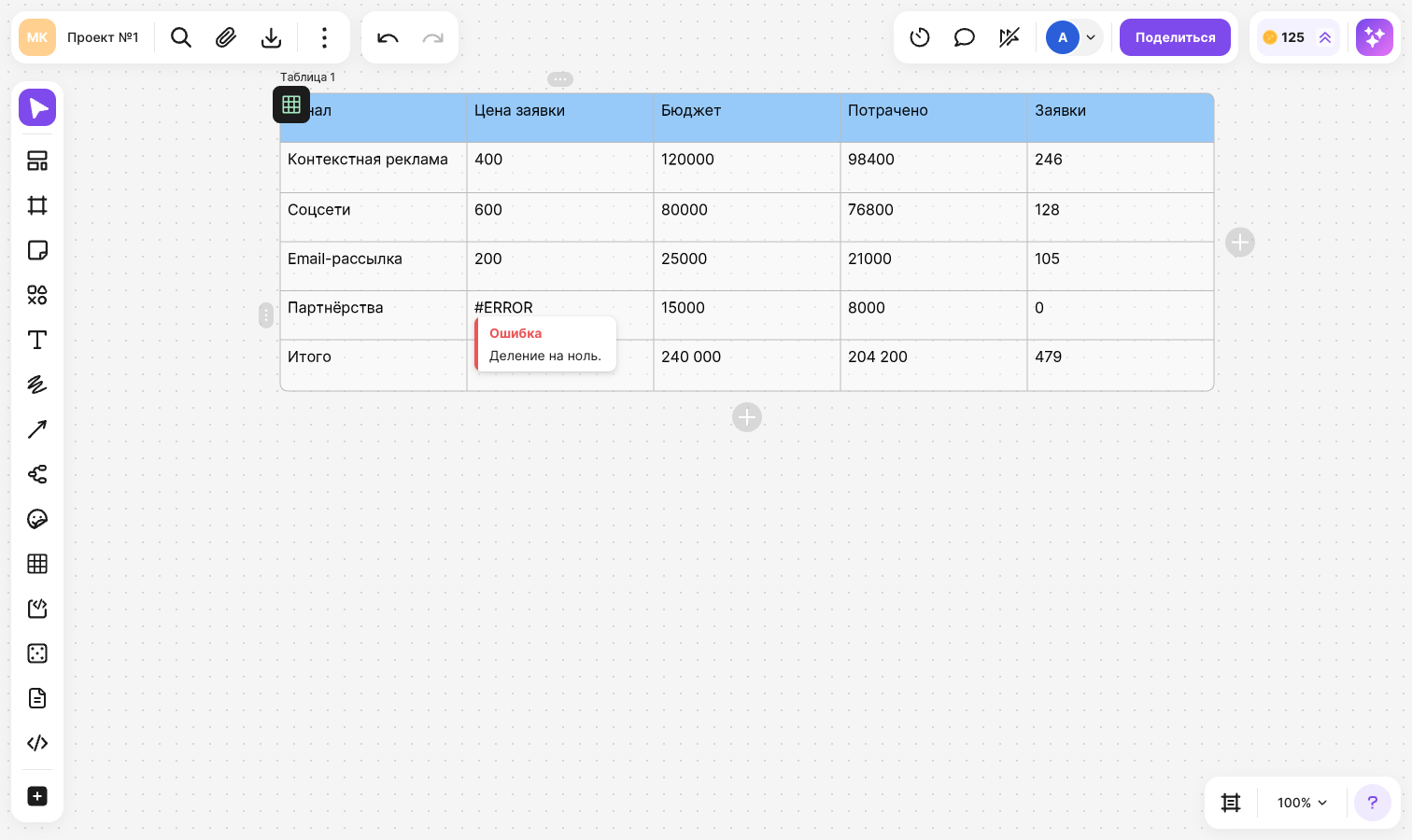
If a formula can't be calculated, “#ERROR” appears in the cell. Hover over such a cell — an “Error” tooltip appears with the reason: for example, division by zero, a comma instead of “;” between arguments, an unknown function or a circular reference, when the formula refers to its own cell
To make a cell show text that starts with “=” instead of calculating it as a formula, put an apostrophe before it: '=
Copying and export
- When you copy and paste cells within a table on a flip, the formulas themselves are carried over, and their references shift the same way as with autofill
- If you copy a table and paste it into another app, and when you export to CSV, the results of the formulas are carried over, not the formulas themselves