

With an iFrame, you can place a website, document, spreadsheet, video or other external resource on a flip and interact with it without switching browser tabs
How to embed an iFrame
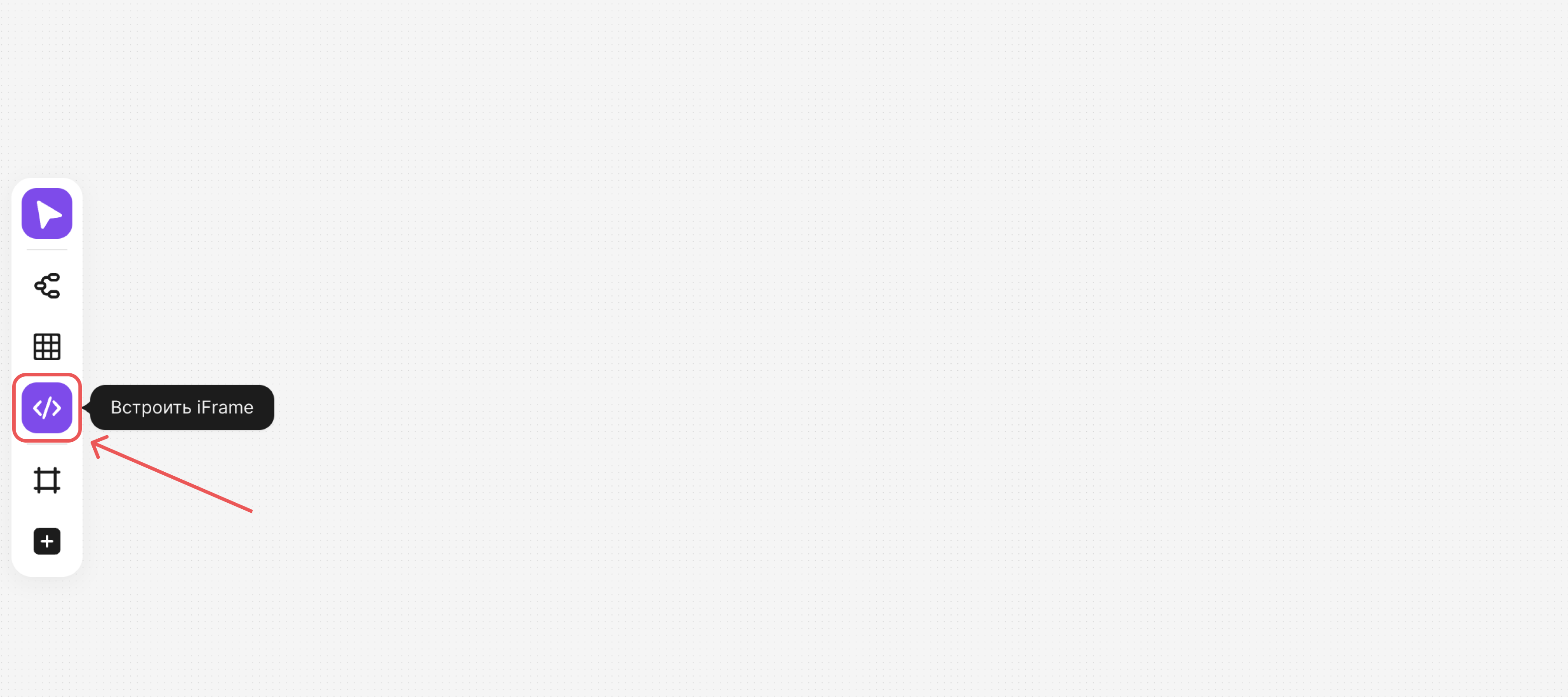
On the toolbar, select “Embed iFrame”
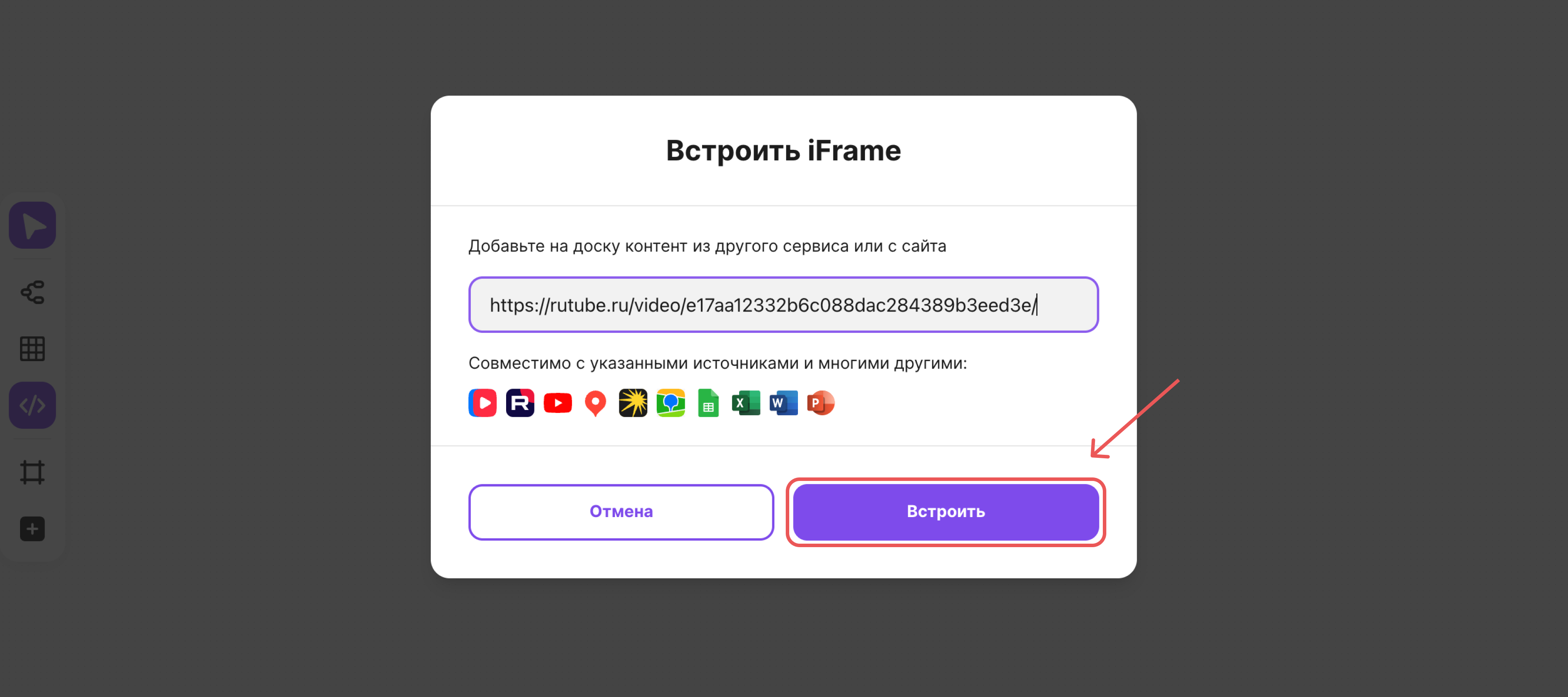
In the window that opens, paste the link or the HTML code of the resource and click “Embed”
Couldn't embed it with a link?
Some services support embedding only with an embed code (iFrame). You can usually find it under “Share” → “Embed”
The code usually looks like this: <iframe frameborder="0" allow="clipboard-write" style="border:none;width:614px;height:244px;" width="614" height="244" src="https://music.yandex.ru/iframe/album/40853/track/337383">...
How to work with an iFrame
Select the iFrame — a context menu will appear above it
With it, you can:
Open it in full screen to focus on the embedded content. To exit, press Esc or click “Back to flip”
Go to the original resource — it will open in a new browser tab
Reload the content to refresh the data
Copy and share the link to the embedded resource
To interact with the iFrame content — scroll the page, click buttons or switch slides — click the embedded iFrame to make it active
Access to the content
Members will see the iFrame content if they have access to the original resource. If needed, they will have to log in to the external service or request access
Adding an iFrame to a flip doesn't change the access settings of the original resource