

It is easy to lose the right place on a large flip. Links help you get back to it quickly: copy a link to an object and send it to a teammate, connect two elements with a jump — for example, a table of contents item with the right frame — or attach a hyperlink to an external site to an element
How to copy a link to an object
Right-click an element
Select “Copy link”
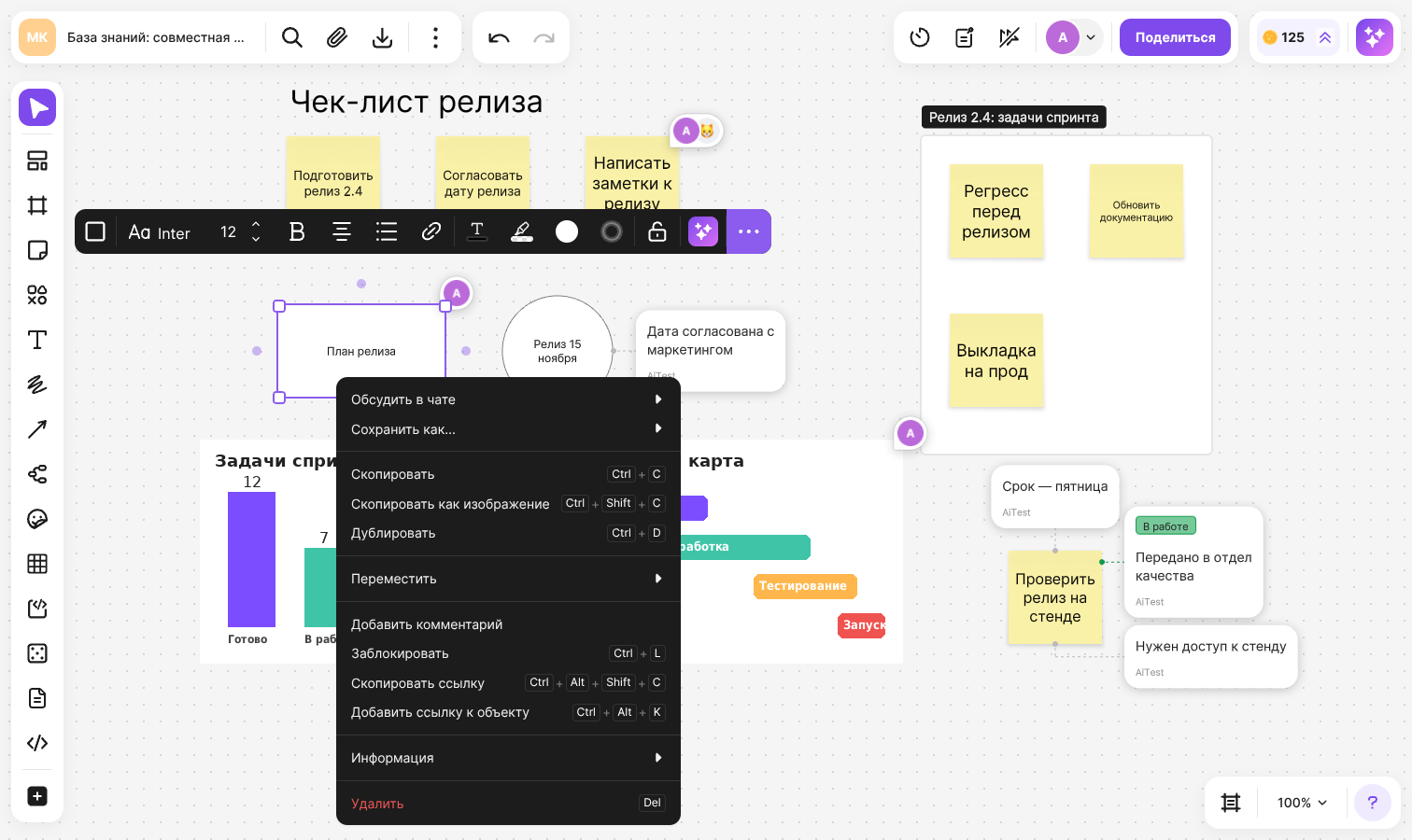
The link will be copied to the clipboard. Anyone who opens it and has access to the flip will land right at this object
The Ctrl + Alt + Shift + C shortcut (⌘ + ⌥ + Shift + C on macOS) does the same — select one element and press it
How to attach a link to an object to an element
A link to an object turns an element into a jump: clicking the button on it takes you to another object on the same or another flip
Select an element, click “Insert link” in its menu and select “Link to Object”
Or right-click the element and select “Add link to object”. The shortcut is Ctrl + Alt + K (⌘ + ⌥ + K on macOS)
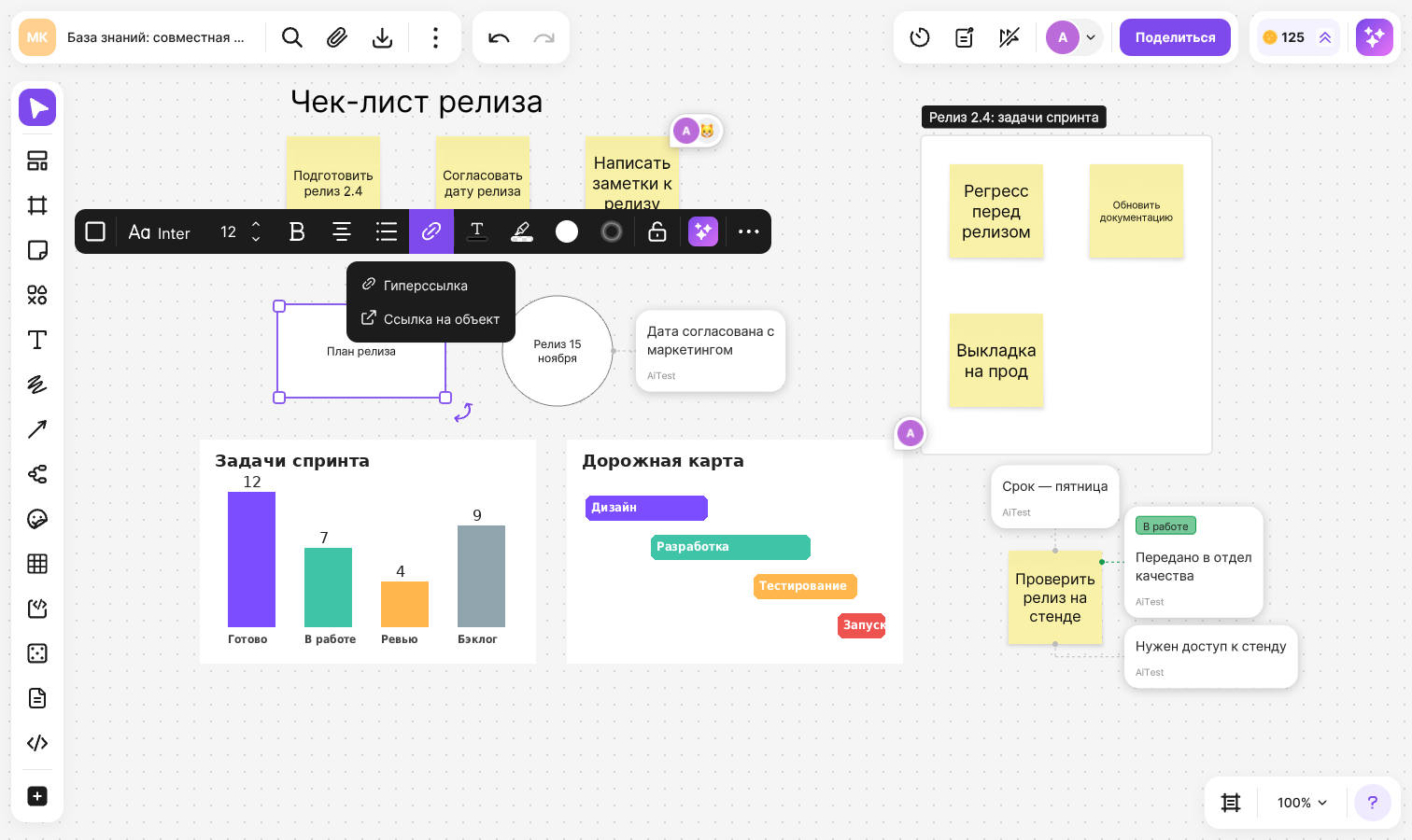
The “Link to object” window will open, and the toolbars will be hidden. Choose where the jump should lead:
- Click the target object on the flip — a link to it will be put into the field
- Or paste a copied link to an object into the “Insert link” field. This way you can refer to an object on another flip
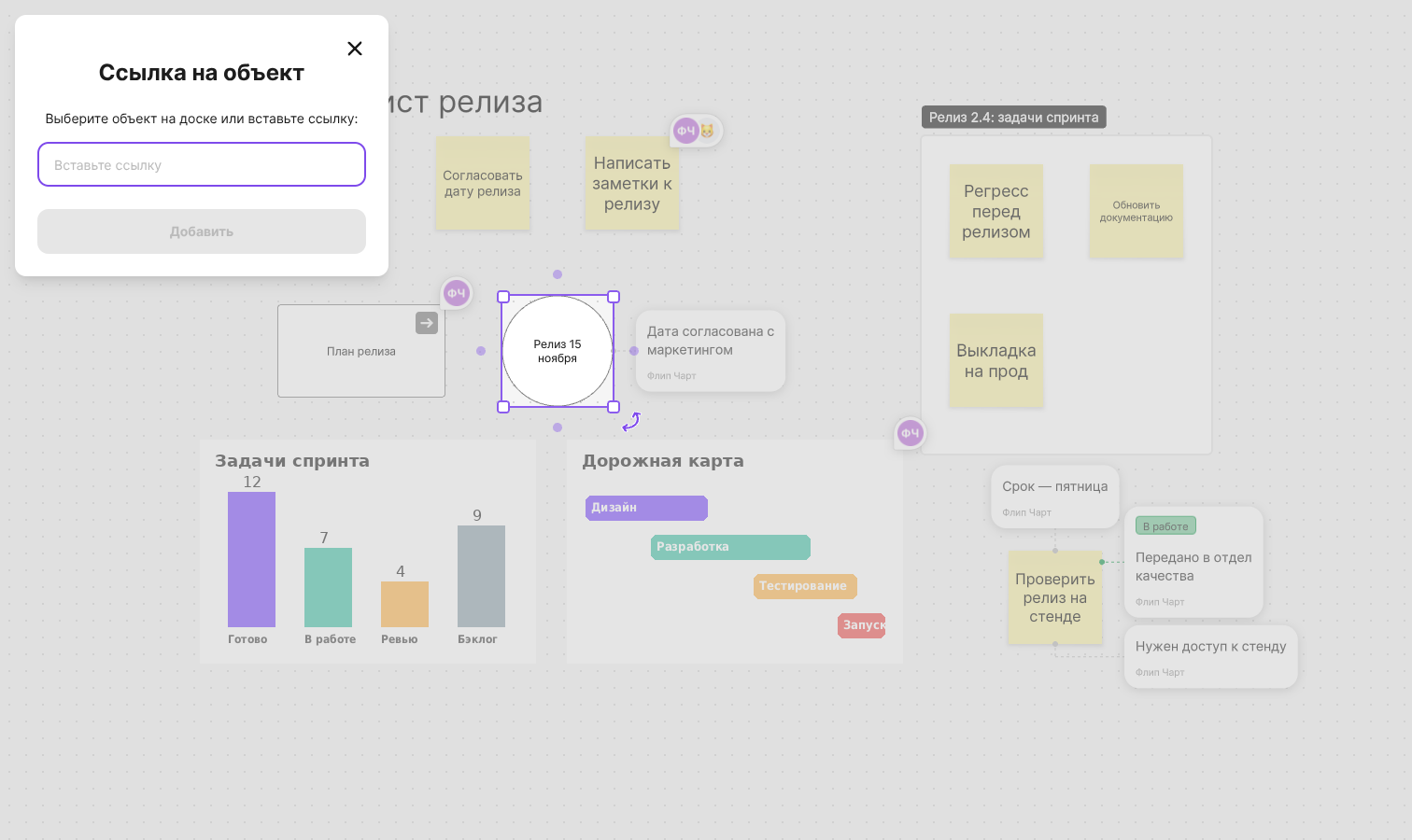
Click “Add”
A jump button will appear on the element. To cancel, close the window or press Esc
The field accepts only links to objects on flips. If you paste the address of another site, the “Please use link to board element” message will appear
How to follow a link and get back
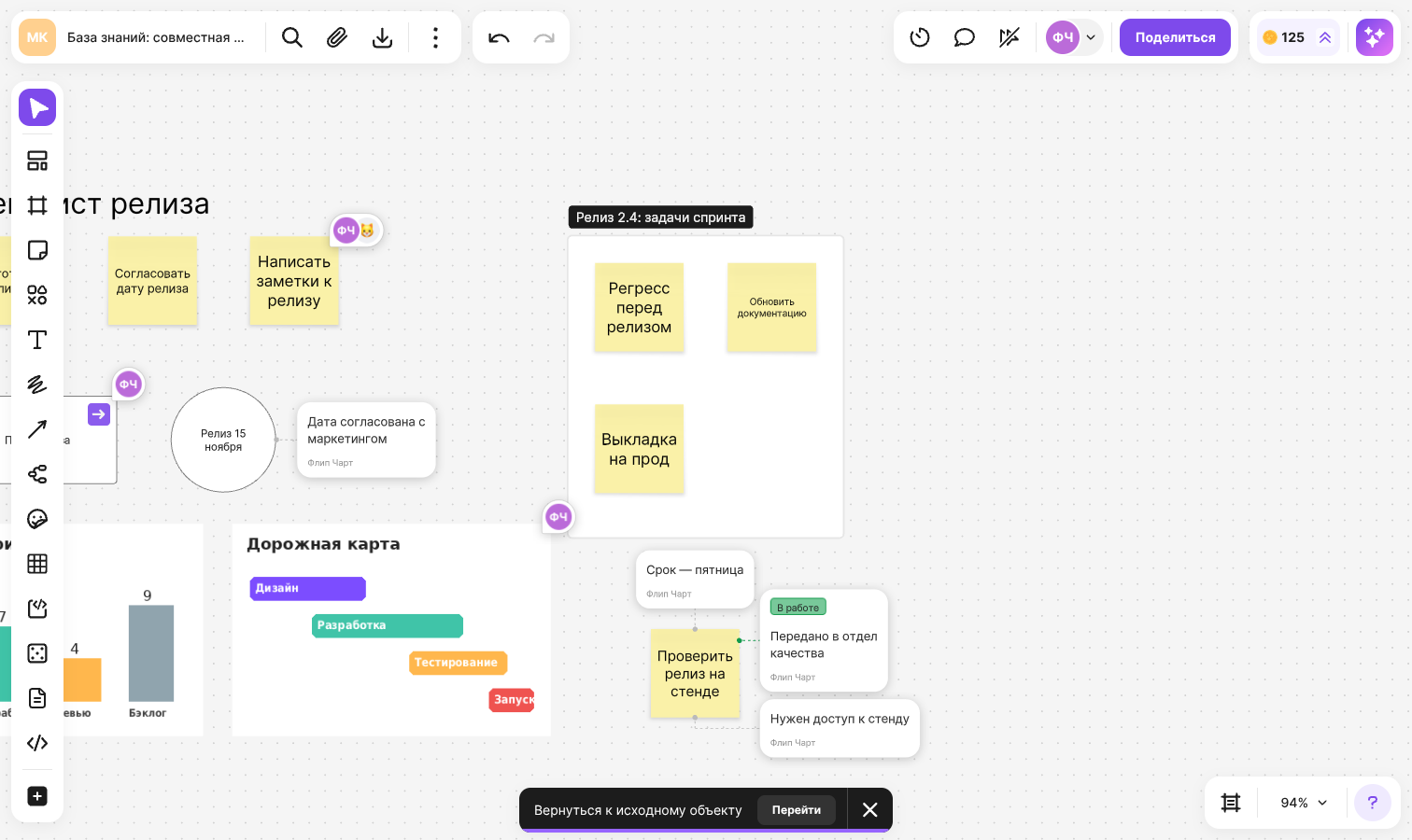
Click the jump button on the element — the flip will move to the target object. The “Back to source object” message will appear: click “Return” in it to get back to the element you started from
- If the link leads to an object on another flip, it will open in a new tab
- If the target object has been deleted, the “No linked element found” notification will appear
- You can follow links with “View” access too
How to edit or remove a link to an object
- Right-click the element with the link and select “Edit link to object”
- To change the link, choose another object or paste a new link and click “Confirm”
- To remove the jump, click “Remove connection”
If you close the window without confirming, the previous link is kept
How to add a hyperlink
A hyperlink leads to an external address and opens in a new tab
- Select an element and click “Insert link” in its menu
- Select “Hyperlink”
- Paste the address into the “Insert link” field and click “Add”
The result depends on the element:
- A frame, image, document, chart and other elements without text get a link button. Hover over it to see the address, or click it to follow the link
- In a text, shape or sticker, the text becomes the link. If you select part of the text, the link is applied only to it. If the element is empty, the link address is put into it. The shortcut is Ctrl + Shift + U (⌘ + Shift + U on macOS)
To edit or remove a hyperlink, double-click the text with the link or the link button on the element and select “Edit” or “Delete”
You can attach both a hyperlink and a link to an object to one element — it will have two buttons
To place a web page itself on a flip rather than a link to it, use embedding — see How to embed an iFrame on a flip for details
Limitations
- A link to an object and a hyperlink can't be attached to arrows, emoji and the dice
- You can copy a link and open the “Link to object” window when one element is selected
- With “View” access you can't add, edit or remove links — see the article about access to a flip for details
- If you copy an element with a link to an object to another flip, the link will keep leading to the original flip and will open it in a new tab
All shortcuts are collected in the article about hotkeys