

A flip is an infinite workspace, and how it looks and how fast you move around it affects how comfortable your work is. This article explains how to change the background and grid, control the zoom, move around a flip, open the mini-map and fullscreen mode, and remove the toolbars from the screen
How to change the background and grid
On the panel in the top left corner of the flip, click “More” and select “Background and grid”
In the “Background color” block, choose one of eight colors — light, dark or pastel
In the “Grid style” block, choose “None”, “Dot” or “Grid”. A sample below the settings shows how the background will look on the flip
Click “Save changes”
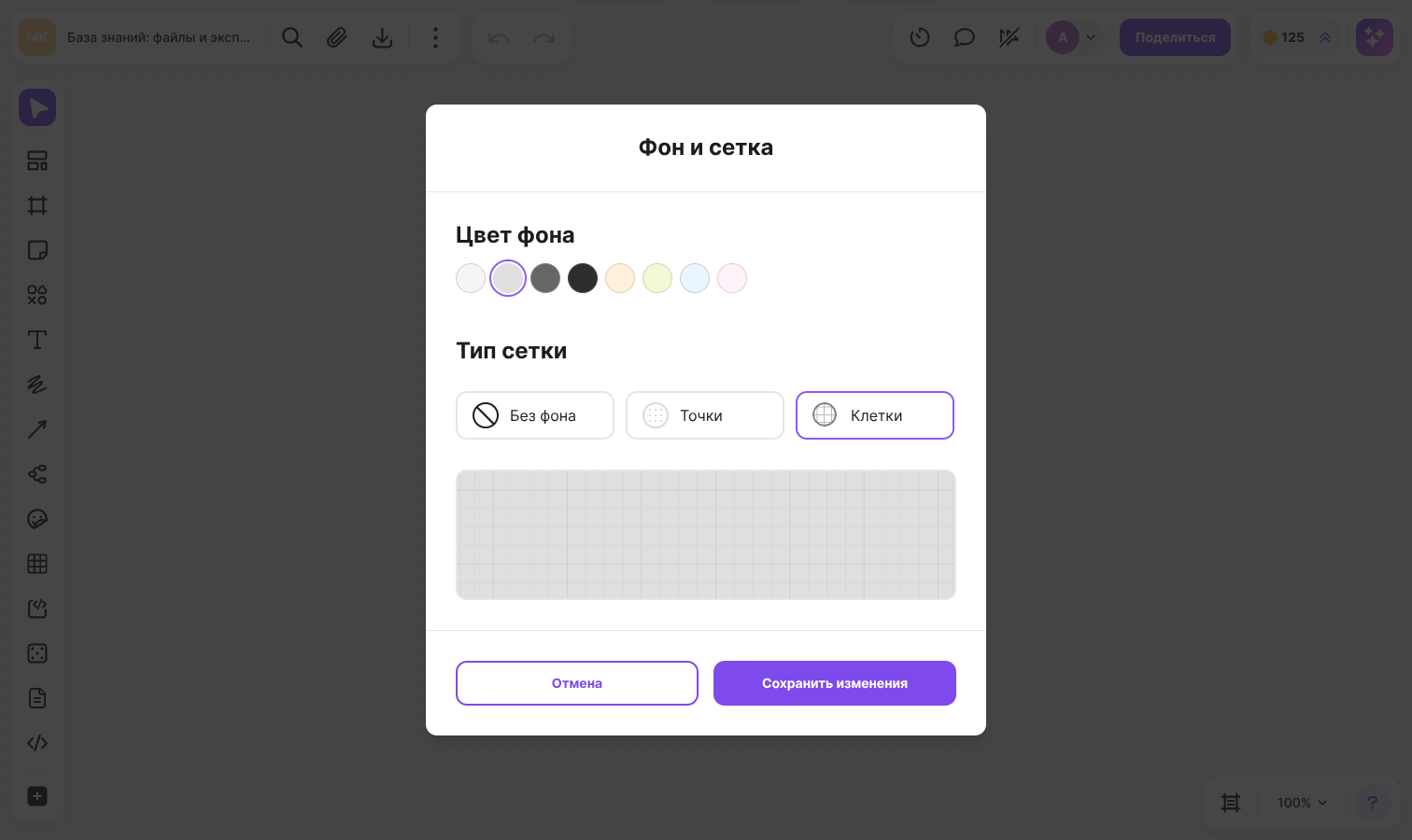
The background and grid are saved in the flip, so all participants see them
Important
The background and grid can be changed by the flip owner and by the space owner and admins. For other members the “Background and grid” item is inactive
How to change the zoom
- Scroll the mouse wheel. On a touchpad, pinch with two fingers
- Press Ctrl + “+” to zoom in and Ctrl + “−” to zoom out (⌘ instead of Ctrl on macOS)
- Click the button with the current zoom in the bottom right corner of the flip — when you hover over it, the “Zoom” tooltip appears — and select a menu item
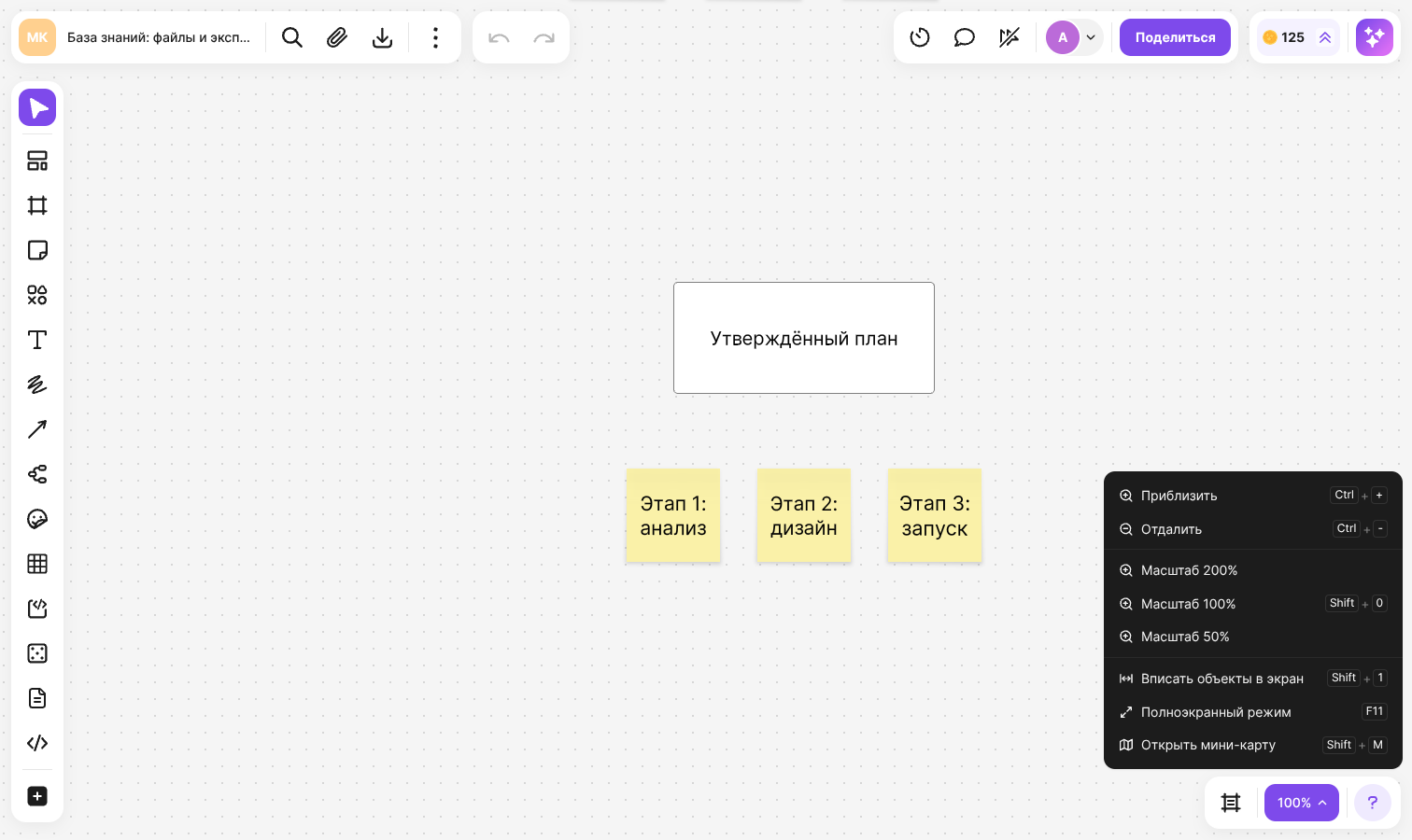
In the zoom menu:
- “Zoom in” and “Zoom out” — change the zoom by one step
- “Zoom 200%”, “Zoom 100%”, “Zoom 50%” — set an exact value. Shift + 0 also returns the zoom to 100%
- “Fit objects to screen” — show all objects of the flip on the screen, Shift + 1. The same item is available in the context menu that opens with a right click on an empty area of the flip
The maximum zoom is 400%. How far you can zoom out depends on the size of the content: the larger the area the objects take up, the more the flip can be reduced
How to move around a flip
- Hold Space and drag the flip with the mouse
- Drag the flip while holding the mouse wheel or the right mouse button
- On a touchpad, swipe with two fingers
- Press the arrow keys when nothing is selected on the flip. With Shift held, the flip moves faster
- Scroll the mouse wheel while holding Shift to move the flip horizontally
- Click “Edit” on the toolbar or press V — the button switches between selecting and moving. In move mode the flip is dragged with the left mouse button, and the objects stay in place
When you drag an element or a selection box to the edge of the screen, the flip scrolls by itself
To jump to the object you need quickly, use search on a flip
How to open the mini-map
The mini-map is a reduced scheme of the whole flip, with a box marking the area visible on the screen
Click the button with the current zoom in the bottom right corner of the flip
Select “Open mini-map” — the map appears above the zoom panel. The same item or Shift + M closes it
Click the place you need on the mini-map or drag across it with the mouse button held — the flip moves to that point
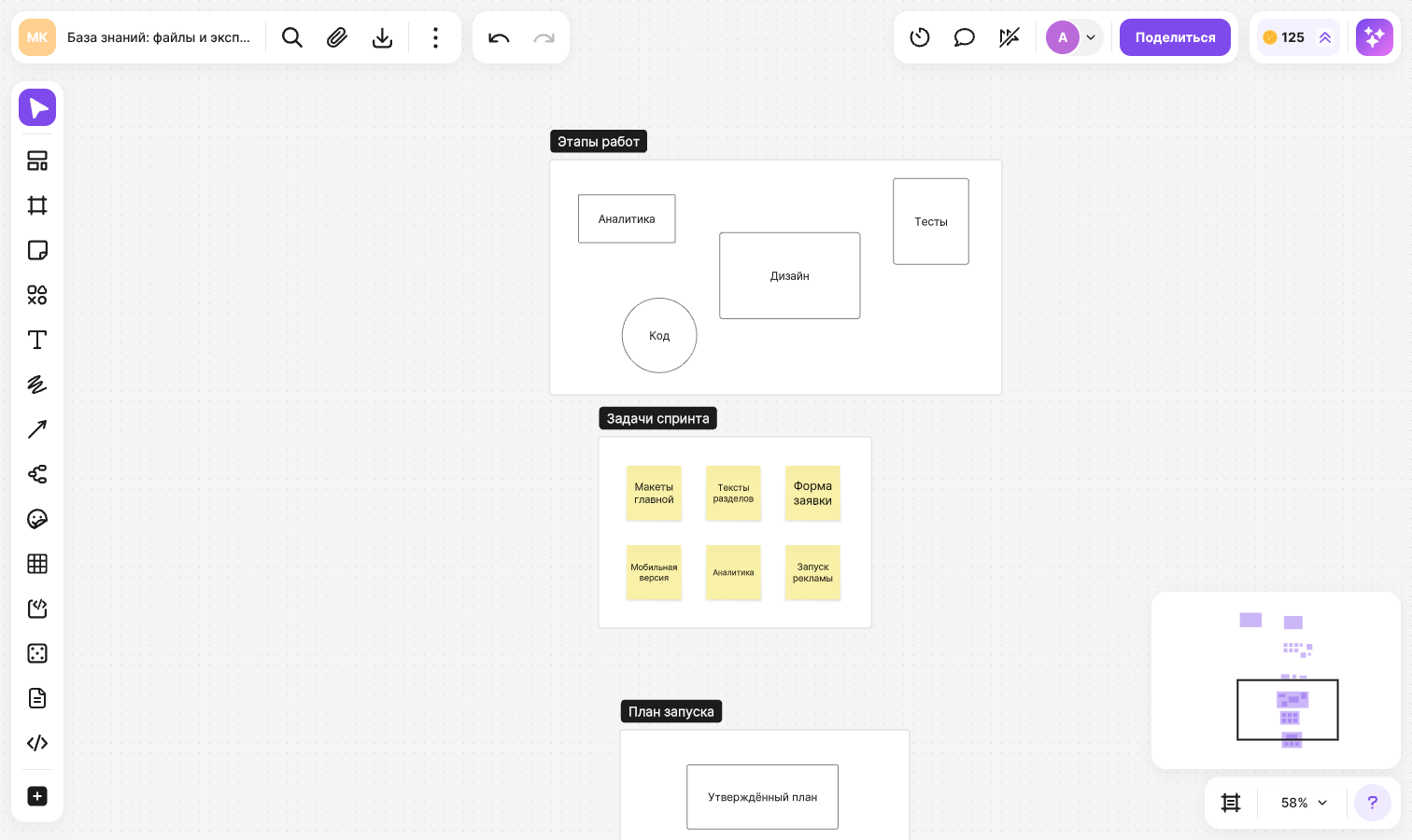
Every time you open a flip, the mini-map is hidden
How to turn on fullscreen mode
Click the button with the current zoom and select “Fullscreen mode”, or press F11 (⌘ + ⌃ + F on macOS). The flip takes up the whole screen, without the browser tabs and address bar. To exit, press Esc or select “Fullscreen mode” again
How to collapse the toolbars
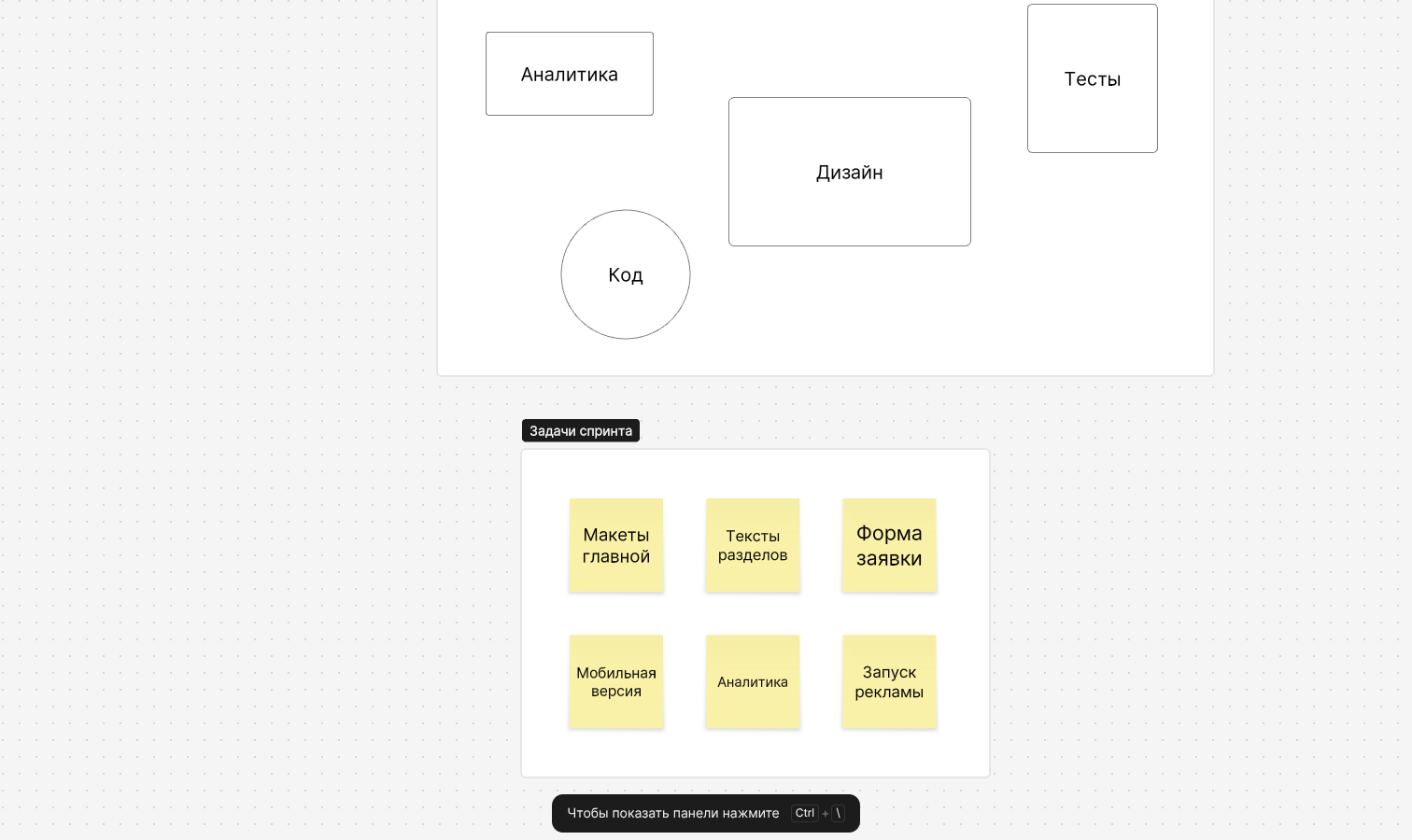
To leave only the flip on the screen, click “More” in the top left corner and select “Collapse toolbars”, or press Ctrl + \ (⌘ + \ on macOS)
All the toolbars are hidden, and the “To show toolbars press” notification with this key combination appears. While the toolbars are collapsed, move mode is on: the flip is dragged with the left mouse button. To bring the toolbars back, press the same key combination. On mobile devices, the “Show panels” button stays in the top left corner — tap it to bring the toolbars back
All the key combinations for zoom and navigation are gathered in the article on hotkeys