

Arrows and lines show how elements on a flip relate to each other: process steps, dependencies, transitions. An arrow attached to an element follows it when the element is moved, so you don't have to redraw the diagram after every change
How to add an arrow or a line
On the toolbar, select “Arrow” or press L. If the tool is not on the toolbar, open “All tools”
In the list that opens, choose a type:
- “Arrow” — a straight line with an arrowhead at the end
- “Line” — a straight line without arrowheads
- “Elbow arrow” — a connector with right angles
- “Curved arrow” — a smooth curve
- “Block arrow” — a wide filled arrow
- “Divider” — a straight line that separates parts of a diagram
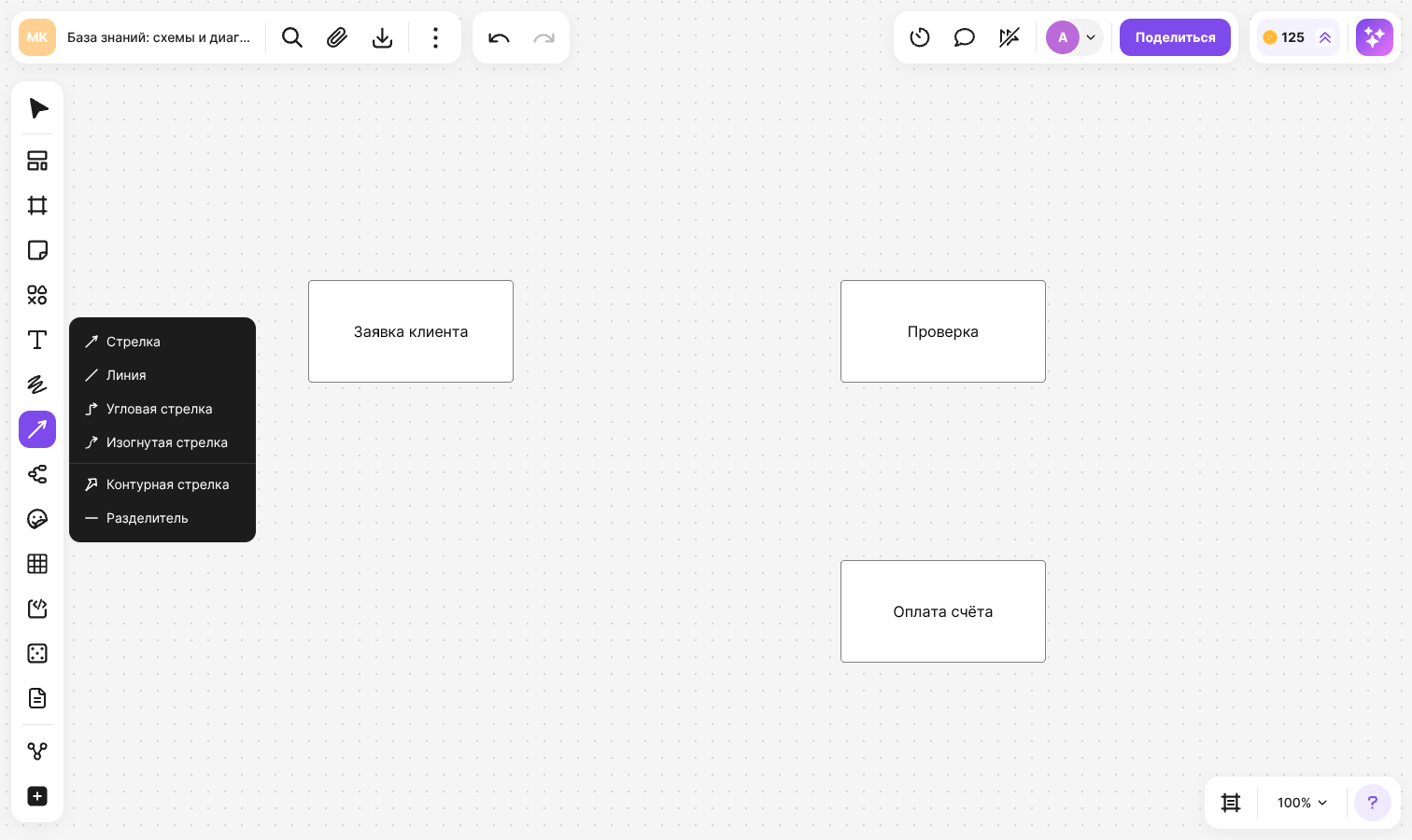
Hold down the mouse button on the flip and drag the pointer from the start of the arrow to its end. If you just click the flip, an arrow of the default length appears
Hold Shift while dragging the arrow to change its direction in 45° steps. To leave the tool without creating an arrow, press Esc
How to connect elements
Option 1. Select an element and drag the arrow handle that appears at its border to another element. Release the mouse button on an anchor point of the second element or anywhere inside it — in that case the arrow attaches to a suitable side by itself
Option 2. Create an arrow with the “Arrow” tool, select it and drag its end to an element. The element the arrow will attach to shows its anchor points — the active one is filled with color
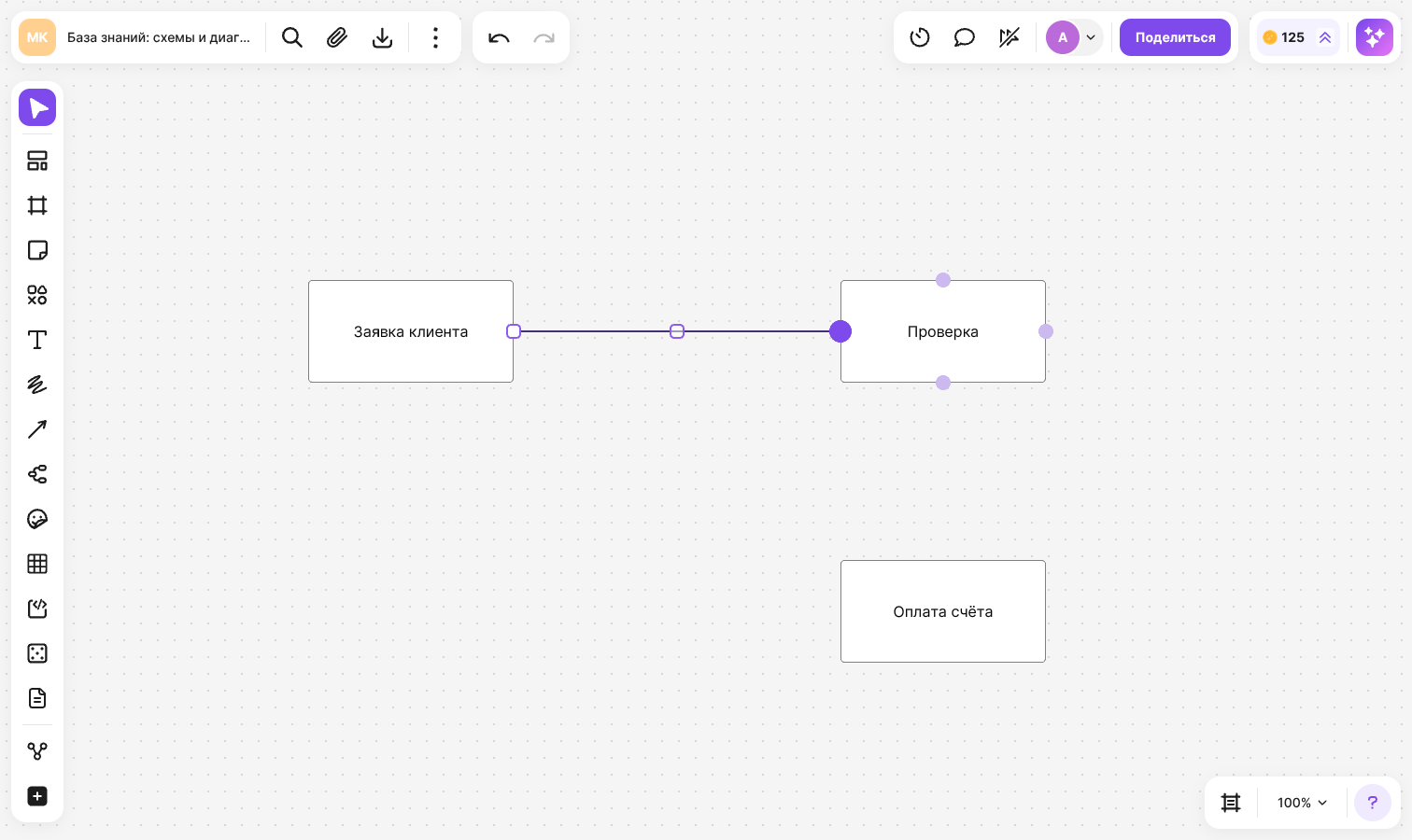
An attached end follows the element when you move, rotate or resize it. You can attach arrows to shapes, stickers, text, images, files, documents, tables, charts, frames, mind map nodes and other elements
To detach an arrow, drag its end to an empty area of the flip. If you delete an element, the arrow stays on the flip and its end becomes free
Important
An arrow with at least one attached end cannot be dragged as a whole. To change its position, drag its ends
How to change the shape of an arrow
- Drag the start or the end of an arrow to change its length and direction
- On an elbow arrow, drag a segment to move it, or drag the point in the middle of a segment to add a new bend. Double-click an intermediate point to remove it
- On a curved arrow, drag the control point to change the curve
- To change the type of an existing arrow, select it, click “Style” in the menu above the arrow and choose straight, curved or elbow. Attachments, styling and labels are kept
How to style an arrow
Select an arrow — a menu appears above it:
- “Start” and “End” — arrowheads. There are 16 options, including “None”, “Arrow”, “Triangle”, “Diamond”, “Circle”, “Dot” and “Bar”
- “Reverse direction” — swaps the start and end arrowheads
- “Color” — line type (solid, dashed or dotted), width from 1 to 10, and color
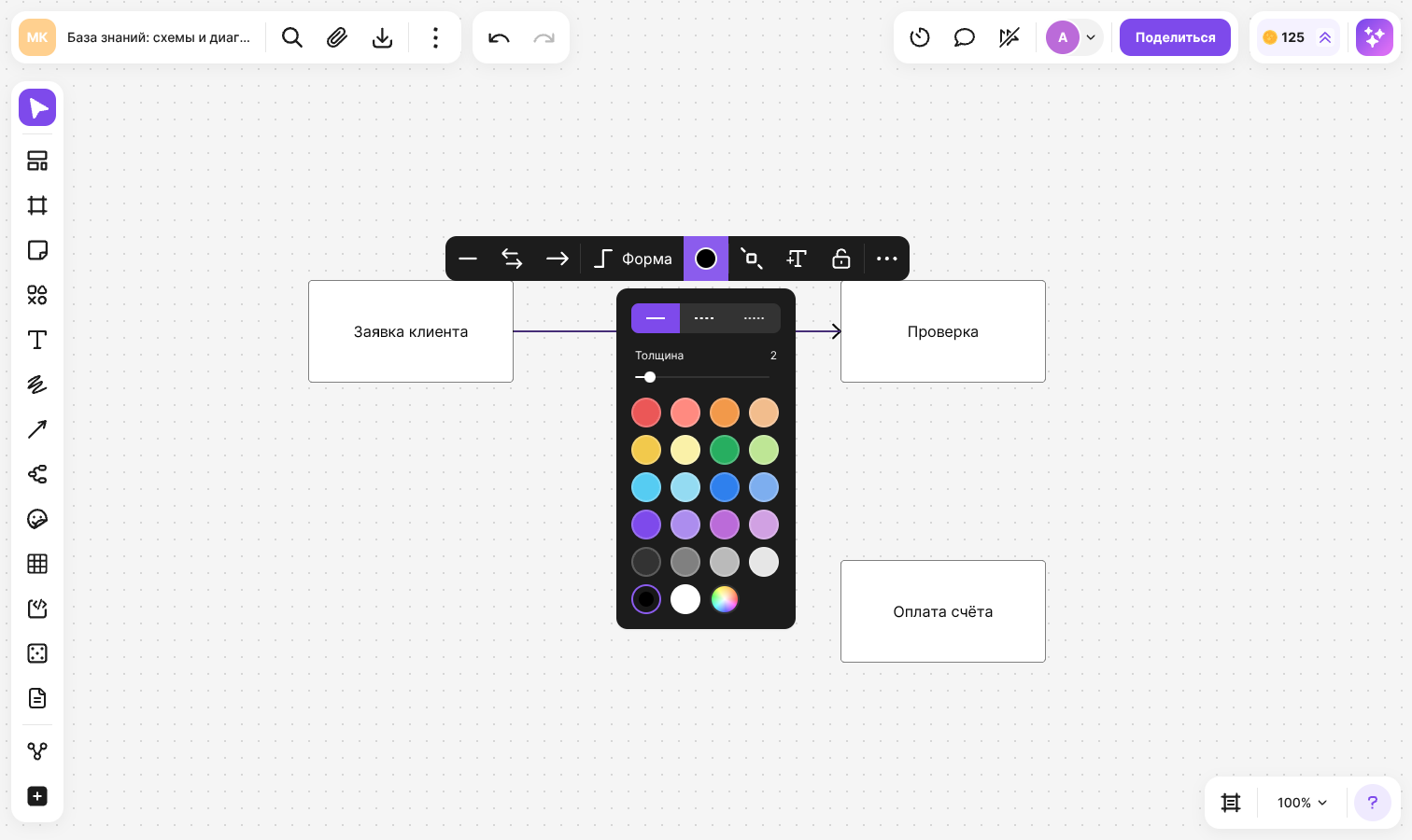
To style several arrows at once, select them together — the settings apply to all of them
How to add text to an arrow
- Select an arrow and click “Add text” in the menu. Other ways: double-click the arrow where you need the label, or select the arrow and start typing
- Enter the text — up to 100 characters
- Click outside the label to finish
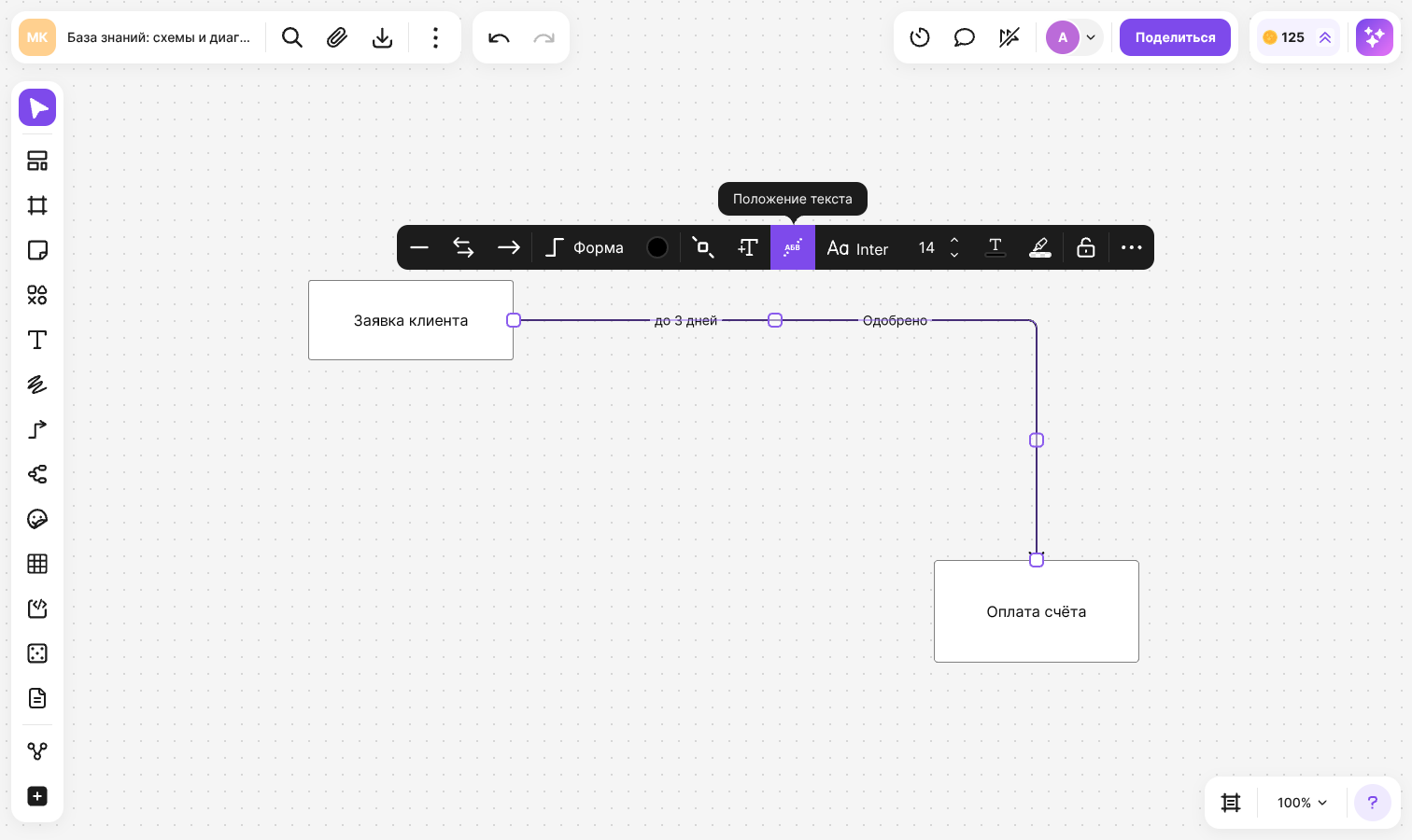
An arrow can have several labels: each click on “Add text” creates a new one. Drag a label along the arrow to change its position
The “Text position” button appears in the arrow menu after the first label is added. It turns the labels along the line; click it again to make them horizontal. You can also set the font, font size, text color and highlight for a label
How to insert a shape into an arrow
- Select an arrow and click “Insert shape”
- Choose a shape or a sticker from the list. To see more shapes, click “Shape list”
The element appears in the middle of the arrow, and the arrow is split into two — both are attached to the new element. Labels stay on their parts of the arrow
If the arrow is connected to a shape from a notation — flowchart, UML, BPMN, DFD, C4 or ERD — the list shows shapes from the same notation
Limitations
- For a block arrow, only the color can be set: changing the type, arrowheads, line type and width, text and inserting a shape are not available
- For a divider, you can set the line type, width and color. Arrowheads, text and inserting a shape are not available, and its ends cannot be attached to elements. However, the ends of other arrows can be attached to the divider itself
- A transparent color and the opacity setting are not available for arrows
- You cannot create a list in an arrow label
Keyboard shortcuts for the tools are listed in the Hotkeys article