

The timer helps keep the pace of a meeting: set the time for a brainstorm, a vote or a discussion — and everyone who is on the flip will see the countdown. The timer is shared: start, pause and added time are shown to all participants right away
Plan limits
The timer is included in paid plans. If your plan doesn't have it, clicking the “Timer” button will show the “The timer is included in paid plans” message — see Comparison of flip plans for details
How to start the timer
In the top right corner of the flip, click the “Timer” button — the timer panel will open below the panel with the buttons
If the browser window is narrow, the button is in the “More” menu
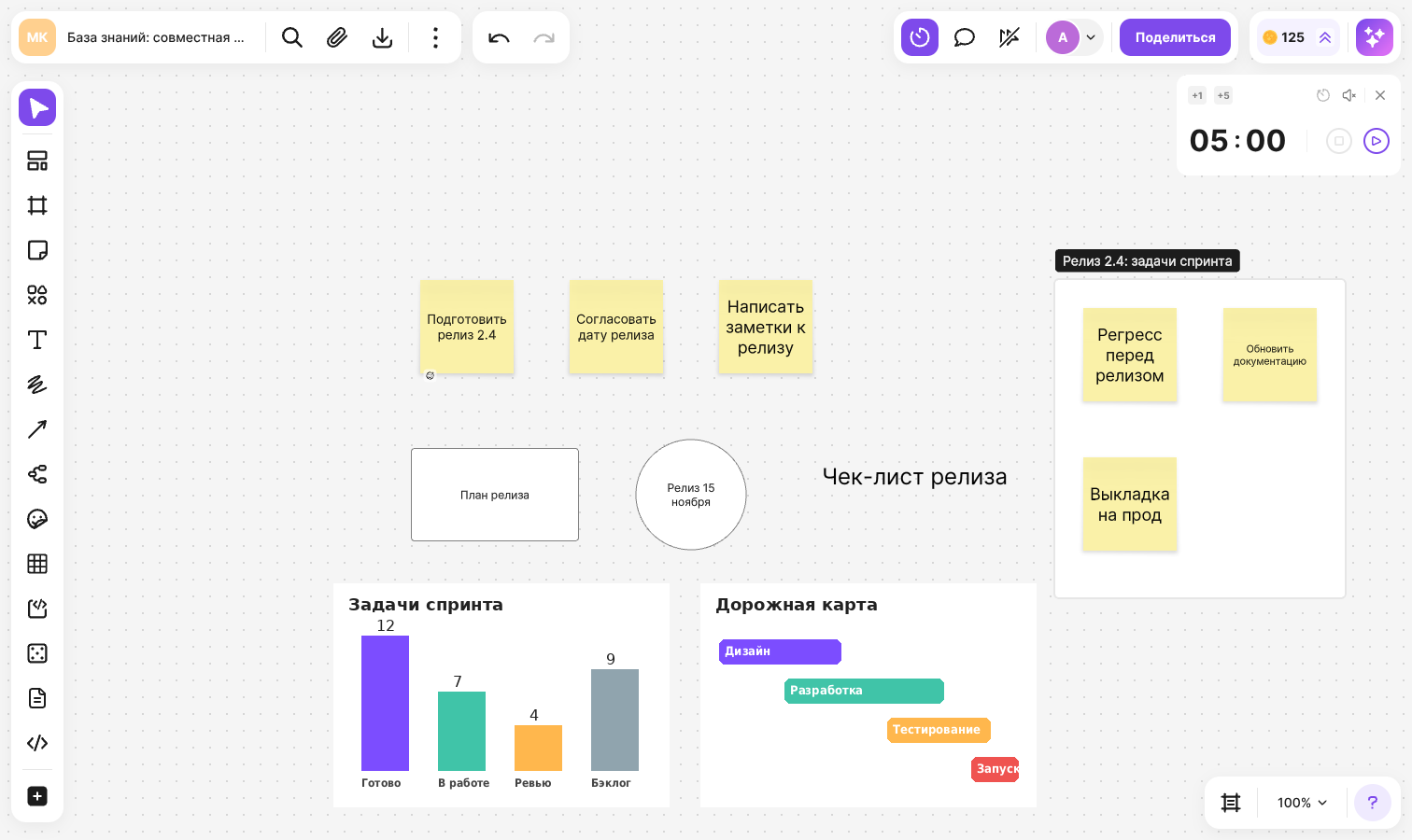
Set the time: click the minutes or seconds field and type a value. The default is 05:00, the maximum is 99:59
The “+1” and “+5” buttons add one and five minutes
Click the start button
The countdown will begin, and the timer panel will open for all participants of the flip
How to control the timer
While the countdown is running, the panel offers:
- Pause — the countdown stops at the current value. To continue, click the start button again
- Stop — the timer is reset and returns to the default value
- “+1 minute” and “+5 minutes” — add time to the remaining time without interrupting the countdown. You can also add time while the timer is paused
- “Restart” — starts the countdown again from the time that was set at launch. Minutes added along the way are not counted
- “Alert: On” or “Alert: Off” — turns the sound at the end of the countdown on and off. The alert is off by default
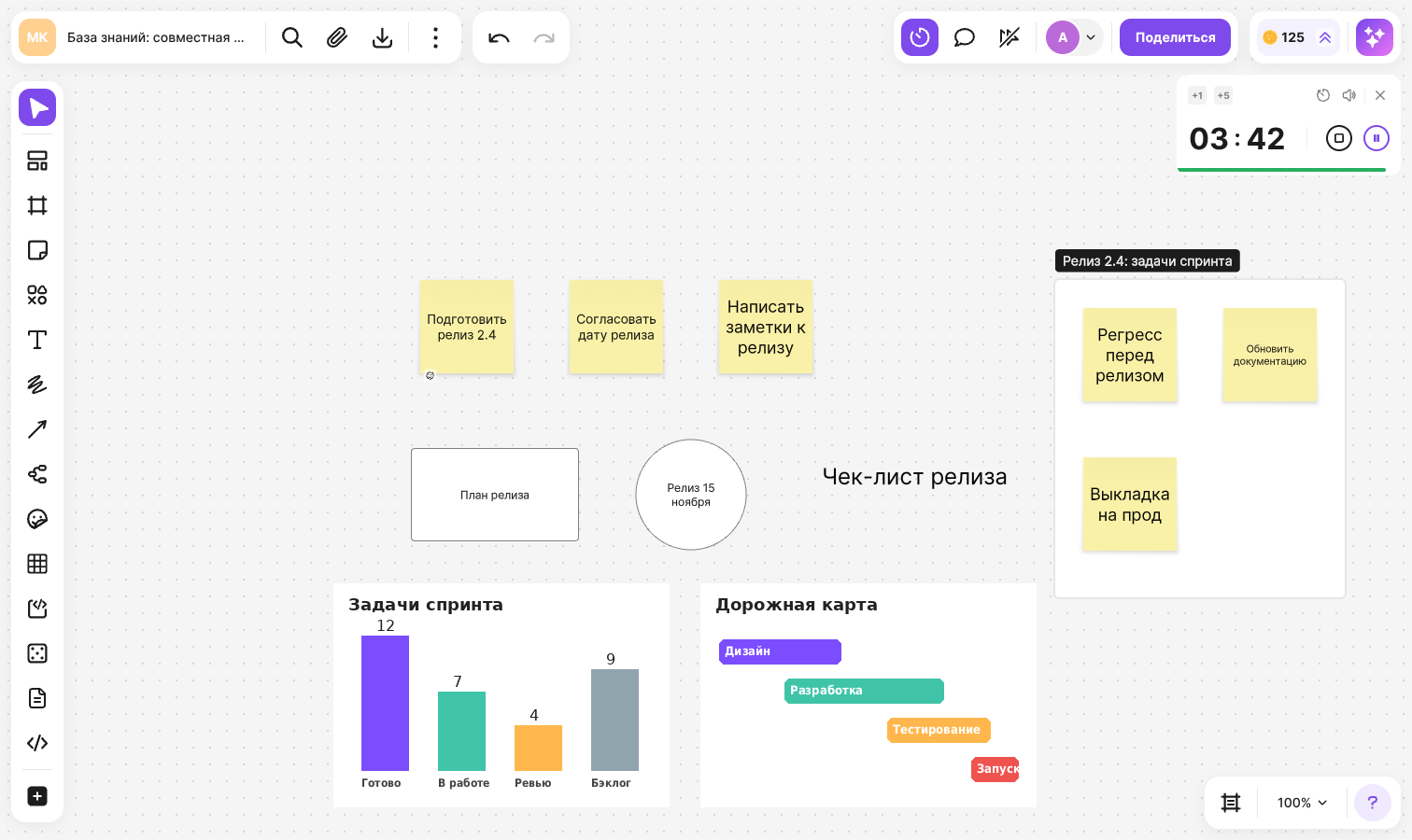
The bar under the time shows how much is left: green — more than a minute, orange — the last minute, gray — the timer is paused
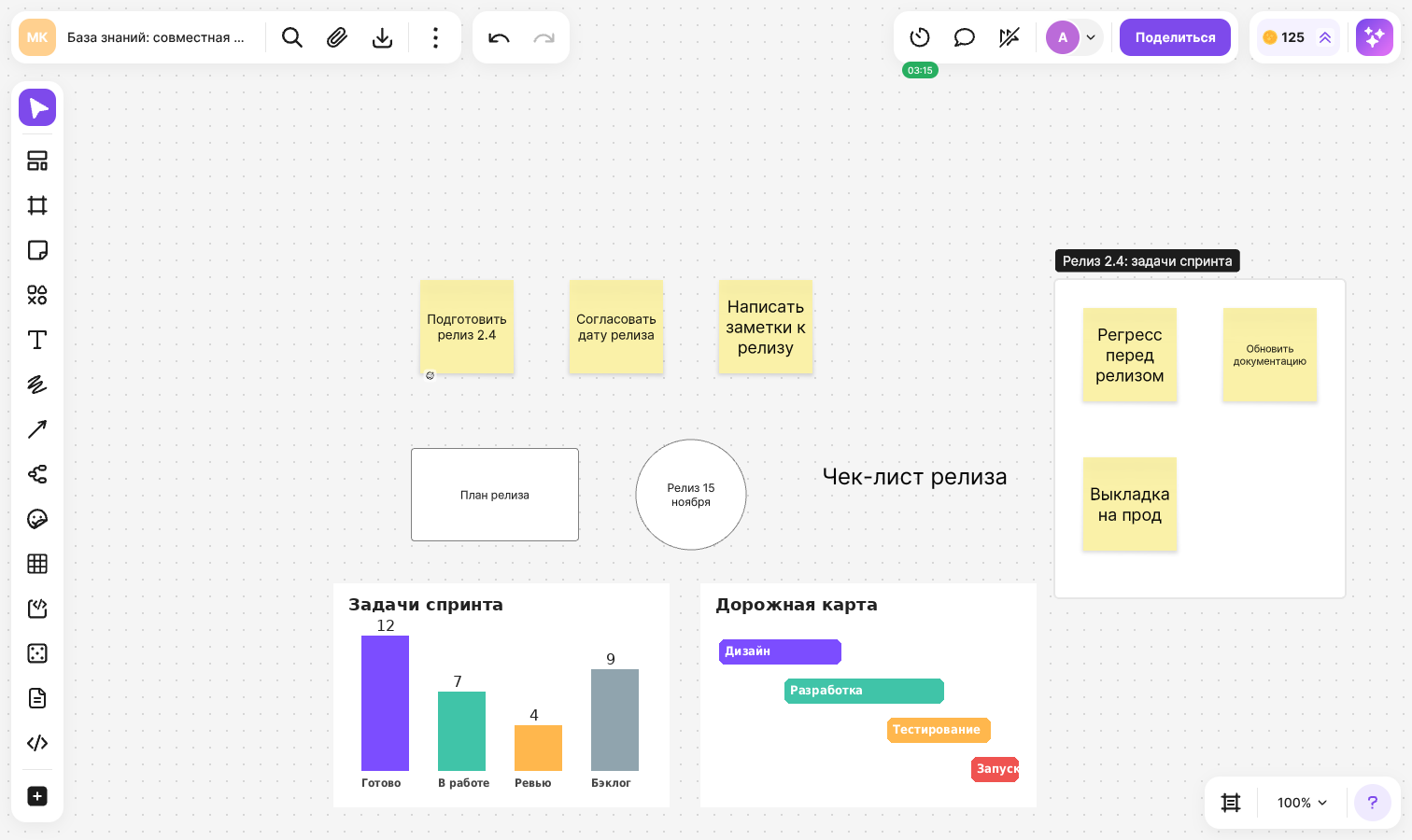
You can close the panel — the countdown will continue, and the remaining time will be shown under the “Timer” button. To open the panel again, click the button
When the time runs out, a sound will play if the alert is on, and the timer will return to 05:00
What participants see
- Participants who can control the timer see the full panel with the time setting and the buttons
- Everyone else — for example, participants with “View” or “Commenting” access — sees only the remaining time and can close the panel
- The countdown is not affected if you refresh the page or switch to another tab: the timer will show the actual remaining time
Who can start the timer
By default the timer can be started by the flip author, team author, space owner and admins
To let all space members with “Editing” access control the timer:
Click “Share” in the top right corner of the flip
Go to the “Permissions” tab
In the “Timer” section, turn on “Allow all space members to start the timer”
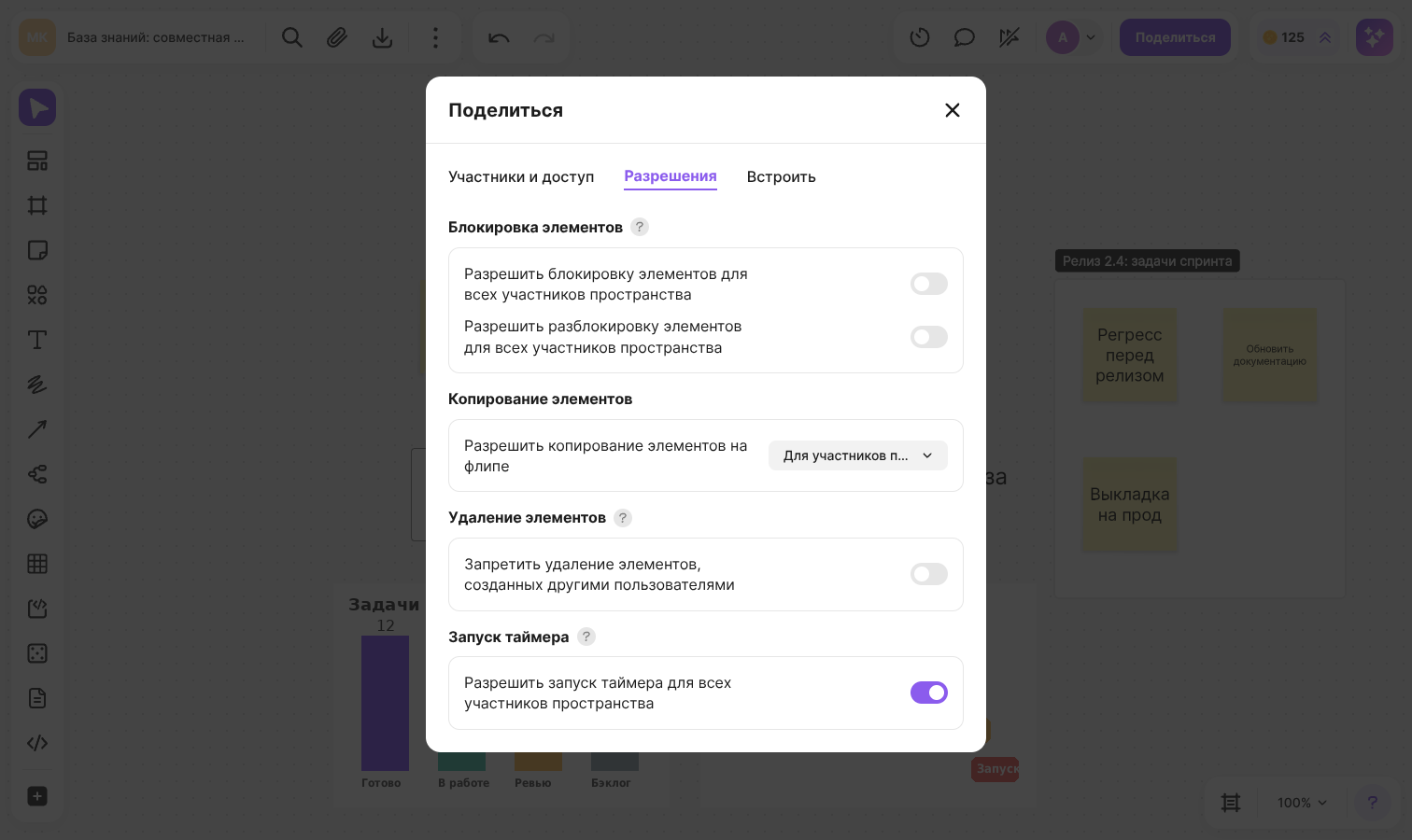
For the other settings of the “Share” window, see the article about access to a flip
Limitations
- The maximum time is 99 minutes 59 seconds
- A flip has one shared timer: you can't run several countdowns at the same time
- On a narrow screen, for example on a smartphone, you can't control the timer — only the countdown is shown
- The “Timer” button is visible to those who can control the timer. Other participants will see it when the timer is running or paused