

In flip, each user can create up to three spaces. Your first space is created automatically when you sign up.
How to create a space
- Open the drop-down list of spaces.
- Click + Add space.
- Enter a name for the space.
- Click Create.
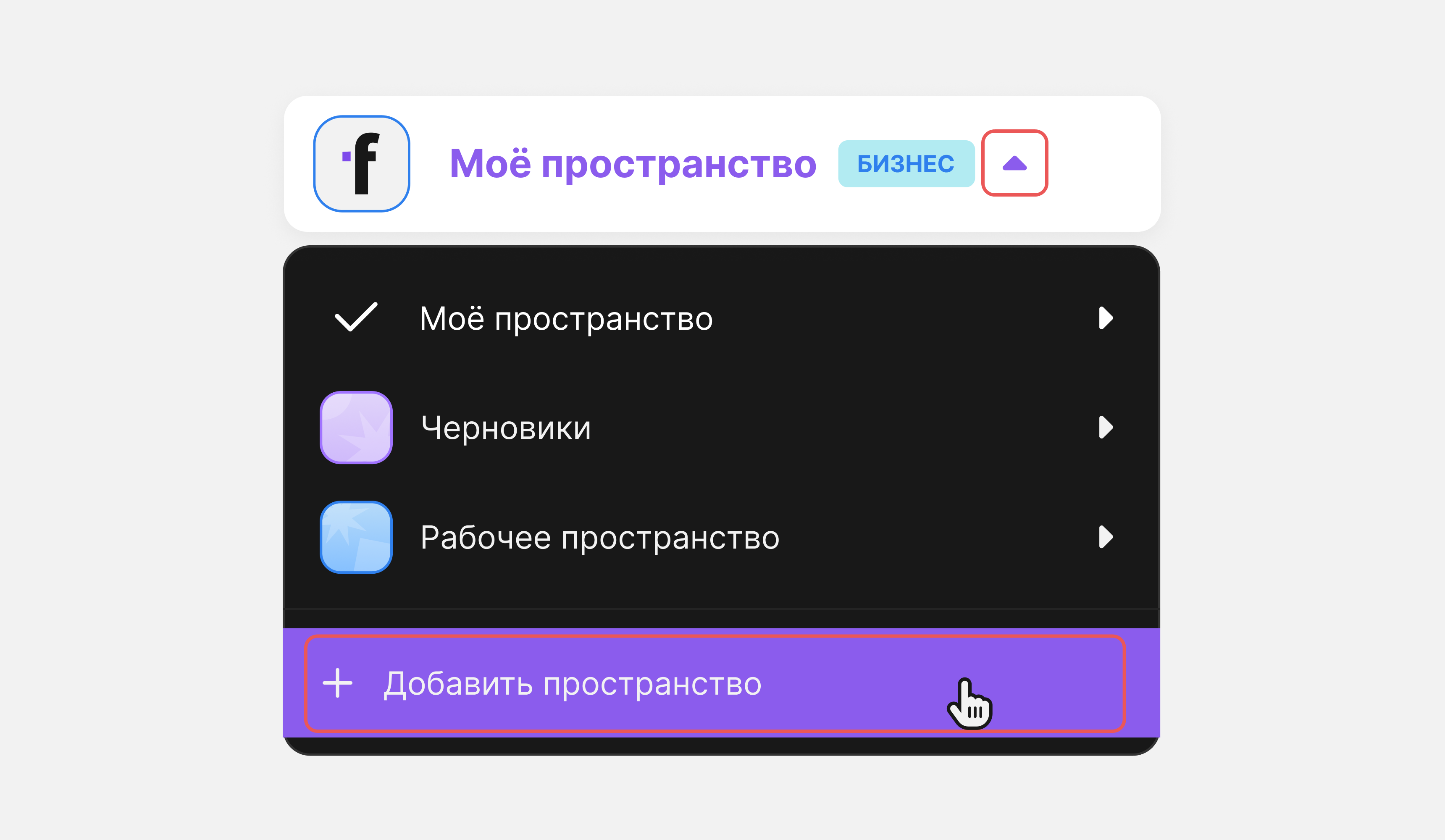
Done! You have created a new space!
How to delete a space
Only the owner can delete a space — the owner is marked with a crown in the team member list.
Important
A space is deleted together with its teams and flips. You will not be able to restore the space.
- Open the list of spaces.
- Click the gear icon next to the name of the space — the space profile will open.
- Click Delete space, enter the space name in the window that opens to confirm the action, then click Delete space.