Teams split a space into work groups: each team has its own list of flips and its own members. The teams you are a member of are listed in the “Teams” block in the left sidebar. If they include both teams you created and teams created by others, the list is split into the “Created by me” and “Created by members” groups
How many teams you can create
- Mini — one team. It is created together with the space, and you can't create new ones
- Individual — no teams: there is no “Teams” block in the left sidebar, and your flips are in the “Home” section
- Business — up to 30 teams in a space
- Enterprise — no limit
The team created together with the space also counts toward the limit. Plan features are listed on the plans page and in the article Comparing flip plans
How to create a team
Any member of the space can create a team on the Business and Enterprise plans while the limit isn't reached
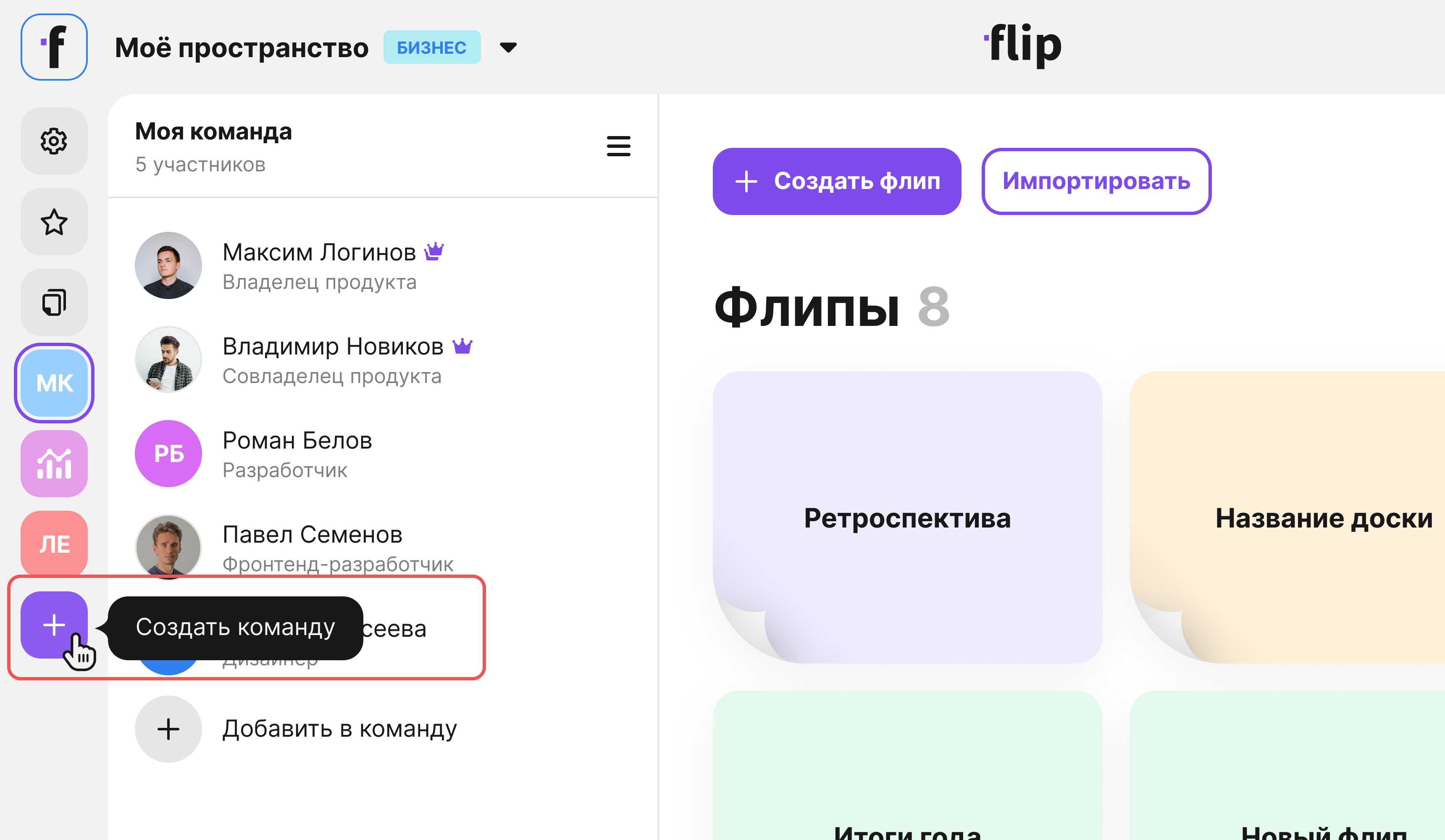
- In the left sidebar, click the plus in the header of the “Teams” block — the “Create team” tooltip
- In the “Create a team” window, enter a name — up to 64 characters
- Choose an avatar: a color — the team initials will be shown on it — or one of the ready-made pictures. To use your own image, click “Upload avatar”
- Click “Create”

The empty list of flips of the new team opens, and the “Team created” message appears. You become the team creator and so far its only member — add colleagues as described in the article on adding and removing team members
On the Business plan, the “Create a team” window has a counter showing how many of the 30 teams have already been created. If you close the window after entering a name, flip asks “Cancel creating the team?” — to continue, click “Back to creating”
When the limit is reached, a message opens instead of the creation window: on the Mini plan it says that teams are available on the Business and Enterprise plans, and on the Business plan it says “You've reached the team limit for this space”. The space owner can switch from the Mini plan to a plan with teams, learn more in the article on upgrading to a higher plan. Teams are unlimited only on the Enterprise plan
How to delete a team
A team can be deleted by its creator, admins and the space owner
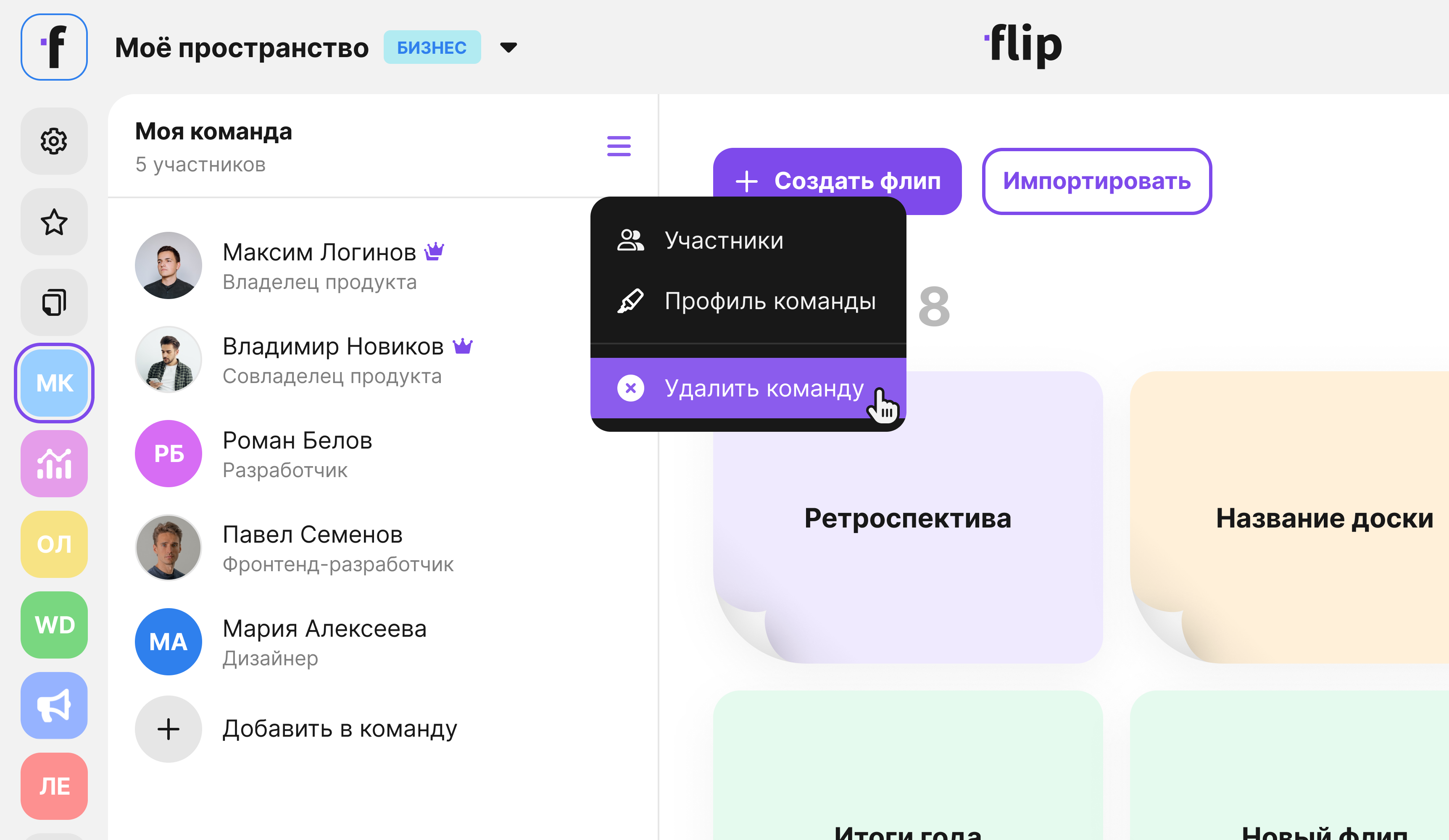
Click the three-dot button next to the team name — above the list of flips or in the team row in the left sidebar
In the sidebar row, the button appears when you hover over it. The same menu opens if you right-click the team row
Select “Delete team”
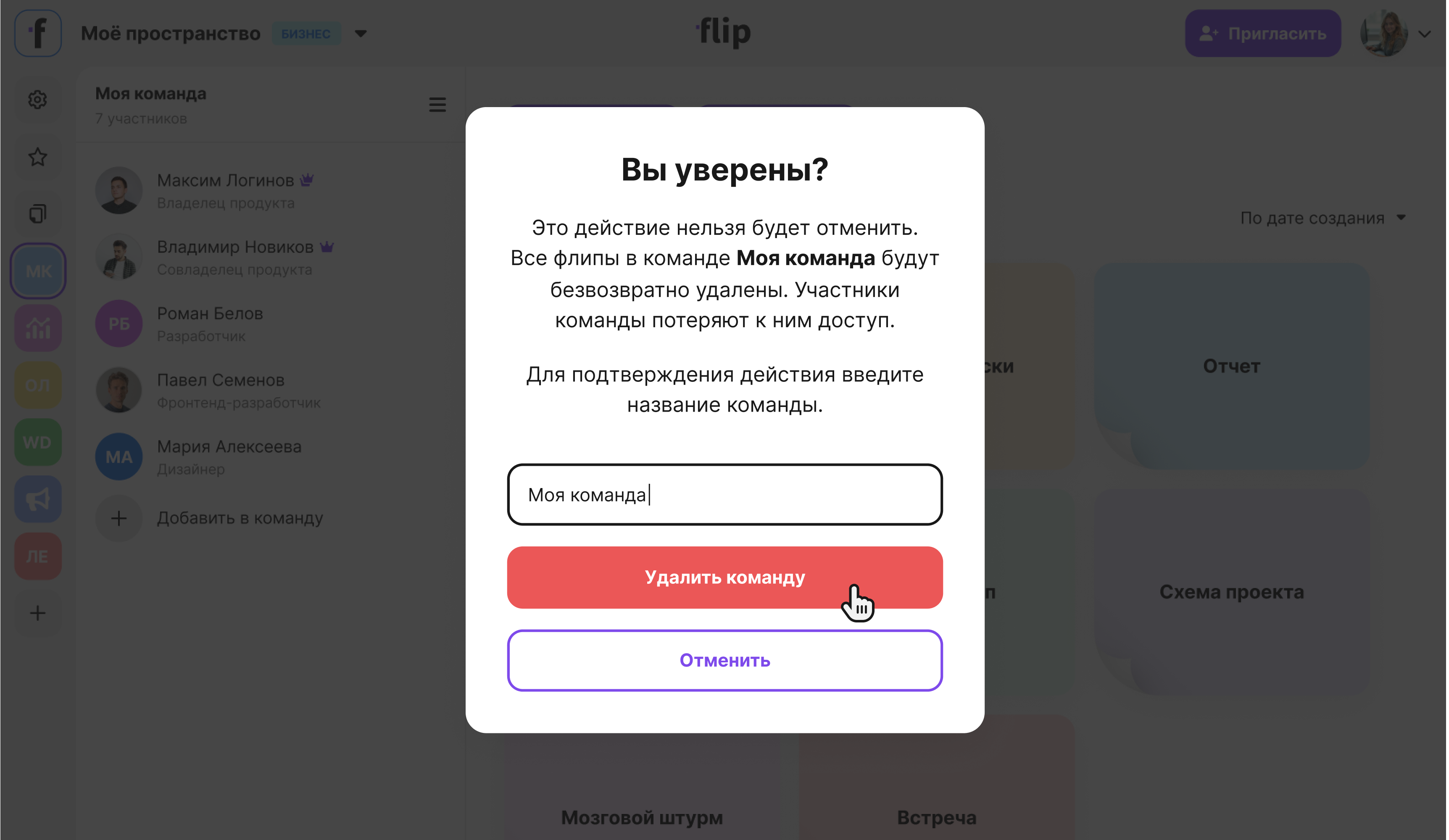
In the confirmation window, enter the team name
Click “Delete team”


The owner and admins can also delete a team they are not a member of: in “Space settings” → “Teams”, click the three-dot button in the team row and select “Delete team”
Important
Deleting a team can't be undone. All flips of the team are permanently deleted, they don't go to the trash, and team members lose access to them. To keep the flips you need, move them to another team in advance — see the article Duplicating, moving and transferring a flip
Members of the deleted team stay in the space and in their other teams
When a team can't be deleted
- It is the only team in the space — the “Can't delete the only team” message appears
- The team is selected in the “Default team for new users” field in the “SSO settings” section — select another team there first. Learn more in the article SSO and domain management
- The team has members who are not in any other team of the space — flip shows their names. Add these members to other teams and delete the team again
Limitations
- You can create teams on the Business plan — up to 30 teams — and on the Enterprise plan
- Only the team creator, admins and the space owner can delete a team
- A deleted team and its flips can't be restored
- A space must keep at least one team, and every member must stay in at least one team
- There are no buttons for creating and deleting teams on a phone screen — use a computer or tablet