Skip to content

How to buy or upgrade a plan

Updated October 9, 2026

A plan is connected to a space, not to an individual user: once it is paid for, all members of the space get the plan's features. Only the space owner can buy a plan or move to a higher one, and only in the web version of flip — payments aren't available in the mobile app

How the plans differ is described in Comparing flip plans, what the price consists of — in How the subscription price is calculated, and current prices are on the pricing page

Where to see your current plan and limits ​

In the left sidebar, click “Space settings” next to the space name. If you have several spaces, open the list of spaces and click the settings icon in the row of the current space. The “Space profile” section opens

The “Plan” row shows the current plan. The “Total flips”, “Total members” and “Total teams” rows show how many flips, members and teams the space already has and, if the plan limits them, how many are available, for example “2 of 3”. On paid plans, this section also shows the “Plan term” and the “Plan end date”

How to buy a plan ​

To connect Individual or Business to a space on the Mini plan:

  1. Click “Upgrade plan” in the top right corner — the “Plans” window opens
  2. Choose the billing period: “1 month”, “6 months” or “1 year”. The prices on the plan cards are recalculated
  3. For the Business plan, set the number of licenses on the card — one for each space member. You can't choose fewer licenses than there are members in the space
  4. Click “Buy” on the plan card
  5. In the “Plan terms” window, check the “Number of licenses”, “Subscription period”, “Total price” and “Plan validity period”. You can change the number of licenses and the period right here
  6. In the “Payment methods” block, choose “By card” or “By invoice” and click “Pay” or “Continue”

The “Plans” window: billing period, plan cards, the “Buy” and “Try for ₽1” buttons

The “Plan terms” window: number of licenses, subscription period, total price and payment methods

If you own a space on Mini, the “Buy” button on the website's pricing page opens the app with the “Plans” window, where the period and the number of licenses are already selected

The Individual plan is meant for one person: if the space has more than one member, its card shows “Only one member” instead of “Buy”. The Enterprise plan is priced individually: click “Calculate cost” on its card, fill in the “Get a personalized quote” form and click “Send” — a manager will contact you

Below the cards, the “Plans” window has a plan comparison table, a link to the plans as a PDF and answers to frequently asked questions

Paying by card ​

After you click “Pay”, the bank's payment page opens. Visa, Mastercard and Mir cards are accepted. Enter your card details and confirm the payment — the plan is activated right after payment, and flip shows a window with the features of your new plan

After that, the payment is charged to this card automatically at the start of each new period — monthly, every 6 months or annually — until the subscription is cancelled. If the payment fails, the “Oops!” window appears — the plan doesn't change, and you can try paying again

When and what amounts are charged is described in How subscription payments are charged, and card payments and receipts — in Payment methods: card or invoice

Paying by invoice ​

  1. In the “Plan terms” window, choose “By invoice” and click “Continue”
  2. In the “Generating invoice” window, fill in “Name”, “Email”, “Legal entity name”, “Phone”, “TIN (INN)”, “KPP”, “Legal address” and “Mailing address”
  3. Click “Generate” — the invoice is downloaded to your device as a PDF, and the “Awaiting payment” window appears
  4. Pay the invoice within 7 days. After that, you'll need to generate a new one

The plan is activated once the funds reach flip's bank account. Until the payment arrives, a clock icon with the “Waiting for the invoice payment” tooltip is shown in the top right corner. A subscription paid by invoice isn't renewed automatically

The ₽1 trial ​

If the space is on the Mini plan and hasn't used the trial yet, the Individual and Business cards have a “Try for ₽1” link under the “Buy” button

Trial terms:

  • 14 days of access to all plan features
  • ₽1 per license. One license on Individual, no more than 3 on Business
  • Card payment only
  • After 14 days, the subscription is automatically renewed for a month, and the full plan price is charged to your card. To avoid this, cancel the subscription before the trial ends
  • A space can use the trial only once

How to start a trial:

  1. Click “Try for ₽1” on the plan card
  2. Read the terms and click “Try for ₽1”
  3. In the “Trial terms” window, check the number of licenses, select the “I accept the terms of the User Agreement” checkbox and click “Pay”
  4. Pay on the bank's page

If the space has more members than the trial allows licenses, the “Offer unavailable” window appears instead of the terms. The “Manage member list” button opens the “Space members” section, where you can remove extra members

How to move from Individual to Business ​

If your plan is already paid for, the new plan takes effect when the current paid period ends — you don't need to pay for it right away

  1. Click “Upgrade plan” in the top right corner or open “Space settings” → “Plan management” → “Switch to another plan”
  2. In the “Plans” window, click “Buy” on the Business card
  3. In the “Plan terms” window, check the “Scheduled plan” and the “Next validity period” — the date from which the new plan applies
  4. Click “Change”

The “Changes successfully scheduled” message appears. When the current period ends, the plan changes, and the payment for the new plan is charged to your saved card. You can check the amount, date and terms of the next payment in “Space settings” → “Payment information” → “My subscription”, in the “Next payment details” block

The plan change works only if the subscription renews automatically. If the subscription is cancelled, resume it first — otherwise the space switches to Mini when the period ends

The number of licenses and the subscription period are changed separately — see Space plan management

Plan limit windows ​

When a space hits a plan limit or a user picks a feature their plan doesn't include, a window describing the restriction appears. It usually has the “Upgrade plan” button — only the space owner sees it, and it opens the “Plans” window. Other members see a hint to contact the space owner

Limit windows:

  • “You've reached the limit of 3 flips” — on Mini, when creating, duplicating or importing a flip if there are already 3 flips. Flips in the trash count too: you can delete extra flips from “My flips” and “Trash” or upgrade the plan
  • “Teams are available on the Business and Enterprise plans” — on Mini, when creating a second team
  • “You can invite more members on the Business and Enterprise plans” — on Mini, when inviting and the space already has 15 members
  • “You have reached the license limit” — on Business and Enterprise, when inviting and all licenses are taken. The “Add licenses” button opens the “Change number of licenses” window
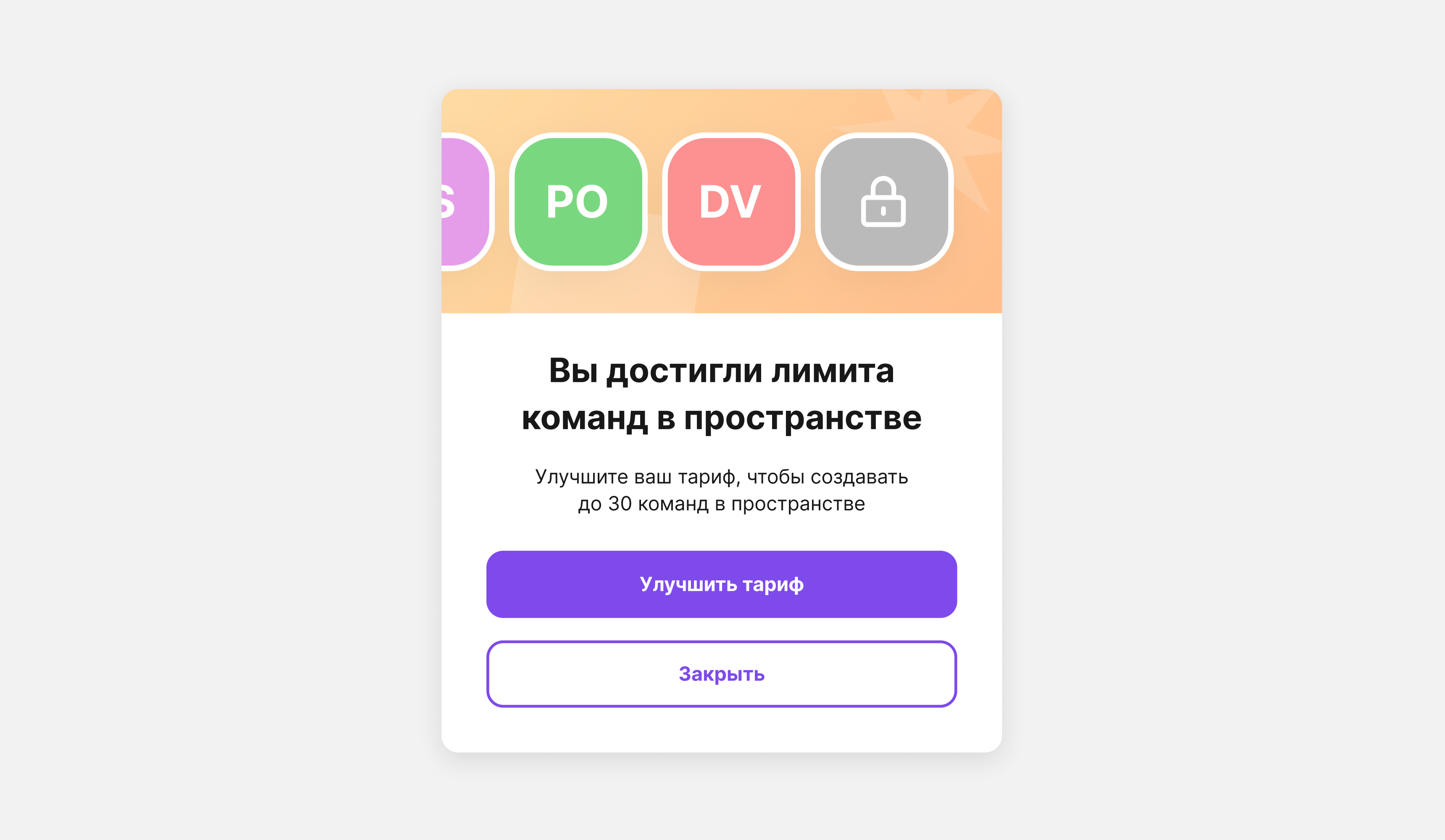
  • “You've reached the team limit for this space” — on Business, when the space has 30 teams. The “Add space” button starts creating a new space to which you can connect Business or Enterprise

The “You've reached the team limit for this space” window with the “Add space” and “Close” buttons

Windows offering a plan upgrade also appear when someone on Mini picks a paid feature — the timer, reactions on stickers, voting, hiding frames and cells, folders — and when backup downloads or AI tokens run out

Limitations ​

  • Only the space owner can buy, upgrade or change the plan
  • Individual can be bought only if the space has one member
  • On Business, the number of licenses ranges from the number of space members to 100. If you have more members, you need the Enterprise plan
  • Switching from one paid plan to another takes effect from the next paid period
  • You can't buy a plan in the mobile app — use the web version of flip

flip online whiteboard knowledge base