

Sometimes a flip can't be loaded or shown on the screen. In this case, the “Couldn't load” window appears instead of the flip. The text in the window tells you what to do next. This article covers both cases: a regular loading failure and disabled WebGL graphics
If a flip didn't load
In the browser, flip first reloads the page once on its own. If the flip still doesn't load, the “Couldn't load” window appears with the text “The flip may be too large. Please try again”
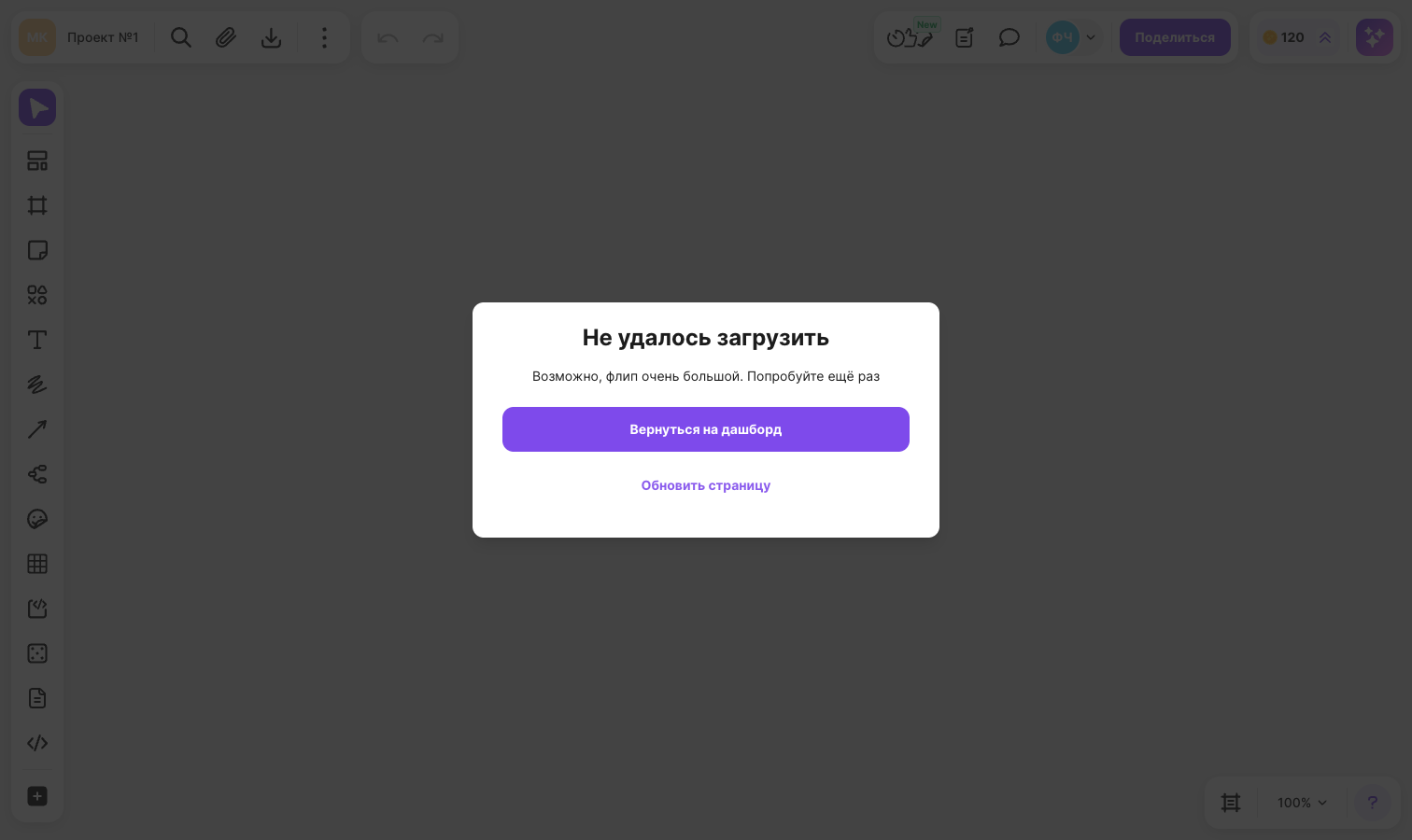
Click “Reload the page” to try opening the flip again
If the flip still doesn't open, click “Back to dashboard” — the list of flips opens
The “Back to dashboard” button is shown only if you are logged in
In the mobile app, a “Couldn't load” screen with the same buttons opens instead of the window. The app doesn't reload the page on its own — tap “Reload the page”
If WebGL graphics are disabled
flip uses WebGL graphics to display a flip. If your browser doesn't support them or they are disabled, the “Couldn't load” window shows the text “WebGL graphics are disabled in your browser, and the flip can't open without them. Restart your browser. If that doesn't help, turn on hardware acceleration in your browser settings”
In this case, the page doesn't reload on its own, and there is no “Reload the page” button in the window: loading the flip again won't help while WebGL is unavailable
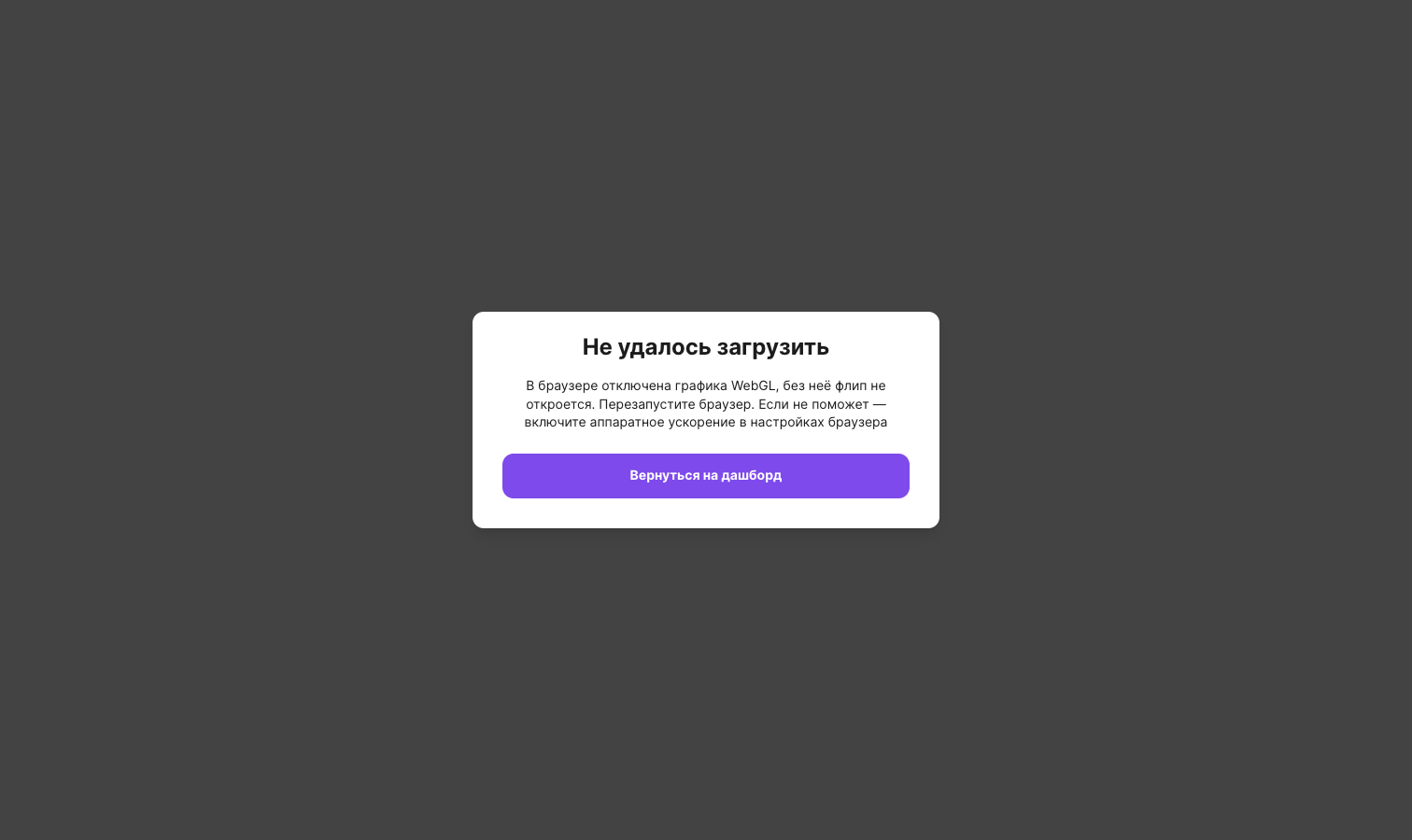
- Restart your browser — close it and open it again
- Open the flip again
- If the window appears again, turn on hardware acceleration in your browser settings, restart the browser and open the flip
In the mobile app, the “Couldn't load” screen shows the text “WebGL graphics are unavailable, and the flip can't open without them. Restart the app”. Close the app and launch it again
Important
To return to the list of flips, click “Back to dashboard”. If you are not logged in, this button isn't shown — close the tab or go to another page
Learn more about working from your phone in flip mobile app