

A code block is an element for code snippets with syntax highlighting, line numbers and a monospaced font. It is handy for discussing a query, a configuration or an implementation example with your team right next to diagrams and notes
How to add a code block
On the toolbar, select “Code block” or press the
`keyIf the tool is not on the toolbar, open “All tools” — it is in the “Essentials” section
Click the flip — a block with an open editor appears
Type or paste the code
Press Esc or click outside the block — the changes are saved
To change the code again, double-click the block. In the editor, the Tab key inserts two spaces, and the block grows taller as lines are added
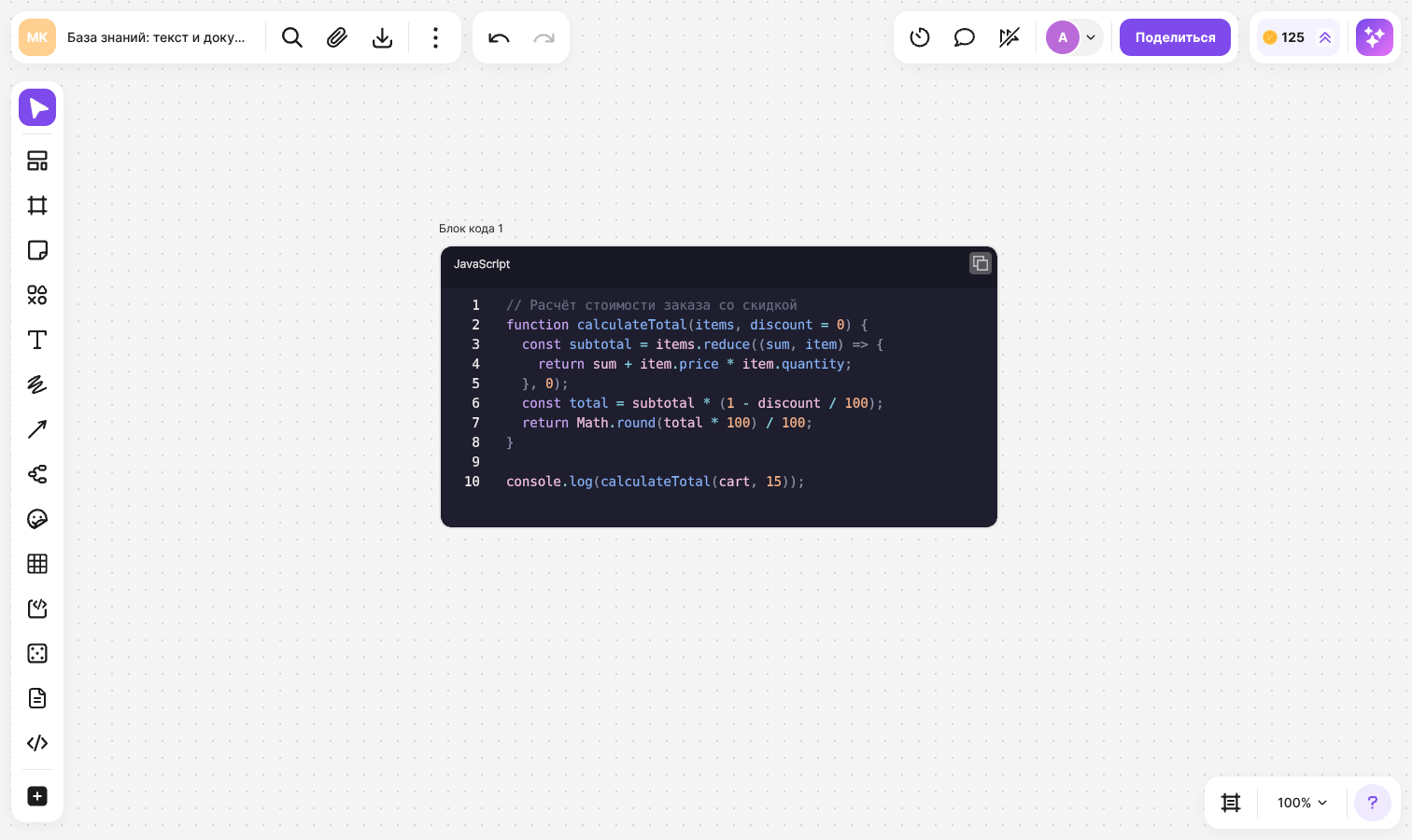
You can also create a block without the tool:
- Copy some code and paste it onto an empty spot on the flip — flip recognizes the code, creates a block and detects the language by itself. Fragments shorter than 10 characters and plain text are pasted as text
- Drag a code file onto the flip or add it with “Upload” — the language is detected from the extension, and the file name becomes the block title. If there are several files, a separate block is created for each one
How to upload a Markdown or text file
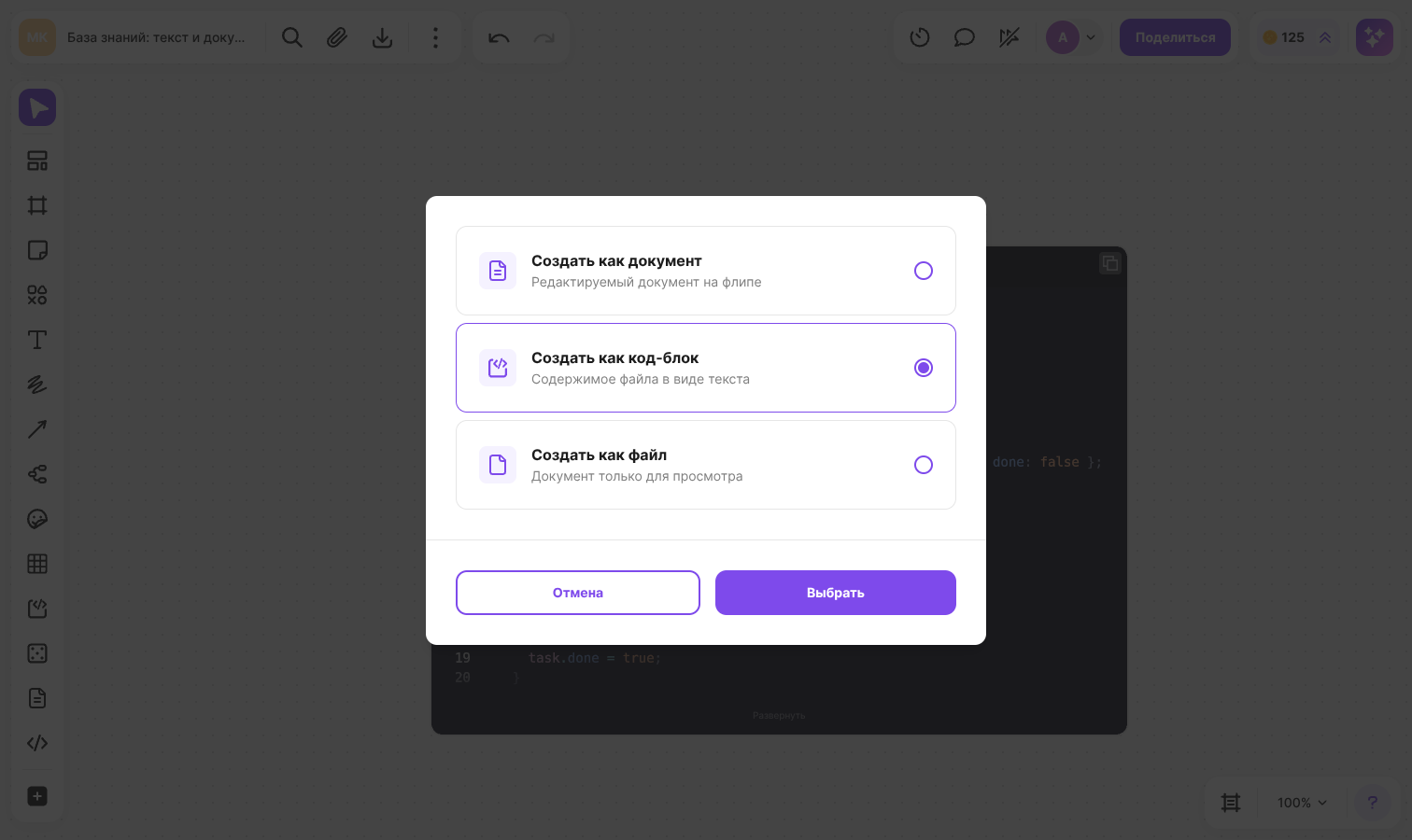
When you upload a .md or .txt file, flip asks how to add it:
- “Create as document” — an editable document on the flip, see Documents for details
- “Create as code block” — the file contents as text
- “Create as file” — a view-only document. This option is offered for .txt files only
Pick the option you need and click “Select”. To close the window without importing, click “Cancel”
How to choose the language
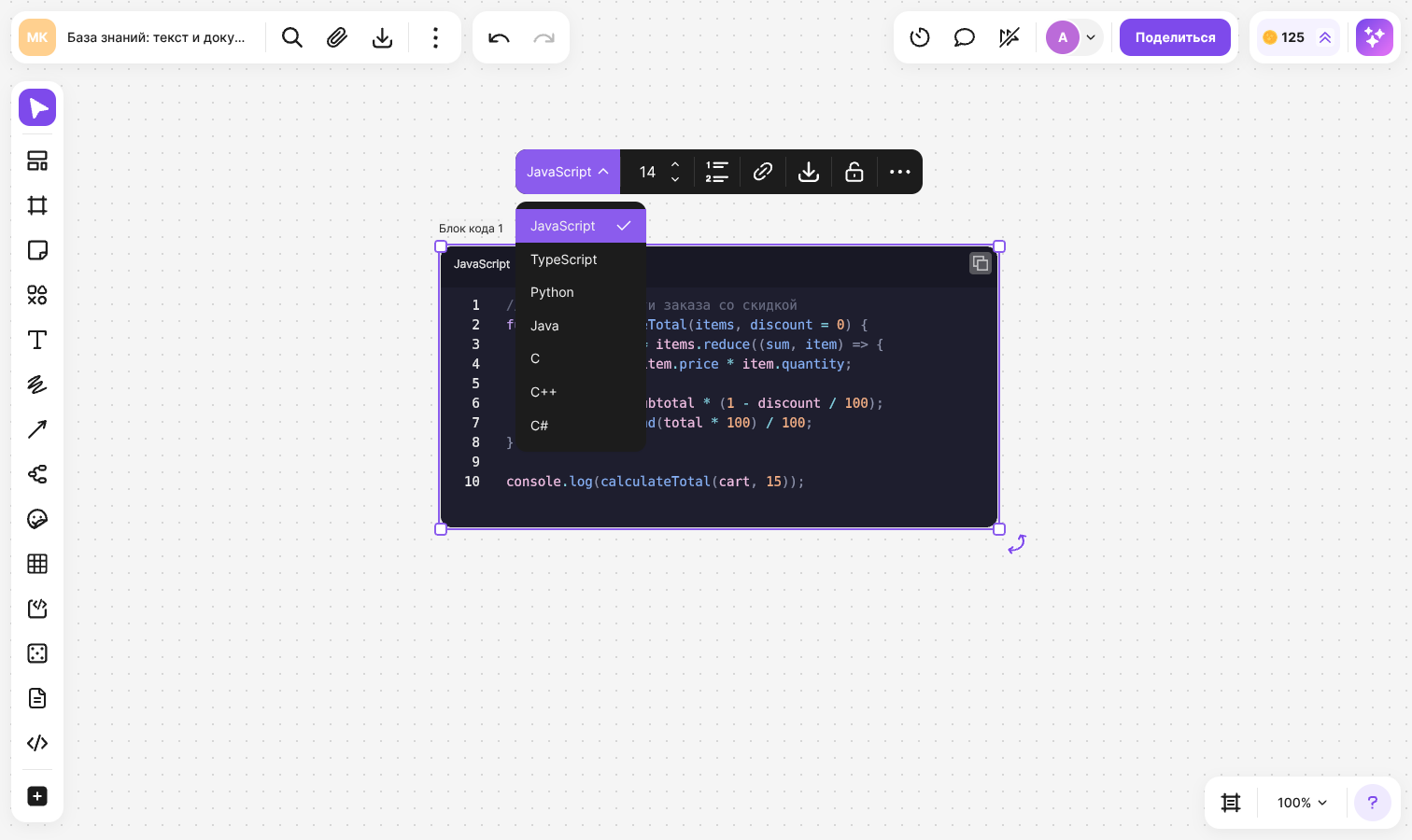
Select the block and click “Language” in the menu above it. The available options are JavaScript, TypeScript, Python, Java, C, C++, C#, Go, Ruby, Rust, PHP, Swift, Kotlin, SQL, HTML, CSS, Shell, JSON, Markdown, YAML, XML and Plain Text — the last one shows the code without highlighting
Highlighting is recalculated right after you choose, and the language name is shown in the block header. Until a language is chosen manually, flip detects it by itself when you change the code and leave the editor — including in a block created with the tool. If the language is detected incorrectly, choose it in the list. A language chosen manually does not change automatically as you keep editing
Line numbers, font size and title
- “Line numbers” — shows or hides the numbering. A new block has line numbers turned on
- “Font size” — changes the size of the code, and the block adjusts to the new size
- “Insert link” — adds a link to the block
- The title is shown above the block. Click it on a selected block to rename the block. If you leave the title empty, the default one comes back — “Code block” with a number
How to collapse a long block
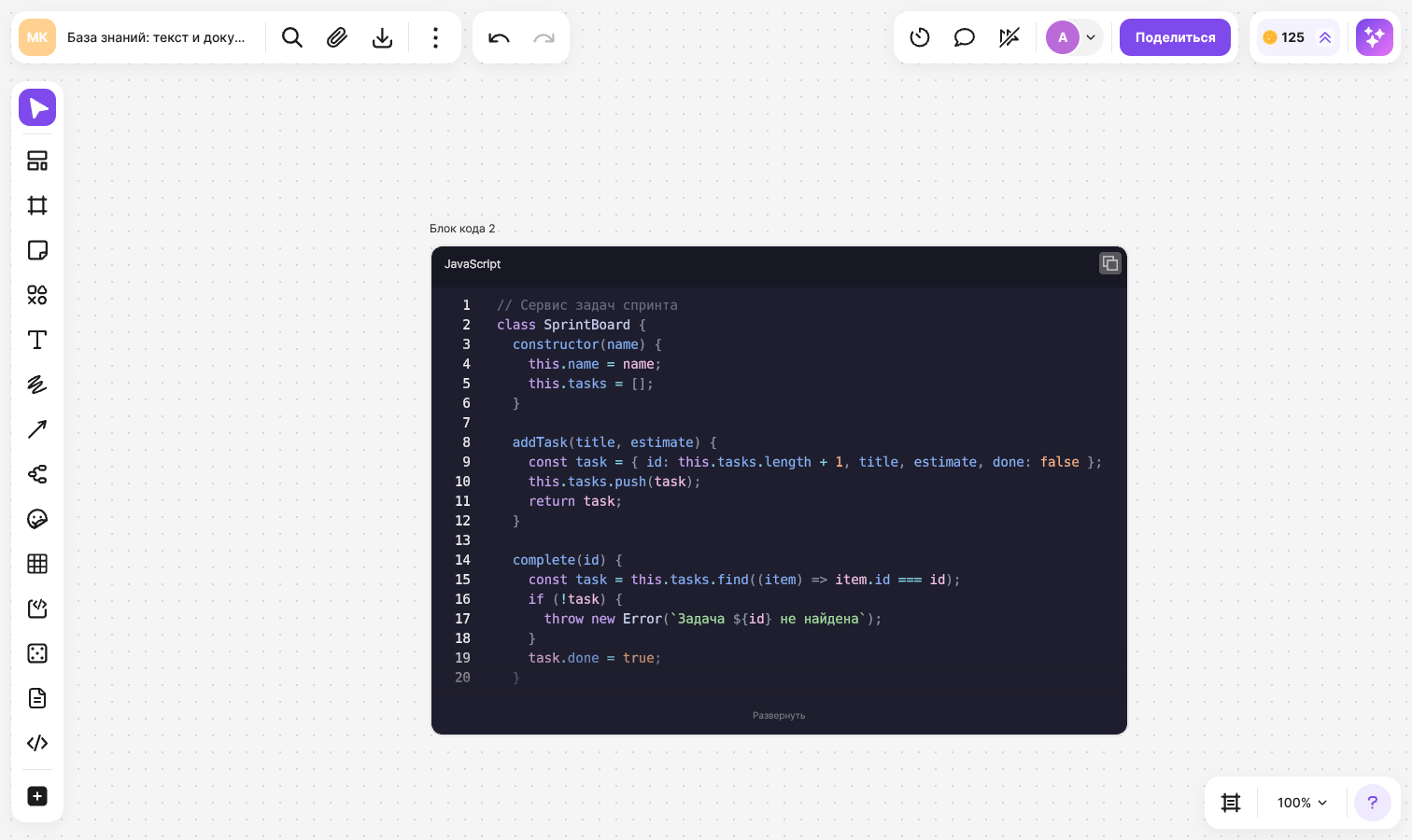
If a block has more than 20 lines, a “Collapse” button appears in it. A collapsed block shows the first 20 lines. Click “Show all” to display the whole code again
How to copy or download the code
- Click the copy button inside the block — the whole code goes to the clipboard without the title and line numbers, even if the block is collapsed. A “Copied” notification appears. The button also works for members with view-only access
- Click “Download” in the block menu — the code is saved as a file: the name comes from the block title and the extension from the chosen language, for example .py for Python and .txt for Plain Text
Limitations
- A block holds no more than 1500 lines. Only the first 1500 lines of a larger file are loaded
- The block title cannot be formatted: the font, style and color of the title do not change
- The menu with the language, font size, line numbers and download is available when a single block is selected