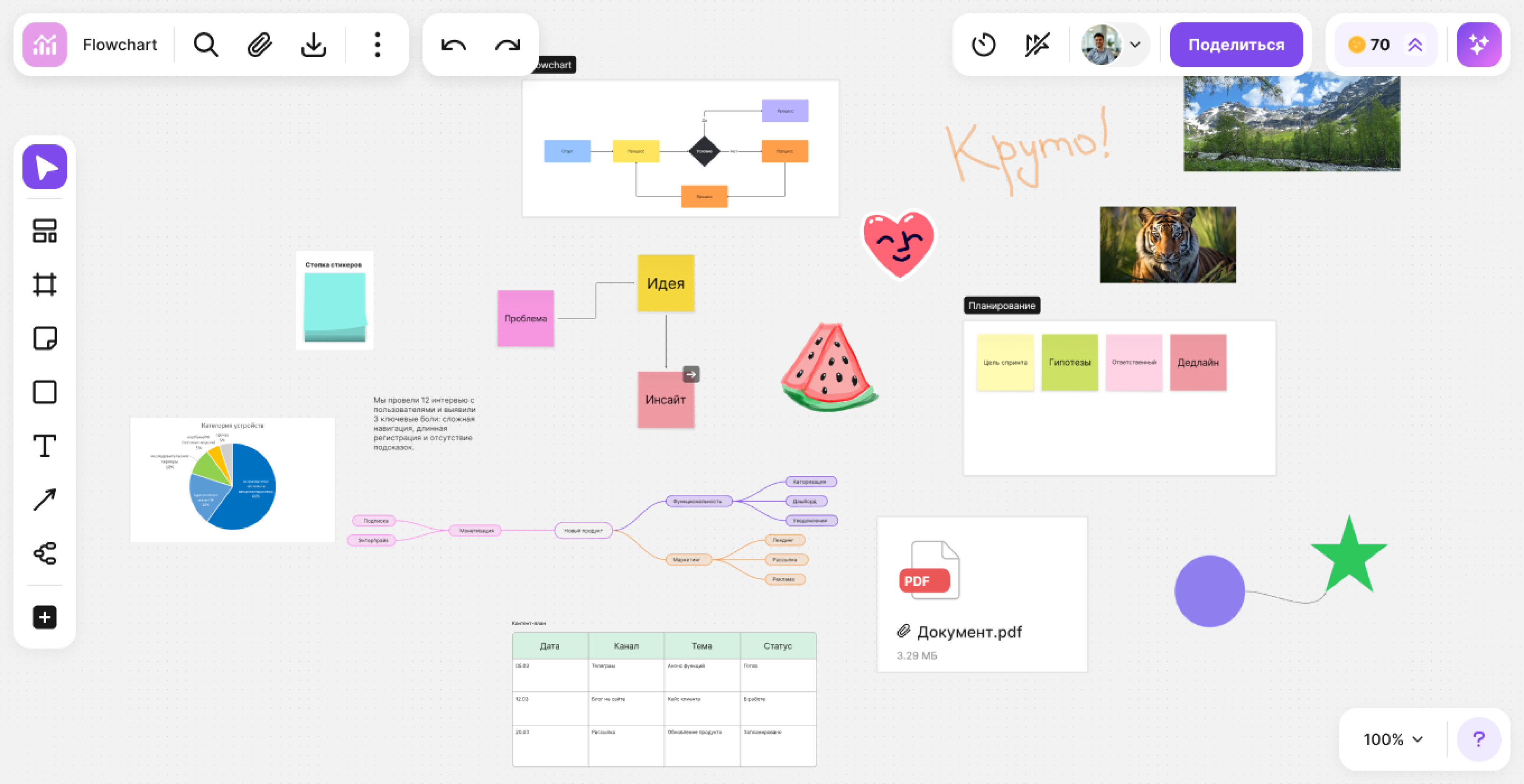
To move a board from Miro to flip, you need to install our browser extension and download a backup of the board. Here's how to do it step by step
1. Download the extension
Download the extension — the archive will be downloaded in .zip format
2. Unpack the archive
Extract the downloaded file to any folder on your computer. After unpacking, you will have a folder with the extension files.
3. Install the extension in your browser
Open a new browser tab and go to:
- Google Chrome:
chrome://extensions - Yandex Browser:
browser://extensions
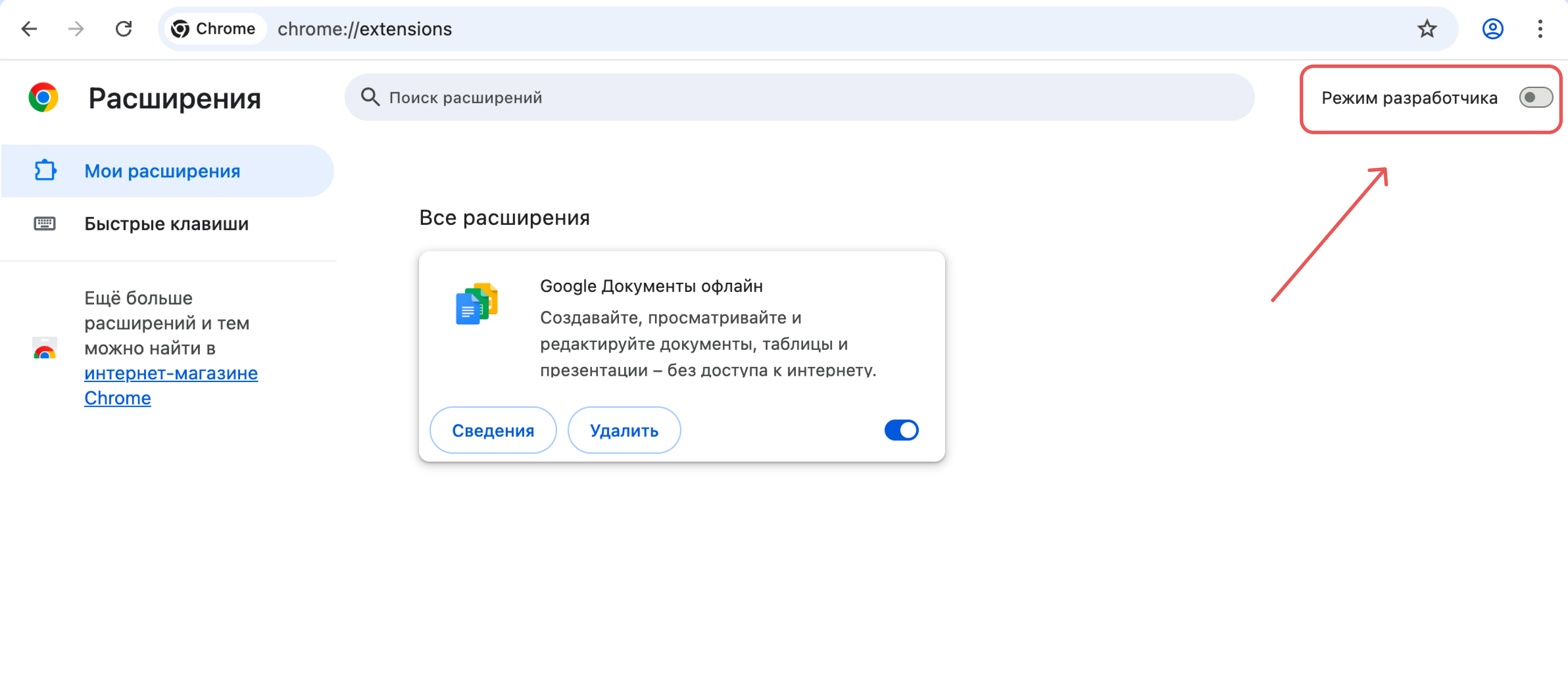
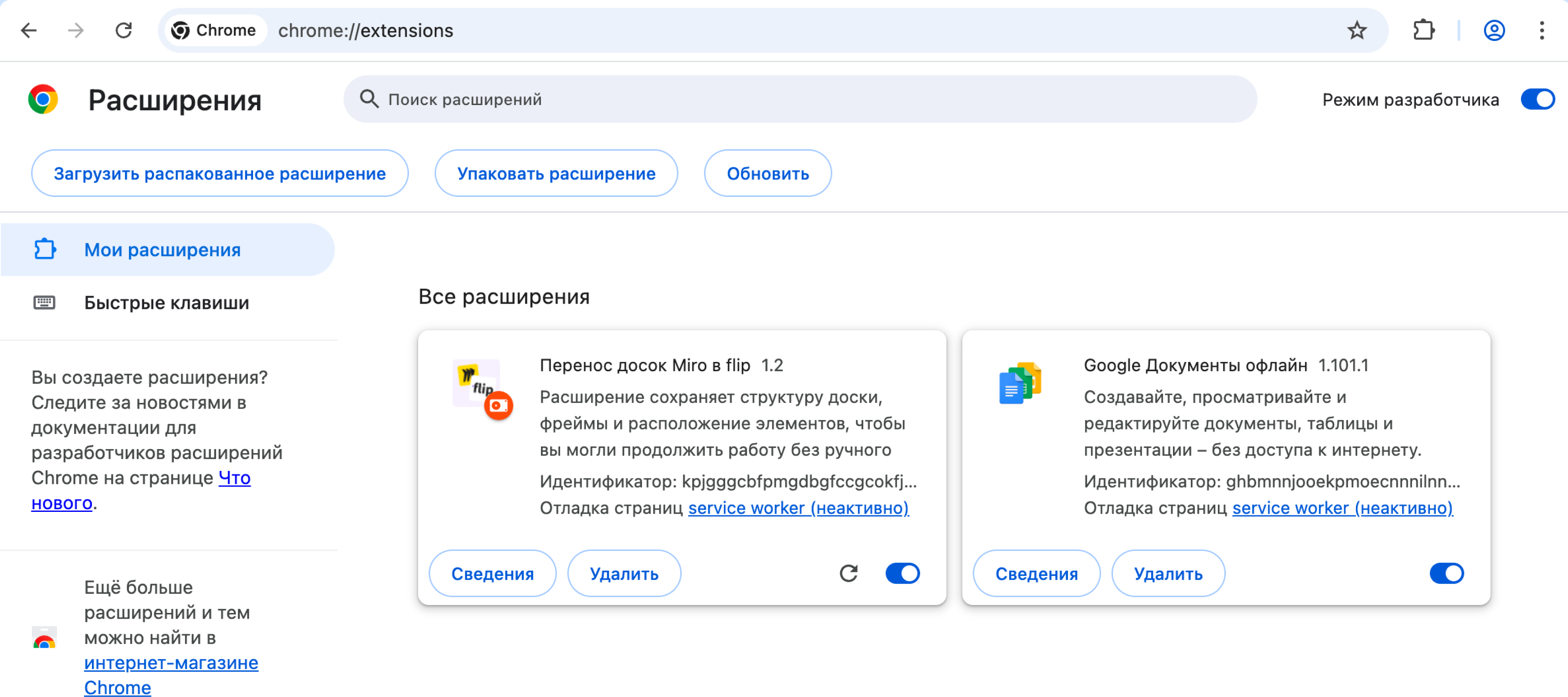
Turn on Developer mode in the top right corner of the page
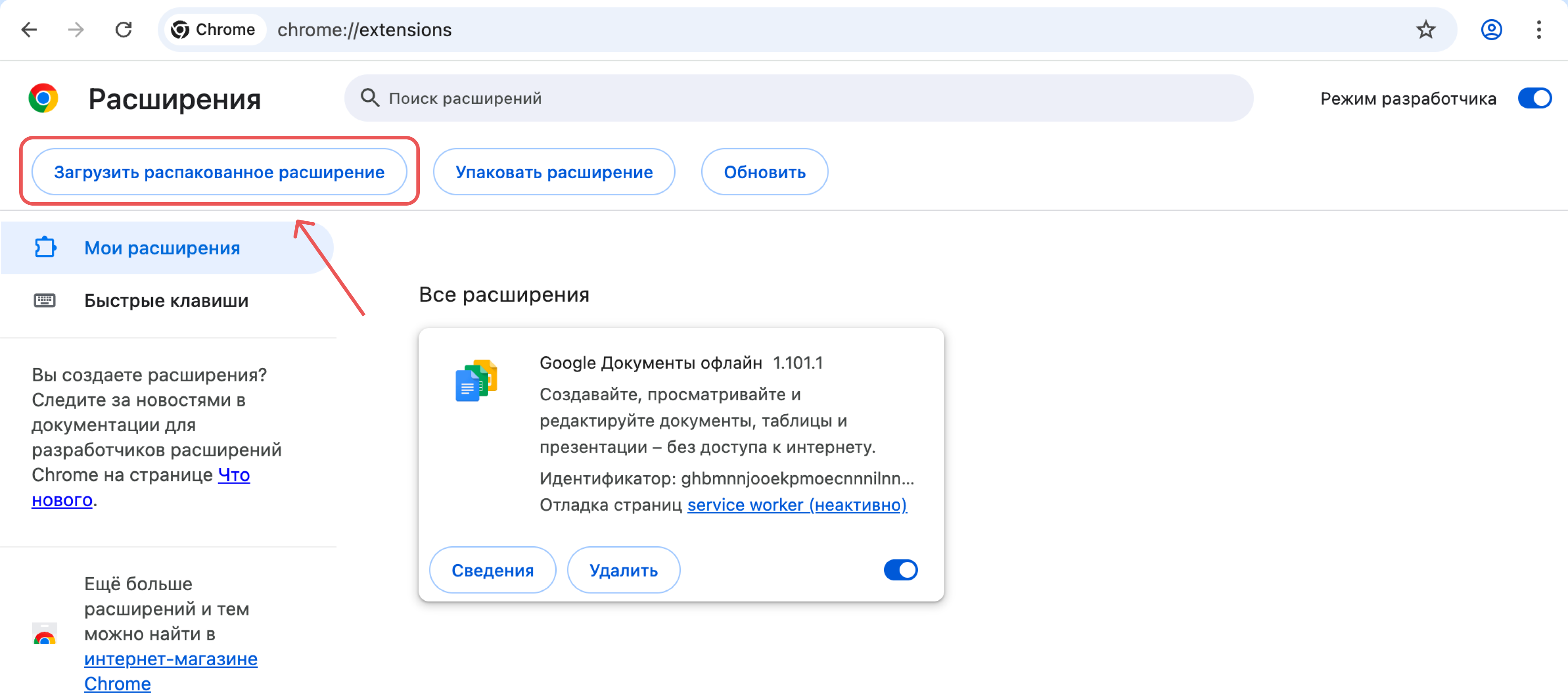
Click “Load unpacked”
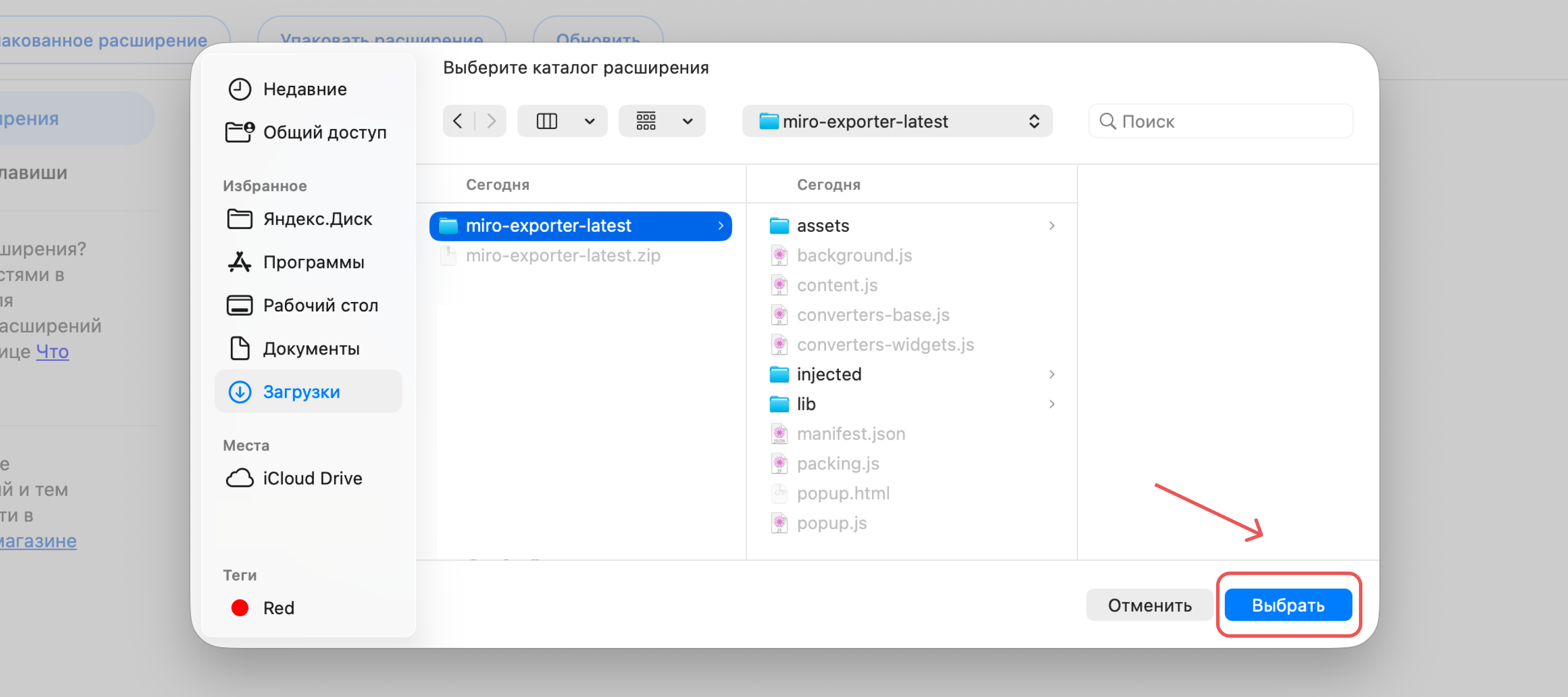
Select the folder with the extension files that you unpacked in the previous step
After that, the extension will appear in the list of installed extensions
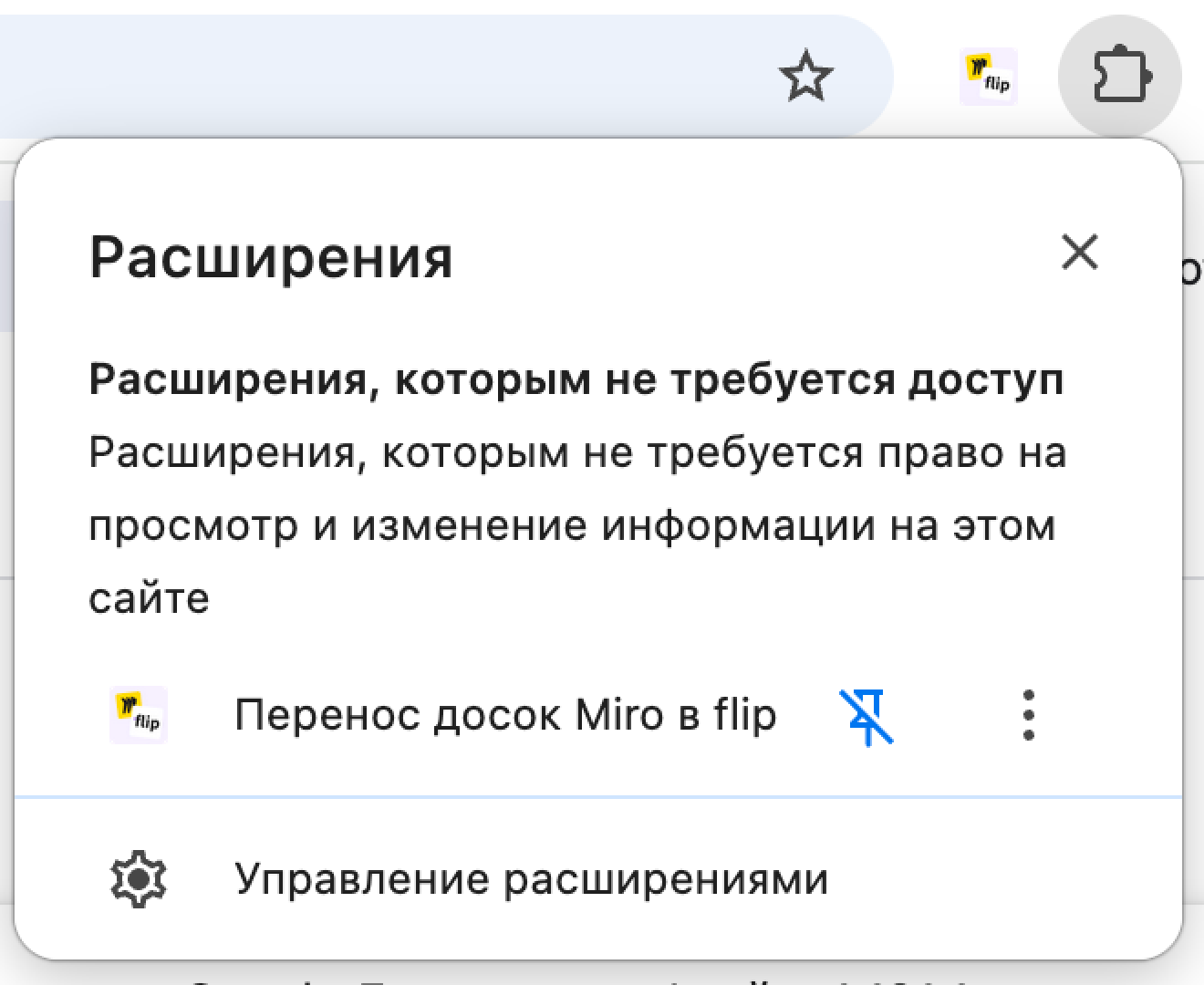
For convenience, pin it to the browser's extensions toolbar
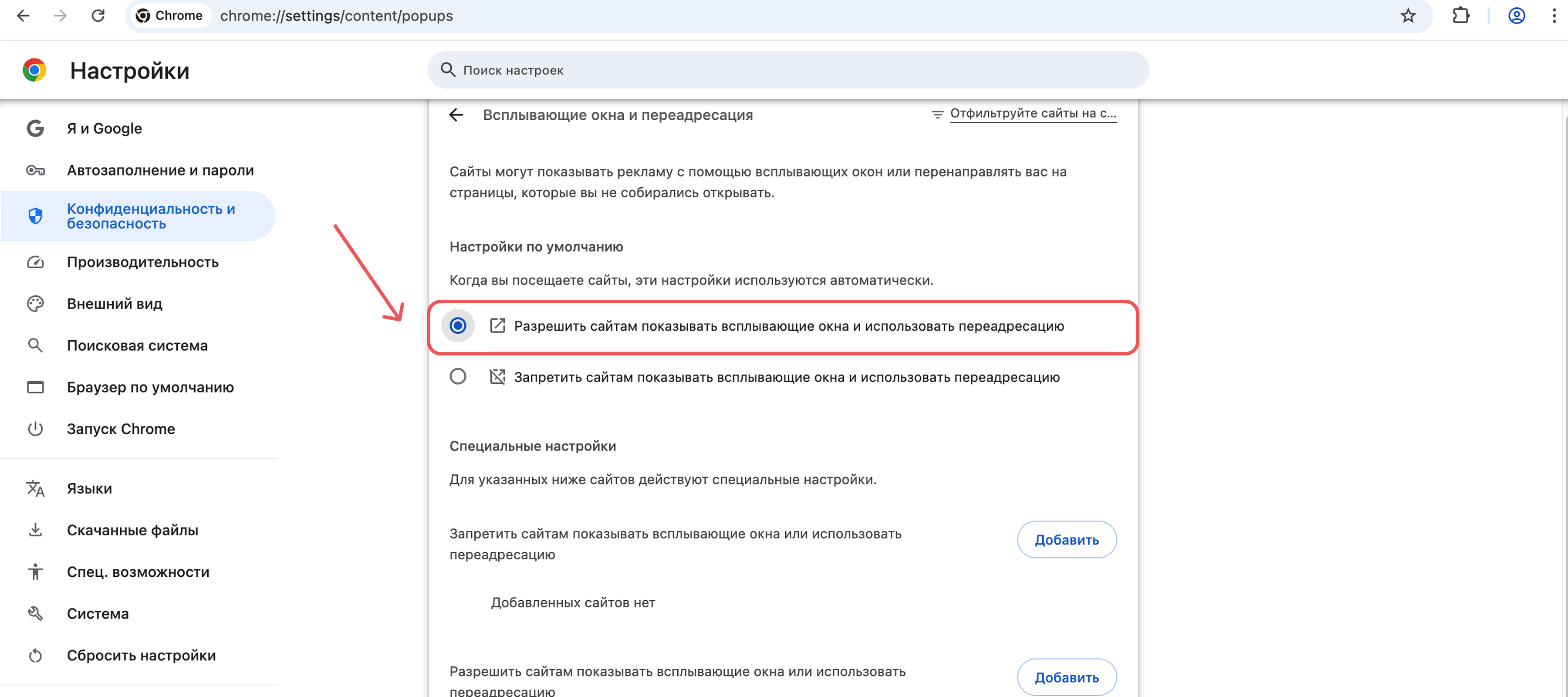
3.1 Allow pop-ups in your browser
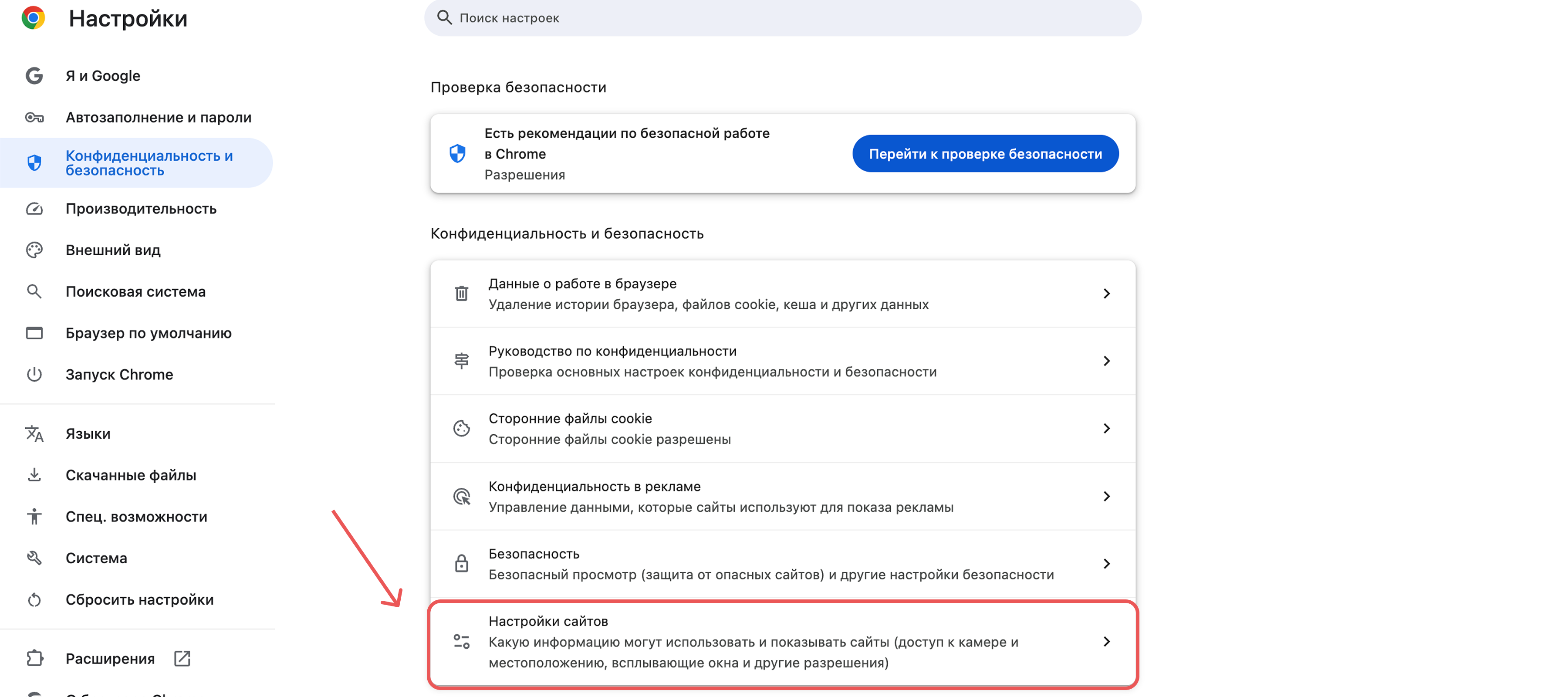
Scroll down and select “Pop-ups and redirects”
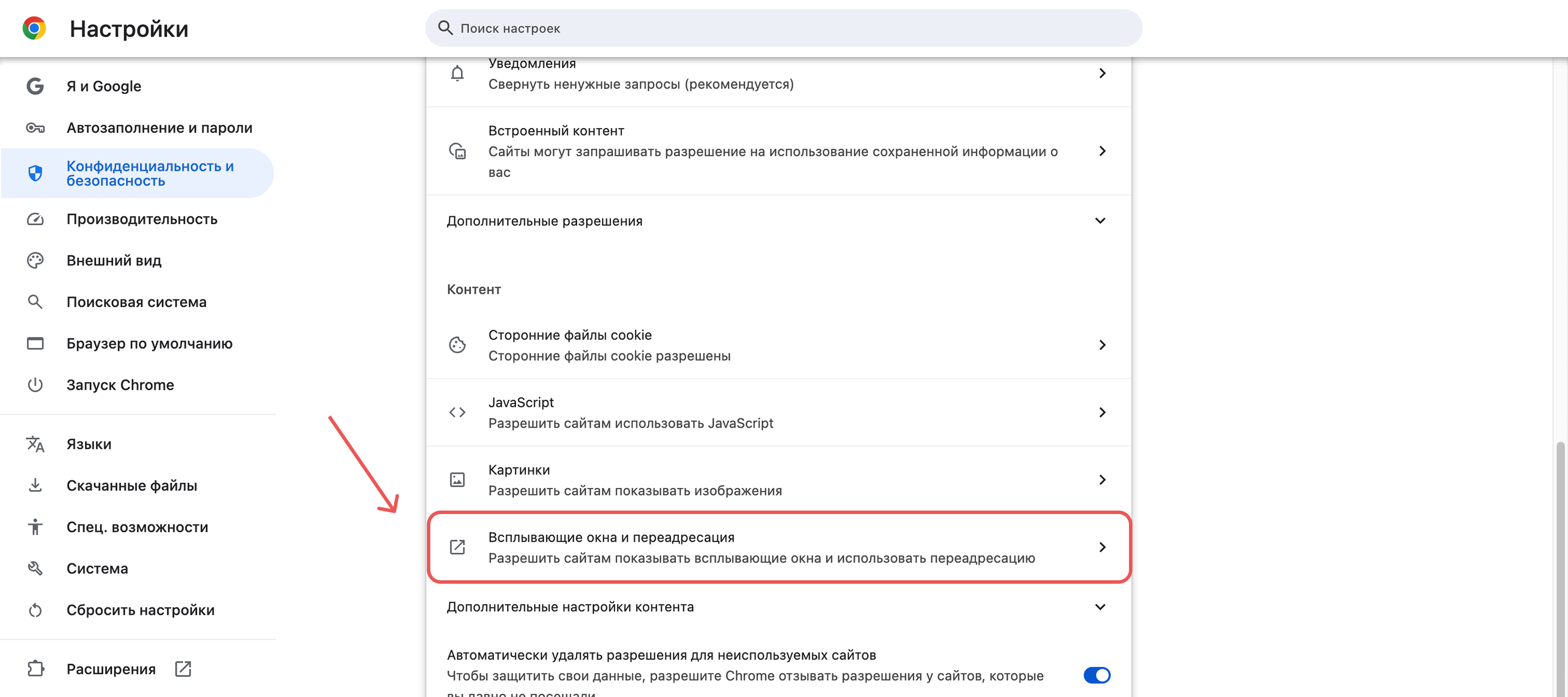
Allow sites to show pop-ups
4. Download the board from Miro
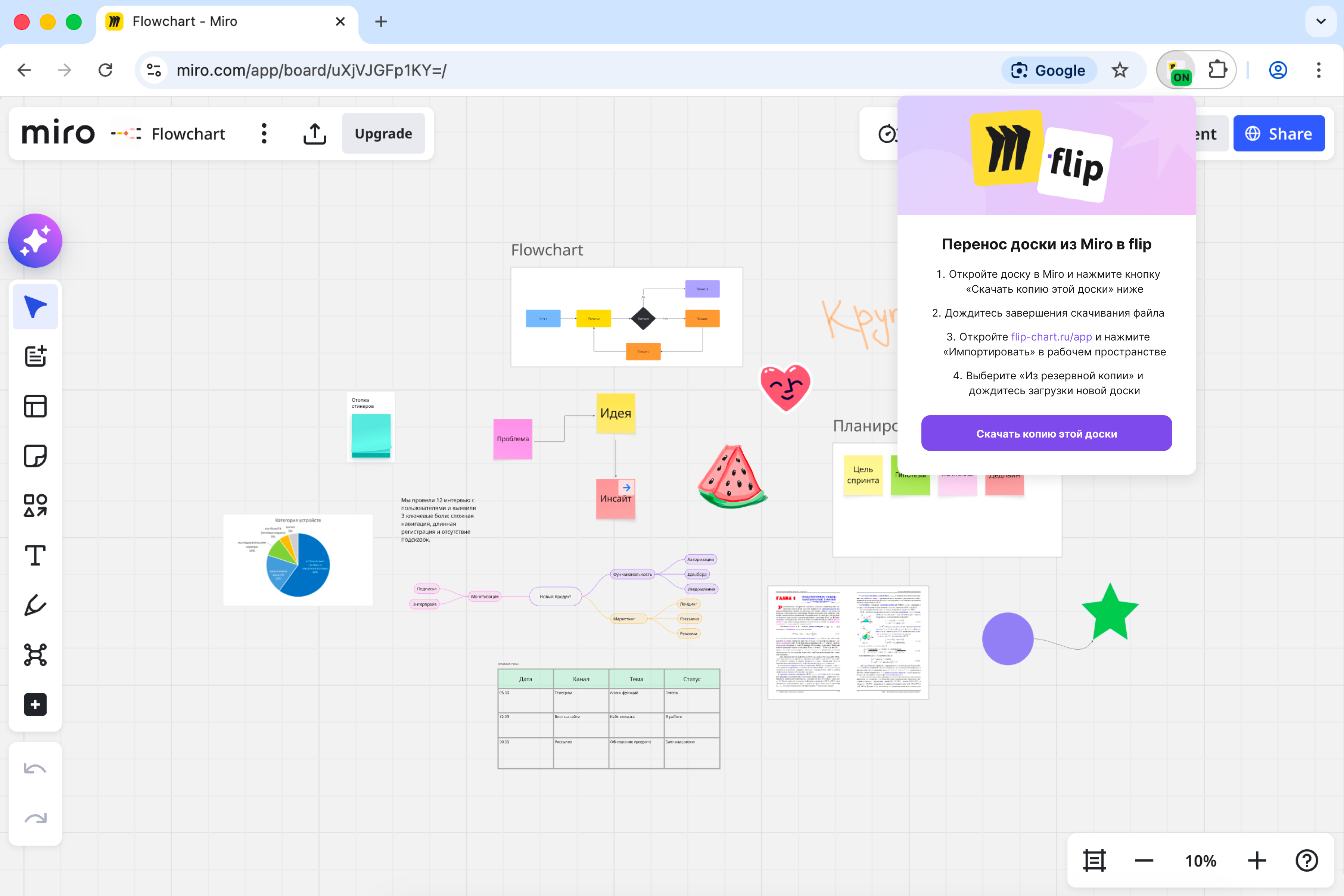
Open the board you need in Miro and make sure that you have edit rights and all elements are unlocked and expanded. Also, if you delete unnecessary elements in advance, the import may go faster.
Open the installed extension. Click “Скачать копию этой доски” (Download a copy of this board)
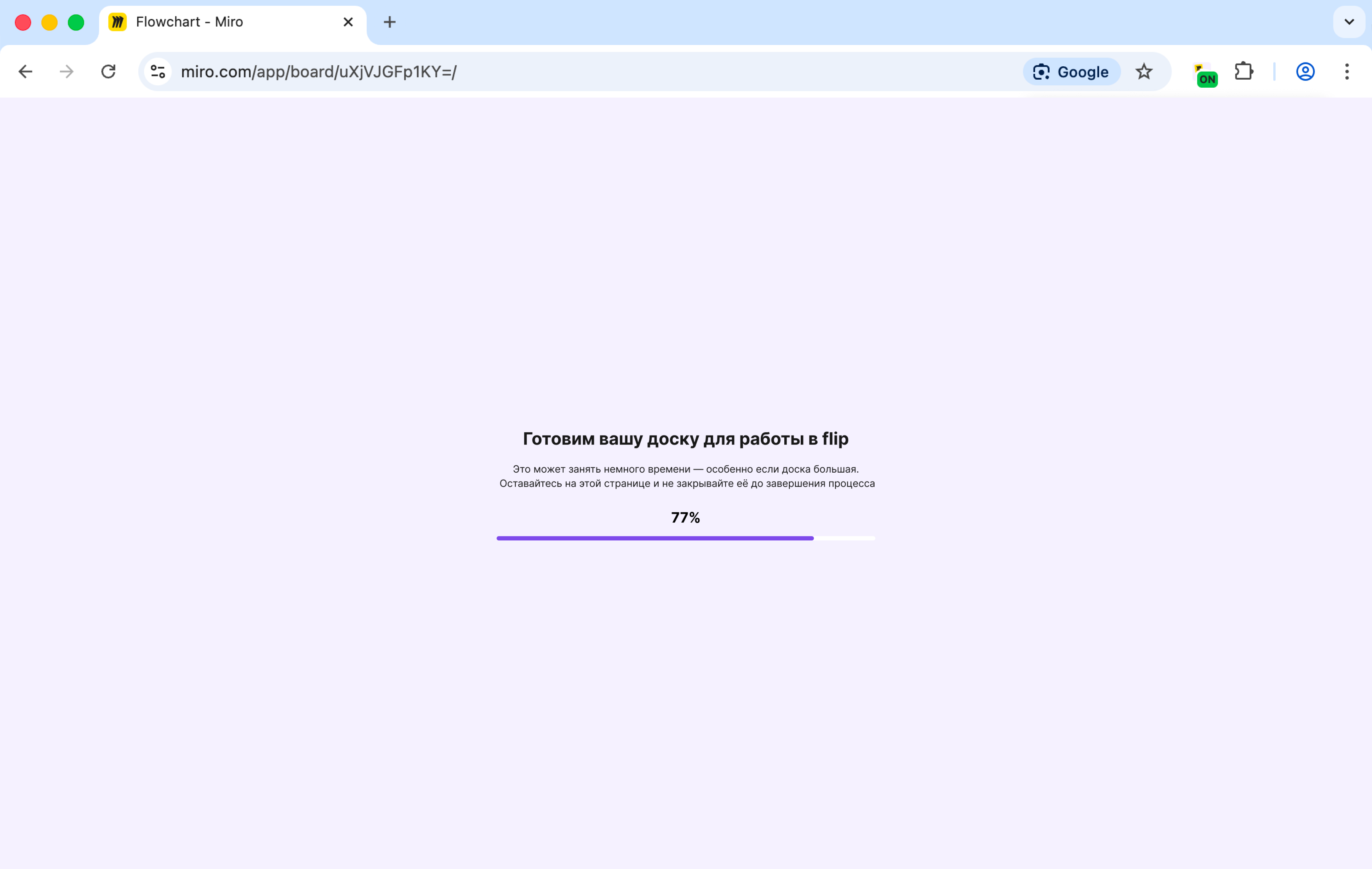
Wait for the download to finish. For large boards, this may take a while
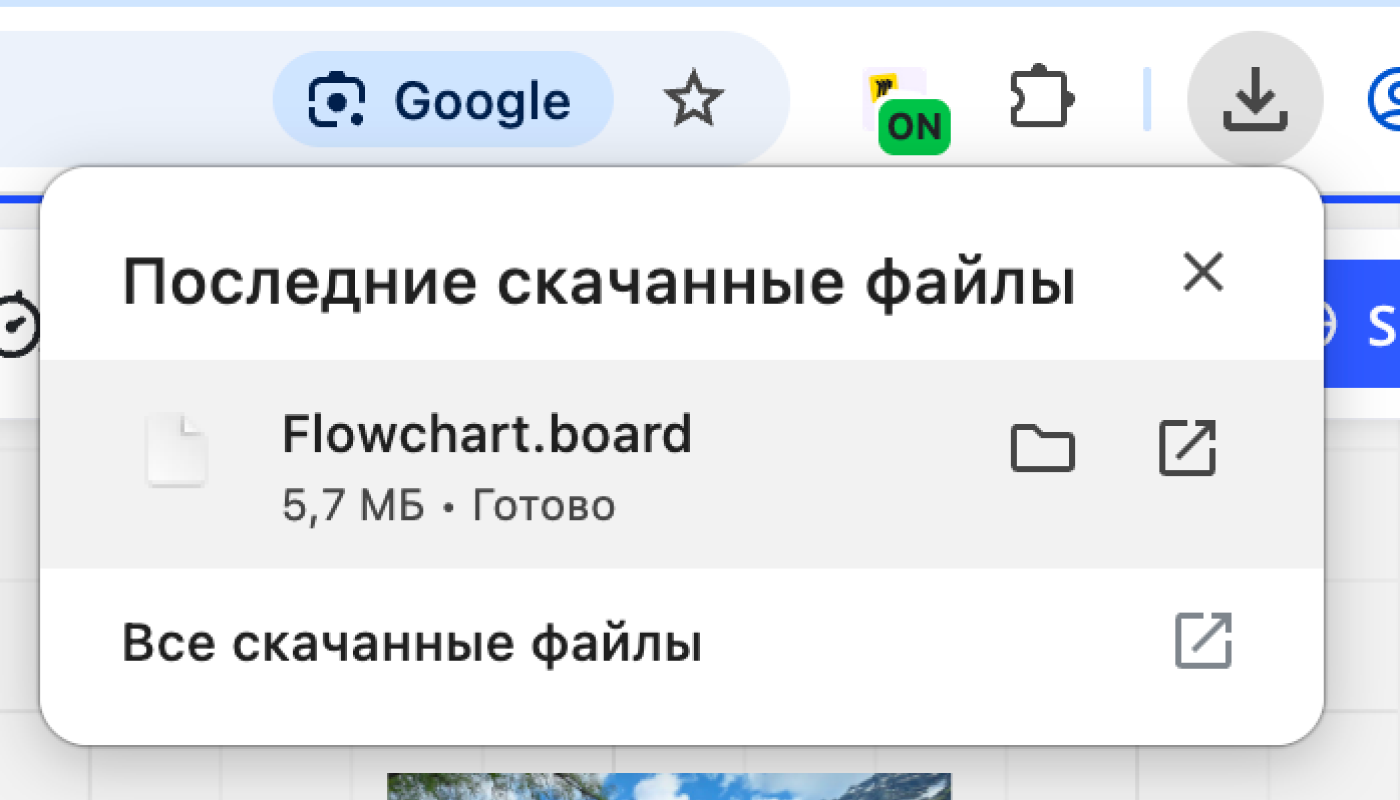
When it's done, a file with the board backup will be downloaded to your computer
5. Import the board into flip
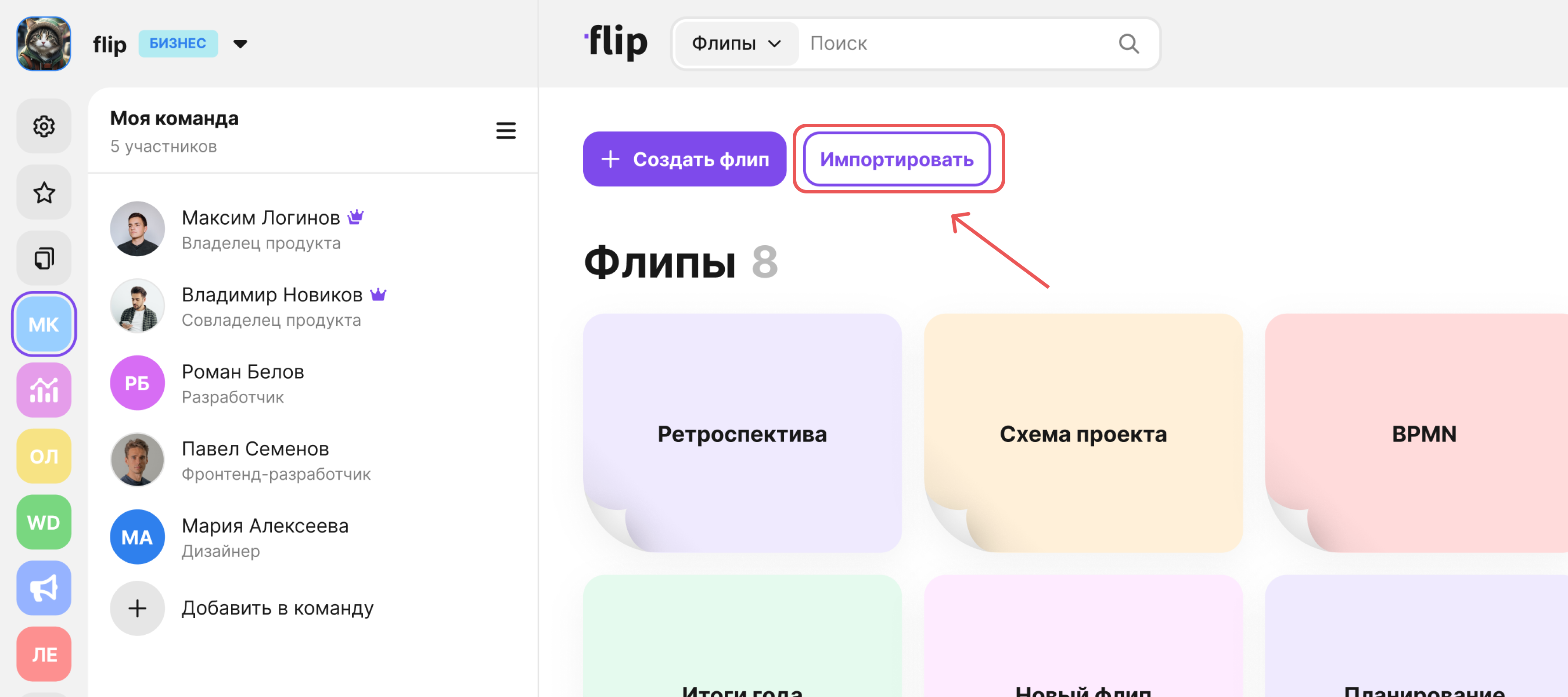
Go to your space in flip and click “Import”.
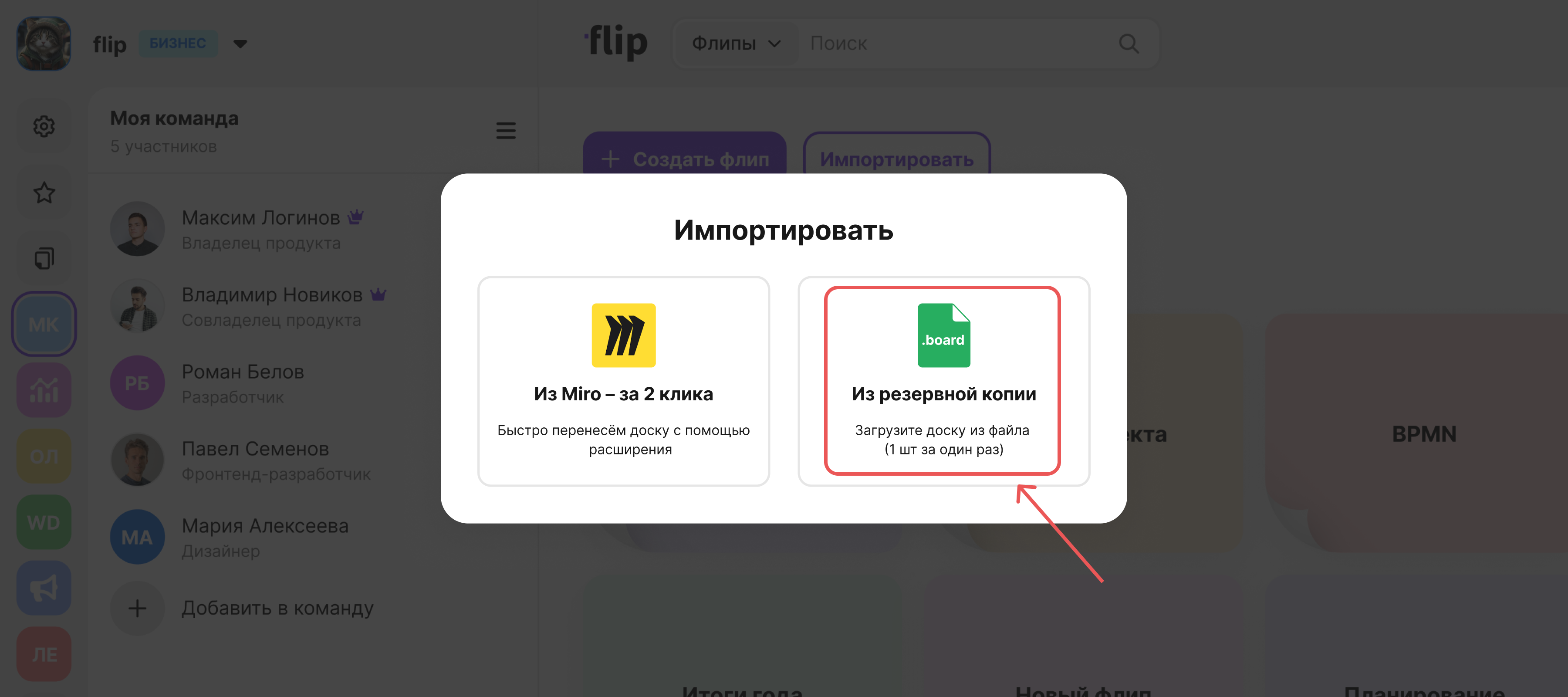
Choose import from a .board backup. Upload the backup file you downloaded in the previous step
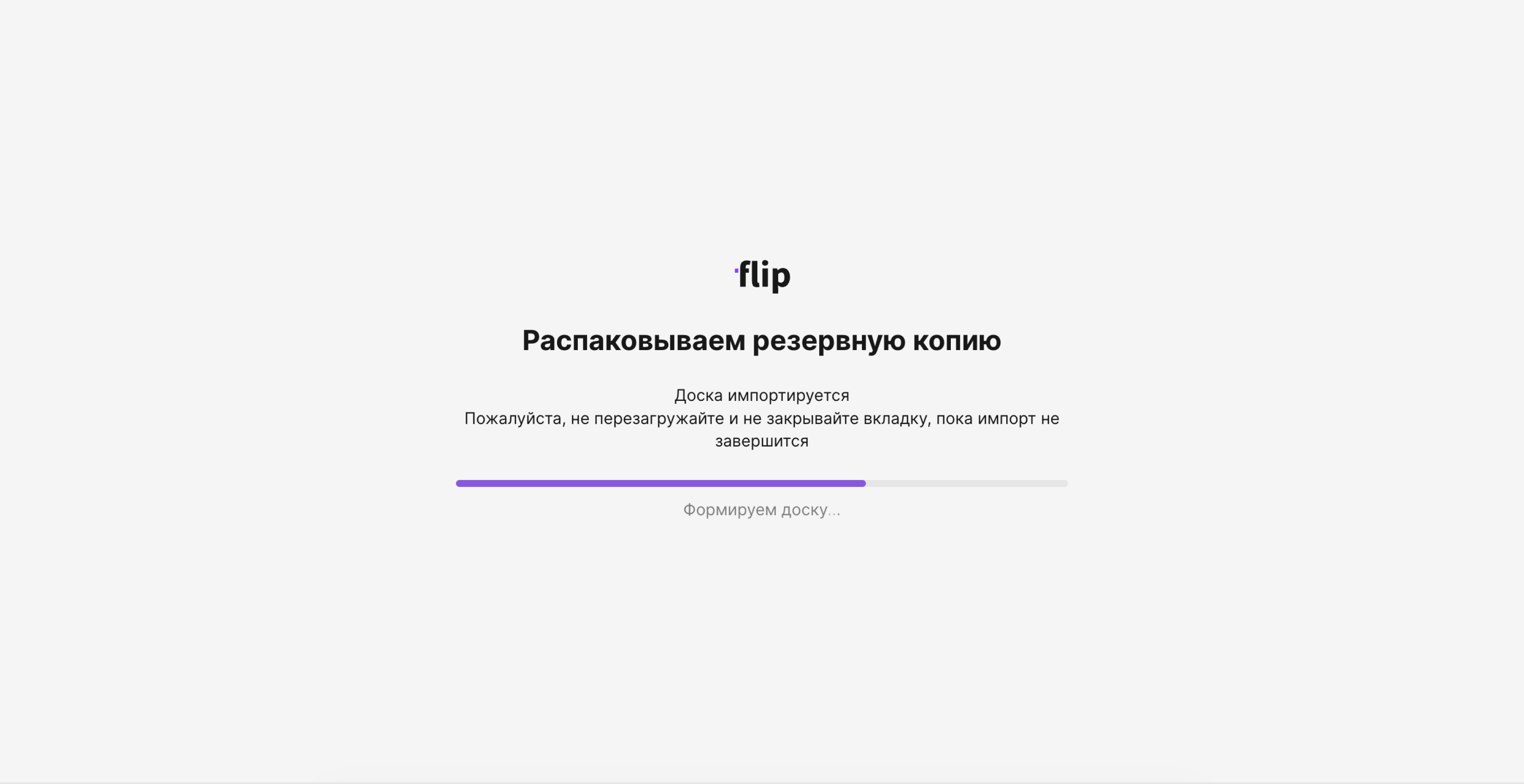
Once the file is uploaded, the board import will start
Done! When the import is complete, the board will appear in your flip space. You can open it right away and continue working.