

Dice are an interactive element for games, draws and random choices. You can add dice with 4, 6, 8, 10, 12 and 20 faces to a flip, roll them one at a time or several at once, and see the result together with your team
How to add a die
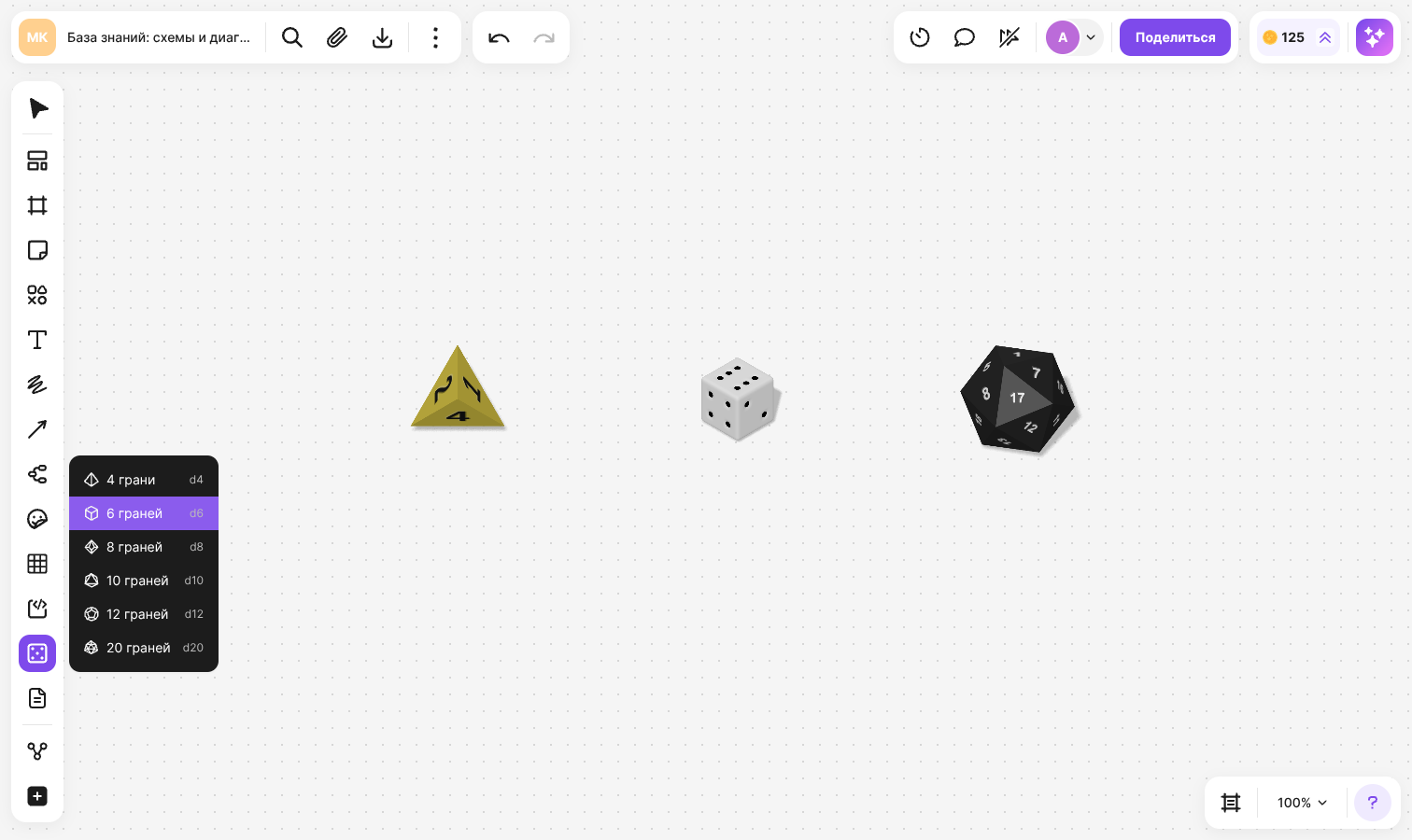
On the toolbar, click “Dice” — a list of types opens
If the tool is not on the toolbar, open “All tools” — it is in the “Interactive” section
Choose the type: “4 faces”, “6 faces”, “8 faces”, “10 faces”, “12 faces” or “20 faces”
Click the flip — the die appears where you clicked
While the tool is active, a semi-transparent image of the chosen die follows the cursor. Each type has its own shape and default color
How to roll a die
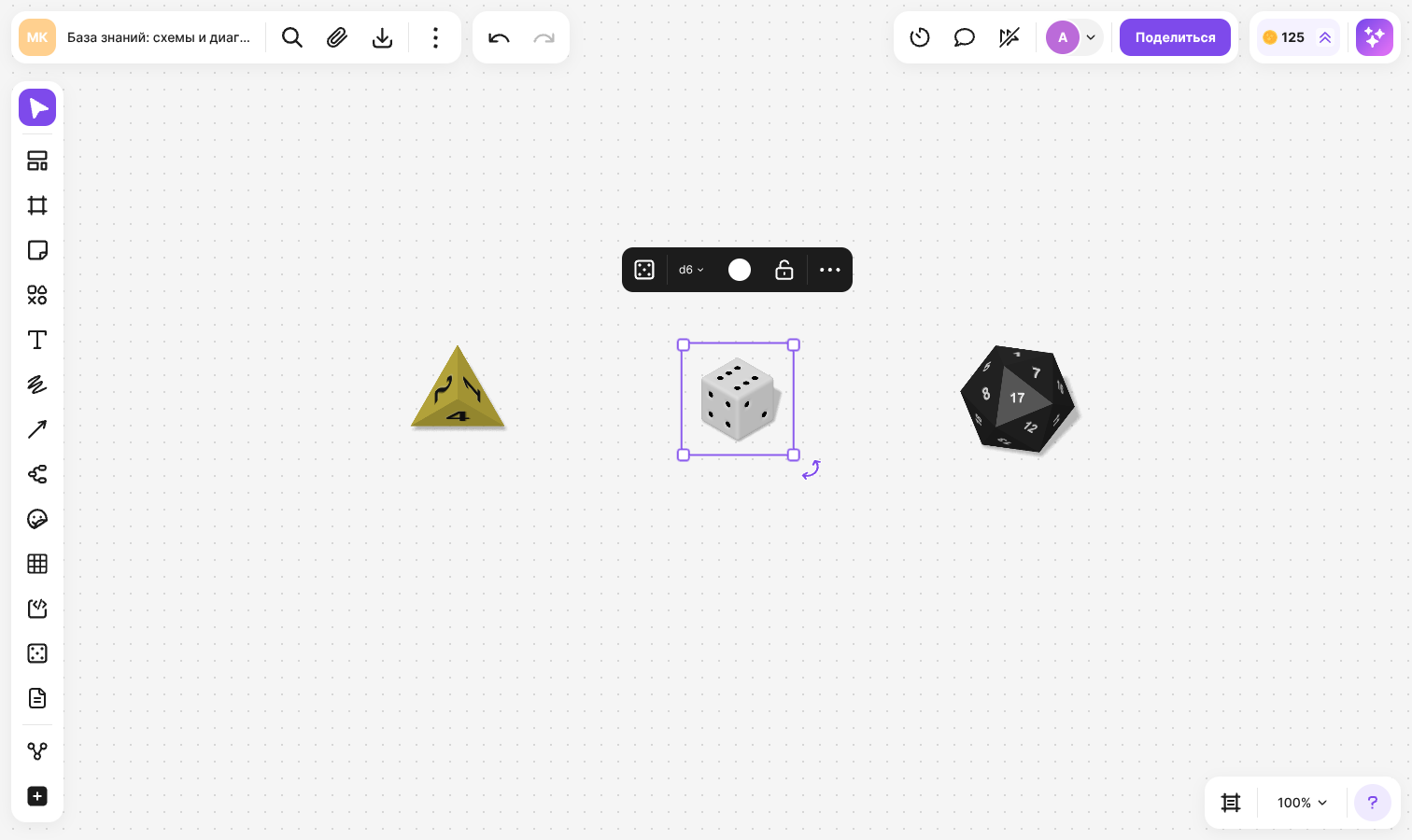
- Select the die
- In the menu above it, click the die icon — “Roll”. The dice menu has icons without labels, their names are shown in tooltips on hover
The die rolls across the flip and stops, and the face it landed on is highlighted. A notification shows “Result” with the number rolled — from 1 to the number of faces
While a die is rolling, it cannot be selected, moved or rolled again, and the flip cannot be panned or zoomed. The roll plays a sound if the browser allows it
A roll can be undone: Ctrl + Z (⌘ + Z on macOS) returns the die to its previous value and position
How to roll several dice
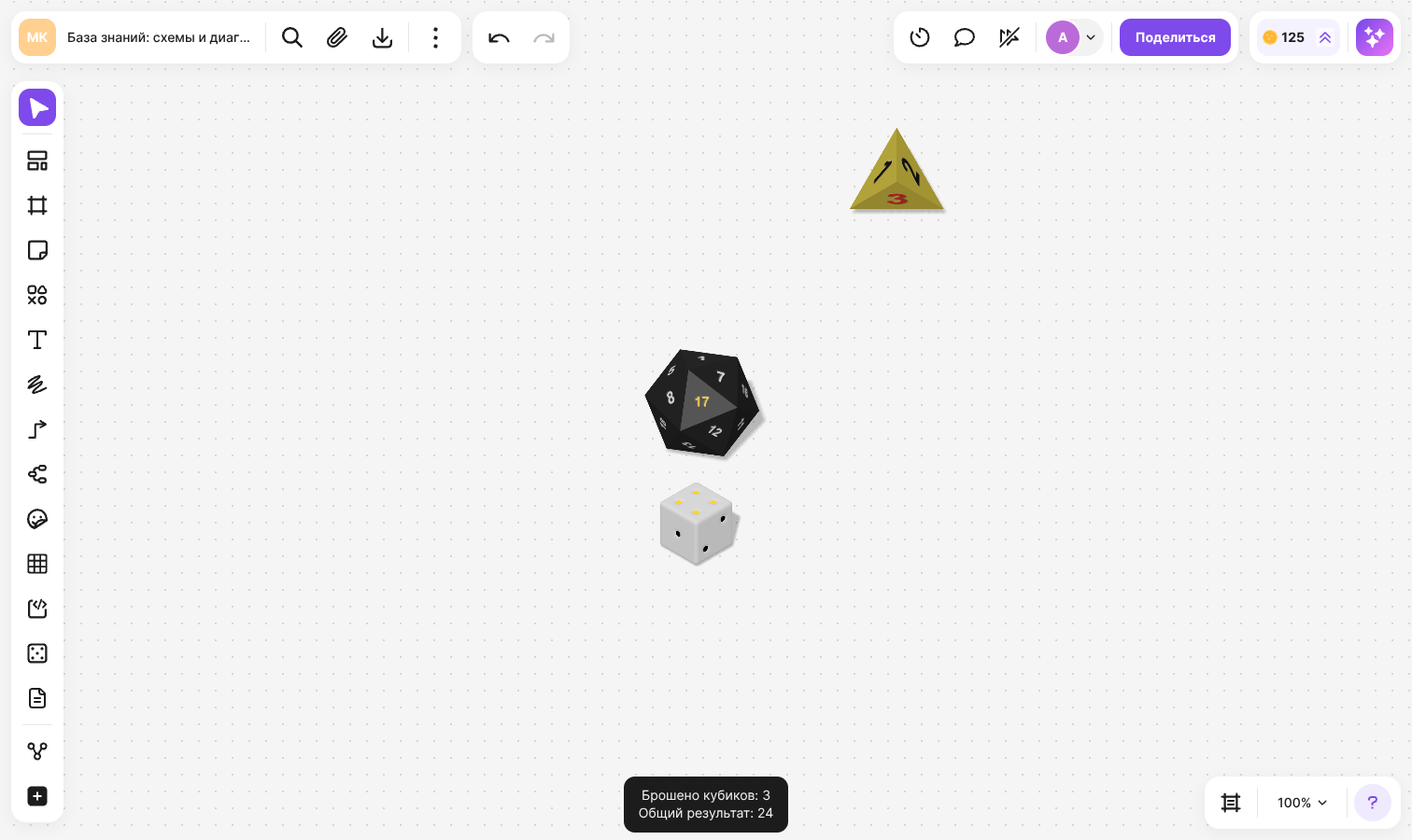
Select several dice and click “Roll”. The dice roll at the same time and bounce off each other. A die can stop under the interface panels or partly beyond the edge of the screen
When all the dice have stopped, a single notification appears: “Dice rolled” with their number and “Total result” with the sum of the values rolled. Dice of different types can be rolled together
Critical success and critical fail
A die with 20 faces has special results:
- A 20 is rolled — the notification shows “Critical success!”
- A 1 is rolled — “Critical fail!”
For the other types, and when several dice are rolled, the regular result is shown
How to change the type and color
Select a die and use the menu above it:
- “Change type” — a button labeled with the current type, for example “d6”. Choose a different number of faces. If the current value is greater than the new number of faces, it is reduced to the maximum for the new type
- “Fill” — choose a color from the palette. A color set manually is kept when the type changes. If the color has not been changed, the die gets the default color of the new type
A die is resized proportionally with any handle of its frame. A die can be rotated, locked, copied and deleted like other elements on a flip
What other members see
A roll is synchronized: members who have the flip open see the die rolling and the value it stops on. The result is saved on the flip and stays after the page is reloaded
The notification with the result is shown to the person who rolled the die
Limitations
- Only members with edit rights to the flip can roll dice and change their type
- The type of a die cannot be changed during a roll — wait until it stops
- The color palette is fixed: a custom color and opacity cannot be set