

In flip, you can change your plan at any time: upgrade or downgrade it depending on your needs.
Important
Before changing your plan, check out the flip plans: Mini, Individual, Business, Enterprise.
How to downgrade your plan
Downgrading can be useful, for example, if the project you were working on in a space was completed ahead of schedule.
- Open the space settings in the side menu
- Go to the Plan management section.
- Select Switch to another plan.
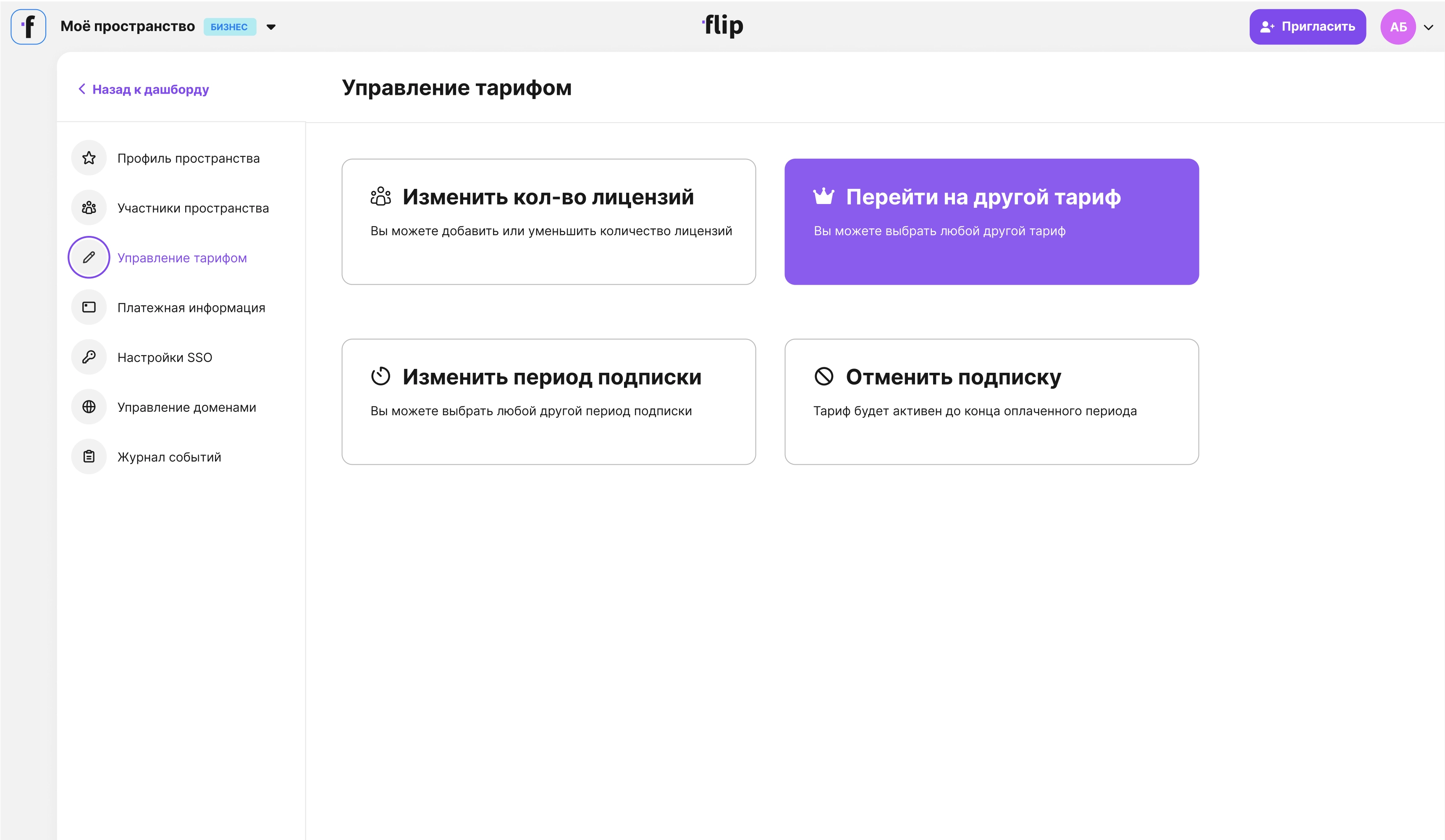
Review the differences between the plans in the window that opens.
For the Business plan, enter the number of members.
Choose a billing period. Payments for the plan will be charged to your saved card when the current period ends, according to the selected subscription — every month, 3, 6 or 12 months.
Click Select to proceed to payment for the plan. At this step, you can change the number of licenses (members) and the billing period.
Choose a payment method:
- By card — you will be redirected to the bank's page to enter your card details. We accept Visa, Mastercard and Mir.
Important
If you need a receipt, don't forget to check I need a receipt and enter your email address.
Once the payment has been made, you can get a receipt only by contacting support.
- By corporate invoice — enter your contact details and click Send. We will contact you to prepare the invoice.
The selected plan is activated right after payment.
Important
If you are downgrading to any plan other than Mini, you first need to bring your Space in line with the new plan — otherwise, you won't be able to downgrade. You can see the limits that apply when switching to another plan in the plan comparison.