

An HTML block is an element that shows an HTML page on a flip: a mockup, an interface prototype, a report or an email. The page is displayed with its own layout and styles right next to diagrams and notes, and you can open and change its code right on the flip
How to add an HTML block
On the toolbar, select “HTML block”
If the tool is not on the toolbar, open “All tools” — it is in the “Formats” section
Click the flip — an empty block appears with the hint “Drag or add an HTML file here.”
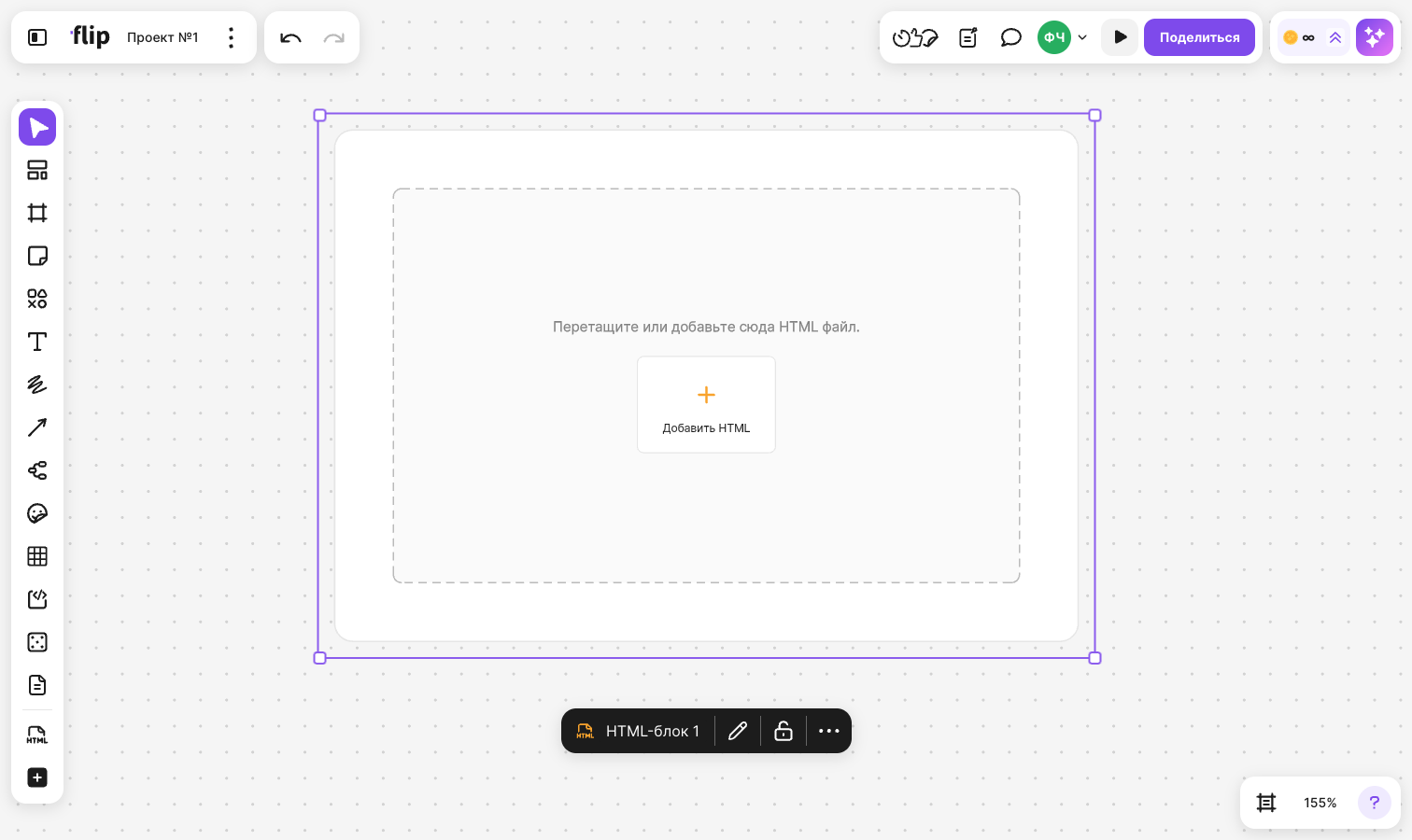
Click “Add HTML” inside the block and choose an .html or .htm file. You can also drag the file right into the empty block
The block fills with the page, and its size adjusts to the layout: the block grows to the right and down
To paste code instead of a file, select the empty block, click “Edit HTML” in the menu above it and paste the code into the editor — see the “How to change the HTML” section below for details
How to add an HTML file or code without the tool
- Drag an .html or .htm file onto the flip or add it with “Upload”
- Copy the code of a whole HTML document — it starts with
<!DOCTYPE html>or<html>— and paste it onto an empty spot on the flip. HTML fragments without these tags are pasted as usual
flip asks how to add the document:
- “Create as HTML block” — the page appears on the flip in an HTML block
- “Create as code block” — the document source appears in a code block
Pick the option you need and click “Select”. To close the window without adding anything, click “Cancel”
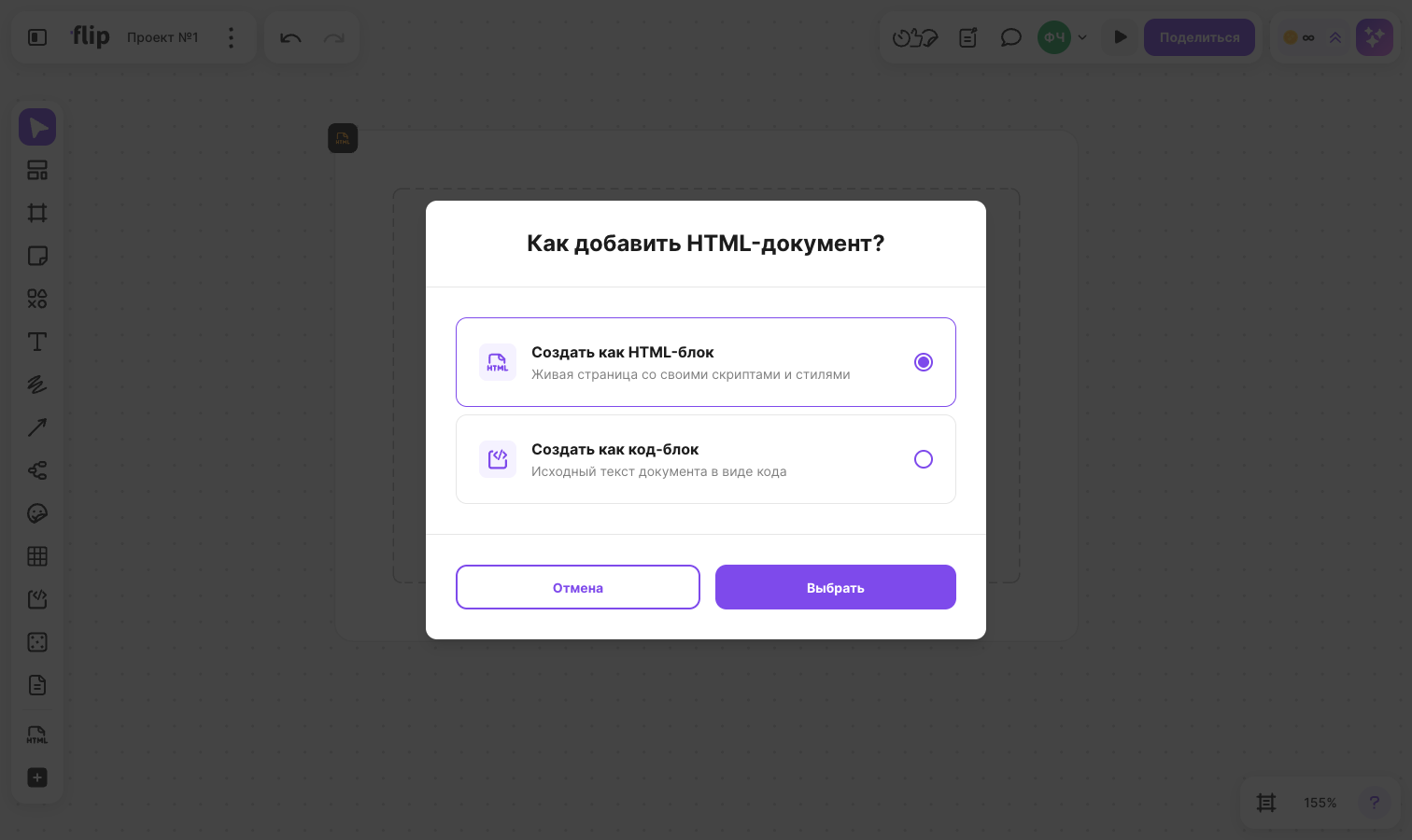
If there are several files, the window title shows how many, and the chosen option applies to all files: the HTML blocks are lined up in a row from left to right. A block created from a file gets the file name as its title
How to work with the page in a block
- While the block is not selected, scrolling and gestures over it control the flip: you can drag the block like any other element
- Select the block to scroll the page inside it
- To move the flip while the cursor is over the block, hold down the right mouse button and drag
- If you zoom the flip far out, the block shows a simplified preview instead of the page
On a phone or tablet, the block first shows a preview of the page. To open the page itself, tap the eye icon in the block, or select the block and tap “Show” in the menu above it. To close the page, tap “Stop”. Only one page is open at a time: if you open another HTML block or iFrame, the previous one closes
How to change the HTML
Select the block and click “Edit HTML” in the menu above it — a panel with the page code opens on the right
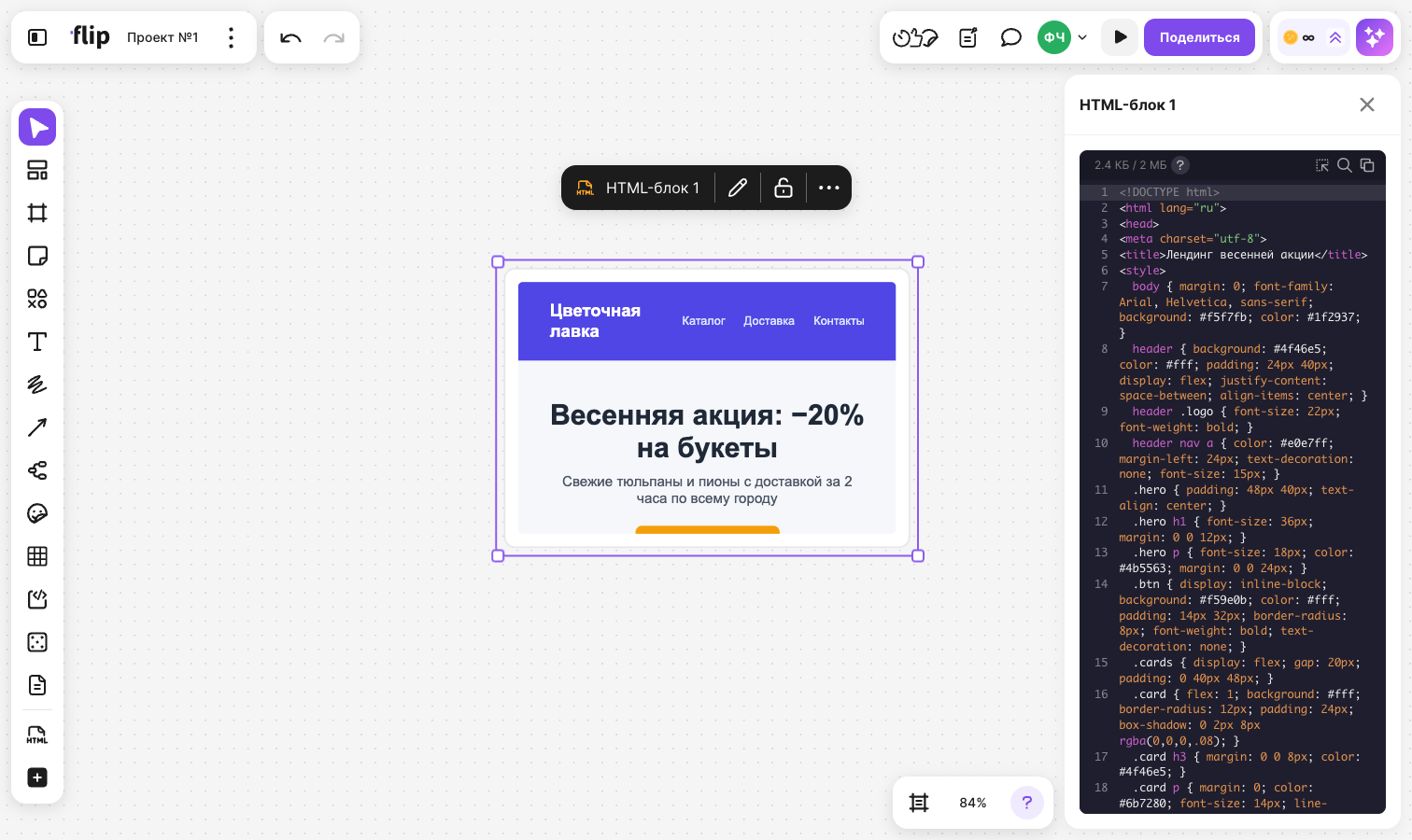
Change the code — your edits show up in the block on the flip right away and are saved automatically
To close the panel, click the cross in its header
Above the code in the panel:
- The code size counter, for example “12.5 KB / 2 MB”. Hover over the “?” icon to see the hint “Maximum HTML block size”
- “Select an element in the HTML block” — hover over the page in the block, and the element under the cursor is highlighted. Click it — its opening tag is selected in the editor. To leave the selection mode, press Esc
- “Search code” — opens the “Find” field to search the code
- “Copy code” — copies all the code to the clipboard, and an “HTML copied” notification appears
The block size does not change when you edit the code. If you delete all the code, the block becomes empty again
Title and download
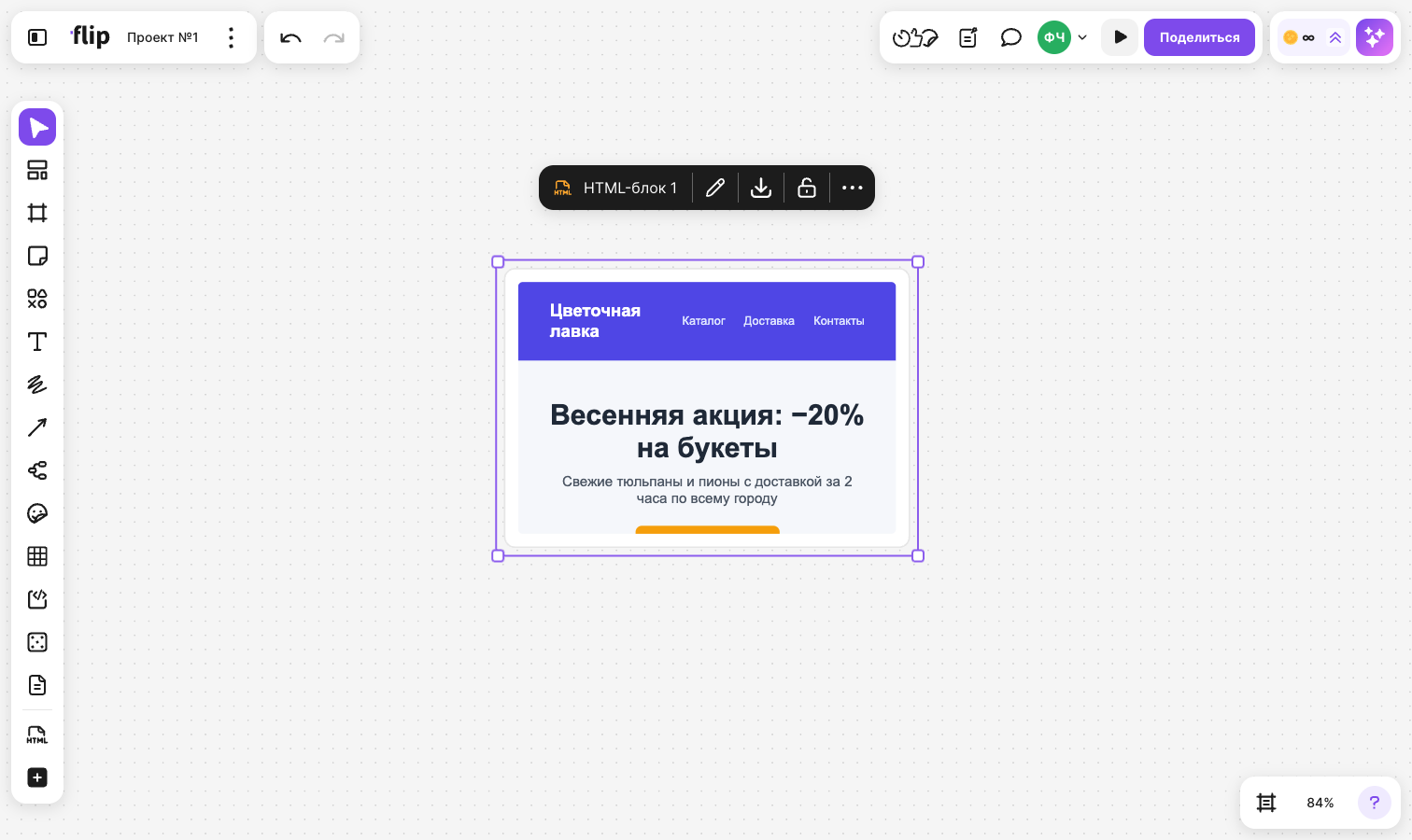
- The block title is shown in the menu above it. Click the title and type a new one — up to 120 characters. A block created with the tool or by pasting code is titled “HTML block” with a number
- “Download” in the block menu saves the page code as an .html file named after the block title
- In the filter by type of selected elements, HTML blocks are listed as “HTML block” — see Search on a flip and filter by type for details
Requirements
- Space members who are logged in to their account can create HTML blocks, upload files into them and edit the code. For other users, an HTML file or a pasted HTML document is added as a code block right away, without the choice
Limitations
- The HTML size is no more than 2 MB. A block is not created from a larger file or code, and the notification “HTML is larger than 2 MB — block not created” appears. Edits that make the code larger than 2 MB are not saved — “HTML is larger than 2 MB — changes not saved”
- An empty file is not added — the notification “HTML file is empty” appears
- The page in the block is shown without interactivity: the page scripts do not run, animations and transitions are turned off, links and forms do not work, video and audio do not start automatically, and embedded frames are not displayed. The source code stays unchanged — it is kept in full in the editor and in the downloaded file
- Images, styles and fonts from external links are loaded, but external video and audio are not
- On a phone, the code editor and renaming the block are not available, and the mobile app has no “Download” button
- The menu with editing and download is available when a single block is selected