

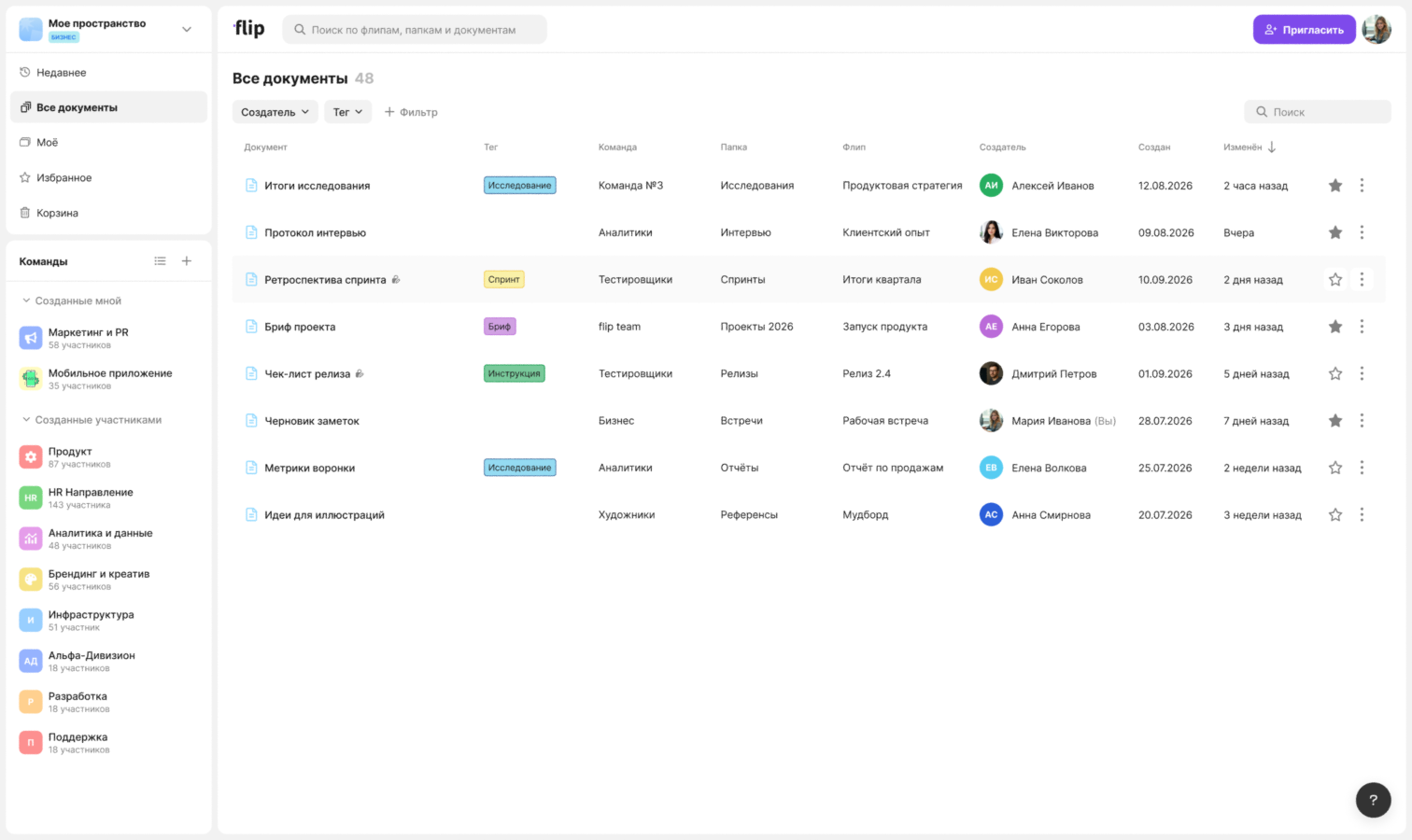
Documents created on flips are collected in shared lists on the flip home page. Here you can find a document by name, filter the list by tag, team, creator, flip or folder, open a document without going to its flip, add a document to favorites or restore a deleted document from the trash
Where to find documents
- “All documents” — a side menu section with all documents of the space
- “Mine” — a side menu section, the “My flips and documents” page. The “Documents” tab shows the documents you created
- “Favorites” — the “Documents” tab collects the documents you added to favorites
- Team page — the “Documents” tab shows the documents from the flips of this team
- “Trash” — the “Documents” tab holds deleted documents
The “Flips” / “Documents” switch is at the top of the page, and each tab shows the number of items
What the list shows
For each document, the list shows its tag, folder, flip, creator, creation date and last change time. The “All documents” and “Mine” sections also have the “Team” column, and the “Mine” section has no “Creator” column. A lock icon next to the title means that the document is closed for editing — hover over it to see the “Read only” tooltip
By default, recently changed documents are at the top. To sort the list, click the “Document”, “Created” or “Modified” column header. Clicking it again reverses the sort order
On a phone, a document row shows its first tag, flip and change time, and sorting is selected in the filters window: “By creation date”, “By last edit”, “Alphabetically (A-Z)” or “Alphabetically (Z-A)”
How to find a document
- Search — enter the document title in the “Search” field to the right above the list
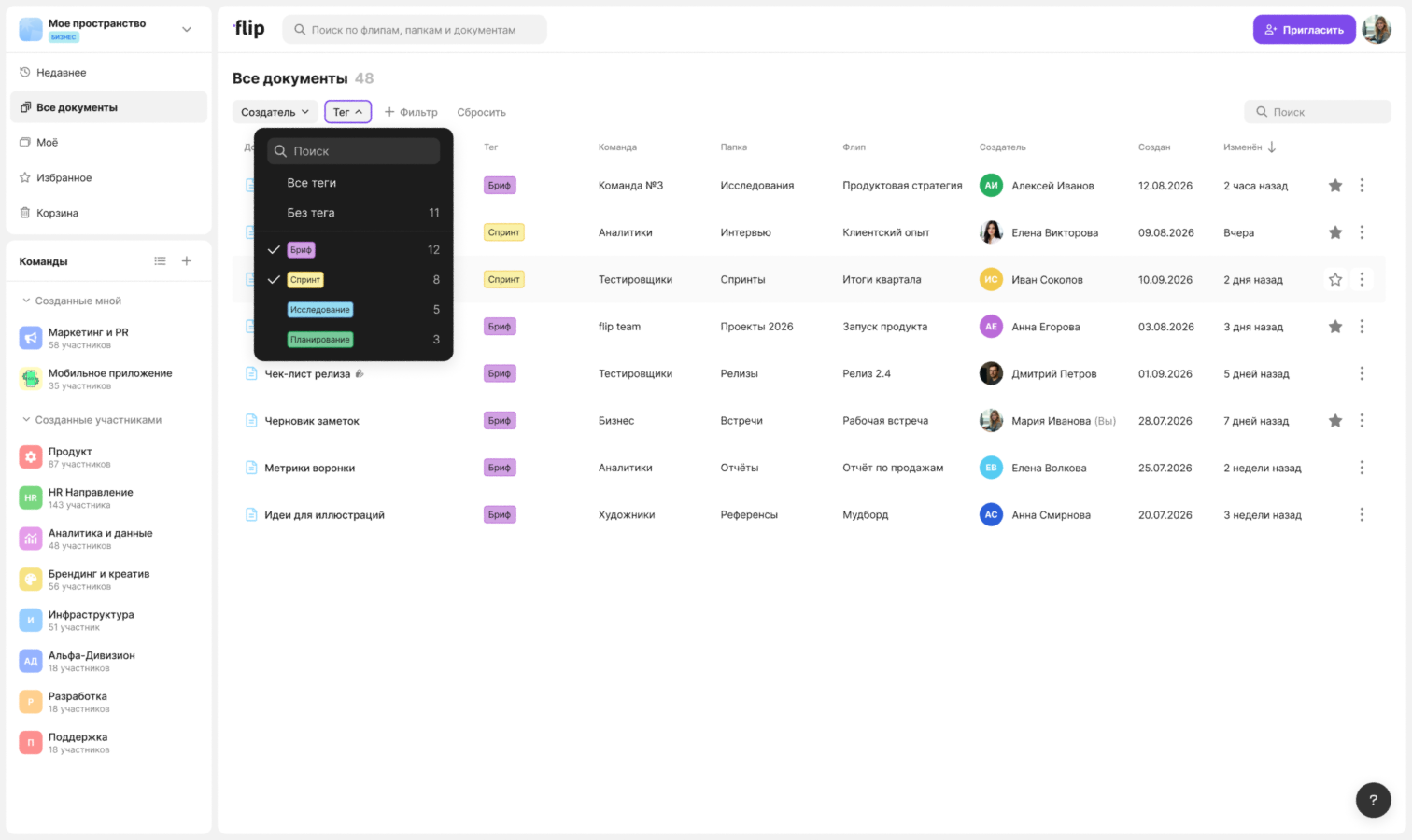
- “Tag” — select one or more tags. The “No tag” item shows documents without tags
- “Creator” — select one or more members. The filter is available in the “All documents”, “Favorites” and “Trash” sections and on the team page
- “Team” — select one or more teams. The filter is available in the “Mine” and “Trash” sections
- “Filter” — click it and select “Flip” or “Folder” to add a filter by flips or folders. The “Folder” filter has the “No folder” item
- “Reset” — clears all selected filters. The button appears when at least one filter is selected
On a phone, filters and sorting open with the button in the top right corner of the page, and the button shows the number of selected filters
How to open a document
Click a document row — it opens on top of the list in full screen, and the “Information” card appears on the right. To go back to the list, click “Collapse”
Learn more about full screen mode and the “Information” card in How to work with documents on a flip
Actions with a document
To add a document to favorites, hover over the row and click the star — the “Document added to Favorites” message appears. Click it again to remove the document from favorites
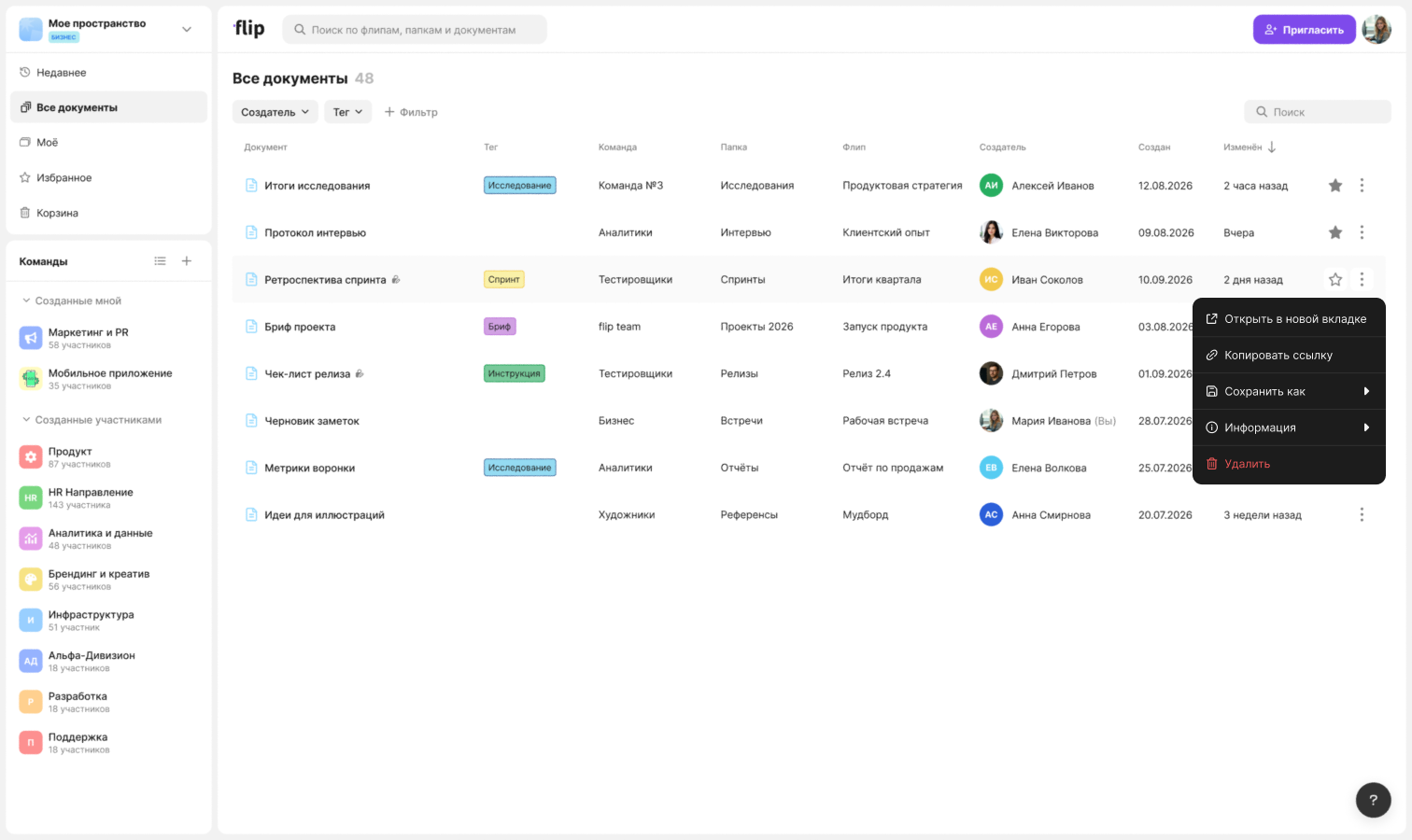
Other actions are in the document menu: click the three-dot button at the end of the row or right-click the row
- “Open in new tab” — opens the document's flip in a new tab with this document already open
- “Copy link” — copies the link to the document, and the “Link copied” message appears
- “Save as” — choose a format: Markdown (.md), PDF (.pdf) or CSV (.csv). While the file is being prepared, the row shows a download icon instead of the document icon
- “Information” — who created the document and when, and who changed it last and when
- “Delete” — the document is moved to the trash right away. Documents closed for editing don't have this item
On a phone, the document menu offers “Copy link”, “Information” and “Delete”
How to find a document with the space search
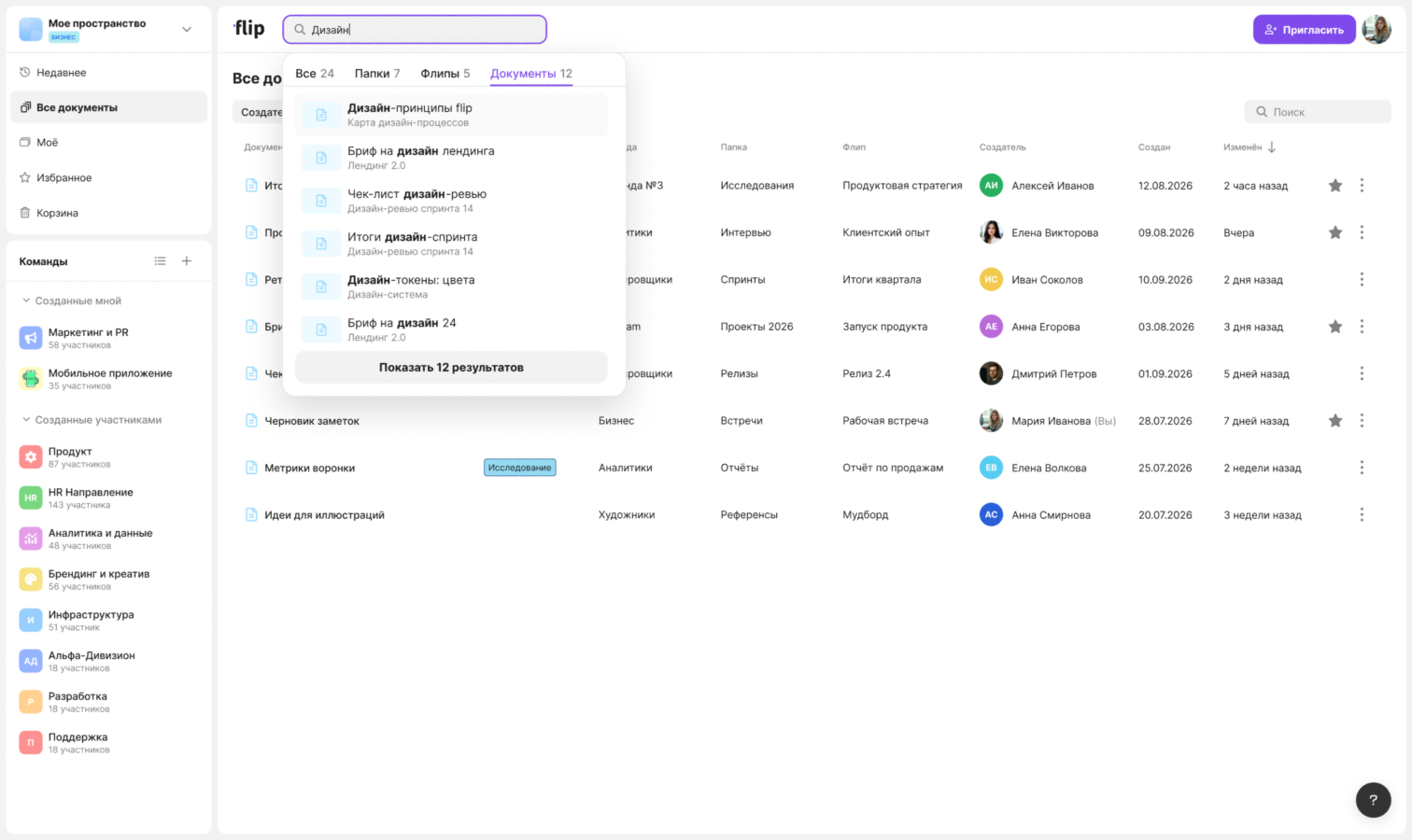
Enter a query in the “Search flips, folders and documents” field at the top of the page
The “All”, “Folders”, “Flips” and “Documents” tabs with the number of results appear above the results. Select the “Documents” tab
Click a document to open it, or click “Show … results” to go to the page with all documents found
How to restore a document from the trash
- Open the “Trash” section and select the “Documents” tab
- Click the three-dot button in the document row and select “Restore”
- In the confirmation window, click “Restore” — the document returns to its original flip
To delete a document so that it can't be restored, select “Delete permanently” in the menu and confirm the action in the “Permanently delete …?” window
To handle several documents at once:
- Click “Select”
- Select the documents you need or click “Select all”
- Click “Restore” or “Delete” — the buttons show the number of selected documents — and confirm the action
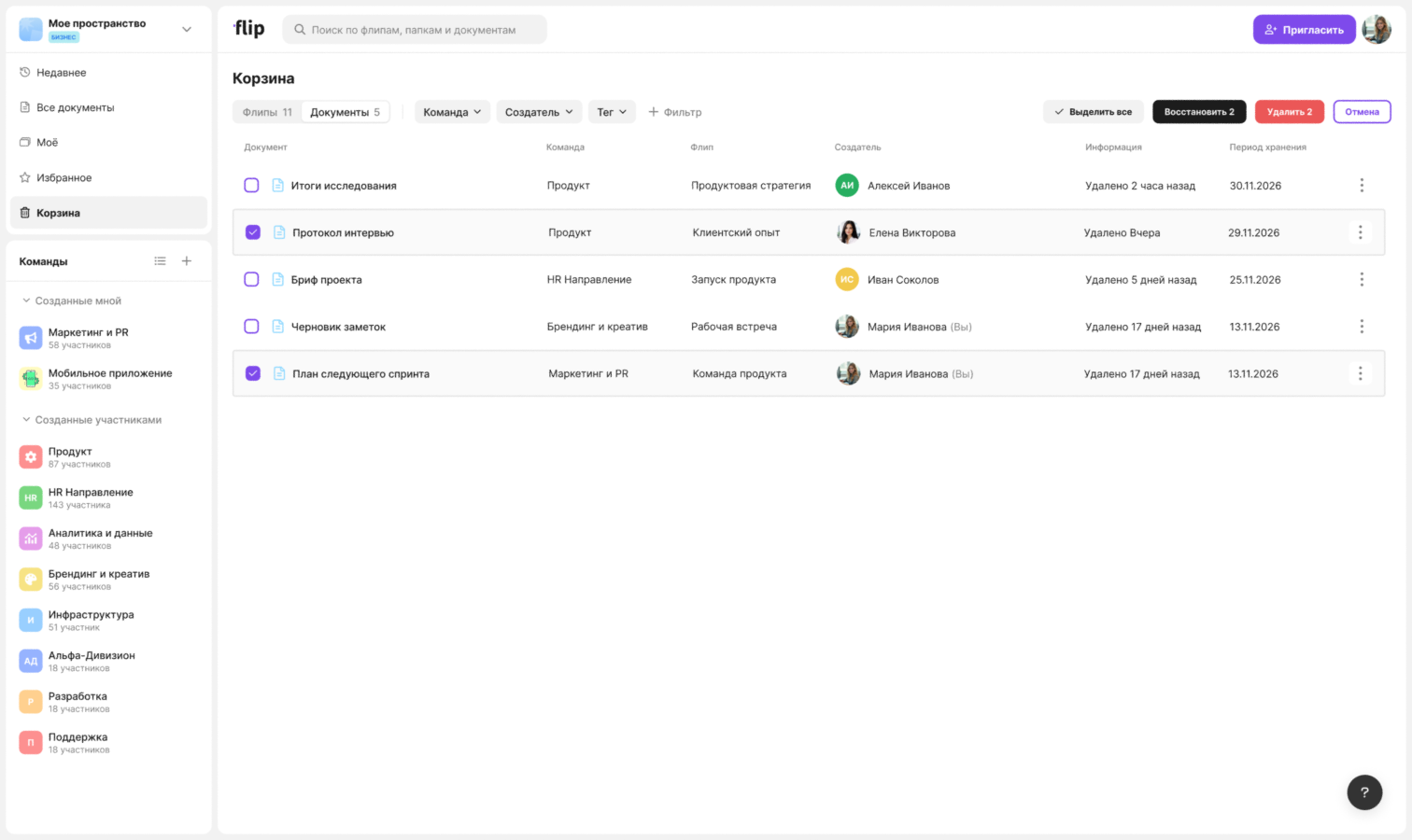
A deleted document row shows the team, flip, creator, when the document was deleted and until what date it is stored in the trash. Documents are stored in the trash for 30 days. You can filter the list by team, creator, tag, flip and folder and sort it by deletion date or alphabetically
Limits
- The lists show only documents from flips you have access to
- A document closed for editing can't be deleted from the document list
- Deleting a document from the list doesn't ask for confirmation — you can restore a deleted document from the trash
- Not every document in the trash can be restored: such documents have only “Delete permanently” in the menu and can't be selected in selection mode