

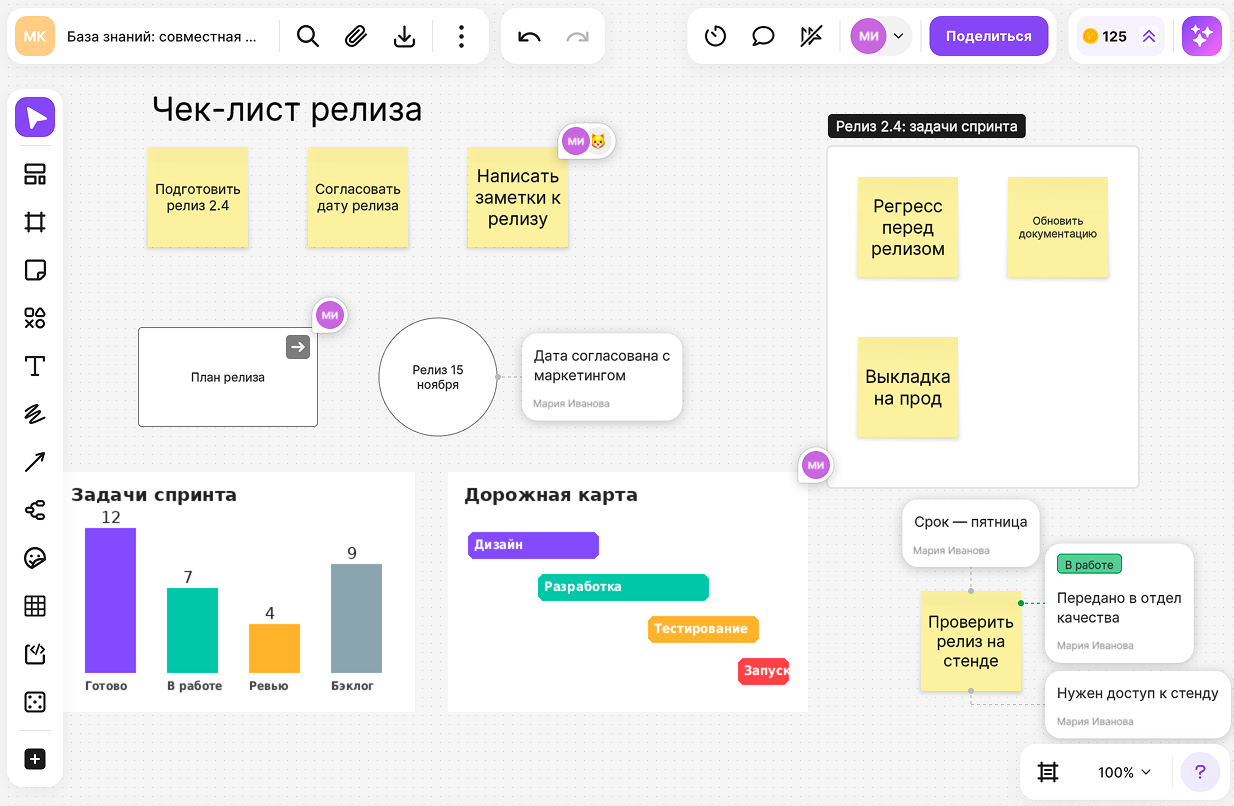
An annotation is a short note that is pinned to the edge of an element and shown next to it: an explanation for a diagram, a clarification for an image, a task status on a sticker. An annotation moves together with its element and shows the author's name
How an annotation differs from a comment
- An annotation is always attached to an element, while a comment can also be left on an empty spot of the flip
- The text of an annotation is visible right on the flip, while a comment opens when you click its pin
- An annotation has no replies, reactions or attachments — it is a single note of up to 500 characters. A comment is a discussion that can be resolved
- An annotation can be marked with a tag — the line that connects it to the element takes the color of the tag
- If you delete an element, its annotations are deleted with it, while a comment pin stays on the flip
How to add an annotation
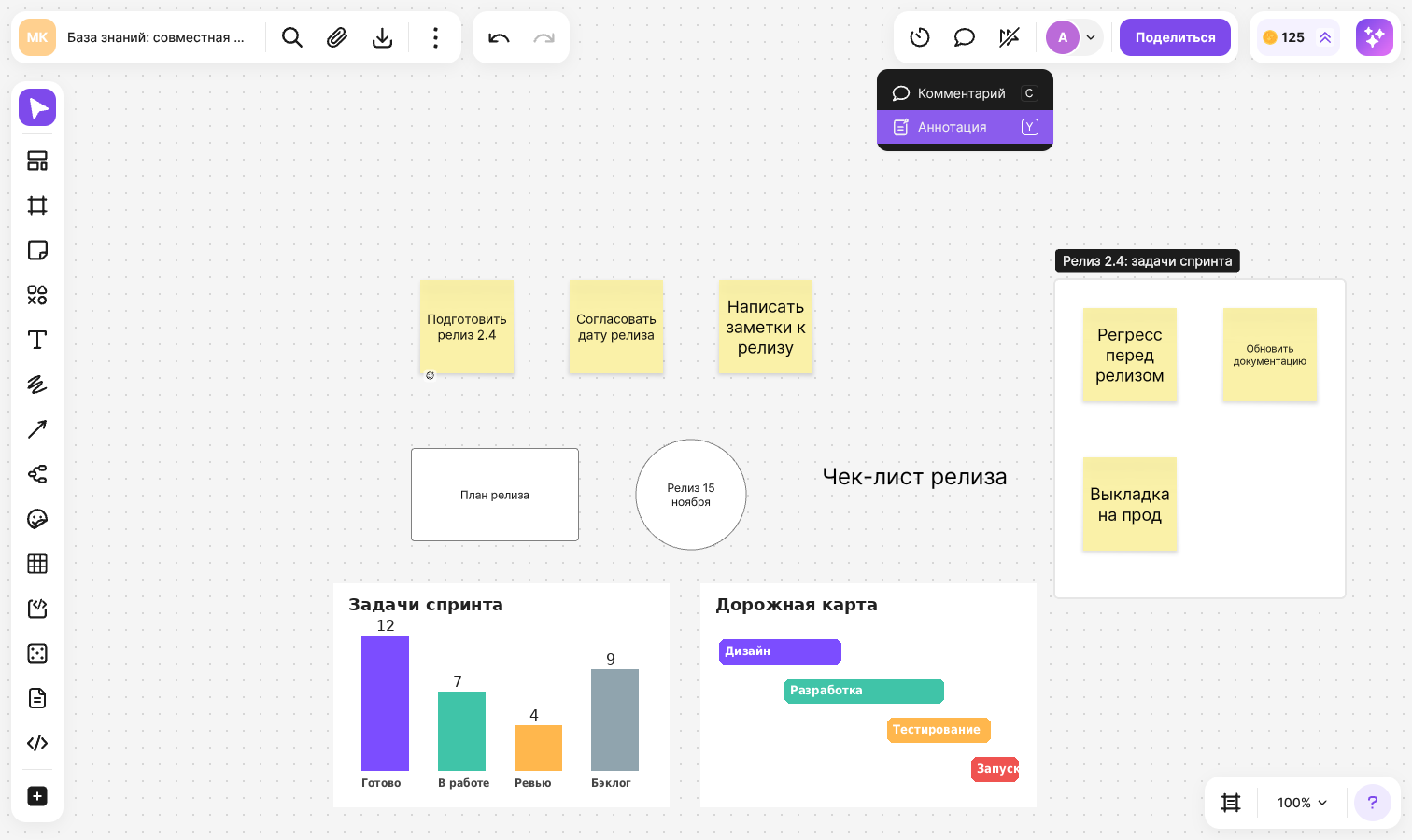
In the top right corner of the flip, click the “Comments” button and select “Annotation” — or press Y
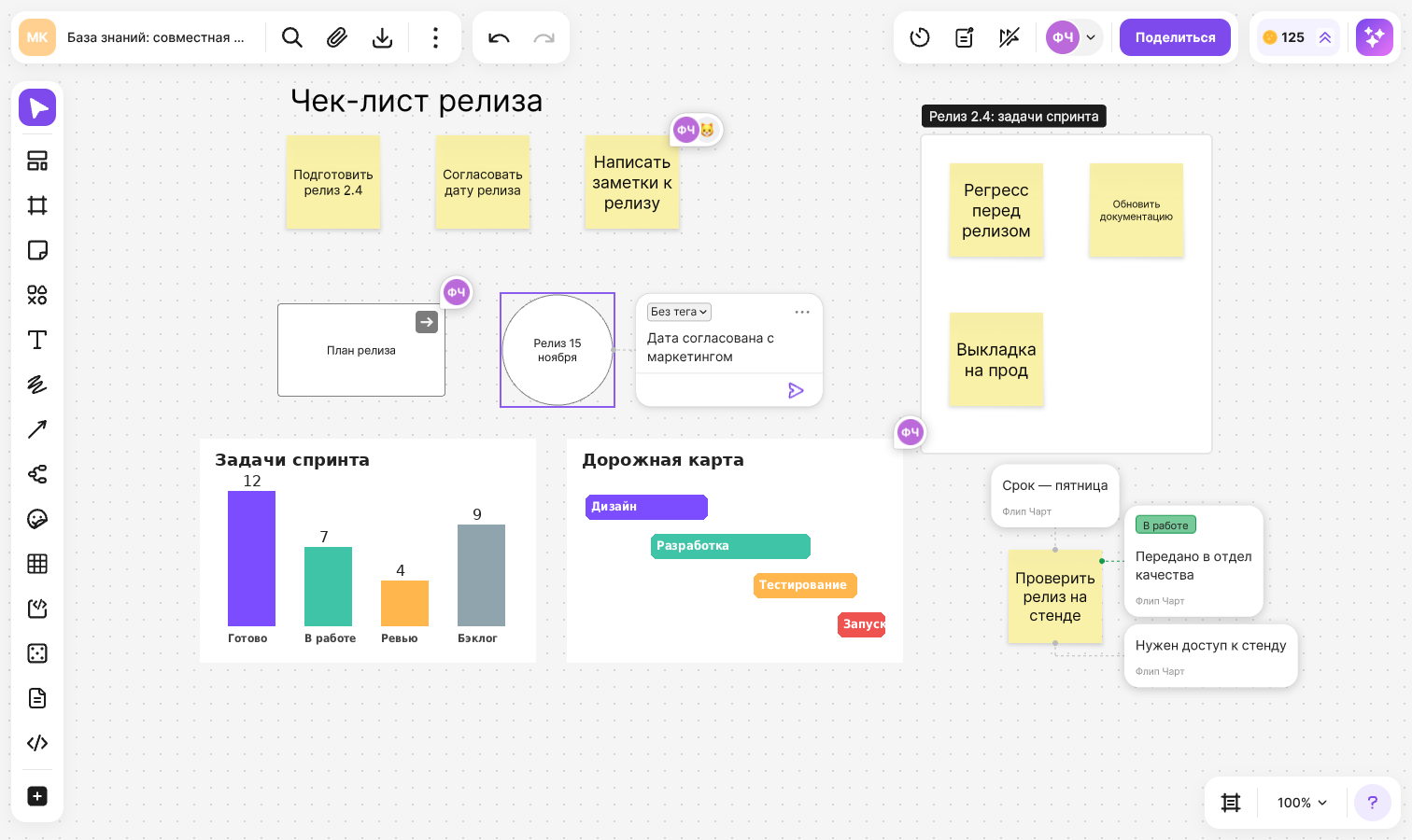
Hover over an element — it will be highlighted — and click it. The “Add an annotation” form will open at the right edge of the element
Type your text. To mark the annotation with a tag, click “No tag” and pick a tag from the list or create a new one
Press Enter or click outside the form — the annotation will be saved. To cancel, press Esc
If you click a table cell, the annotation is attached to the whole table. If you click an element inside a frame, it is attached to that element, not to the frame
How to edit an annotation
- To change the text or the tag, double-click your annotation. Enter or a click outside the form saves the changes, Esc cancels them
- To move an annotation to another side of the element, drag it to the top, bottom, left or right edge. Several annotations on one side are arranged automatically and don't overlap
Only the author can edit and move an annotation
How to delete an annotation
- Select the annotation with a click and press Delete or Backspace
- Or double-click the annotation, open the three-dot menu and select “Delete”
You can undo the deletion with Ctrl + Z (⌘ + Z on macOS). Other people's annotations can be deleted by the flip owner, the space owner and space admins with “Editing” access
How to hide and show annotations
You can temporarily remove annotations from the flip so that they don't cover the content:
- Press Shift + Y
- Or right-click an empty spot on the flip and select “Hide annotations”
- Or double-click an annotation, open the three-dot menu and select “Hide annotations”
The “Annotations hidden” notification will appear. To bring them back, press Shift + Y again or select “Show annotations” in the context menu. Hidden annotations are shown automatically when you select the “Annotation” tool
Annotations are hidden and shown only on your screen — nothing changes for other participants
How to share a link to an annotation
Double-click the annotation
Open the three-dot menu and select “Copy link”
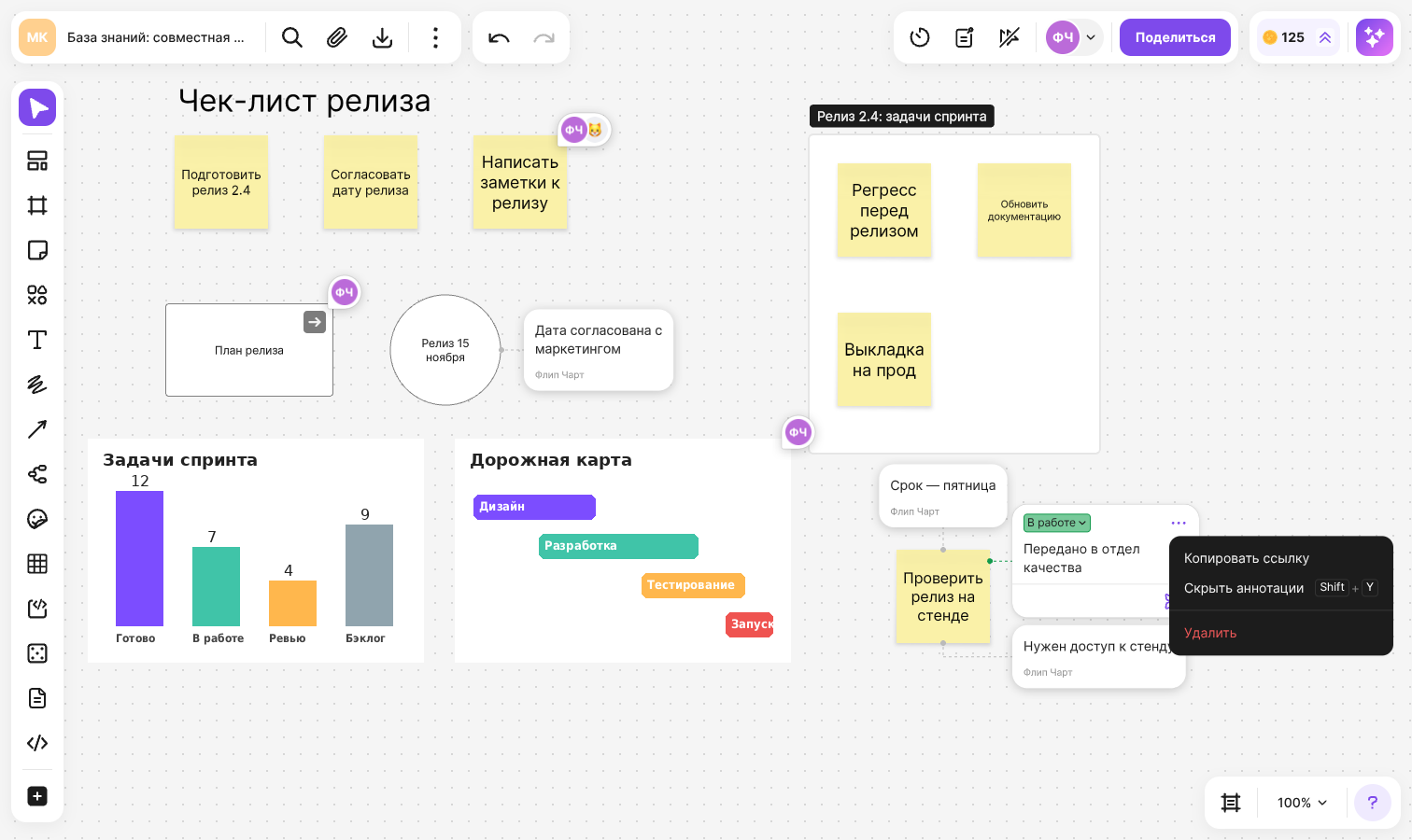
The “Link copied” notification will appear. The link opens the flip right at the annotation, even if annotations were hidden
You can also find an annotation by its text with search on the flip — select the “Annotation” type
Limitations
- You can add up to 5 annotations to one element. If you try to add a sixth one, the “You can add only 5 annotations to an element” notification will appear
- The text of an annotation can be up to 500 characters long
- An annotation can have only one tag
- Annotations can't be added to arrows, emoji, the dice and drawings
- When the flip is zoomed out below 15%, annotations are not displayed
- Annotations can be created by space members with “Editing” access to the flip. With “View” or “Commenting” access, and without logging in, annotations can only be read — see the article about access to a flip for details