

Emoji, stickers and GIFs help you react, mark what matters and liven up a flip: put a mark next to an idea, cheer a teammate or decorate a retrospective. All of them are added with one tool — “Emotions”
The illustrated stickers in this tool are pictures. Sticky notes with text are covered in a separate article, Stickers
How to add an emoji, a sticker or a GIF
On the toolbar, select “Emotions”. If the tool is not on the toolbar, open “All tools” — you will find it in the “Interactive” section
A panel with the “Popular”, “Emoji”, “Stickers” and “GIF” tabs opens on the left
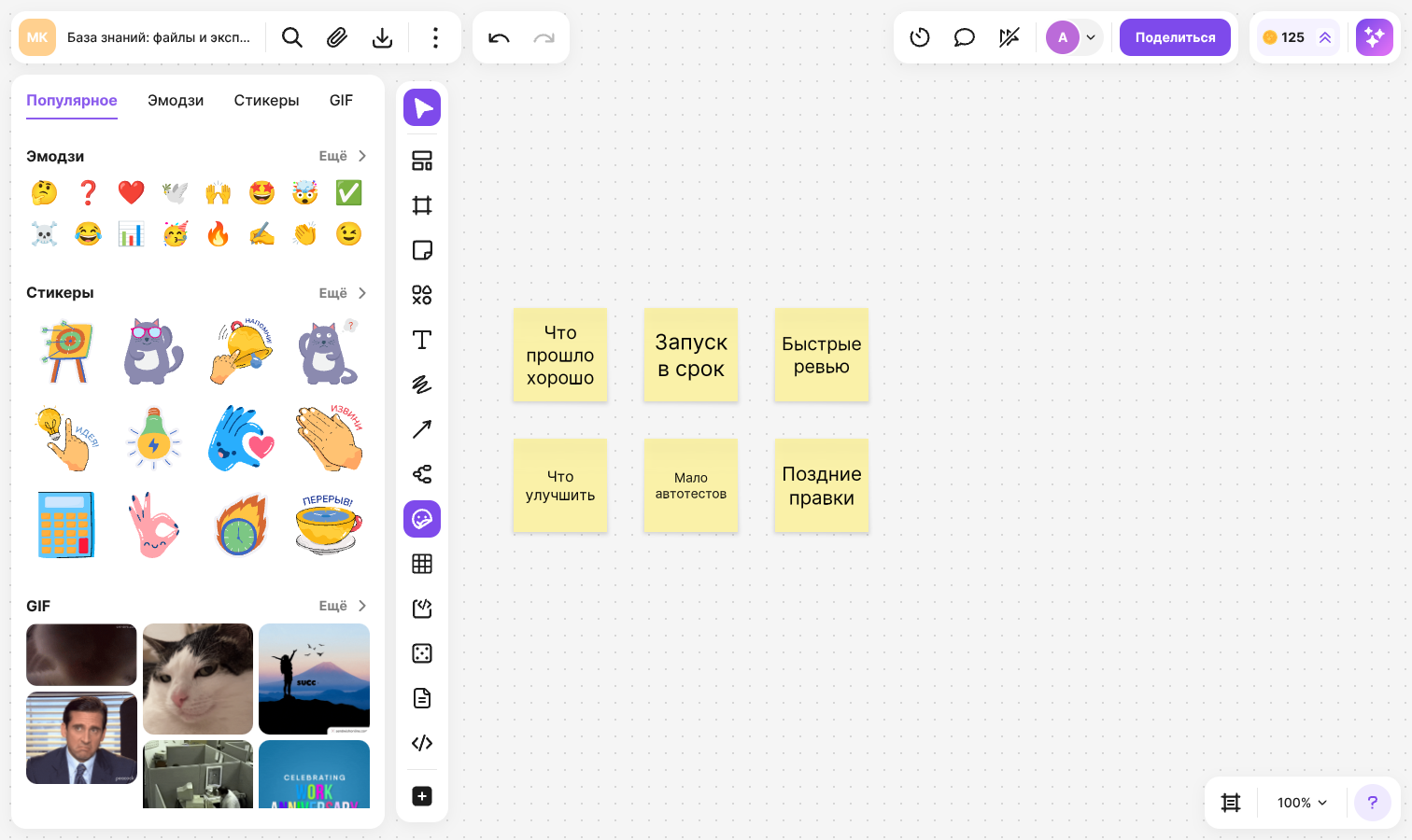
Open the tab you need and click a picture — the panel closes, and a semi-transparent preview follows the cursor
Click the flip where the element should appear
If you click inside a frame, the element becomes its content and moves together with it
To close the panel without choosing anything, press Esc or click outside it. The next time you open the panel, it shows the tab you left
What the tabs contain
“Popular” — a selection of emoji, stickers and GIFs. Click “More” in a block to go to the tab with the full list
“Emoji” — emoji by category: “Smileys & People”, “Animals & Nature”, “Food & Drink”, “Activities”, “Travel & Places”, “Objects”, “Symbols”, “Flags”
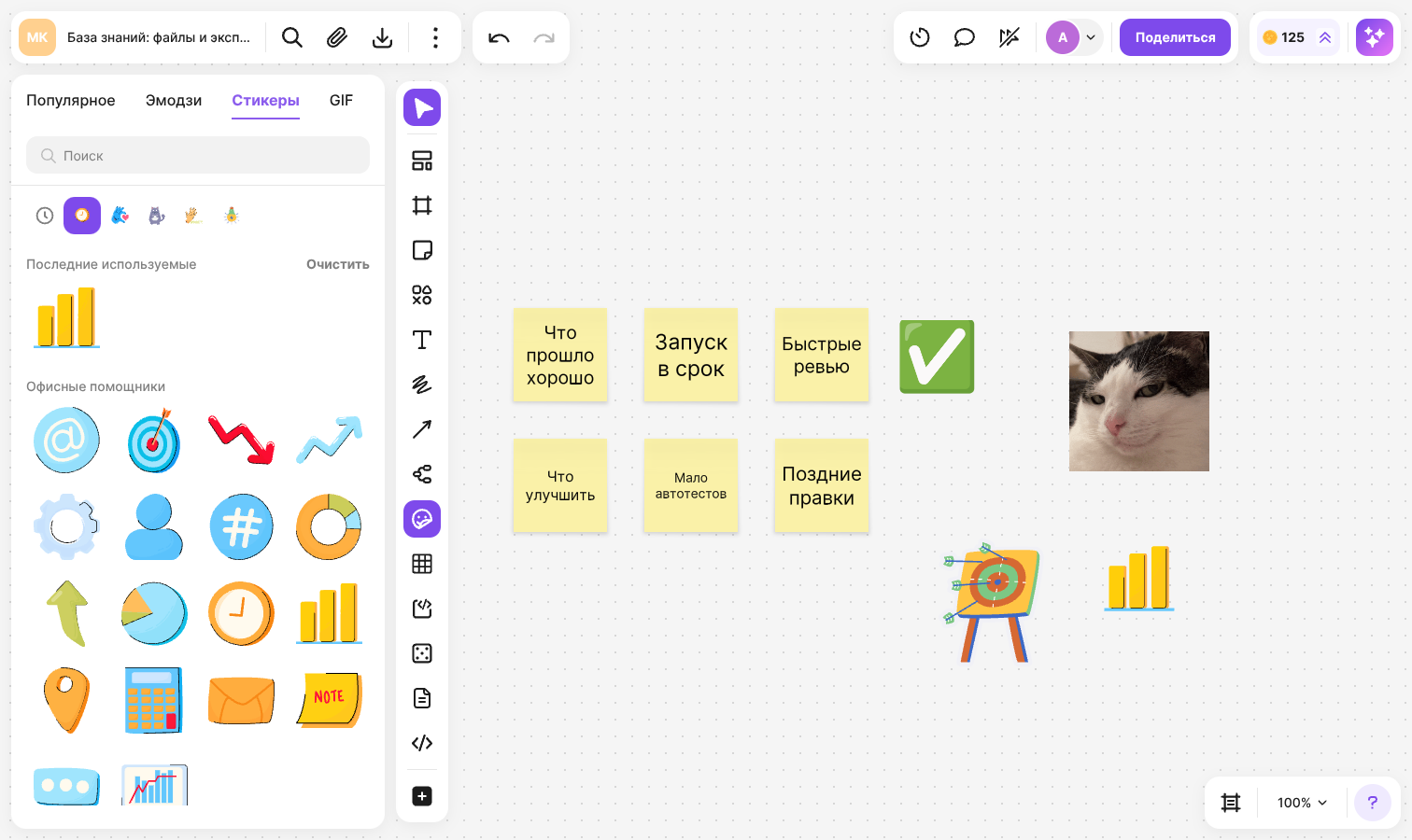
“Stickers” — illustrated stickers in the “Office Assistants”, “Palms”, “Grey Cat”, “Emotions and Gestures” and “Working Set” packs
“GIF” — animated pictures in the “Cats”, “Office Life”, “Animals”, “Office”, “Magic World”, “Motivation”, “Birthday” and “Holidays” packs
The buttons above the list switch categories and packs: click a button to jump to the section you need
How to find a picture
The “Emoji”, “Stickers” and “GIF” tabs have a “Search” field. Enter a part of the name — the list keeps the matches from all categories or packs. The search is not case-sensitive. To return to the full list, clear the field
The emoji and stickers you have already added are collected in the “Recently used” section at the top of the tab — it keeps up to eight of the latest ones. To remove them from the section, click “Clear”. A sticker gets into the section only if you picked it on the “Stickers” tab — stickers picked on the “Popular” tab do not appear in it
How to resize and rotate
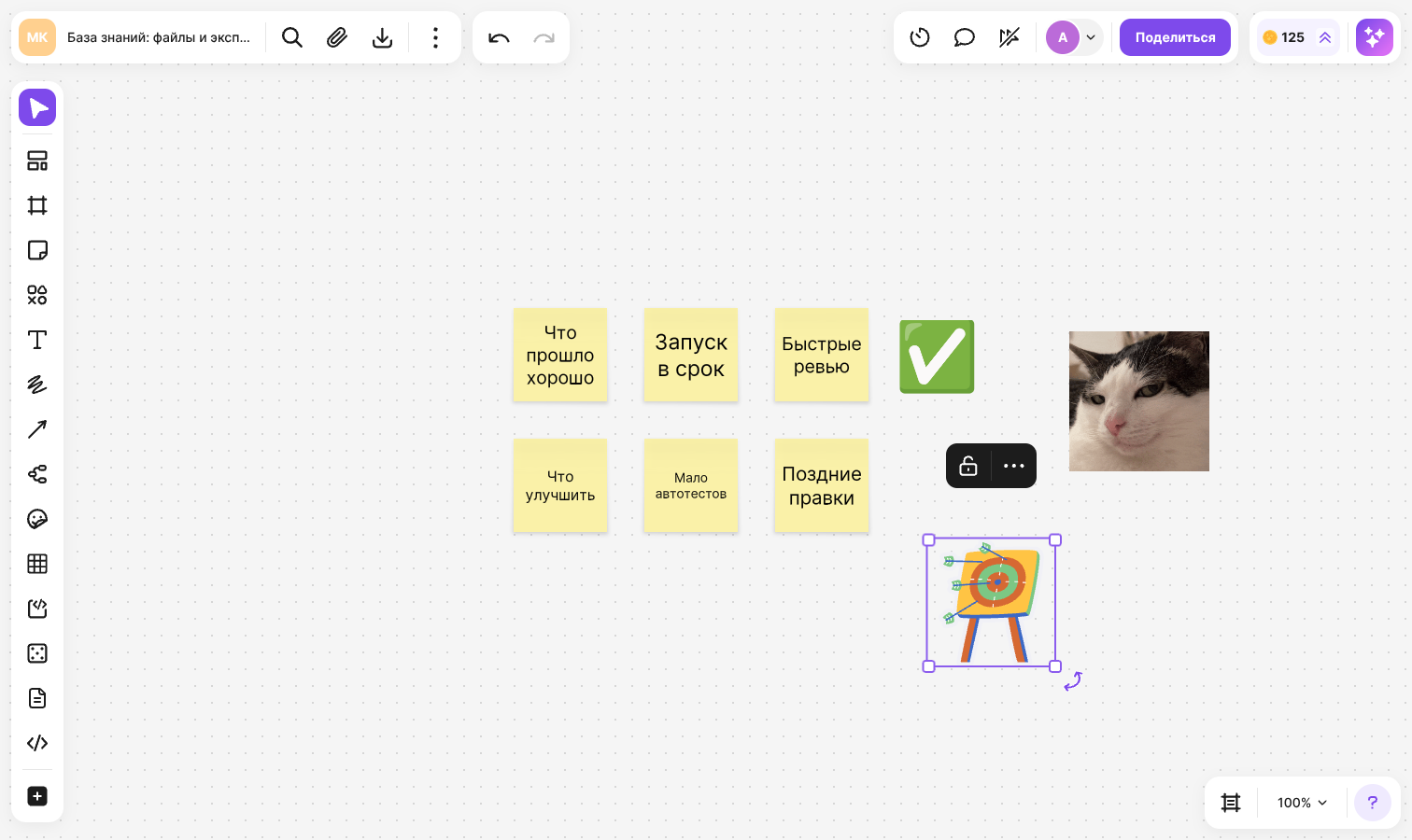
Select an emoji, a sticker or a GIF on the flip:
- Drag a corner of the selection frame to resize it. The element is always resized proportionally — you cannot stretch it only in width or height
- Drag the rotation button at the bottom right corner of the frame to rotate the element
- Drag the element to move it, or press Delete (Backspace on macOS) to delete it
You can attach arrows to emoji, stickers and GIFs, and group several elements together; learn more in the Grouping, alignment and locking article
How a GIF is played
A GIF on a flip does not play all the time. The animation starts when you hover over the GIF or select it, and loops. When the cursor is moved away and the selection is cleared, the animation stops
You can upload your own animated picture as a regular image in the GIF format — read about uploading in the How to upload images and files article