

Every member of a space has a role: “Owner”, “Admin” or “Member”. The role defines which space settings sections the user can open and what they can do with members, teams and other people's flips. A role applies to one space only — the same user can have a different role in another space
Roles in a space
- “Owner” — the full set of permissions, including plan management and deleting the space. The owner's role can't be changed, and the owner can't be removed from the space
- “Admin” — manages members, teams and flips and configures the space. Only the owner can appoint an admin
- “Member” — works with flips and the teams they belong to and doesn't change the space settings
In member lists, the owner is marked with a crown and the “Space owner” tooltip, and an admin is marked with an icon and the “Space admin” tooltip
What each role can do
“Member”:
- Creates flips, duplicates flips of their teams, adds flips to favorites and exports them
- Renames and deletes a flip, changes its background and grid, configures access and transfers ownership only for their own flips — the ones they own
- Creates teams within the plan limit and manages the teams they created
- Sees the “Space profile” and “Space members” sections but can't change anything there
- Invites users to the space only on the Mini plan
“Admin” — everything a member can do, plus:
- Changes the space name and logo — the “Edit profile” button
- Invites users with the “Invite” button and removes users with the “Member” role from the space
- Opens the “Teams”, “SSO settings”, “Domain management” and “Audit log” sections
- Renames and deletes any flip in the space, changes its background and grid, configures access in the “Share” window and transfers flip ownership
- Deletes any team, removes members from teams and transfers team ownership
- Deletes other people's comments
“Owner” — everything an admin can do, plus:
- Appoints and removes admins, and removes admins from the space
- Manages the plan and payments: only the owner has access to the “Plan management” and “Payment information” sections and to the “Upgrade plan” and “Add licenses” buttons
- Deletes the space
- Edits flips in the space regardless of the access mode set for members
Important
If a flip is open to space members for viewing or commenting only, it can be edited by the flip owner and the space owner. An admin works on such a flip in the same mode as other members but can change the access settings in the “Share” window
Learn more in the articles on flip access settings, transferring and moving flips and how to invite users to a space
How to view space members
- In the left sidebar, click “Space settings” next to the space name. If you have several spaces, open the list of spaces and click the settings icon in the row of the current space
- Select the “Space members” section
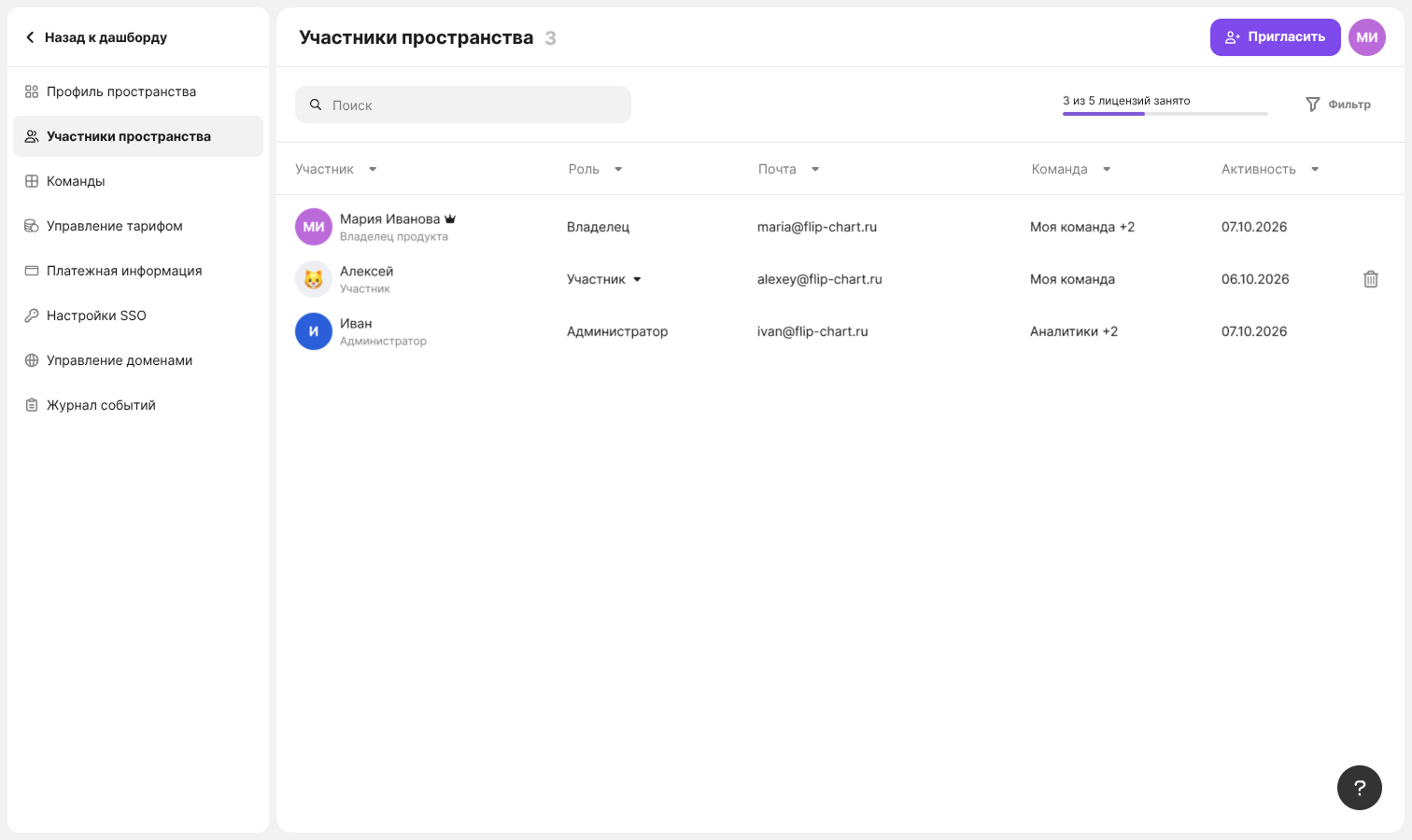
For each member, the list shows the name and specialty, role, email, teams and the date of the last activity. The owner and admins see how many licenses are used above the list — on all plans except Individual
In the list, you can:
- Find a member by name or email — the “Search” field
- Sort the list — click a column header
- Copy an email — click it
- See all teams of a member — hover over the “+N” counter next to the team name
- Filter members by role and team — the “Filter” button. To get the full list back, click “Reset filter”
Plan limits
The member filter is not available on the Mini and Individual plans
How to change a member's role
Only the space owner can appoint and remove admins
Open “Space settings” → “Space members”
In the “Role” column, click the member's current role and select a new one: “Admin” or “Member”
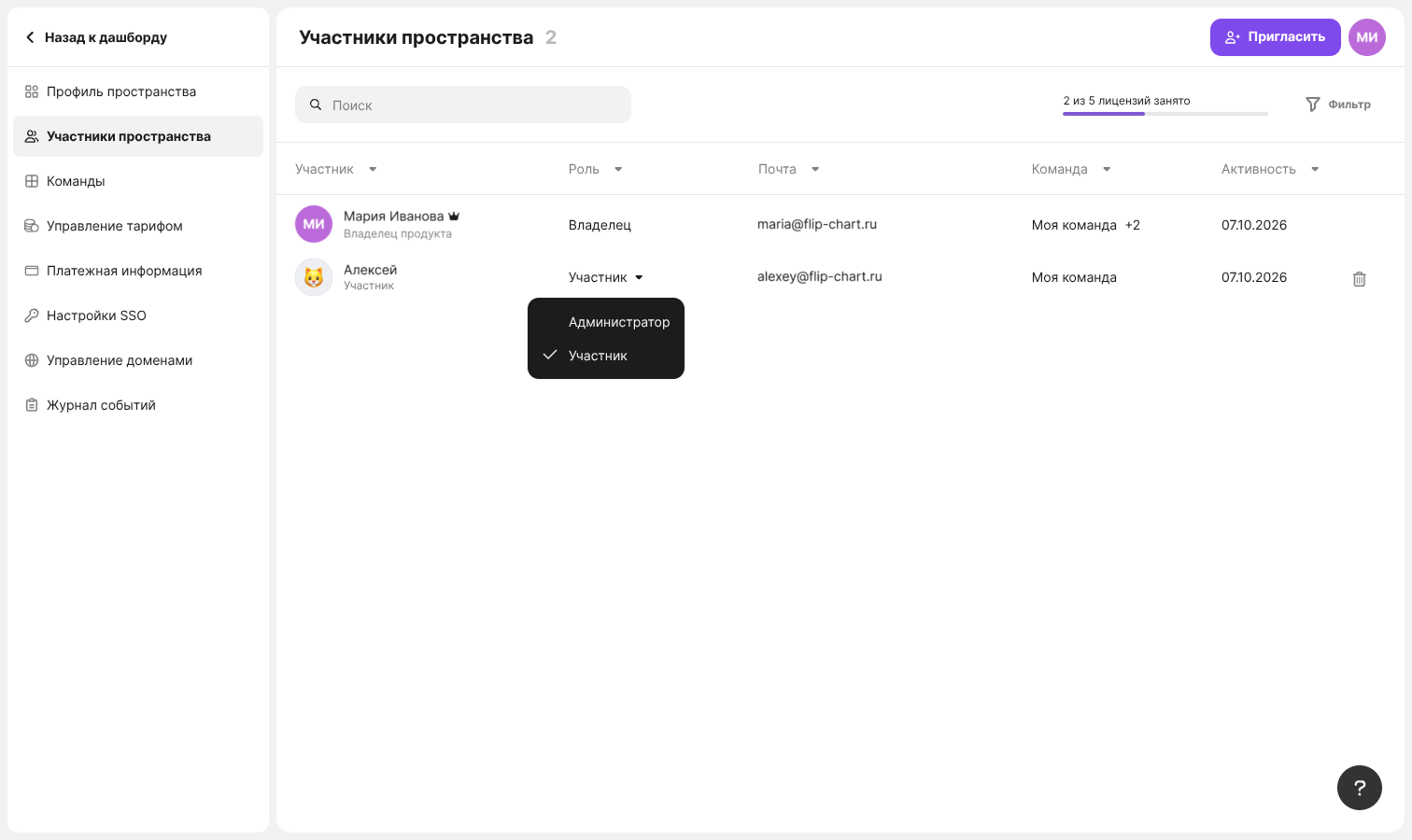
In the confirmation window, click “Yes, change”
The “Owner” role is not on the list — it can't be assigned to another member this way
How to remove a member from a space
The owner can remove any member, and an admin can remove only users with the “Member” role
Open “Space settings” → “Space members”
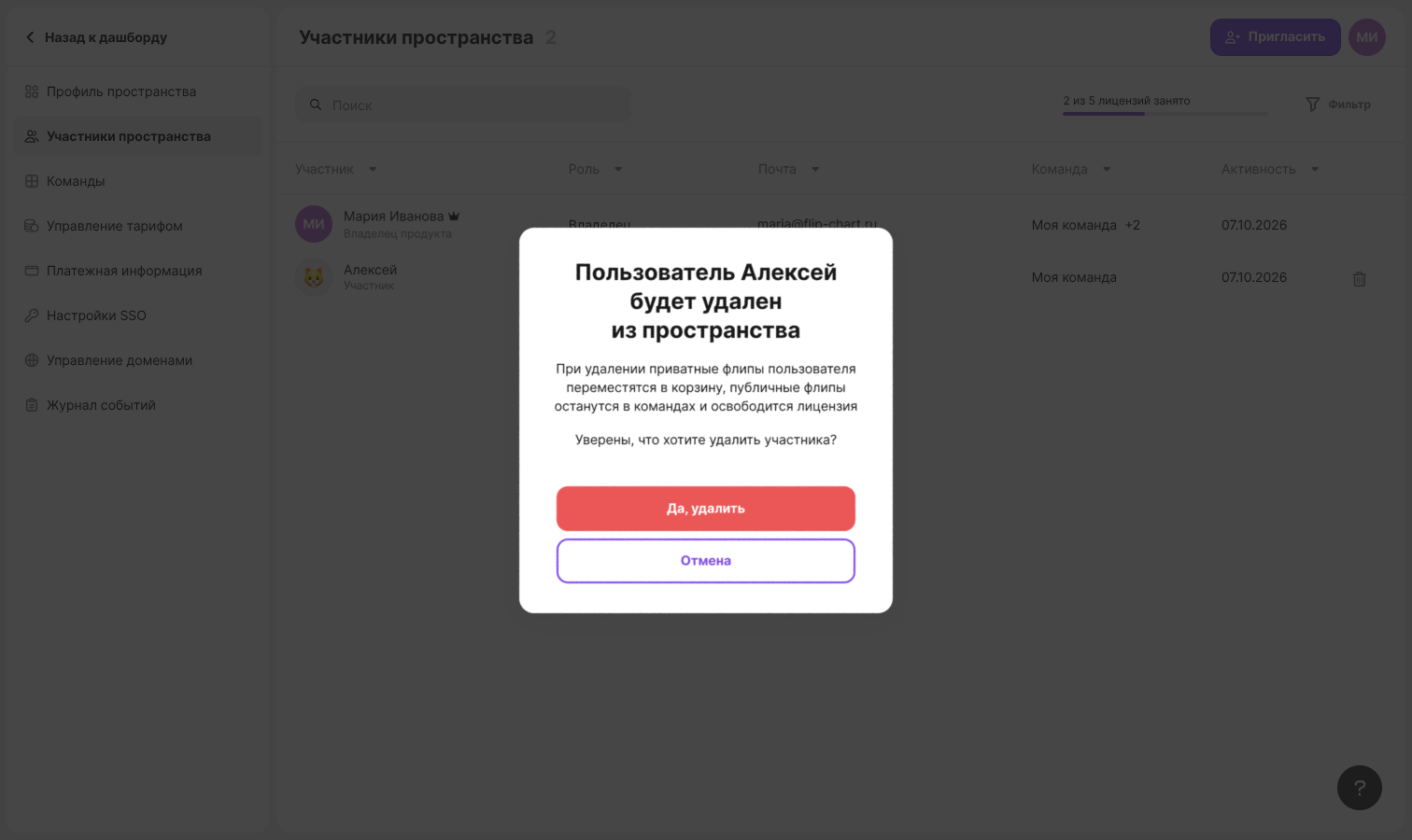
In the member's row, click the “Remove from space” trash icon
In the confirmation window, click “Yes, delete”
Important
Once removed, the user's private flips will move to the trash, public flips will stay in their teams, and the license will be freed up
Member card
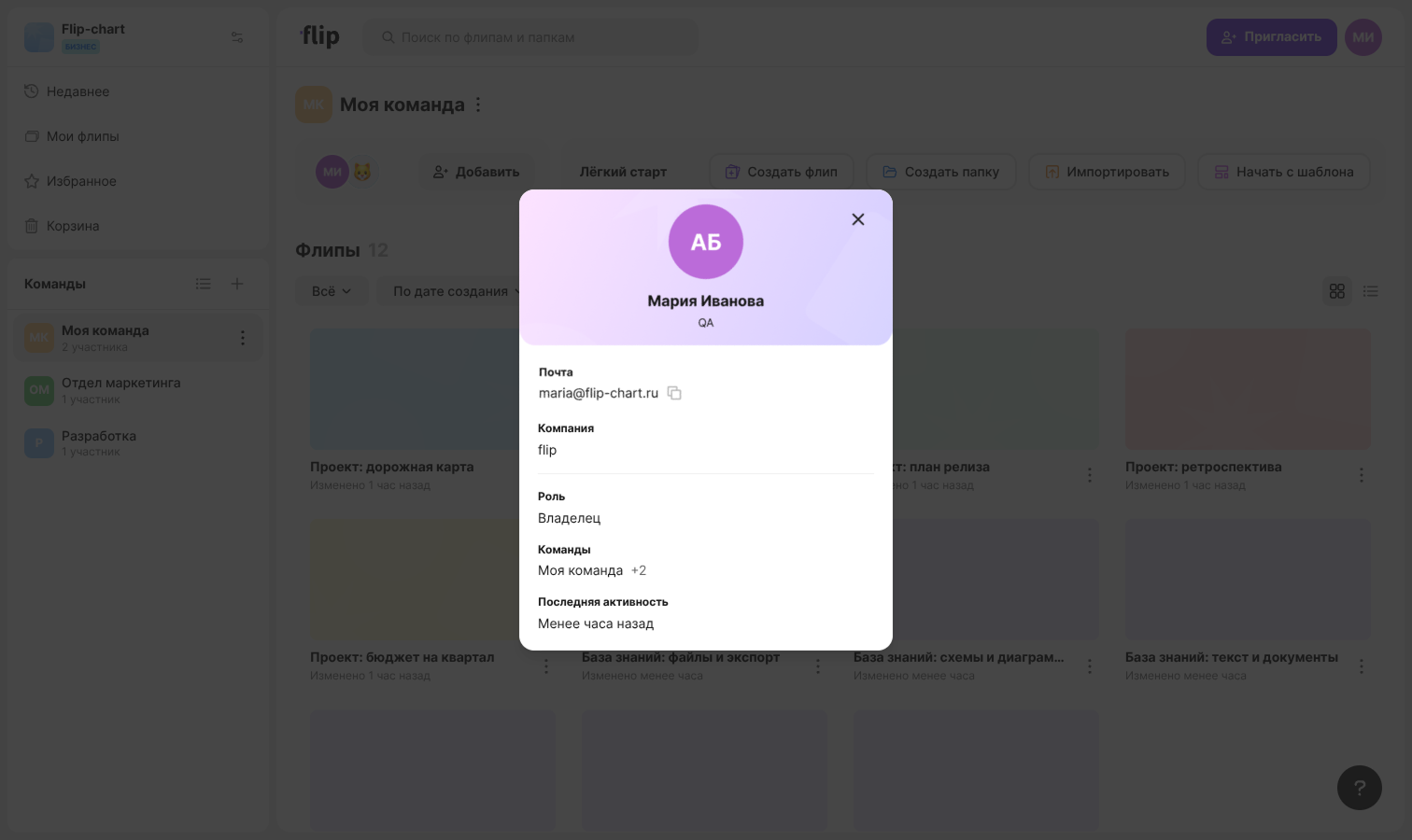
The card shows the member's details: “Email”, “Phone”, “Company”, “Role”, “Teams” and “Last activity”. Empty fields, such as “Phone”, are not shown in the card. You can copy the email and phone with the “Copy” button
To open the card, click a member in the team members list or a name in the “Creator” column in the list of flips and in the “Teams” section. If the card is opened from the team members list, the window with the list is hidden and comes back after you close the card
Roles in a team
A team has a creator — in the team members list, the creator is marked with an icon and the “Team creator” tooltip. The team creator:
- Changes the team name and avatar in the “About Team” window
- Accepts and declines requests to join the team — the “Requests” tab
- Removes members from the team
- Transfers team ownership to another member — “Transit rights”
- Deletes the team
The space owner and admins can also remove members, transfer ownership and delete a team
Learn more in the articles Creating and deleting teams, Adding and removing members and Team profile settings