

Text is an element for labels, headings, notes and lists on a flip. You can format it the way you would in a text editor: choose a font and size, highlight parts with color, build a checklist and add a link
How to add text
Select “Text” on the toolbar or press the T key
Click the flip — a text element with the “Type something” hint appears. To set the block width right away, hold the mouse button and drag out an area
Type your text and click outside the element to finish
If you deselect an empty text element, it is not saved
You can paste text from the clipboard straight onto the flip: right-click an empty spot and select “Paste” — a new text element appears
How to edit text
Double-click the text — editing mode turns on and the cursor is placed where you clicked
- Enter starts a new line
- Tab adds an indent, Shift + Tab reduces it
- Ctrl + A selects all the text of the element
- Ctrl + Z undoes the last change, Ctrl + Shift + Z redoes it
How to format text
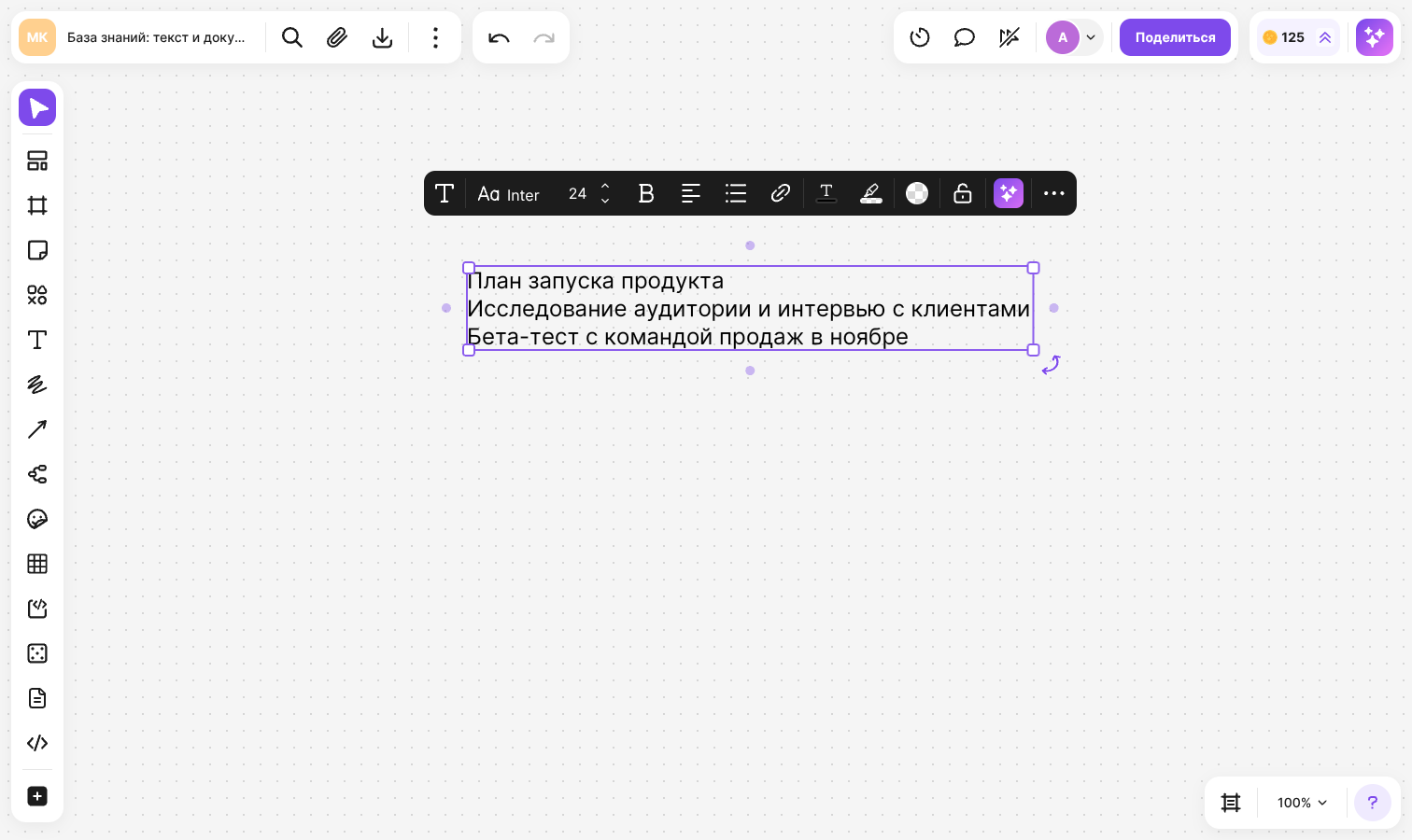
Select a text element — a panel appears above it. Formatting applies to the whole text. To format only a part, double-click the text and select the fragment you need
- “Font” — choose a font from the list or find it by name
- “Font size” — choose a value from the list, type your own and press Enter, or change the size with the arrows
- “Text style” — “Bold”, “Italic”, “Underline”, “Strike”, “Superscript”, “Subscript”, and also “Text case”: lowercase, uppercase or capitalized words
- “Alignment” — left, center, right or justified
- “Text color” and “Highlight text” — pick a color from the palette or set your own: in the spectrum, with the eyedropper, by HEX code or by RGB values
- “Fill” — the background color of the whole text block and its opacity
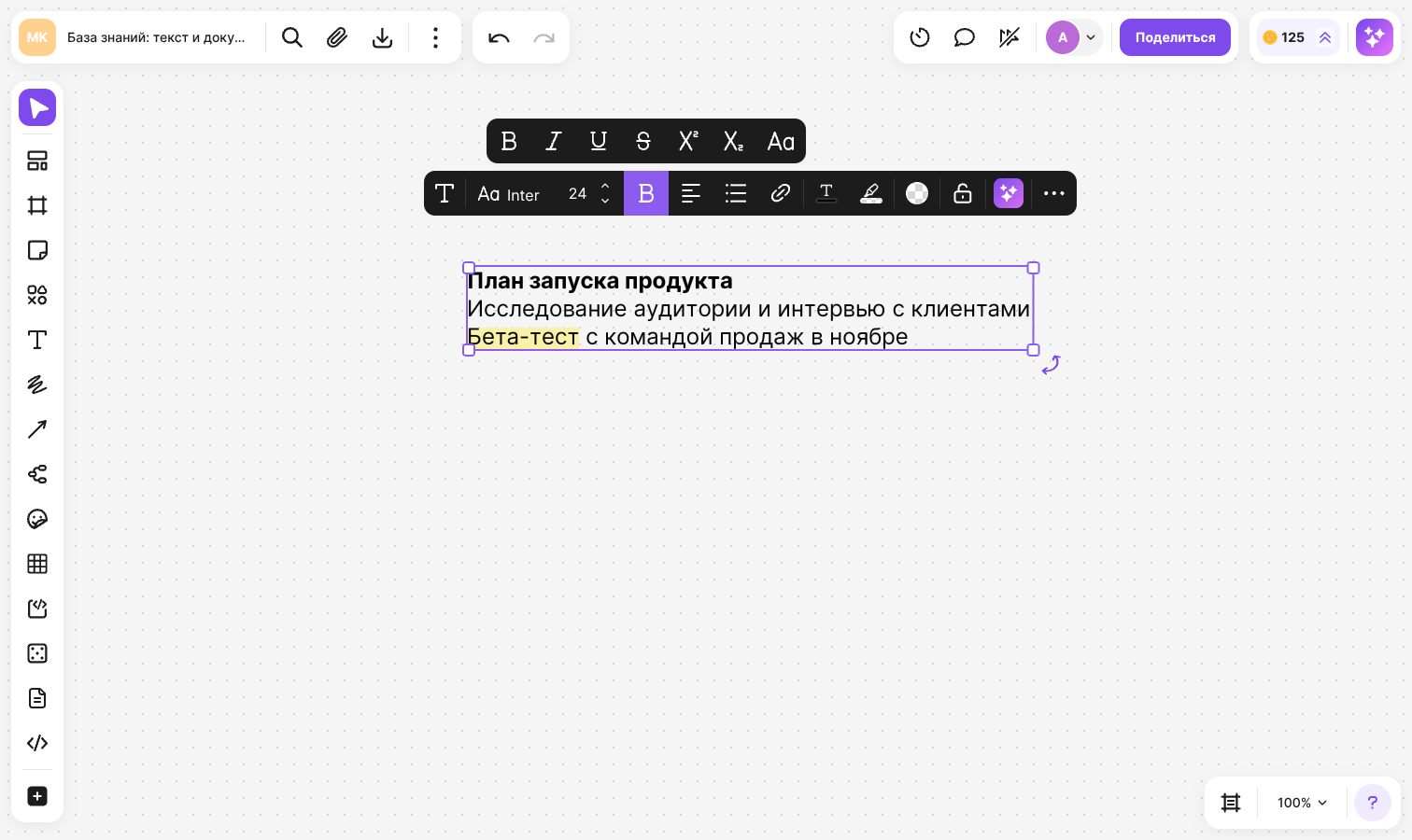
Font size and text case always change for the whole text of the element, even if only a fragment is selected
Lists and checklists
Select a text element, click “List” and choose a type: bulleted list, numbered list, checklist or to-do list. Each paragraph becomes a separate item. Clicking the same type again removes the list
- Enter creates a new item, Shift + Enter adds a line break inside an item
- Tab at the start of a new item makes it nested
- In a checklist and a to-do list, click the checkbox to check an item. You don't need to enter editing mode for that
- In a checklist, a completed item is struck through and becomes paler; in a to-do list, the item text doesn't change
- If you check an item that has nested items, they are checked too. When all nested items are checked, the parent item is checked automatically
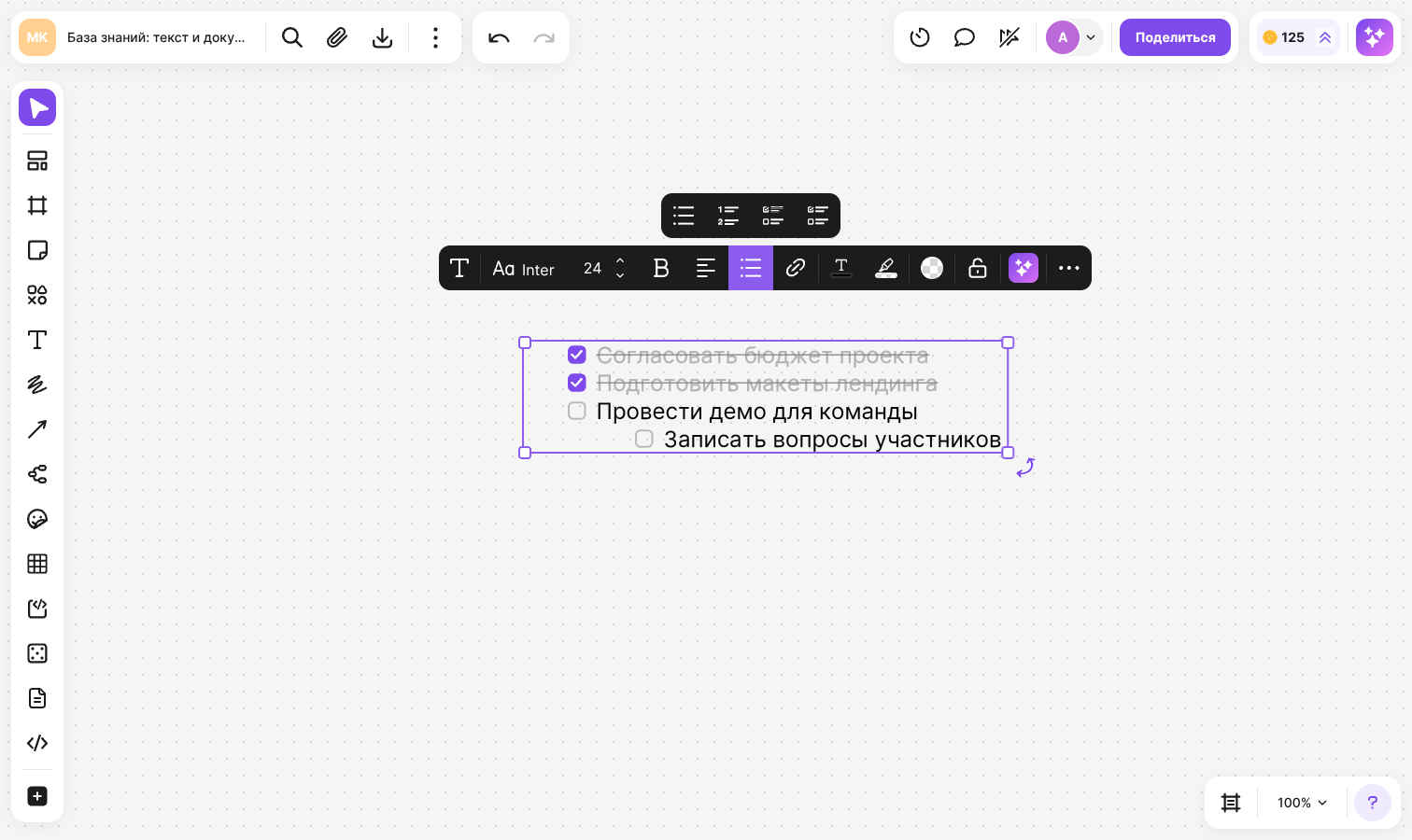
When you switch between a checklist and a to-do list, the checks are kept. When you switch to a bulleted or numbered list, they are reset
How to add a link
- Select a text element and click “Insert link”
- Select “Hyperlink”, paste the address and click “Add”
The “Link to Object” option connects the text to another element of the flip — learn more in Links to objects
How to resize and rotate text
- Drag a corner handle or the top or bottom edge of the frame — the block changes together with the font size
- Drag the left or right edge — only the block width changes, and the text is rearranged across lines
- To rotate text, drag the rotation handle next to the selection frame. Near angles that are multiples of 45°, the element snaps into place
How to turn text into another element
Click “Change item type” in the panel and select a sticker or a shape — the text and its formatting are kept. Lists are carried over to a shape as well; a sticker gets only the text, without bullets and checkboxes. Learn more in How to work with stickers and Shapes and notations
Hotkeys
The shortcuts work both for a selected element and for a text fragment in editing mode. On macOS, use ⌘ instead of Ctrl
- T — the “Text” tool
- Ctrl + B — “Bold”
- Ctrl + I — “Italic”
- Ctrl + U — “Underlined”
- Ctrl + Shift + X — “Strikethrough”
- Ctrl + Shift + U — “Hyperlink”
- Ctrl + . — “Superscript”
- Ctrl + , — “Subscript”
See the full list of shortcuts in Hotkeys
flip AI
You can fix or translate text with AI: select the element and click “flip AI” in the panel. Learn more in flip AI: working with text