

Shapes are the basis of diagrams on a flip: from rectangles and arrows to elements of the BPMN, UML, ERD, DFD and C4 notations. All shapes are collected in the “Shapes” panel, and you can change their styling and type after adding them to a flip
How to add a shape
- On the toolbar, click “Shapes” — a menu with eight frequently used shapes opens
- Pick a shape
- Click the flip to add a shape of the default size, or hold the mouse button and drag to draw the shape at the size you need
A rectangle and a circle can be picked from the keyboard: press R or O and click the flip
To see the other shapes, click “Shapes list” in the tool menu — the “Shapes” panel opens
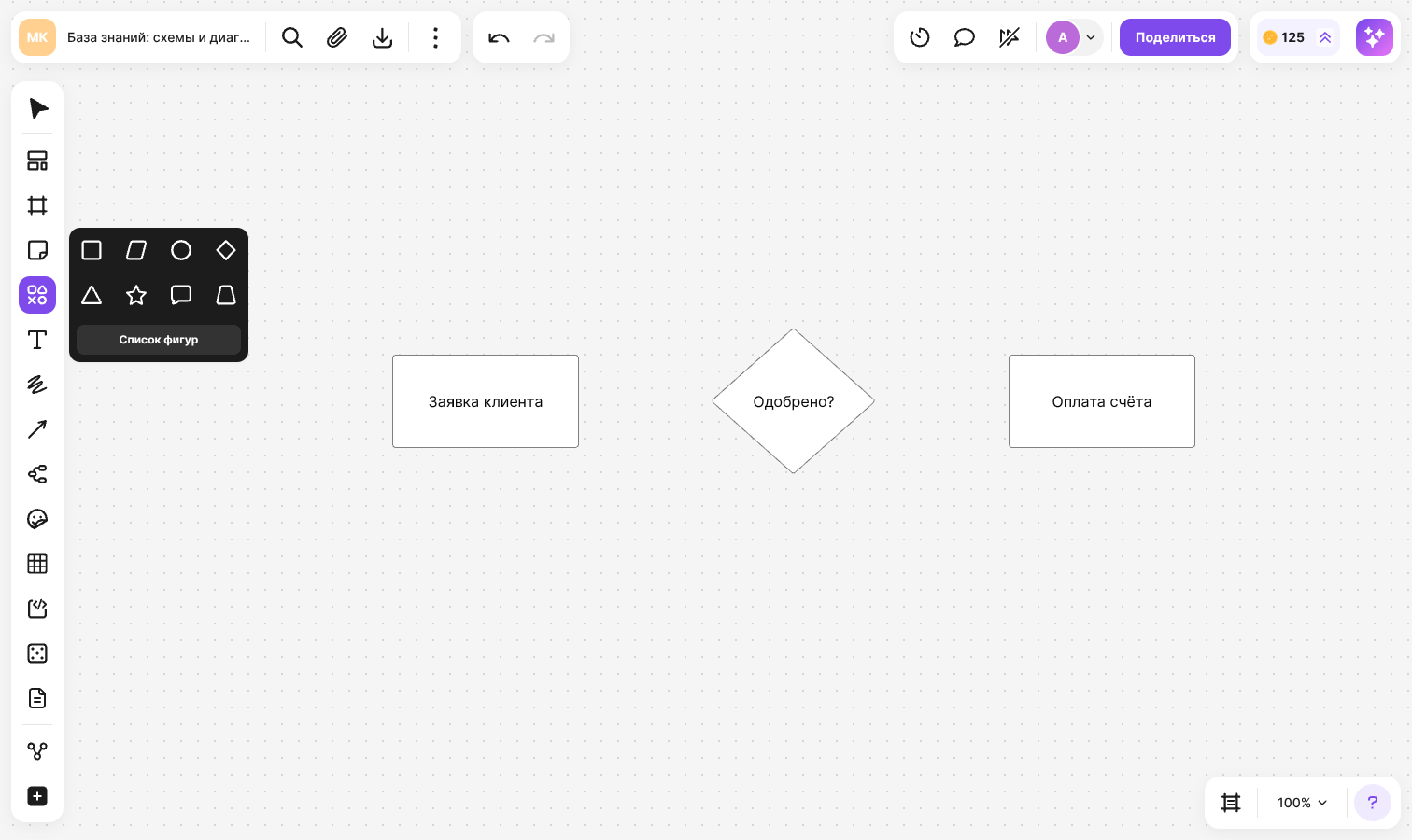
The “Shapes” panel
Shapes in the panel are grouped into sets:
- “Basic Shapes” — rectangle, circle, rhombus, triangle, star, arrows, cloud, braces and others
- “For Diagrams” — flowchart elements: “Process”, “Decision”, “Terminator”, “Document”, “Data”, “Database”, as well as swimlanes
- “BPMN” — tasks, events, gateways, data objects, a pool, a group and an annotation
- “UML” — classes, interfaces, components, packages, actors, activity diagram elements, swimlanes and pools
- “ERD” — two sets: “Schema” with entities shown as tables and “Chen Notation” with entities, attributes and relationships
- “DFD” — “External entity”, “Process”, “Data store”
- “C4” — “Person”, “Software System”, “Container”, “Component”, “Database” and others
Click a shape in the panel, then click the flip or draw the shape with the mouse
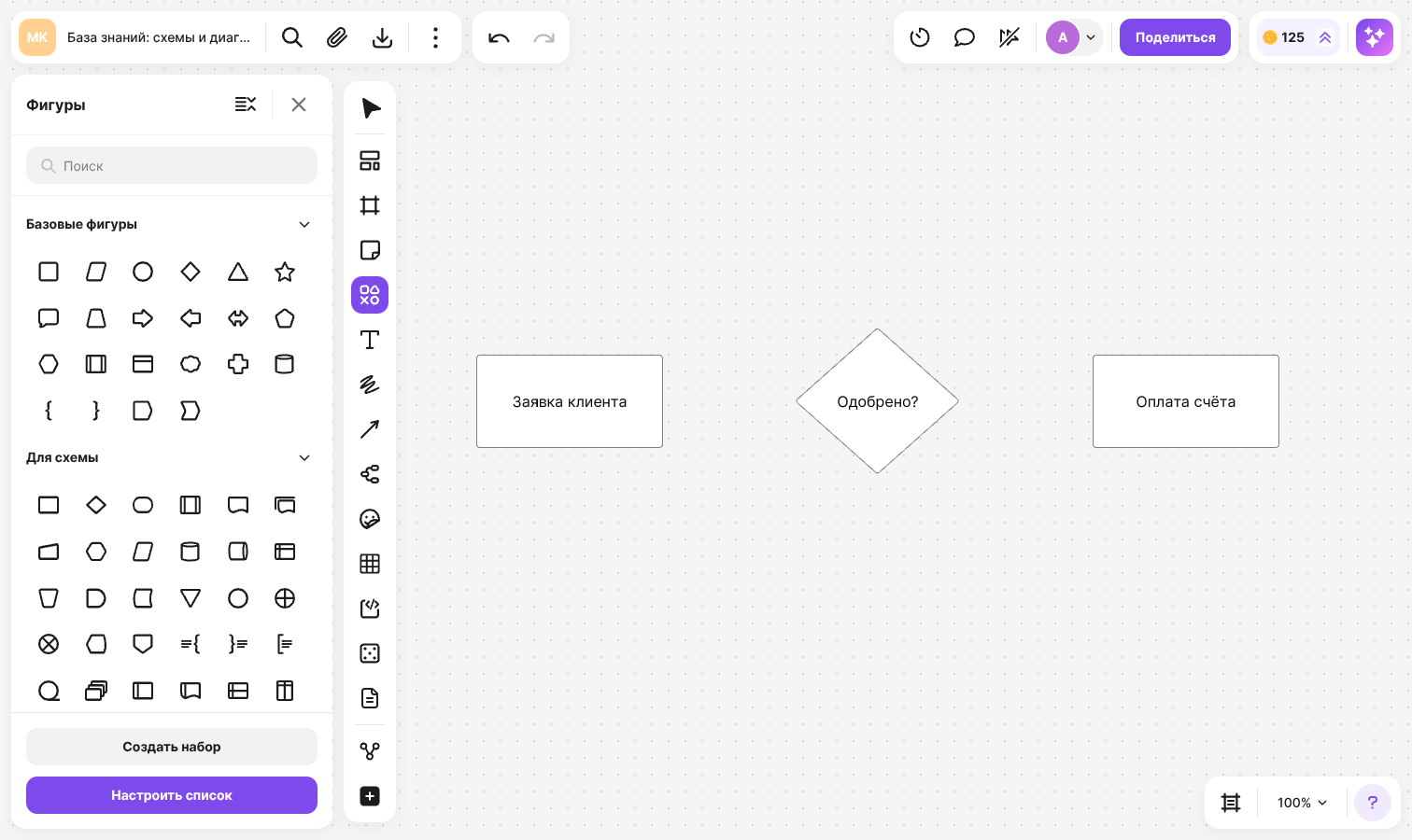
In the panel you can also:
- Find a shape with the “Search” field — the search covers the names of shapes and sets
- Collapse or expand all sets at once — the “Collapse lists” or “Expand lists” button
- Click “Learn more” — the “Shape Sets” window opens with a description of each notation. There you can choose which sets are shown in the panel
- Click “Create set” to upload your own SVG shapes. See How to create a shape set for details
Plan limits
The “BPMN”, “UML”, “ERD”, “DFD” and “C4” sets are available on paid plans. If a set is not available, picking a shape opens the “Additional shapes and notations” window that suggests upgrading the plan. “Basic Shapes” and “For Diagrams” are available on all plans. For what each plan includes, see Comparison of flip plans
Notations
BPMN
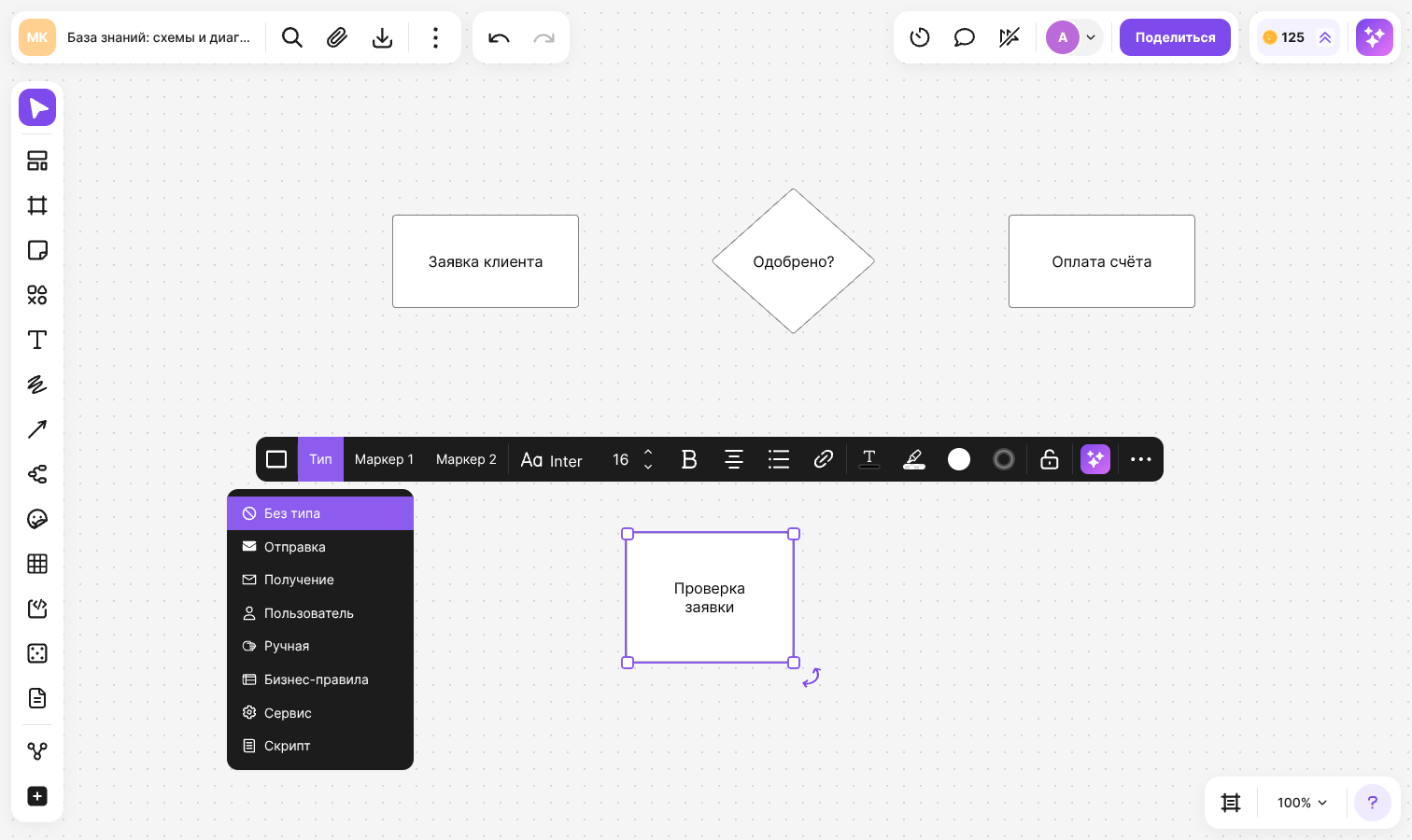
Tasks, events, gateways, data objects and conversations have subtypes. Select a shape and click “Type” in the menu above it:
- Task — “No type”, “Send”, “Receive”, “User”, “Manual”, “Business Rules”, “Service”, “Script”
- Event — “Message”, “Timer”, “Conditional”, “Error”, “Signal”, “Terminate” and others
- Gateway — “Exclusive”, “Parallel”, “Inclusive”, “Event-Based”, “Complex” and others
Tasks also have “Marker 1” and “Marker 2”: “Sub-Process”, “Loop”, “Compensation” and others
ERD
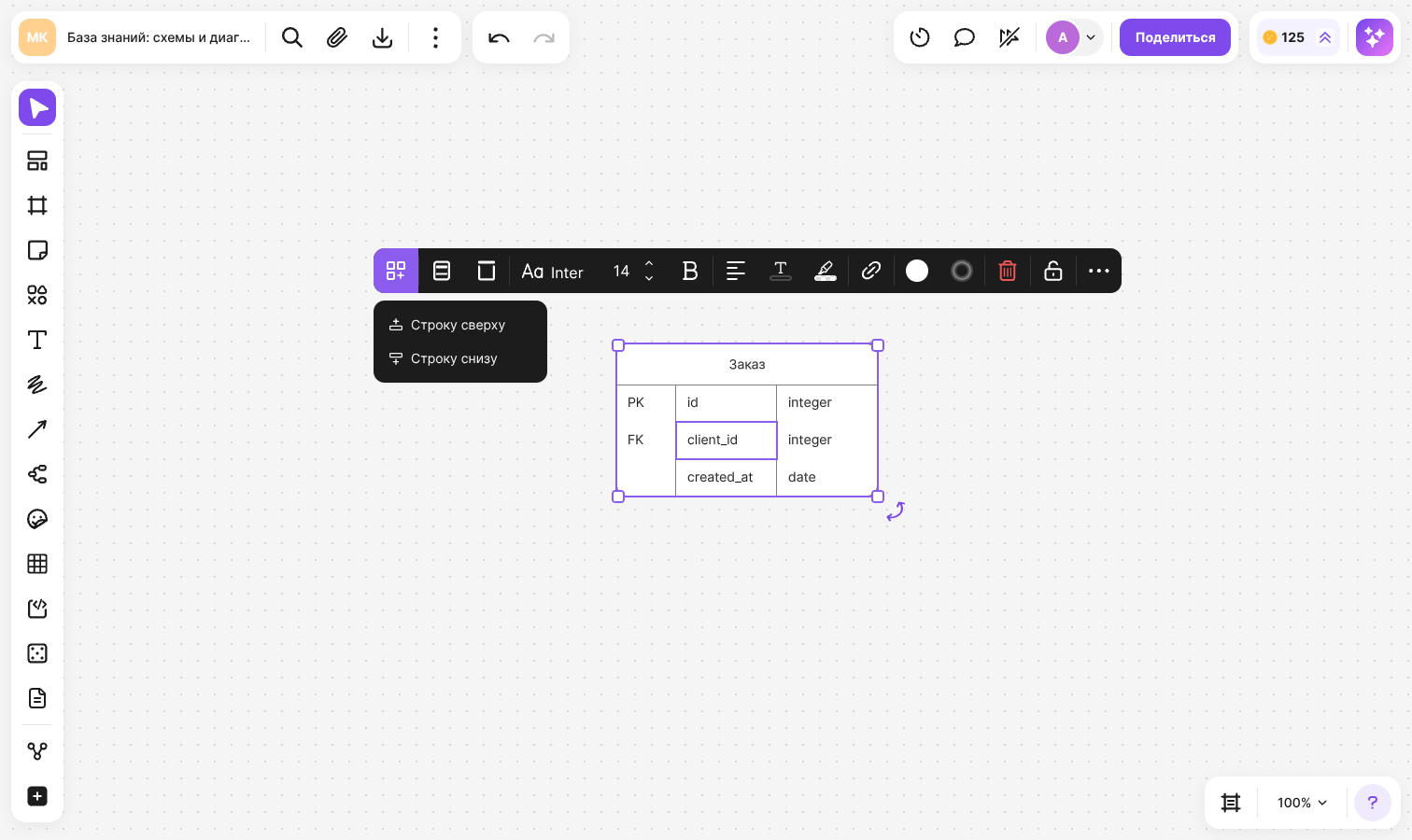
An “Entity” from the “Schema” set is a table with a header and rows. The set has four entity variants with a different number of columns: from one to three — “Key”, “Field” and “Type”. The entity menu offers icons without labels, their names are shown in tooltips on hover:
- “Add row” — “Add row above” or “Add row below” relative to the row in which a cell is selected
- “Delete row”
- “Header color” and “Rows color”
UML and C4
The UML “Class” shape has three sections — title, attributes and operations — and each one is edited separately. The color of the top section is set with the “Header color” button. In C4 shapes, the name, type and description are separate text blocks
Swimlanes and pools
“Horizontal Swimlane” and “Vertical Swimlane” are in the “For Diagrams”, “BPMN” and “UML” sets, and “Horizontal Pool” and “Vertical Pool” are in the “UML” set. They are added to the flip as tables, so you can work with them the same way as with a regular table. See Tables for details
How to style a shape
Select a shape and use the menu above it:
- “Fill” — color and opacity
- “Border” — color, thickness, line type (solid, dashed or dotted), opacity and “Rounding corners”
- To add text, double-click the shape. Text settings are described in Text
The set of options depends on the shape: for example, BPMN shapes have a fixed border thickness, a circle has no corner rounding and braces have no fill. BPMN events have their label below the shape, and some shapes, such as “Summing Junction”, do not take text
Shapes are connected with arrows — see Arrows and lines
How to change the shape type
Select a shape and click “Change item type” in the menu:
- A basic shape can be replaced with another basic shape, or turned into text or a sticker
- A notation shape can only be replaced with a shape from the same set
The text is kept when the type changes and moves to the text area of the new shape. An ERD entity from the “Schema” set cannot change its type