

The flip mobile app works not only with the cloud version but also with flip installed on your company's servers (On-Premise). The space owner allows sign-in via the app and shares the server address or QR code with employees, and employees connect to the server from the app on their phone or tablet and sign in to their work account. You can save several servers in the app and switch between them
Requirements
- The self-hosted version of flip (On-Premise) — it is part of the Enterprise plan. Learn more in What flip is and how it works
- Only the space owner can allow sign-in and share the QR code
- The flip mobile app for Android or iOS. Where to download it is described in flip mobile app
How to allow sign-in via the mobile app
In the web version of flip, in the left sidebar, click “Space settings” next to the space name
Select the “Mobile app” section. While sign-in is turned off, the section shows the message “Sign-in via the mobile app is not allowed yet”
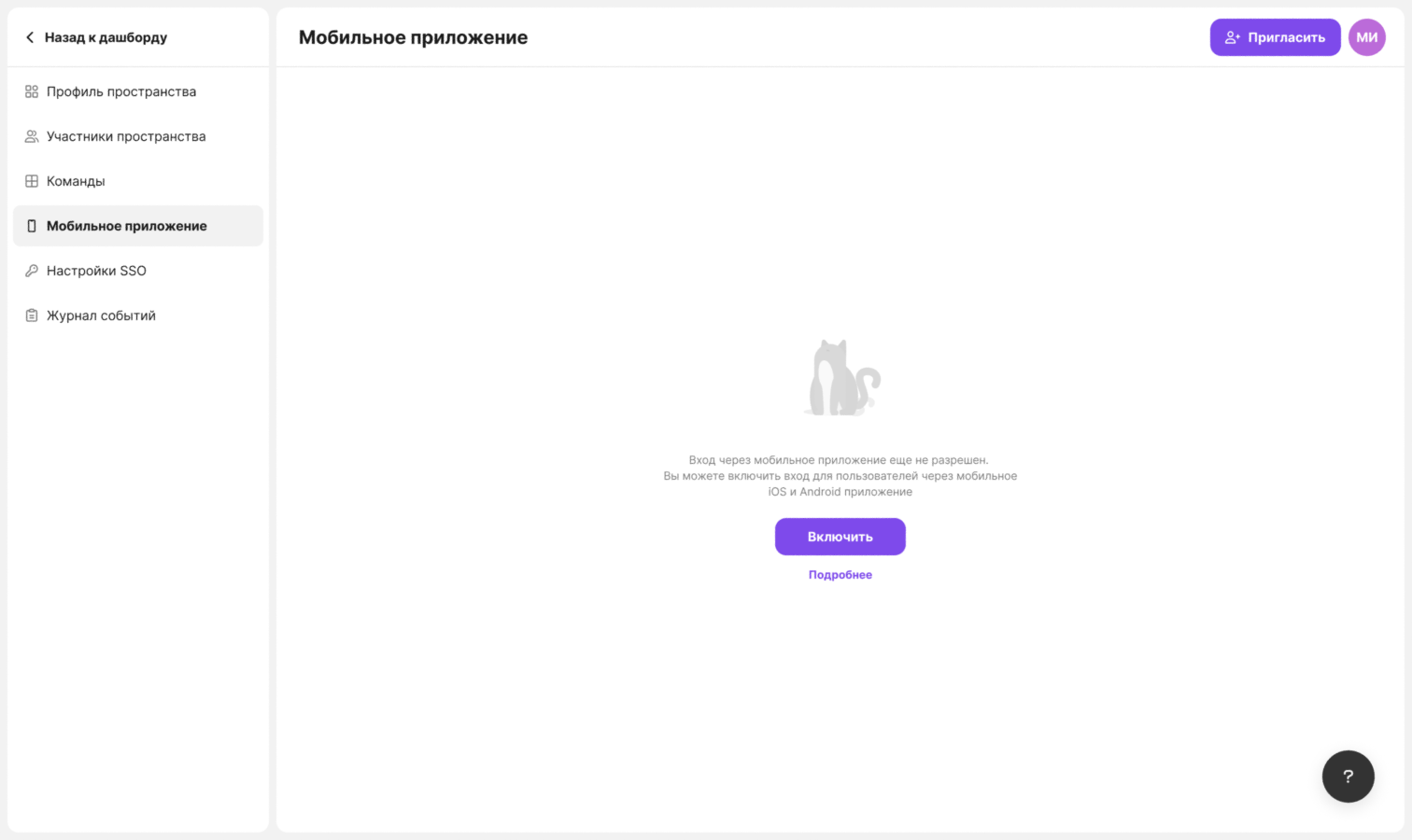
Click “Enable”
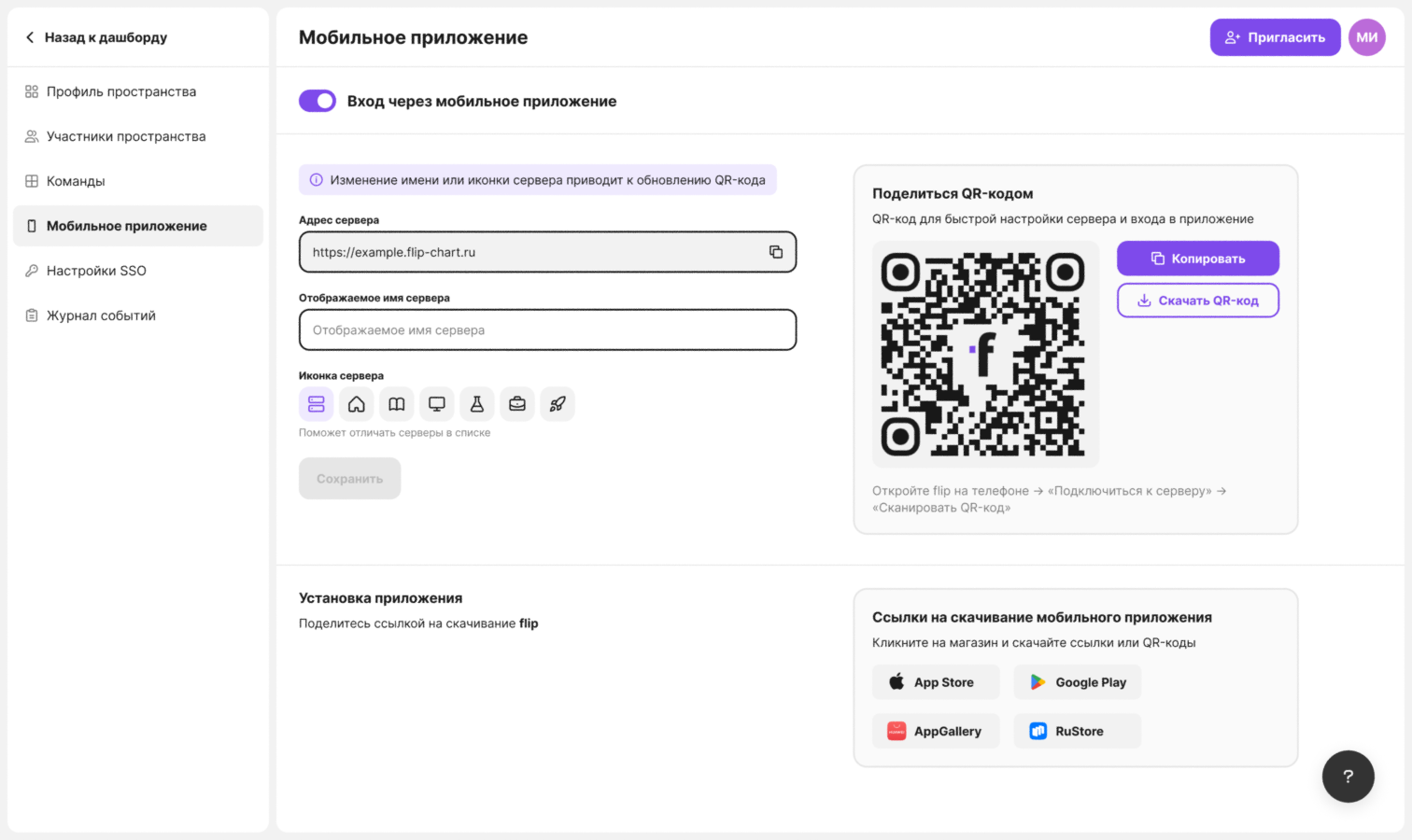
Once it is enabled, the “Sign-in via mobile app” toggle appears at the top of the section, followed by the server settings, the QR code and the app download links
How to share the server with employees
Employees need the server address — it is shown in the “Server address” field. Click the copy icon on the right of the field — the “Address copied” message appears
Connecting with a QR code is faster: it already contains the server address, name and icon. Before you send the QR code, set how the server will look in the app:
Enter a name in the “Server display name” field
In the “Server icon” block, select an icon — it helps tell servers apart in the list
Click “Save” — the “QR code updated” message appears
Changing the server name or icon updates the QR code, so send the new code to employees
In the “Share QR code” card, click “Copy” to paste the QR code into an email or a message, or “Download QR code” to save it as an image
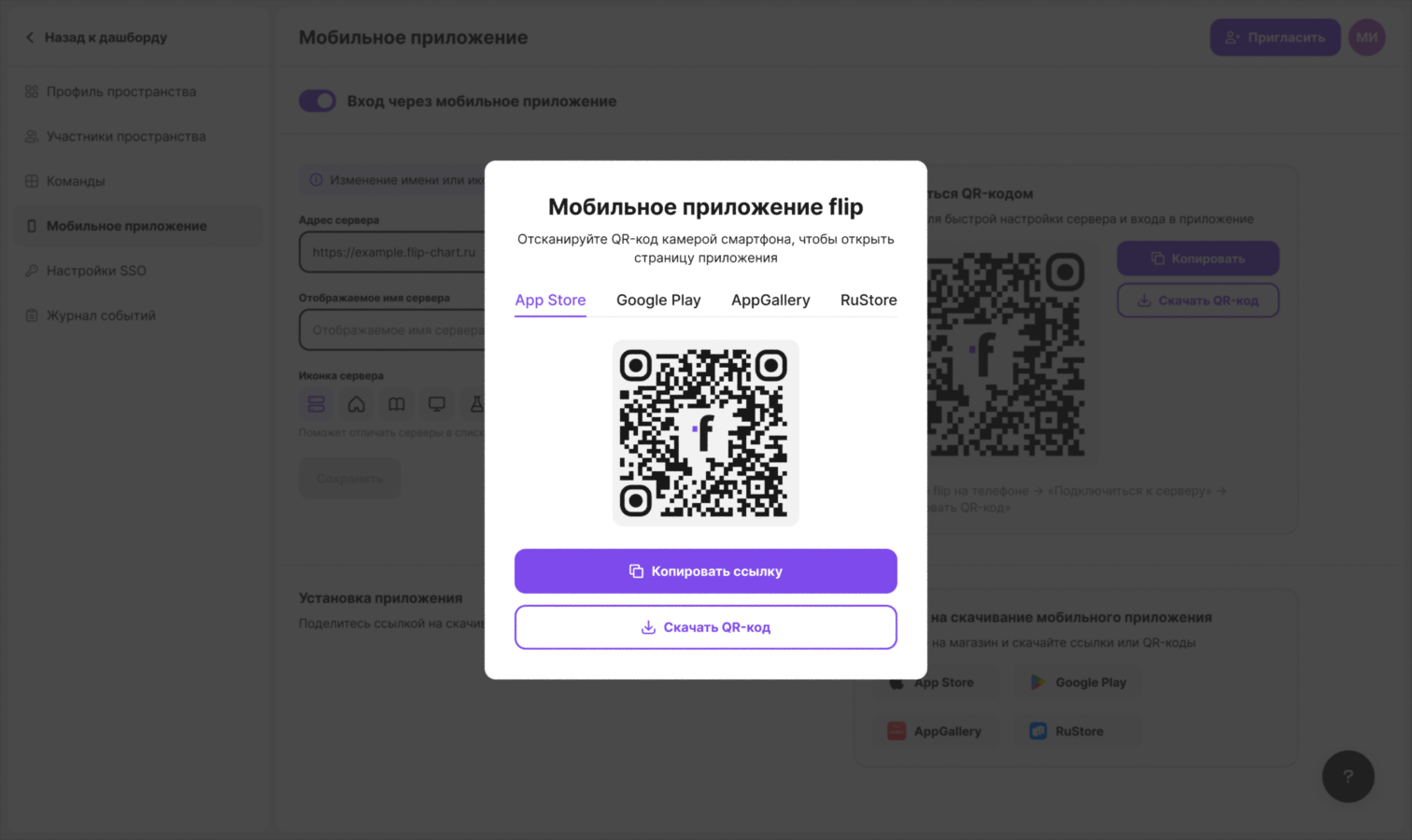
To help employees install the app, click a store in the “App installation” block: App Store, Google Play, AppGallery or RuStore. The “flip mobile app” window opens with the QR code of the app page. Click “Copy link” to send the store link, or “Download QR code”. You can switch the store with the tabs at the top of the window
How to connect to a server in the app
Open the flip mobile app and tap “Connect to server” on the sign-in screen — the “Connect to server” screen opens
If the app already has saved servers, their list opens first — select a server or tap “Add server”
Enter the server address, for example
company.flip.ru. You can get the address from your organization's administratorIf you like, fill in the “Display name” field and select a server icon
Tap “Check”. If the server is available, the “Server found” message appears and the button changes to “Continue”
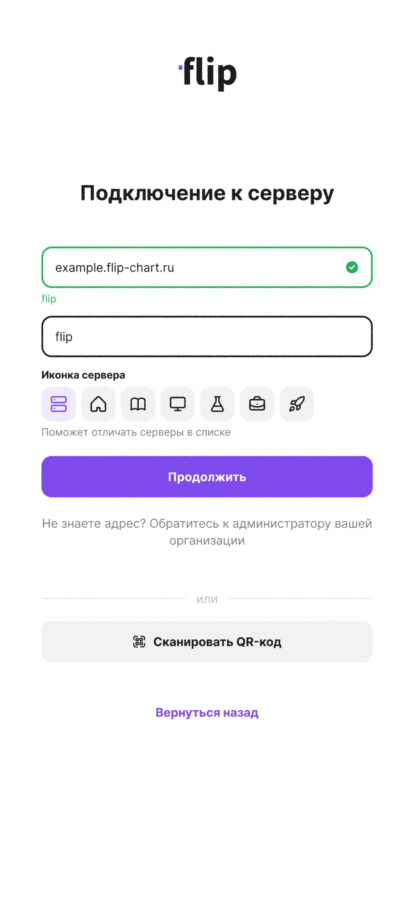
Tap “Continue”. The app prepares the version for this server — the screen shows the “Preparing flip” progress
Sign in to your account on the server
To return to the cloud flip sign-in screen, tap “Go back” under the server sign-in form
Connecting with a QR code
- On Android, tap “Scan QR code” on the “Connect to server” screen and point the camera at the server QR code
- On iPhone and iPad, open the Camera app, point it at the server QR code and follow the link
The server address, name and icon are filled in from the QR code, and the app checks the server right away — you only need to tap “Continue”. If the link opens in the phone's browser, the “Continue in the mobile app” screen appears — tap “Open in app”. On iPhone, the same screen has a “Download” button in case the app is not installed yet
How to switch between servers
When you work on a server, its name and address are shown at the top of the side menu. Tap them to open the list of saved servers. You can also open the list with the “Manage servers” item: on a phone — in your profile (open the side menu and tap your name at the bottom), on a tablet — in the account menu
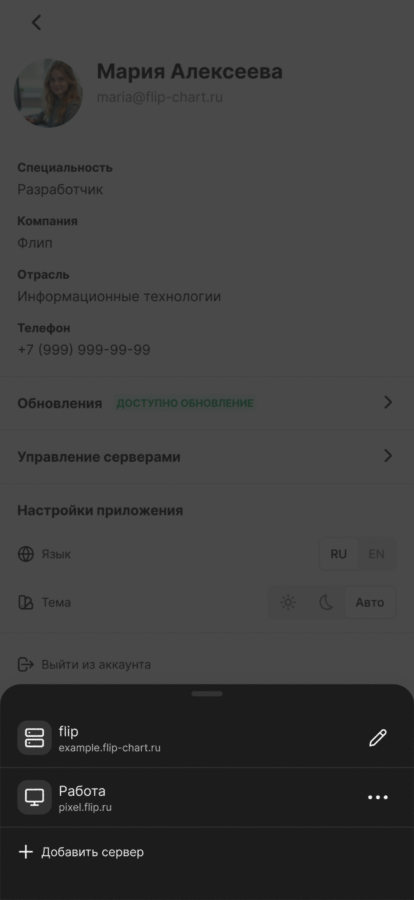
In the list:
- Tap a server to switch to it
- Tap “⋯” next to a server to open the actions: “Go to server”, “Edit” and “Delete”
- The current server is listed first — you can only edit it with the pencil button
- Tap “Add server” to connect one more server
In the “Edit server” window, you can change the display name and icon and then tap “Save”. The changes are visible only in your app. If you leave the name empty, the server address is shown instead
To delete a server, select “Delete” and confirm the action in the “Delete server …?” window. To add the server again, you will need to sign in again
Links from server emails
Links from server emails, such as an invitation to a space or password recovery, can be opened in the mobile app: if the link opens in the phone's browser, tap “Open in app” on the “Continue in the mobile app” screen. If the link belongs to another server, the app asks “Switch to server “…”?” — tap “Go to server”. If you are already signed in, the app switches to that server and you are signed out of the current account
If you work on your company's server and open a cloud flip link, the app offers “Leave server “…”?” — tap “Go to flip”
How to turn off sign-in via the mobile app
- In the “Mobile app” section, turn off the “Sign-in via mobile app” toggle
- In the “Are you sure?” window, click “Turn off”
Important
After sign-in is turned off, all mobile app users are disconnected from the server. The app shows the message “Sign-in from the mobile app has been disabled by your administrator”, and an open flip shows the same message
If you can't connect
The “Connect to server” screen may show a message under the address field:
- “Server unavailable, check the address” — check that the address is entered correctly
- “Server is unavailable or outdated” and “Update the server” — the server does not support the mobile app, contact your administrator
- “Sign-in from the mobile app is disabled. Contact your administrator” — the space owner has not allowed sign-in via the app
- “Too many attempts, try again later” — wait and try again
If you see the message “Update the app to connect to this server”, update the app in the store. The message “The mobile app is not available on this server. Contact your administrator” means that the mobile app is not set up on the server
Limitations
- The “Mobile app” section is available only in the self-hosted version of flip and is visible only to the space owner
- Connecting to and switching servers requires an internet connection. Without a connection, selecting a server shows the message “Check your internet connection”
- If the license key has expired, the owner sees the message “The license key has expired. Activate a new one in the web version of the app” in the app — you can't activate a key in the app
- The list of servers is stored on the device: on another phone or tablet, you need to add the servers again
How to work in the mobile app is described in flip mobile app