

flip AI is the AI built into flip. It fixes spelling and punctuation and translates text into nine languages without leaving the flip. The original text stays unchanged until you decide what to do with the result
Where flip AI is available
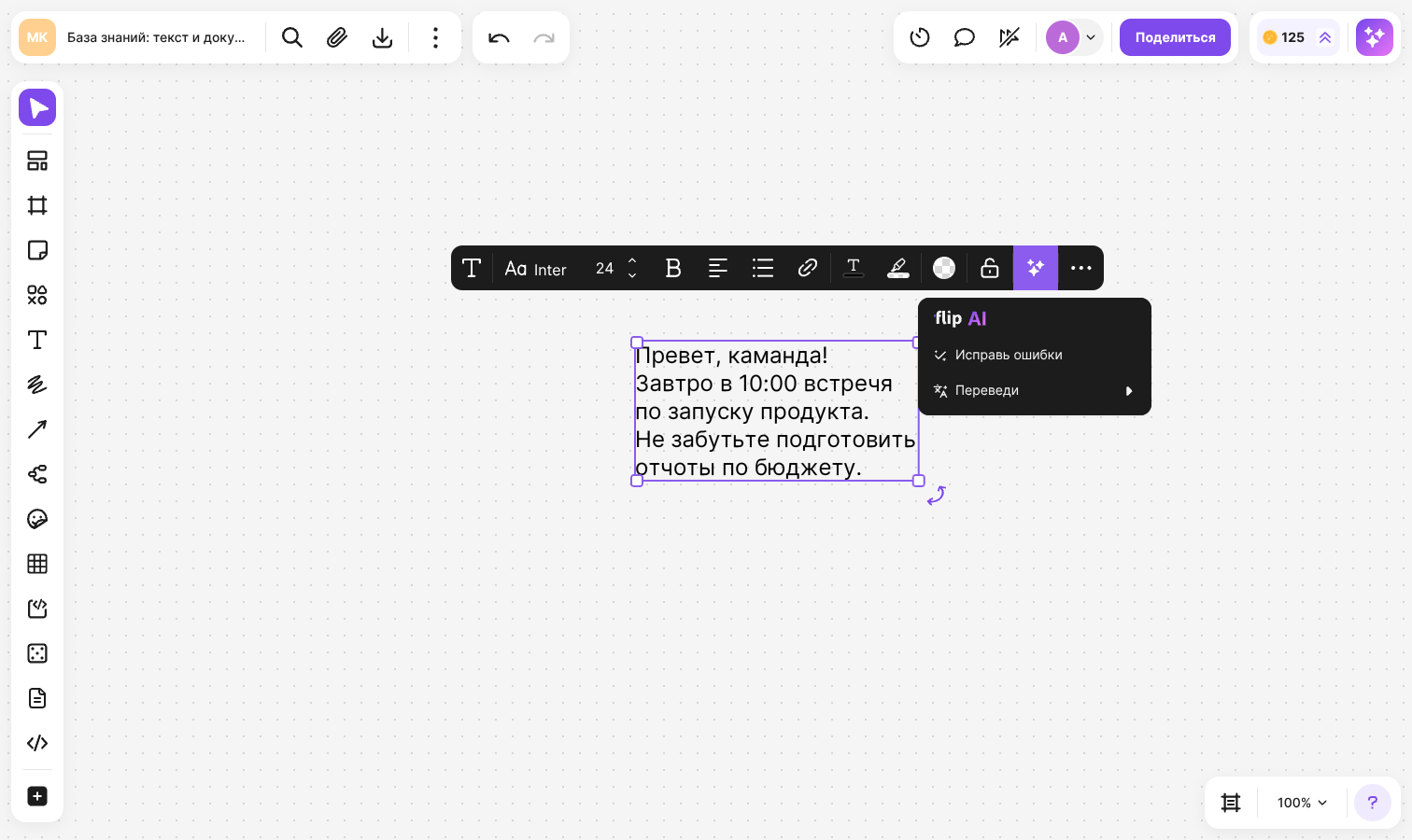
The “flip AI” button is in the element panel when a single element with text is selected:
The button is missing if several elements or a group are selected, if the element is locked, and for members without “Editing” access
How to fix mistakes
Select an element with text
Click “flip AI” in the element panel
Select “Fix grammar”
The element gets a dashed outline, and the “Generation” window opens next to it — the text appears in it gradually. When everything is ready, the window title changes to “Errors fixed”
If the element is empty, the commands are inactive — type some text first
How to translate text
Select an element with text and click “flip AI”
Hover over “Translate” and choose a language
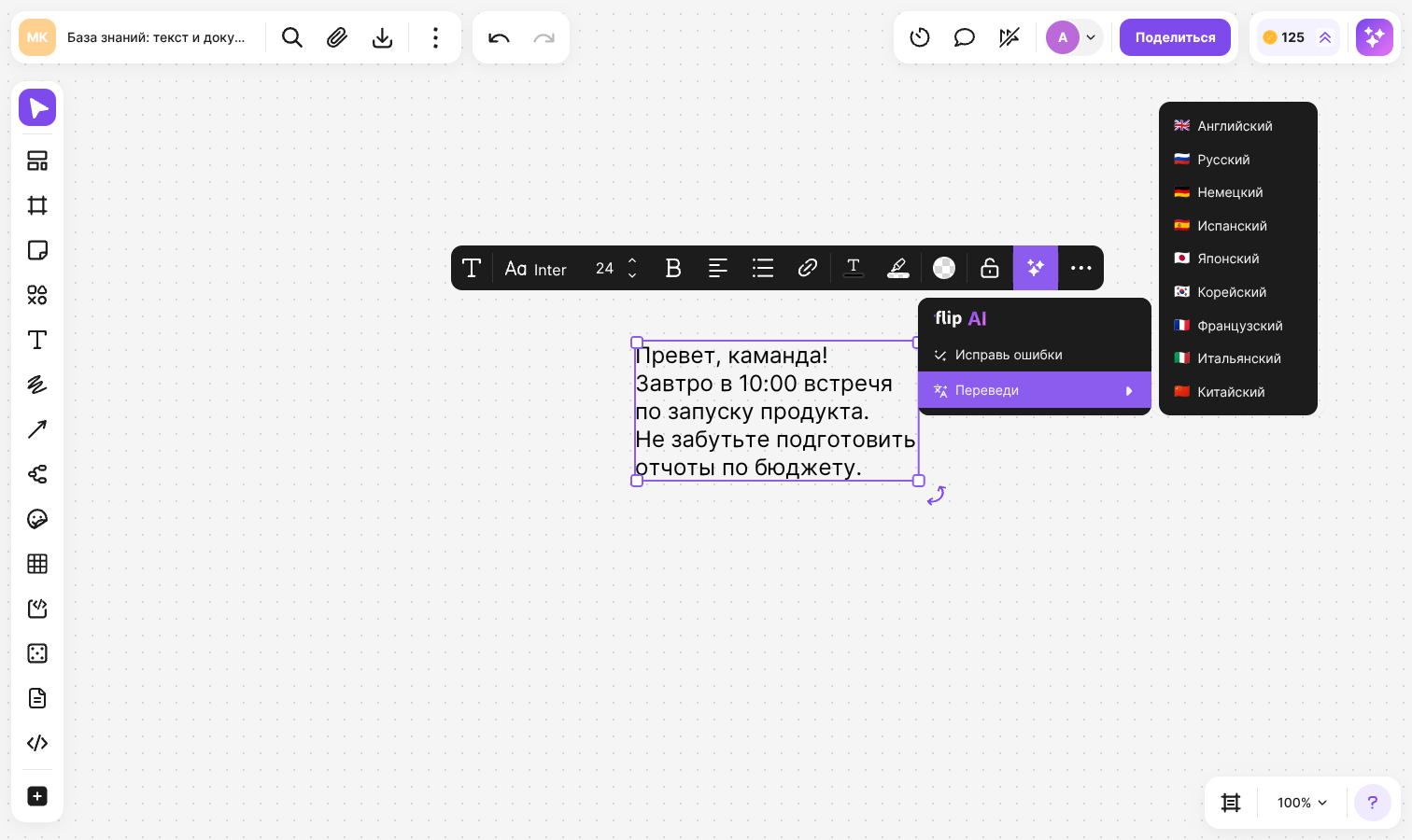
Available languages: English, Russian, German, Spanish, Japanese, Korean, French, Italian and Chinese. When the translation is finished, the window shows the title “Text translated”
What to do with the result
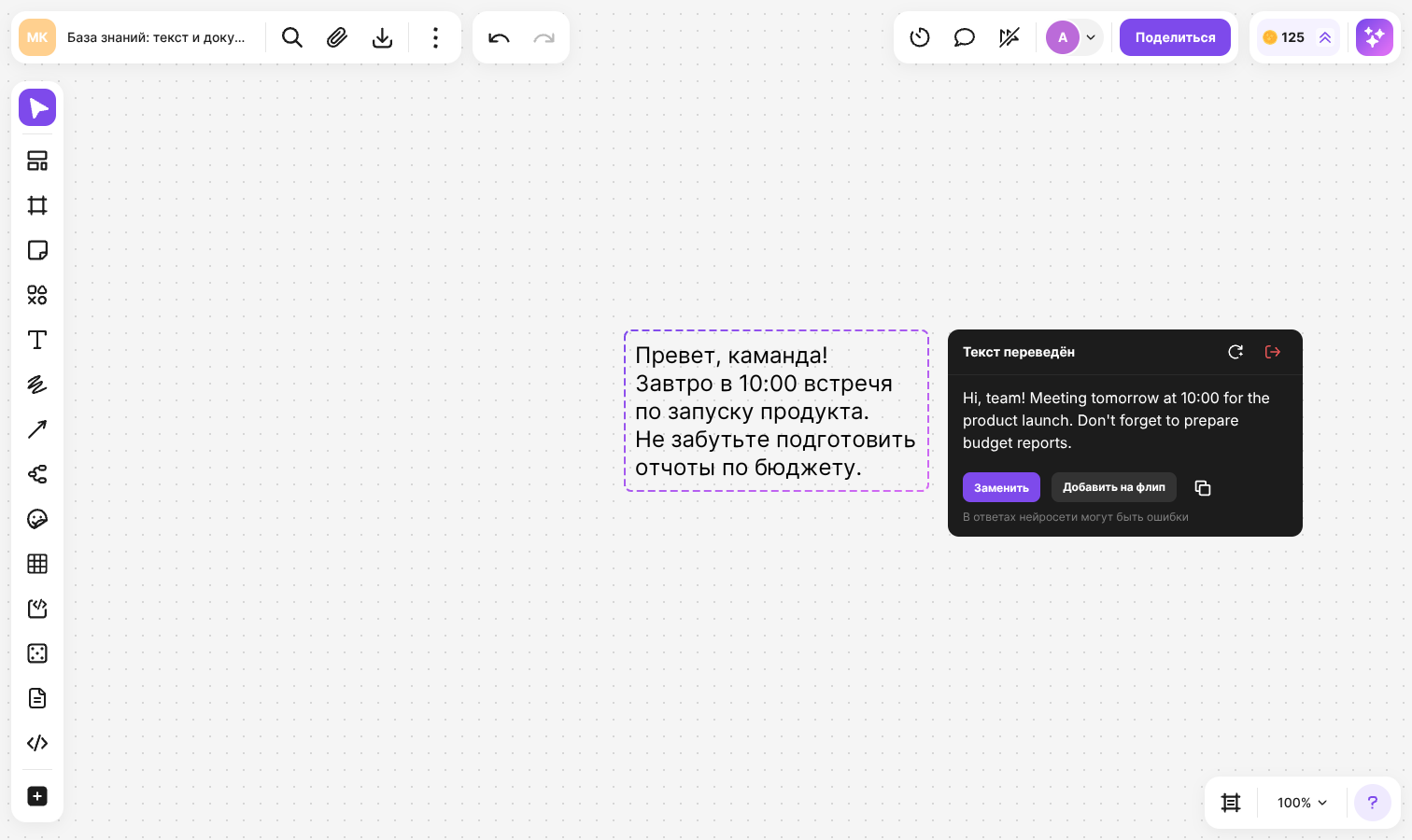
- “Replace” — put the result in place of the original text of the element. You can undo the replacement with Ctrl + Z
- “Add to flip” — create a separate text element with the result: move the cursor to the right spot on the flip and click. The original element stays as it is
- The copy icon — copy the result to the clipboard
- “Suggest more” — run the same command again; for a translation, with the same language
- “Exit the mode” — close the window without changes
On replacement, the text gets the uniform formatting of the element: the font, text case, color and style set for the whole text are kept. Formatting of individual fragments — color, highlight, links — is not carried over to the new text
If there are no mistakes in the text, flip AI tells you so, and there are no buttons for replacing or adding
Important
AI responses may contain inaccuracies. Check the result before you replace the original text
How to stop or collapse generation
- To interrupt generation, click “Stop” — the button becomes active when the first part of the text appears. The text received so far stays in the window, and you can work with it as with a finished result
- To collapse the window, press Esc or click an empty spot on the flip. Generation continues, and the “flip AI” button stays next to the element — click it to open the window again
- flip AI works with only one element at a time. While generation is in progress, the button on other elements is inactive and shows the hint “Wait for the generation to finish on another element”
- While generation is in progress, the element can't be edited, resized or rotated. Other members of the flip can't change it during this time either
- If you leave the flip or close the tab, generation is interrupted and the result is not saved
AI tokens
The AI token balance is shown in the top right corner of the flip, next to the “flip AI” button. Click the counter — the “AI tokens balance” window opens
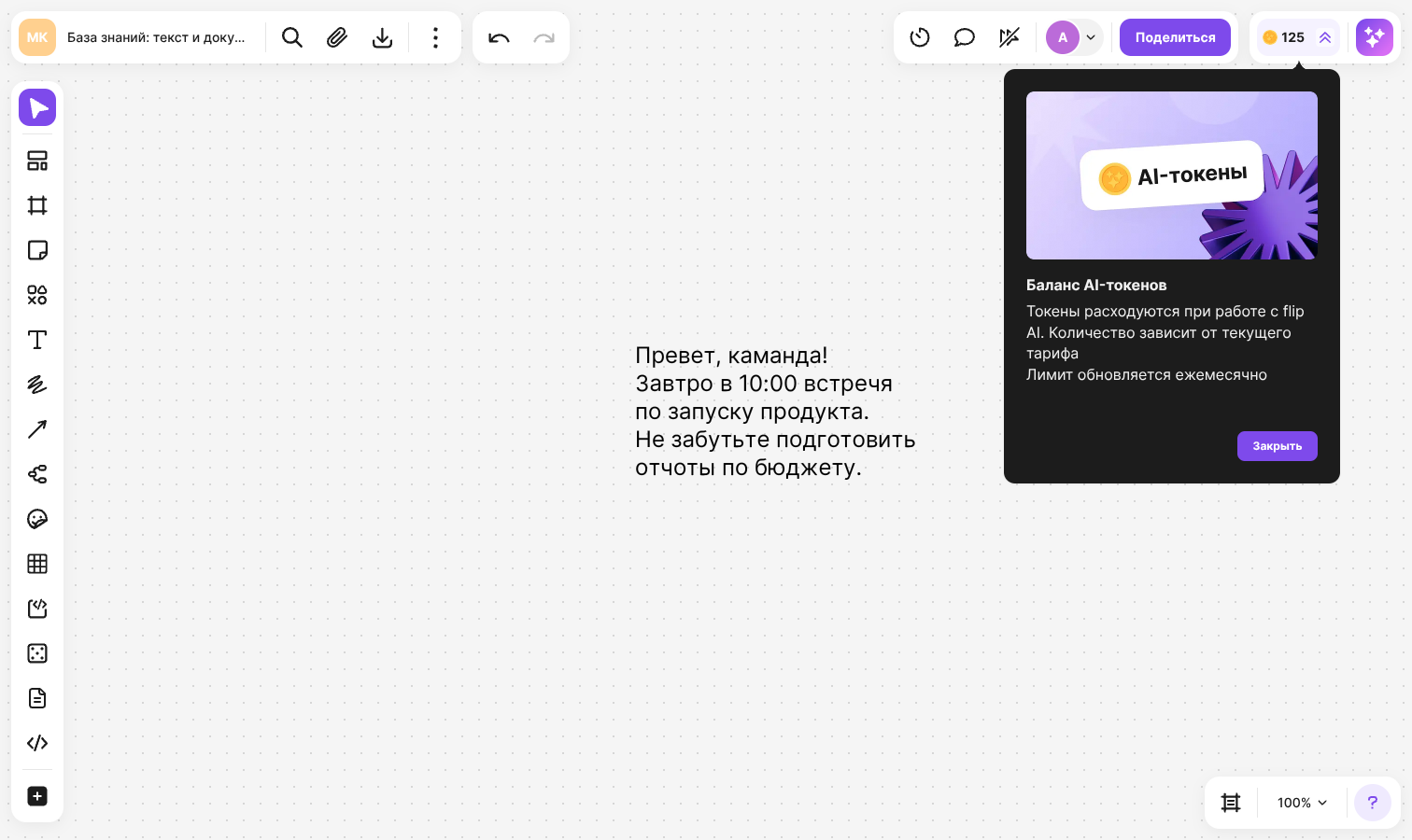
- Tokens are spent when working with flip AI
- The number of tokens depends on the plan of the space
- The limit is updated monthly
When the tokens run out, the “AI token limit reached” window appears. The balance is renewed next month. To keep working sooner, switch to a plan with a higher limit: if you can manage the plan, click “Increase balance” next to the counter. Learn more in Comparison of flip plans
Other flip AI features
The “flip AI” button in the top right corner of the flip opens a window with the “Image” and “MCP” tabs:
Limits
- flip AI is available to signed-in members with “Editing” access
- On smartphone screens, the “flip AI” button is not shown in the element panel