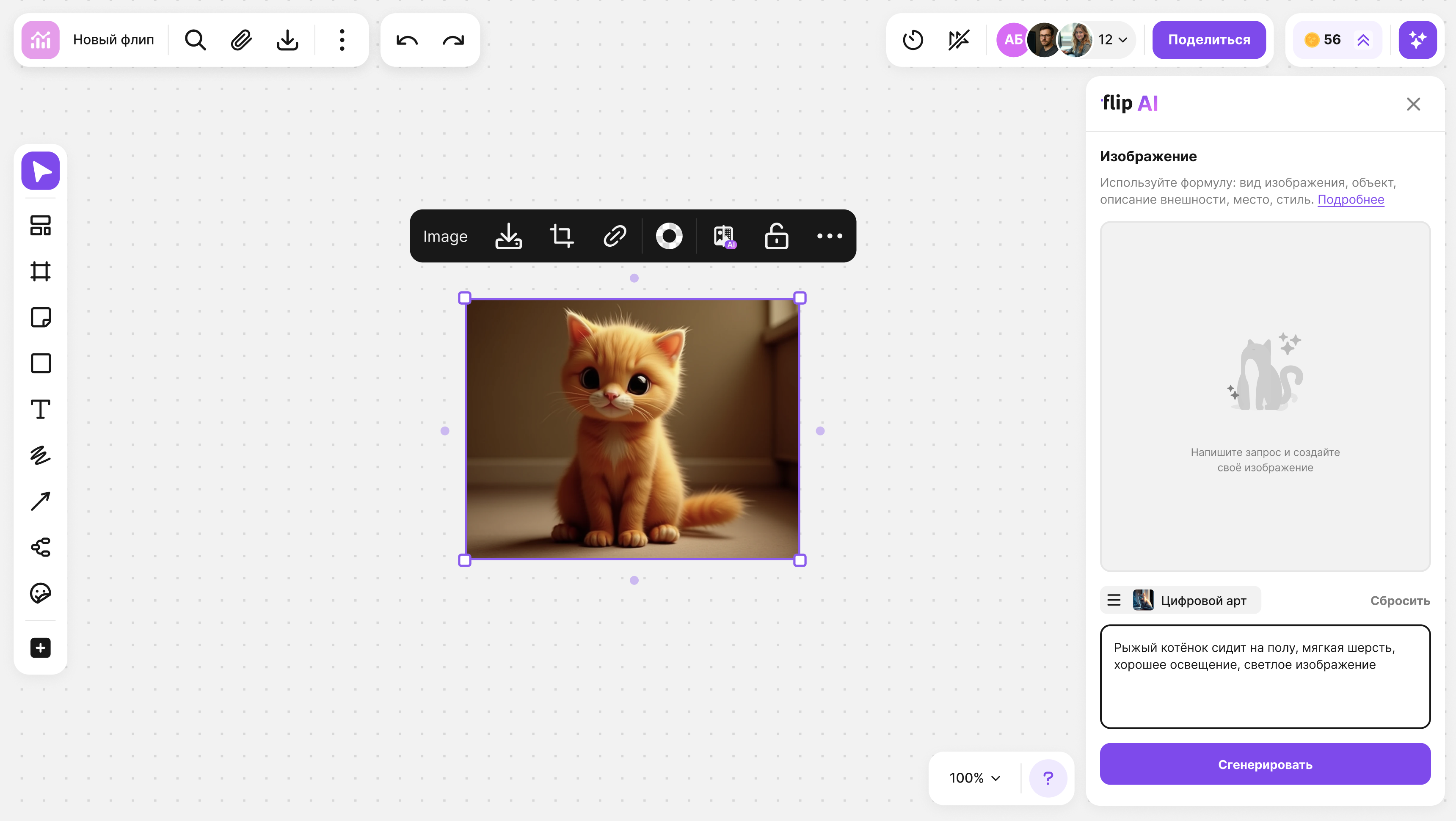
flip AI creates an image from a text description right on the flip. Describe what you want to see and pick a style if you like — the finished picture can be added to the flip and used like any other image
Where to open image generation
Click the “flip AI” button in the top right corner of the flip — the flip AI panel opens on the right. It has two tabs:
- “Image” — image generation, described in this article
- “MCP” — connecting AI agents to the flip, see flip MCP for details
The AI token balance that pays for generation is shown next to the “flip AI” button
Images can be generated by signed-in users with “Editing” access to the flip
How to generate an image
- Click “flip AI” in the top right corner of the flip and open the “Image” tab
- In the field with the hint “Write your prompt in English or Russian”, describe what the picture should show
- To set a style, click the button above the field — it shows the current style, “No style” by default — and pick a style from the list
- Click “Generate” or press Enter in the prompt field. The button becomes active when the field contains text, and it shows the cost — 5 AI tokens
- Wait for the result — while the image is being created, the panel shows “Adding magic...”

The finished image appears in the panel. To get another version, change the prompt or the style and click “Generate” again — each generation costs 5 AI tokens. To clear the prompt and return to “No style”, click “Reset”
How to write a prompt
The more detailed the prompt, the more accurate the result. Specify the type of image, the subject, what it looks like, where it is and the style, for example: “A ginger kitten sitting on the floor, soft fur, good lighting, bright image”
Available styles
The styles are “No style”, “Hyperrealism”, “GTA”, “Minimalism” and “Digital Art”. Each style in the list has a sample image. The selected style is shown with a thumbnail on the button above the prompt field
How to add the image to the flip
- Click “Add to flip” at the bottom of the image in the panel — it appears in the center of the visible area of the flip
- Or drag the image from the panel onto the flip — it appears where you drop it
On the flip it is a regular image: you can move, crop and download it and remove its background. By default the image gets a technical name made of letters and digits — you can change it in the image menu. See How to upload images and files for details
The image is added in its original quality. As with other pictures on the flip, flip shows a lighter copy when the image is small on the screen and the original image when you zoom in. The “Download” button in the image menu saves the original file
What happens during generation
- While the image is being created, the prompt field, the style choice and “Reset” are unavailable, and the “Generate” button shows a loading indicator. You can start the next generation when the current one is finished
- You can close the panel — generation continues. Meanwhile the “flip AI” button shows an animation, and when the image is ready, a green dot appears on the button
- If you reload the page during generation, it is not interrupted — the result appears in the panel
- A new generation replaces the image in the panel. If you need the current version, add it to the flip first
What stays in the panel
- The latest image stays in the panel while you work on this flip: you can close the panel and open it again
- The prompt and the style are reset when the panel is closed
- After a page reload or switching to another flip the panel is empty — an image that was not added to the flip is no longer shown there
If generation fails
If the image can't be created, an error message appears. For example, generation fails if the prompt is written in a language other than Russian or English or contains prohibited content. Change the prompt and try again, and if the error repeats, try again later
AI tokens are not deducted for a failed generation
How much generation costs
Generating one image costs 5 AI tokens. Tokens are credited to each member of a space: everyone has their own balance, and if you belong to several spaces, the balance in each of them is separate. The number of tokens depends on the plan of the space:
- Mini — 5 tokens a month, that is one generation
- Individual — 60 tokens a month, up to 12 generations
- Business — 125 tokens a month, up to 25 generations
- Enterprise — calculated individually
The balance is counted per calendar month: on the 1st it becomes full again, and unused tokens do not carry over to the next month. See the pricing page for plan details
The balance is shown in the top right corner of the flip, next to the “flip AI” button. Click the counter to open the “AI tokens balance” window
If you don't have enough tokens, clicking “Generate” opens the “AI token limit reached” window. The balance is renewed next month. To keep working sooner, switch to a plan with a higher limit: the space owner can do this with the “Increase balance” button next to the counter
Background removal
To remove the background of an image on the flip, select it and click “Remove Background” in the menu above it. Background removal also costs 5 AI tokens and uses the same balance as generation. See How to upload images and files for details
Terms of use
By using flip AI, you accept the flip AI and MCP Terms of Use
Limitations
- Generation is available only to signed-in users with “Editing” access to the flip
- One generation creates one image, and only one generation at a time runs in the panel
- The prompt can be written only in Russian or English
- On smartphone screens there is no “flip AI” button — generate images on a computer or tablet
- If the browser window is less than 515 pixels high, the “Add to flip” button is not shown — drag the image onto the flip
- flip AI is not available on a flip embedded in a website or in the On-Premise version