

You can show the frames of a flip as slides: the presentation opens in full screen, the presenter switches slides, and participants follow the show on their own devices. The slide order, hidden slides and presenter notes are set up in the “Frames” panel
How to prepare slides
The slides of a presentation are the frames of a flip. How to create them is described in the article How to work with frames
Click “Frames” in the bottom right corner of the flip — a panel with all frames opens
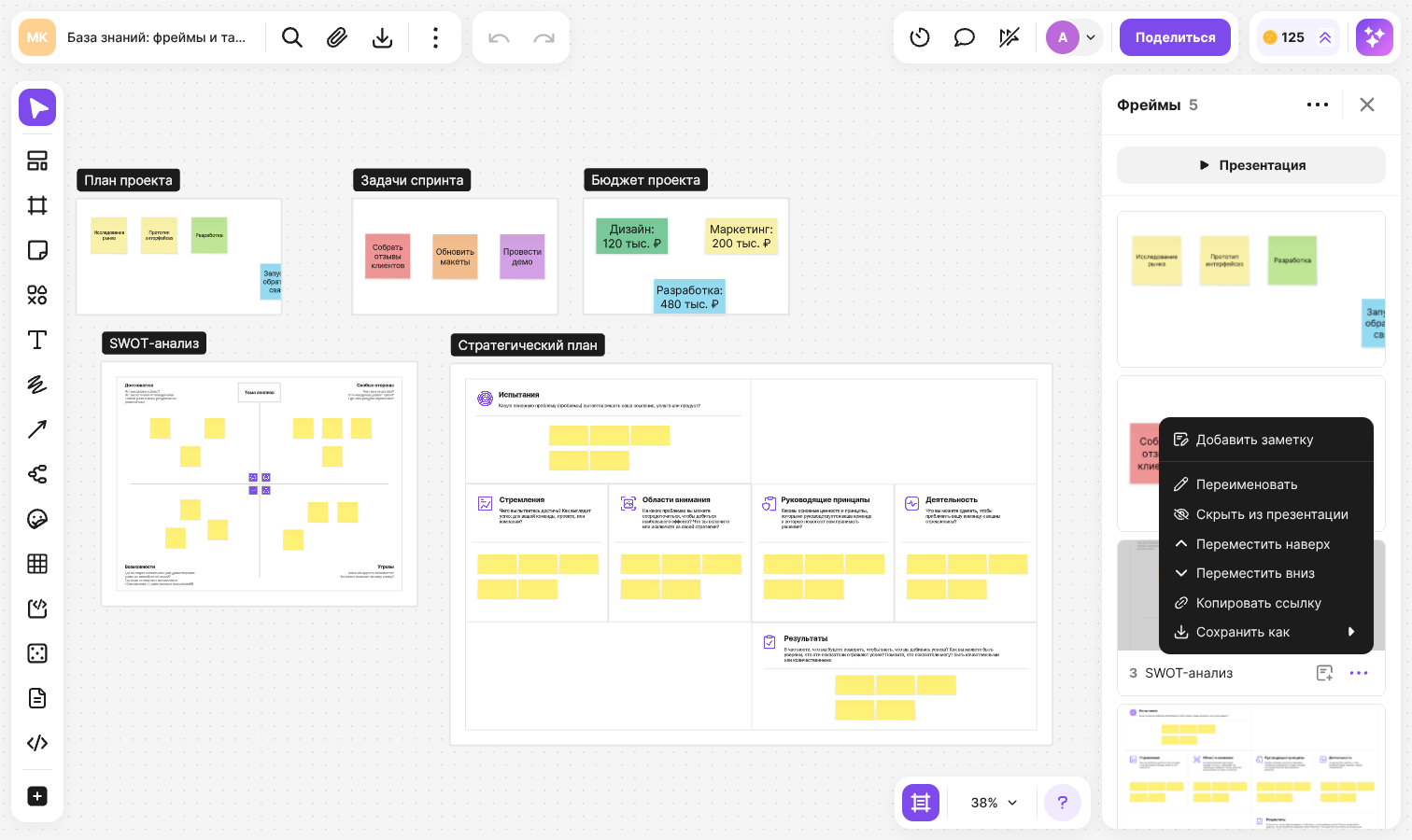
Arrange the frames in the order of the show: drag a card to the place you need or select “Move up” or “Move down” in the “More” menu on the card
To skip a frame, select “Hide from presentation” in its menu — the frame stays on the flip
To bring a hidden slide back, open the “More” menu in the panel header and turn on “Show hidden” — hidden frames appear in the list as gray cards without a name or a menu. Click such a card, and the frame returns to the presentation
A hidden frame is still counted in the counter in the panel header and in the numbering of frames in the list
The order and hidden state of slides are saved on the flip and are the same for all participants. “Alphabetically (A-Z)” sorting only changes how the list looks in the panel and doesn't affect the slide order in the show. Frames whose content is hidden on the flip with the “Hide” button are not included in the presentation
How to add notes to slides
In the “Frames” panel, open the “More” menu on a frame card and select “Add note”
Type the text and click “Save”
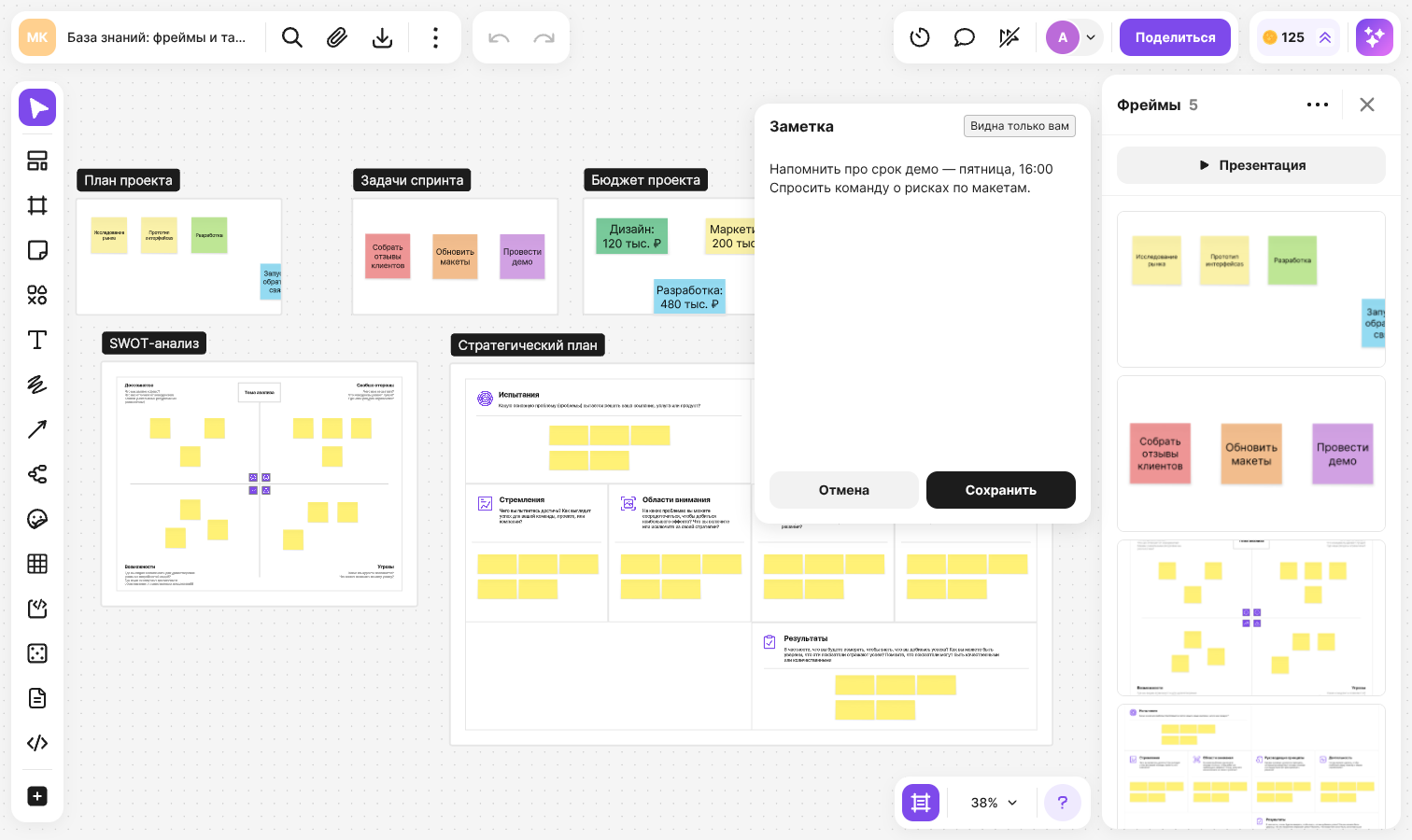
A frame with a note gets an icon — click it to open the note. To delete a note, erase the text and click “Save”
Notes are private: each participant sees only their own notes, even when they are added to the same frame. A note can be up to 1500 characters long
How to start a presentation
Open the “Frames” panel and click “Present”
Wait until the slides are prepared — the flip switches to full screen and shows the first slide
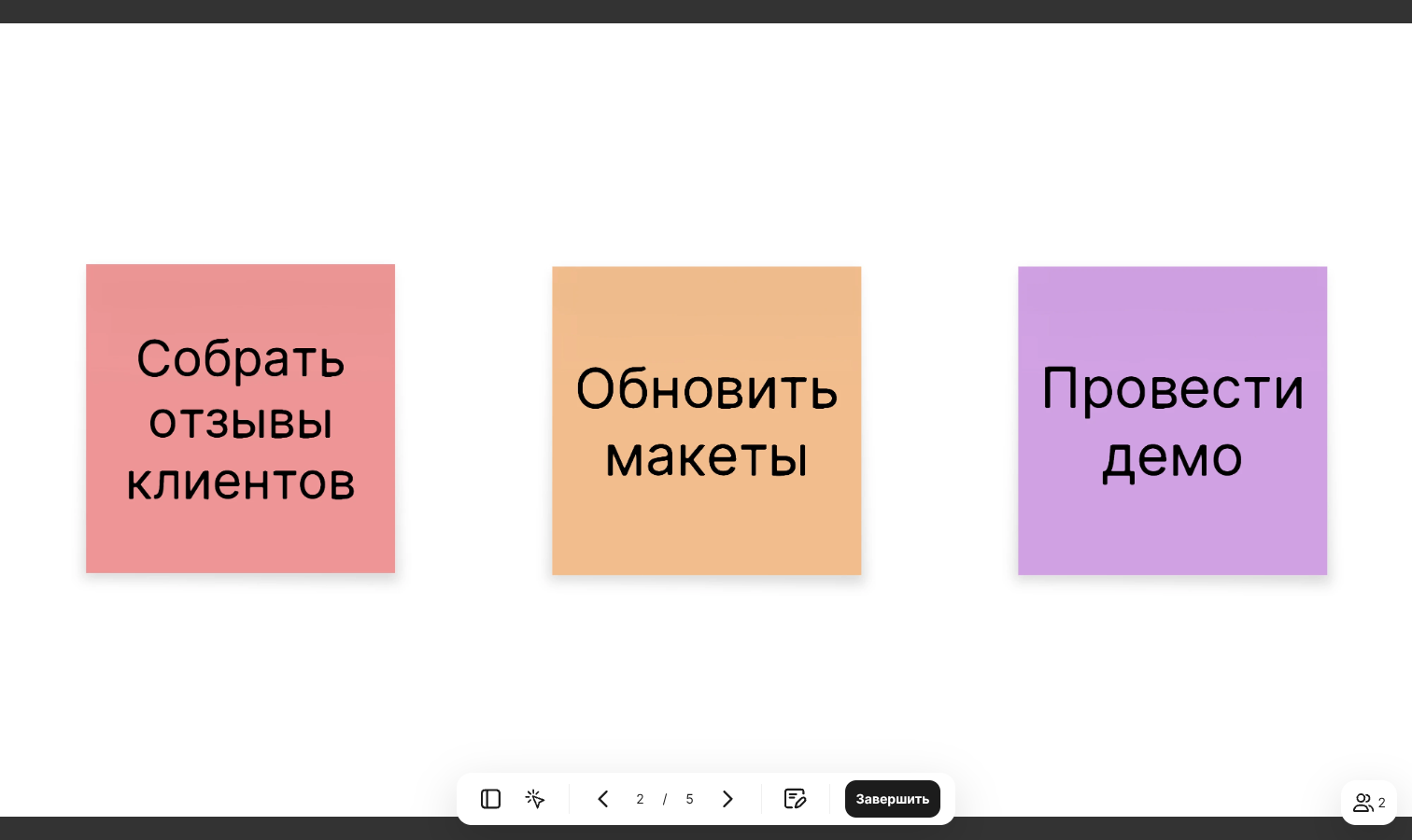
The control panel at the bottom of the screen hides after a few seconds and appears again when you move the cursor to the bottom edge of the screen. The panel offers:
- “Slide List” — a panel with thumbnails; click a thumbnail to open the slide
- “Pointer” — a laser pointer; all viewers see its position on the slide. You can also turn it on and off with the L key
- Arrows and the slide counter — move between slides. From the keyboard: → or ↓ — next slide, ← or ↑ — previous slide, PageUp — first slide, PageDown — last slide
- “Open notes” — a panel with the note for the current slide; only the presenter sees it
- “Finish” — end the presentation for everyone
The number of people in the show is displayed in the bottom right corner of the screen. Click the “Viewers” counter to open the list: the presenter and everyone who has joined
If the page reloads during the show, the presentation stays active: open the “Frames” panel and click “Continue presentation”, or click “Continue” in the “You are presenting” notification
How to join a presentation
When the presenter starts a presentation, the other participants of the flip see a window with the presenter's name and the “Join” and “Not now” buttons
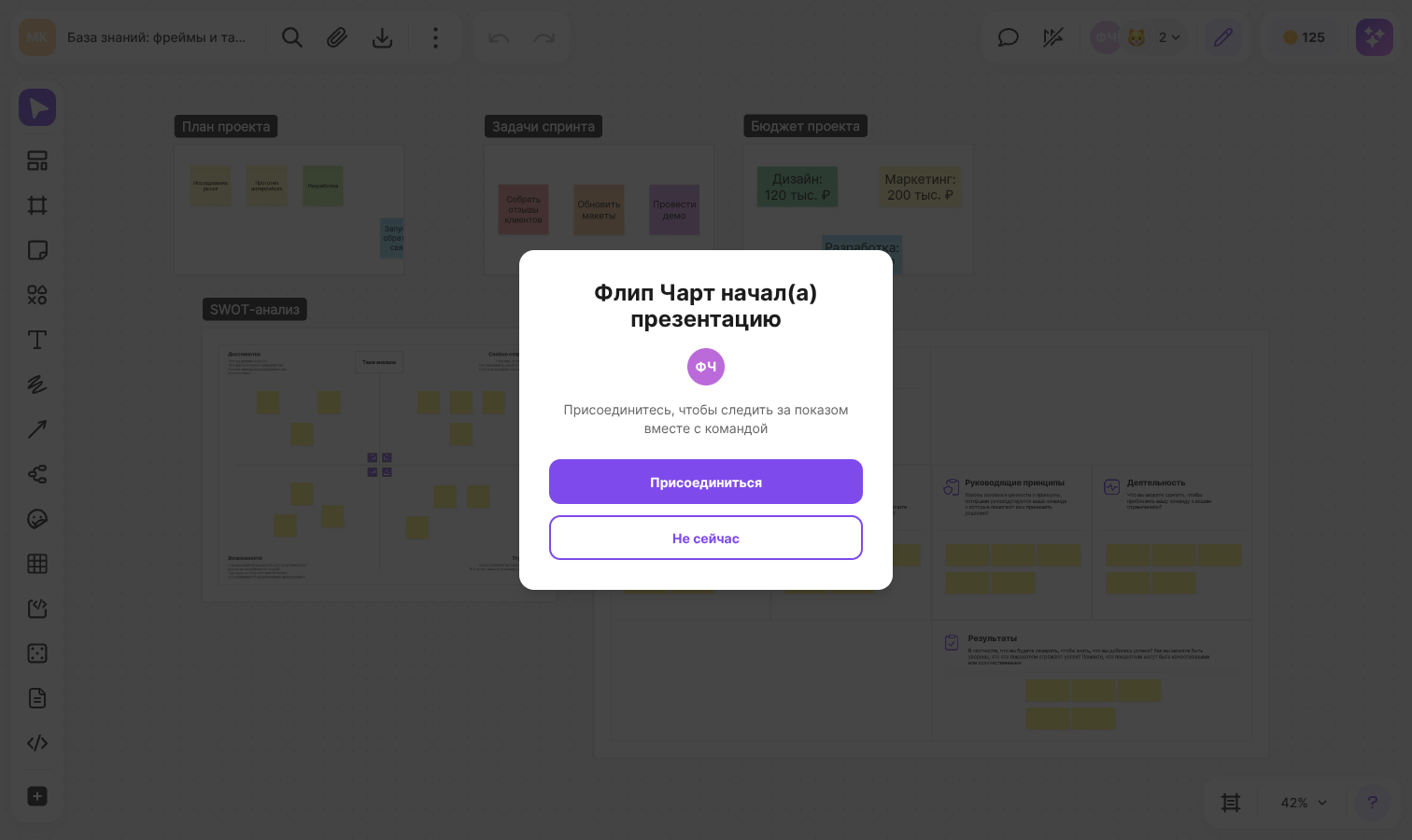
- “Join” — the presenter's current slide opens in full screen, and from then on the slides switch after the presenter
- “Not now” — the window closes, and a notification about the presentation with a “Join” button stays on the flip
Those who open the flip while the show is already running see the notification right away. You can also join from the list of flip participants: click the presenter's avatar
To leave the show, click the cross in the top right corner of the screen. The presentation goes on, and you can come back to it. When the presenter ends the show, viewers return to the flip and see the message “The presentation has ended”, and if the presenter lost the connection and didn't come back — “The host has left the presentation”
How to share slides without a show
Both actions are in the “More” menu in the header of the “Frames” panel:
- “Copy link” — a link for viewing the slides. It opens the flip right in slide mode, and the person flips through the slides on their own, at their own pace. The viewing mode has the “Full screen” and “Exit” buttons. The link opens for those who have access to the flip — how to set it up is described in the article about access to a flip
- “Save to PDF” — a file where each frame takes a separate page. The pages go in the same order as the frames in the panel, and frames hidden from the presentation are not included in the file
How to present a document
You can also show a document uploaded to a flip page by page: select it and click “Start presentation” in the panel above the document. Participants join the same way as for a frame show, or with the “Join” button on the document itself. The page order, hidden pages and notes can't be set up for a document
Limitations
- Only one frame presentation can run on a flip at a time. Until it ends, another participant who tries to start one sees the message “A presentation is already running. Wait until it ends”
- On a flip with “Editing” access, space and team members can start a presentation, change the slide order, hide slides and keep notes. On a private flip — the flip owner, the space owner and space administrators. On a flip with “View” or “Commenting” access — only the flip owner and the space owner
- Anyone who has the flip open can join a presentation as a viewer
- On a phone you can't start or continue your own presentation — you can only join someone else's