

The “Structure” panel is a tree of the space to the left of the flip: teams, their folders, flips and the documents on those flips. Use it to go to another flip, open a document from any flip without leaving the current one, and quickly find what you need by name
How to open the “Structure” panel
In the top left corner of the flip, click the structure button — it is placed before the flip name. When you hover over it, the “Open structure” tooltip appears. Another way is the Ctrl + Shift + \ shortcut (⌘ + Shift + \ on macOS)
The “Structure” panel opens on the left. The tree is already expanded down to the current flip, and its name, folder and team are shown in bold
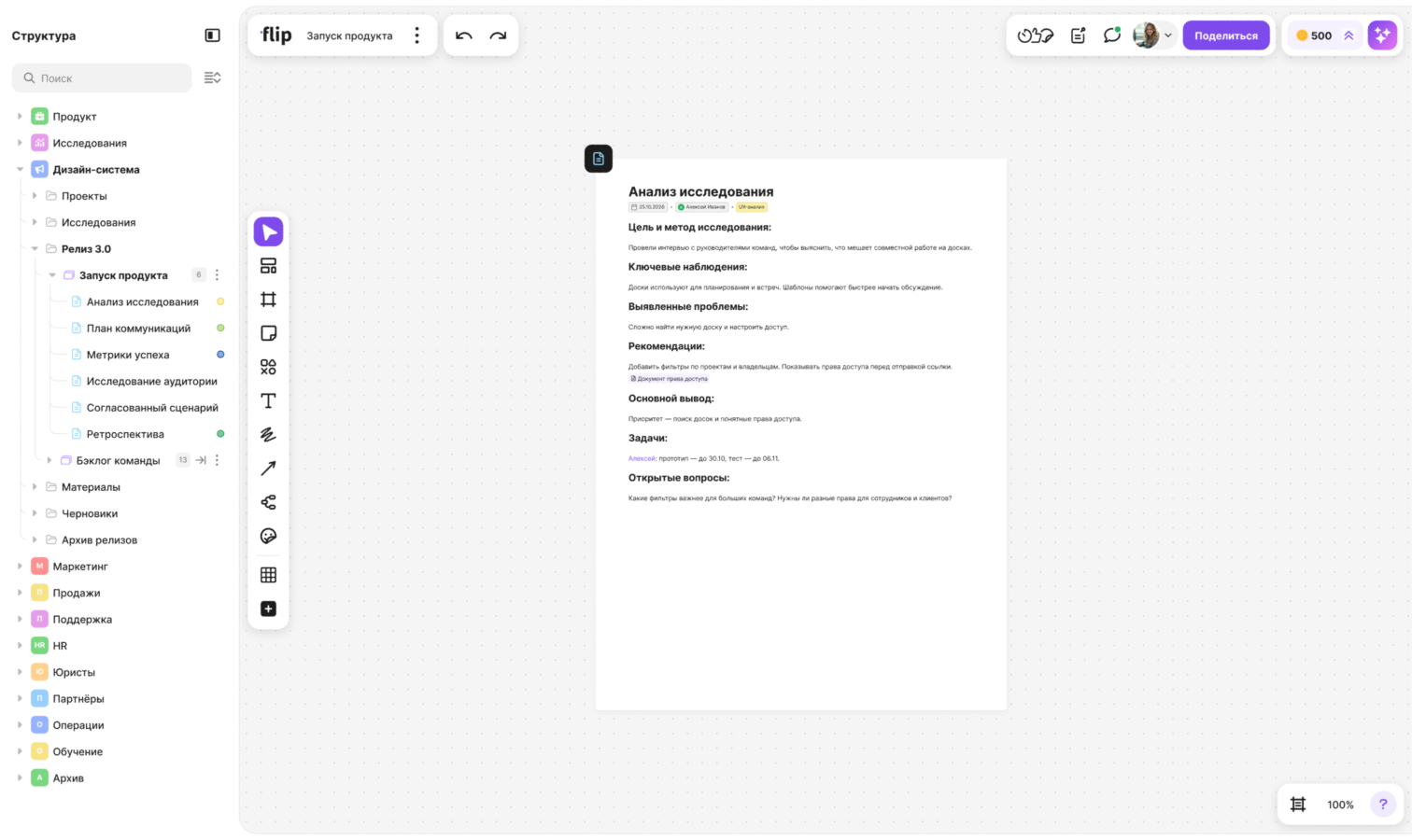
The open panel doesn't cover the flip: the work area shifts to the right. To change the panel width, drag its right edge — flip remembers the width you choose
To close the panel, click the button in its header (the “Close structure” tooltip), press the same shortcut, or press Esc when nothing is selected on the flip
How the tree is organized
- The top level is the teams of the space. Inside a team, folders come first, then flips that aren't in folders
- The number of documents on a flip is shown next to its name
- The first tag of a document is shown next to its title. A document without a title is shown as “Untitled”
- Click a team, a folder or a flip with documents to expand or collapse its branch
- The “Collapse” button to the right of the search field collapses the tree down to the branch of the current flip
New documents created on the current flip appear in the tree right away
How to go to another flip
- Hover over the flip row
- Click the “Open flip” button on the right of the row — the flip opens in the same tab
To open a flip in a new tab, select “Open in new tab” in the flip menu. The current flip has no “Open flip” button
How to open a document
Click a document row — it opens in “Fullscreen” mode. A document from another flip opens on top of the current flip, so you don't need to go to its flip. While the document is loading, the screen shows the steps: “Connecting to the document”, “Checking access” and “Loading the document”
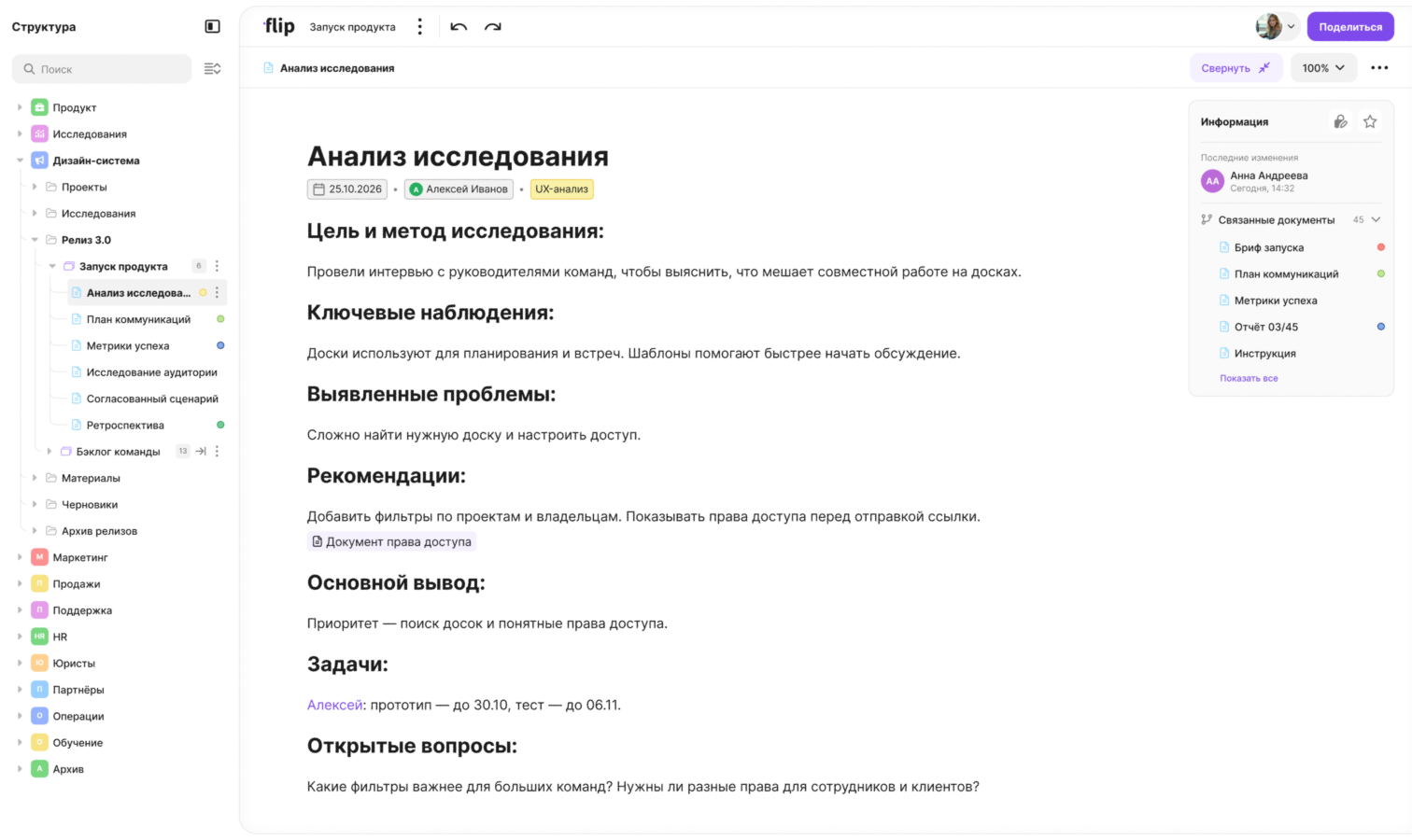
The open document is highlighted in the tree. The “Structure” panel is also available in “Fullscreen” mode, so you can switch between documents without closing the document. Learn more about working with a document in How to work with documents on a flip
How to find a flip or a document
Type a name in the “Search” field at the top of the panel. The search starts from the third character and checks the names of teams, folders, flips and documents: only matches stay in the tree, and the branches with them expand automatically. If there are no matches, the “Nothing found 😦” message appears
To clear the field, click the cross to the right of the query. Pressing Esc in the search field closes the panel
Actions with flips, folders and documents
Hover over a row and click the three-dot button on the right — a menu opens
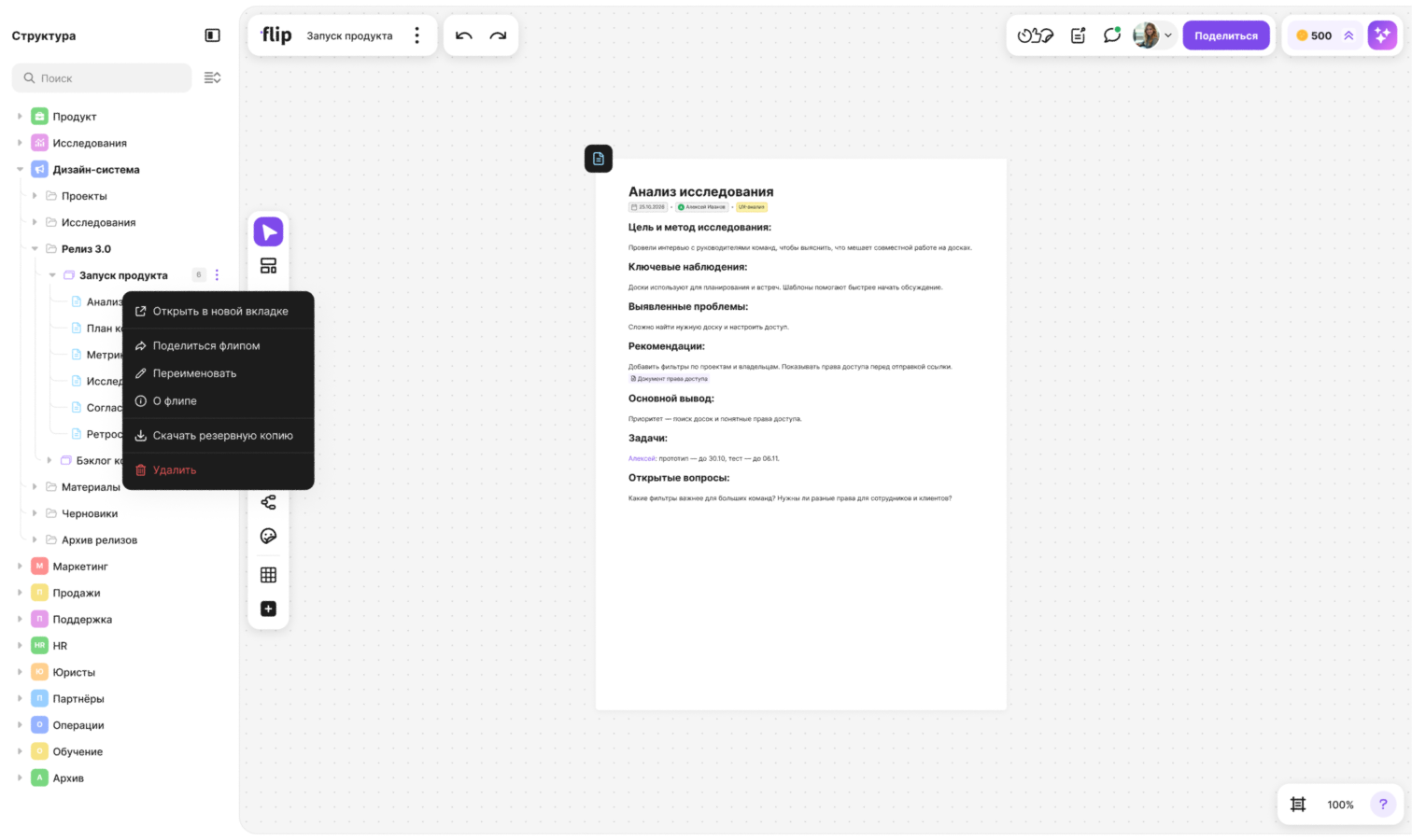
The flip menu offers:
- “Open in new tab”
- “Share flip” — opens the flip access settings. Learn more in How to share a flip and set up access
- “Rename” — the flip name turns into an input field right in the row. Enter a new name and press Enter to save it, or Esc to cancel
- “About flip” — opens a window with information about the flip
- “Download backup” — learn more in Flip backup: download and import
- “Delete” — the flip is moved to the trash. If you delete the current flip, the list of flips opens
The “Share flip”, “Rename”, “Download backup” and “Delete” items are visible only if you have the right to edit the flip
The folder menu offers “Rename” and “About folder”. The “Rename” item is visible to those who can edit the folder, including its creator
The document menu offers:
- “Copy link” — the link to the document is copied to the clipboard, and the “Link copied” message appears
- “Save as” — choose a format: Markdown (.md), PDF (.pdf) or CSV (.csv)
- “Information” — who created the document and when, and who changed it last and when
- “Delete” — the document is deleted from the flip
How to set rules for an AI agent
To make an AI agent connected via flip MCP follow the rules of your space, describe them in a document on any flip of the space. For example: your team's terms and abbreviations, how to format diagrams and documents, where things are, what the agent must not do. The agent finds such documents by their title and takes their text into account for the whole session
Create a document on any flip of the space
Give the document one of these titles:
CLAUDE,CLAUDE.local,AGENTS,AGENT,GEMINIcopilot-instructions,cursorrules,windsurfrules,clinerulescontext,memory,rules,llm,llmsКонтекст,Память,Правила
Letter case, a leading dot and the
.md,.mdc,.markdownor.txtextension don't matter: “CLAUDE.md”, “.cursorrules” and “rules” all work. A space and an underscore are treated as a hyphen: “copilot instructions” works too. The title must match as a whole — the agent won't find a document called “Formatting rules”Write the rules in the document text
The agent reads the rules when a task concerns the whole space: analyse the space, work with several documents, tidy things up according to the agreed rules. If you send a link to one document or ask to find a specific document, the agent works with that document only and doesn't load the rules. To make the agent follow the rules in such a task, ask it directly to follow the rules of the space
Tip
Instructions you give the agent in the chat take priority over the rules in documents. The rules set general conventions, and in the chat you specify the particular task
The agent only sees documents that are available to you: it can't read documents on flips of teams you're not a member of. If there are several rules documents, the agent reads all of them, starting with the most recently changed
Limitations
At a time, the agent loads up to 10 rules documents and up to 60,000 characters of text. The agent sees the documents that didn't fit in a list and can read them separately
Requirements
- The panel is available on a computer with a window at least 1200 pixels wide
- Space members with “Editing” access to the current flip can open the panel
Limits
- The “Structure” panel isn't available on mobile devices or in a narrow window
- Guests and members with “View” or “Commenting” access to the flip don't see the structure button
- While the flip panels are hidden with Ctrl + , the structure button is hidden too
- When you rename a flip or a folder in the panel, the name can be no longer than 64 characters
- A document closed for editing can be deleted from the panel only by its creator and a space admin, and a document of the current flip — also by the flip or team creator. A document locked on the flip can't be deleted from the panel